Base has long since grown beyond being just an order management tool.
Our goal is to build a complete platform that supports every aspect of modern e-commerce.
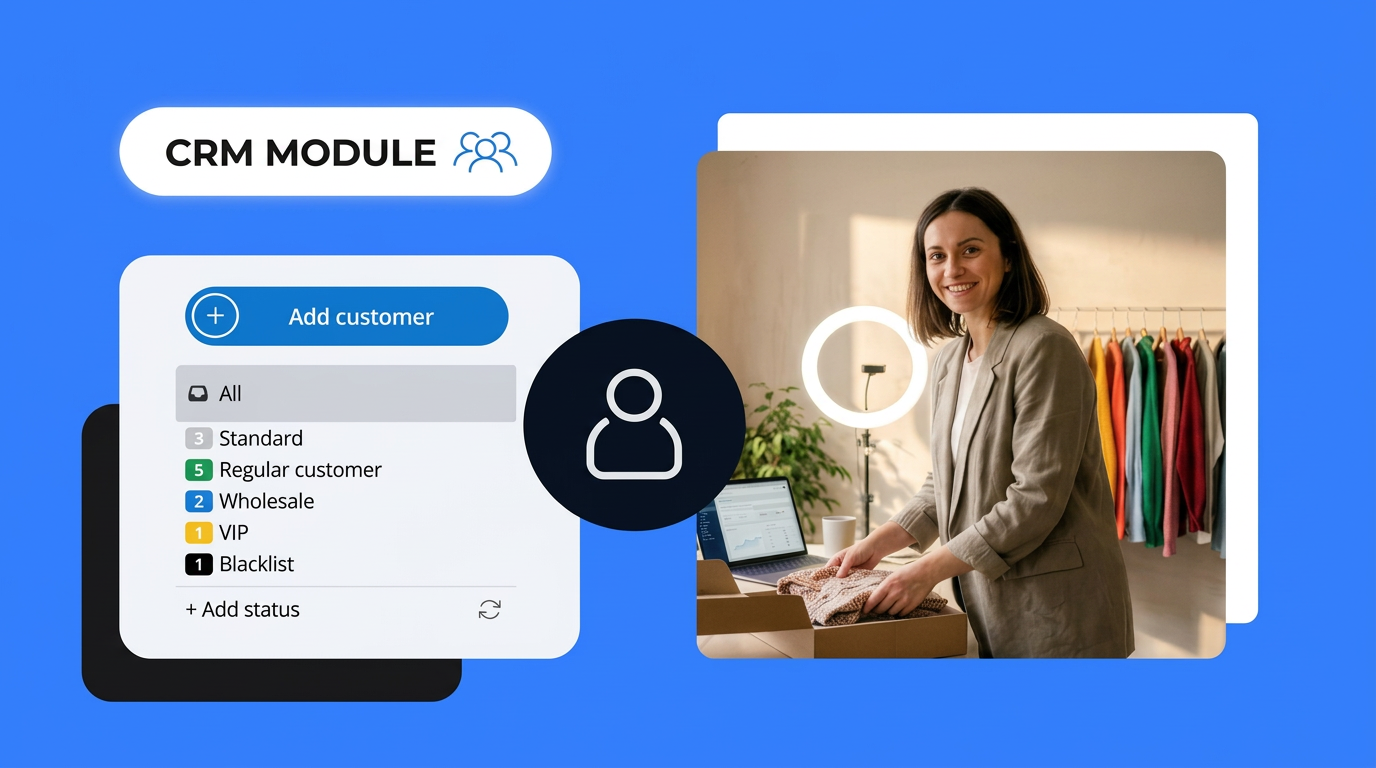
Today, we’re taking another major step in that direction with the launch of the Customer Module — a built-in, lightweight CRM available directly within Base.
The module is designed exclusively for B2B relationships. It allows you to collect and manage company data based on the VAT number and is intended for business clients only — it does not cover retail sales.
See how it works in practice.
Key Summary
- The Customers module introduces a built-in B2B CRM inside Base, where companies are automatically saved using invoice data and VAT numbers.
- A single customer ID can be linked to multiple orders, regardless of the sales channel they originate from.
- Users gain instant access to the full history of cooperation with each customer across all transactions.
- Customers can be organised using statuses and star markers, making B2B relationship management easier.
- The module integrates with Base Connect, creating structured links between customers, orders and external partners.
- CRM data can trigger Automatic Actions, such as automatically updating customer status or workflows.
- The feature can be safely tested with demo data before activating it in a live operational workflow.
What does CRM in Base offer?
Introducing the Customers module brings structure to B2B sales in the system and allows you to treat a company as a long-term business partner, rather than just a collection of individual orders.
Instead of analysing cooperation by filtering through order lists, you now get a single customer profile with the full transaction history, relationship status and additional information.
This makes it easier to build a structured wholesale workflow — from the first order, through assigning a status (e.g. New partner, Regular buyer, Discount customer), to automatically reacting to specific events in orders.
Example CRM use cases in B2B sales
Wholesale customer segmentation
Statuses can reflect different stages of cooperation, such as:
lead, active customer, VIP customer, or customer with individual commercial terms.
This makes it easier to filter customer lists and maintain better control over business relationships.
Automatic status changes after specific events
Using Automatic Actions, you can:
- change a customer’s status after their first paid order
- mark a customer with a star after exceeding a defined order value
- move a customer to another status after meeting specific cooperation conditions — for example after ordering a particular product
Consistent data across multiple orders
Linking orders to a single customer ID eliminates scattered data. Updating information on the customer card ensures everything remains organised across future transactions.
Integration with Base Connect
Linking a customer to a Connect integration allows you to build additional system relationships between orders, the customer, and an external business partner.
Partnership analysis
With a single click on the customer profile, you can check:
- order frequency
- order value
- activity over time
This is particularly useful during commercial negotiations or when defining individual cooperation terms.
How to enable CRM in Base
In the left-hand main menu, go to:
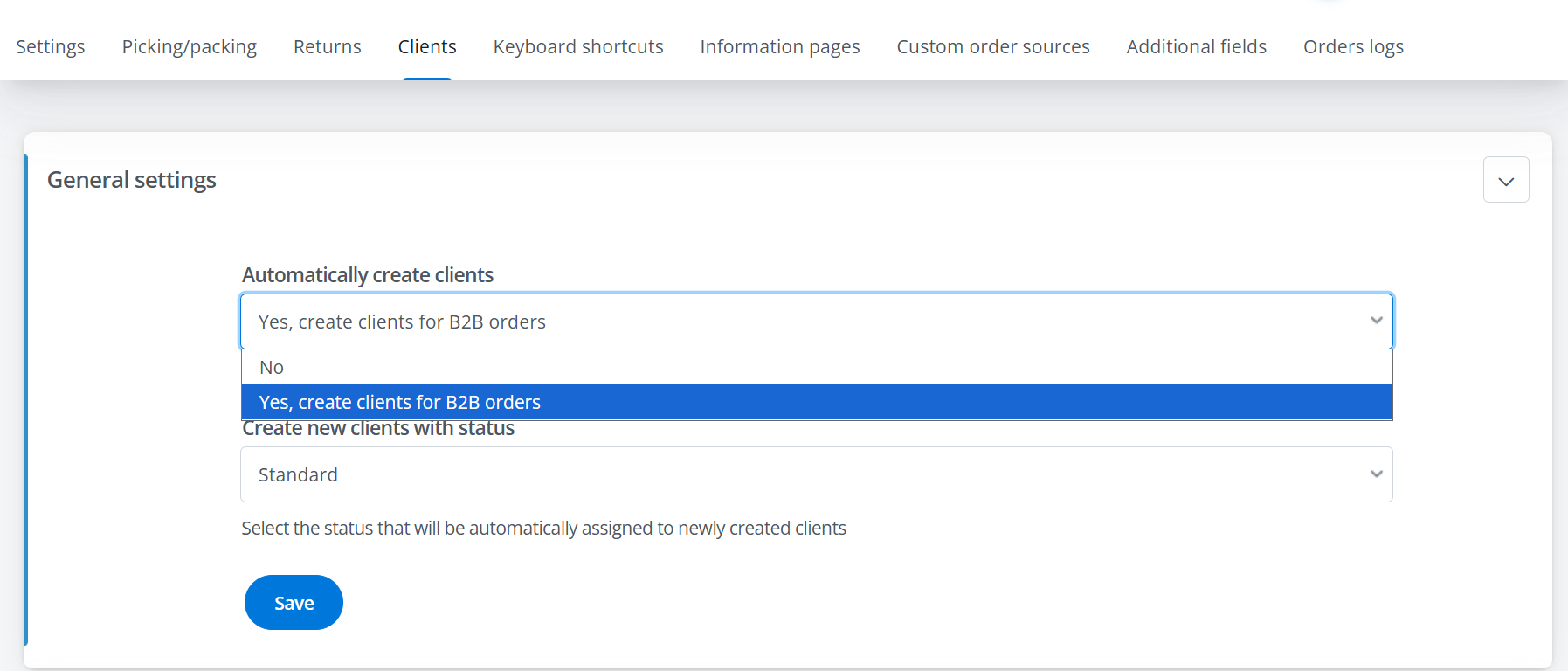
Orders → Settings → Clients
By default, automatic creation of customer records is disabled.
To start using the feature, select:
Yes, create clients for B2B orders.
From that moment, the system will automatically save every customer who provides a tax ID when placing an order.
You can also define the default status under which new customers will be saved in your database.
Managing customers in everyday work
Customer statuses
When CRM is enabled, you’ll receive a set of statuses tailored to wholesale business workflows.
In the settings, you can:
- edit existing statuses
- delete them
- add new ones
- create status groups
Statuses help organise customers and structure business relationships.
Because the Customers module is designed for B2B sales, the default statuses reflect wholesale workflows — but you can easily customise them to match your own processes.
Statuses can also be used in Automatic Actions, as described below.
Creating customers from an order and other new options
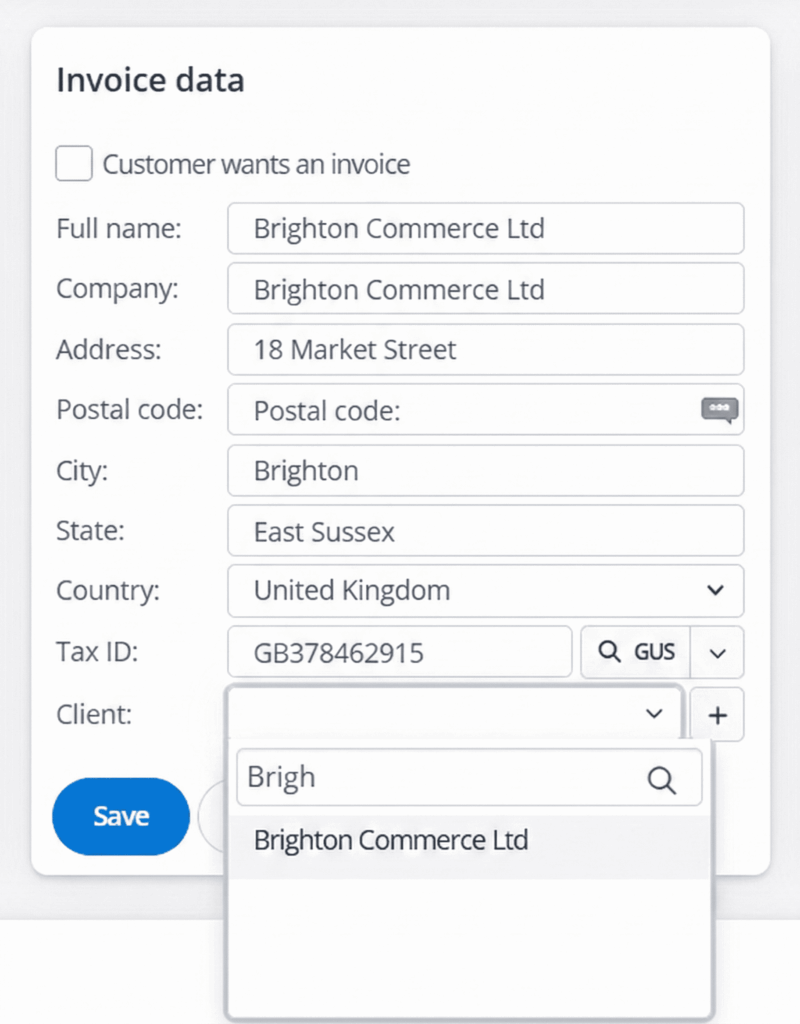
If you already have B2B orders and want to add those customers to the CRM, you can do it directly from the order.
- On the order list, use the Tax ID filter to find the customer’s order.
- Open the order and edit the invoice details.
- At the bottom of the form, you’ll see a new field Client — click the plus icon on the right.
This will create a new customer in the Customers module using the data from that order.
That’s not the only new feature on the order card.
If you already have customers saved, you can replace the order data with the data of an existing customer. Simply click the client field and enter part of the tax ID or company name.
⚠️ Important:
In this case, the invoice data will be permanently overwritten with the information stored on the customer card. Once you connect an order to a specific customer, all future orders will automatically be linked to the same client ID.
If you want to remove the connection between an order and a saved customer, click the X next to the customer name. You can reconnect it again at any time.
You can also create new orders directly for an existing customer. When adding an order, type part of the company name or tax ID in the field For existing client to see matching customers. Saved customers are marked with a note such as:
Company name, Tax ID (Customer: 45)
This label helps distinguish CRM customers from entries that only appear in the order history.
⚠️ Important:
If you do not manually link all orders of a customer to their customer ID, the same company may appear twice — once as a CRM customer and once as data existing only in the order history.
Customer table
In the left-hand main menu under Orders, we’ve added a new section: Clients
After clicking it, you’ll see a list of saved companies.
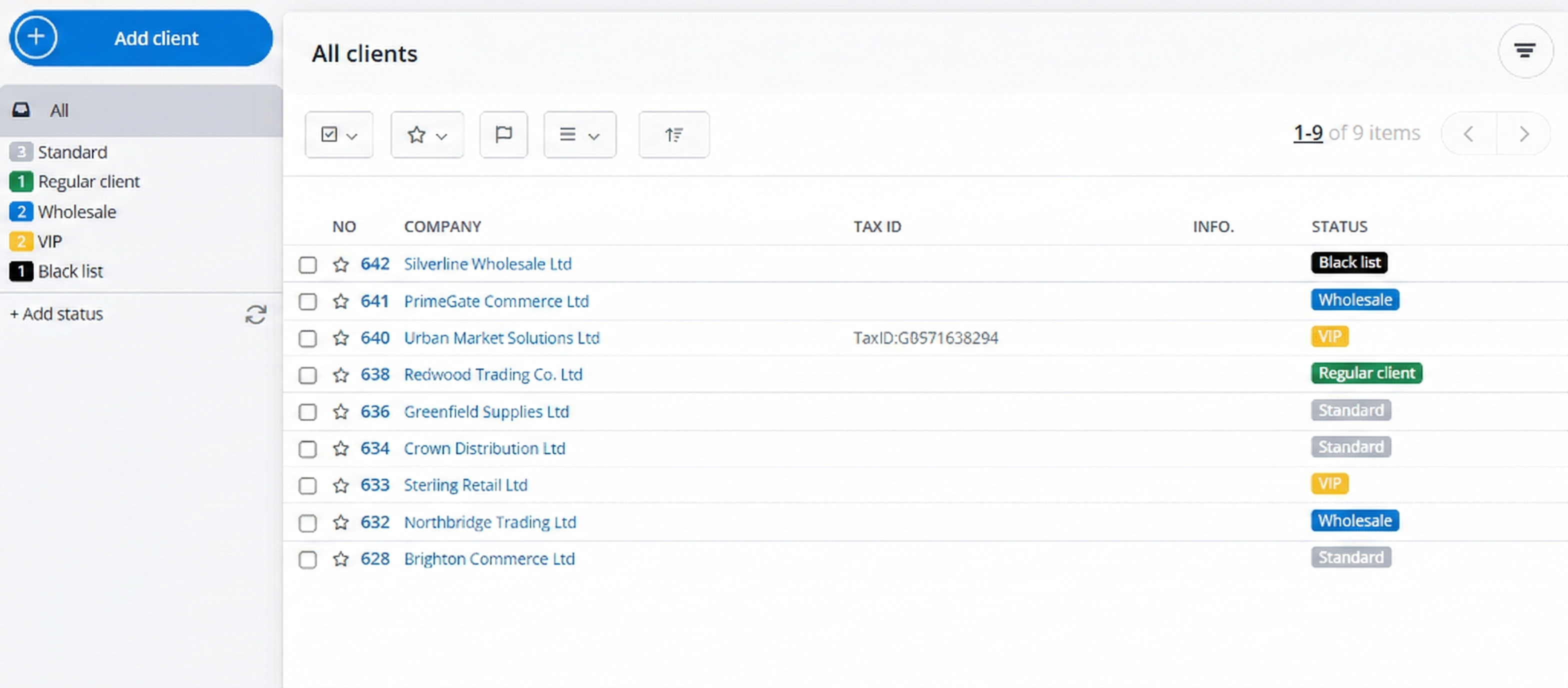
From the customer list you can:
- view key information (including whether the customer belongs to Base Connect, indicated by the Connect icon)
- sort and filter the list
- quickly copy the phone number, email address or notes from the Info column
- select multiple customers
- mark customers with a star — for example to highlight additional customer groups outside of statuses
Using stars is a good way to personalise your workflow and create your own customer management processes, as well as use an additional condition in Automatic Actions (coming soon).
You can also:
- delete customers
- change customer statuses
Creating customers from the GUS database
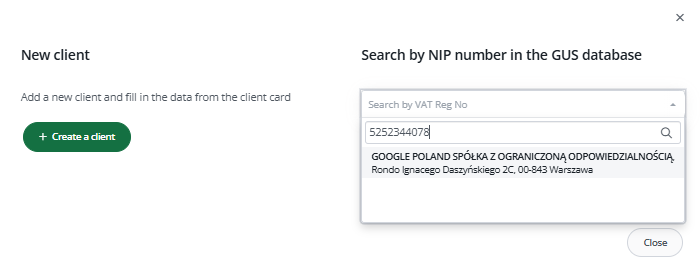
For users in Poland (and eventually other markets), we’ve added the option to create customers based on the GUS database using a tax ID.
To do this:
- Click Add client on the customer list.
- In the window that appears, either create a customer manually or enter the tax ID
If the number exists in the GUS database, the available company information will automatically populate the customer card.
Customer card
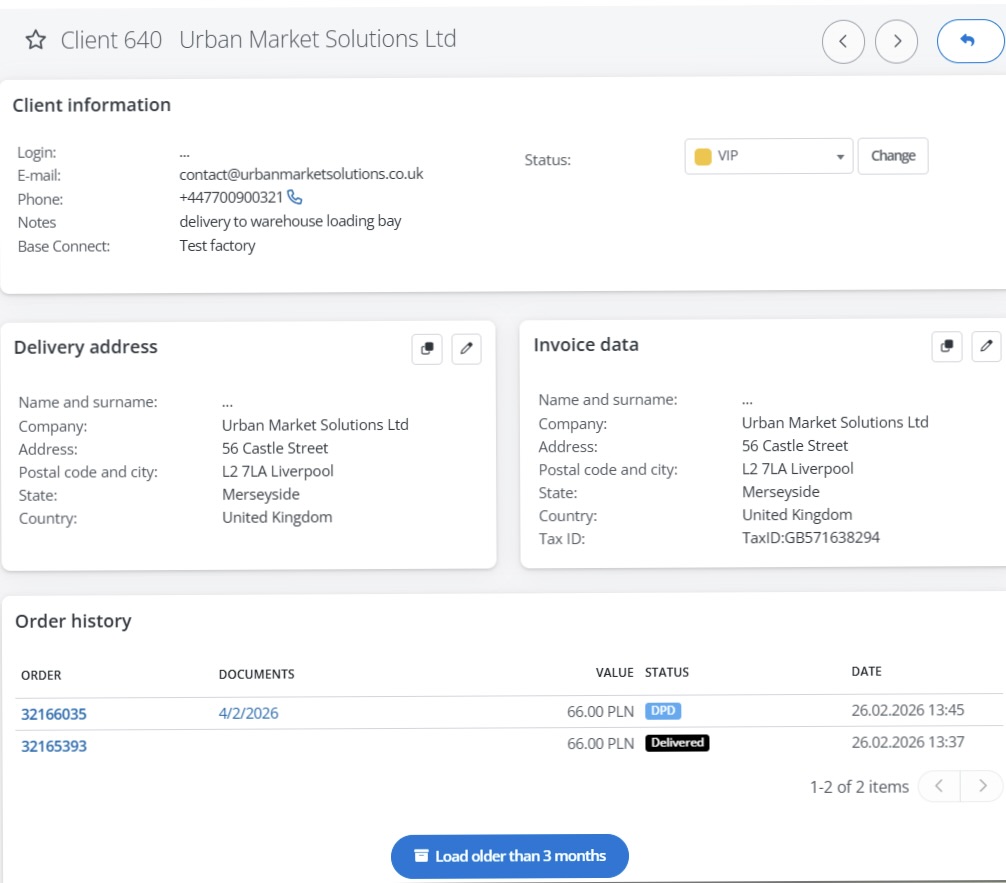
The customer card contains a complete set of company information and the history of cooperation.
It is divided into three sections:
Client information
Login, email, phone number, notes and status.
If you use Base Connect, you’ll also find a field for linking the customer with a Connect integration. Selecting an integration creates an additional relationship between the customer, their orders and the Connect account.
Delivery address and invoice details
These correspond to the sections from the order form.
Note that the delivery address may differ from the invoice details.
Order history
All orders linked to the customer are visible here.
The table includes information such as:
- documents issued for the order (receipts, invoices and corrections)
- order value
- order status
- order date
Orders from the archive are not displayed by default. To see them, click Load older than 3 months.
Base CRM module in Automatic Actions
Along with the Customers module, we’re introducing new options in Order Automatic Actions.
Conditions
- Customer (CRM) – status
- Customer (CRM) – star (coming soon)
Actions
- Change customer status (CRM)
- Change customer star (CRM) (coming soon)
Try the CRM module
If you want to explore the CRM module before using it in production, you can enable test mode.
When you open the Customers tab for the first time (before saving your own data), you’ll see the option to add sample data.
The system will add two test customers, allowing you to check order connections and explore how the module works.
After testing, simply delete the sample entries.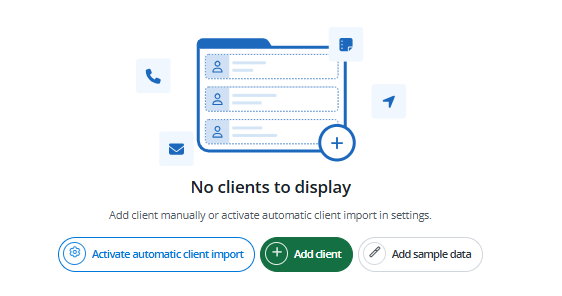 As always, the goal of Base is to automate processes and make your daily work easier.