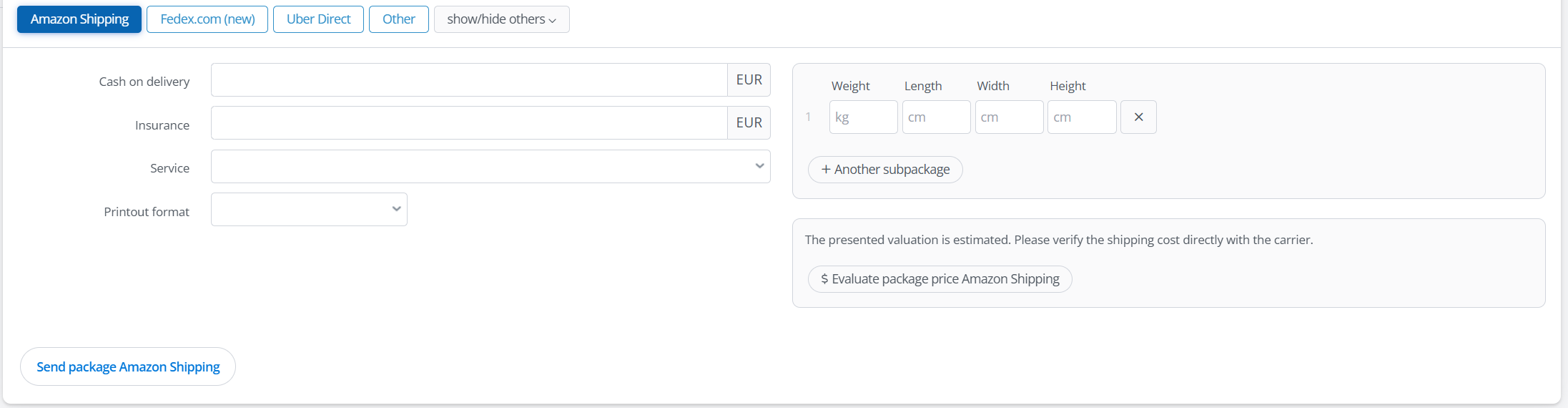
Amazon Shipping is a package delivery service powered by Amazon’s own transportation network. Sellers can purchase shipping labels directly through Amazon and have their orders picked up and delivered by Amazon’s logistics infrastructure. The service provides reliable 2-5 day ground delivery, transparent pricing with no residential or weekend surcharges, and end-to-end shipment tracking.
Amazon Shipping enables sellers to ship orders from Amazon, their own website, and other sales channels using a single delivery partner. Through Amazon’s delivery network, sellers gain predictable transit times, simplified billing, and enhanced shipment visibility, including real-time tracking and delivery confirmation.
How to connect the integration?
Before adding the Amazon Shipping integration, it may be required to add a marketplace account to which the courier integration will be assigned.
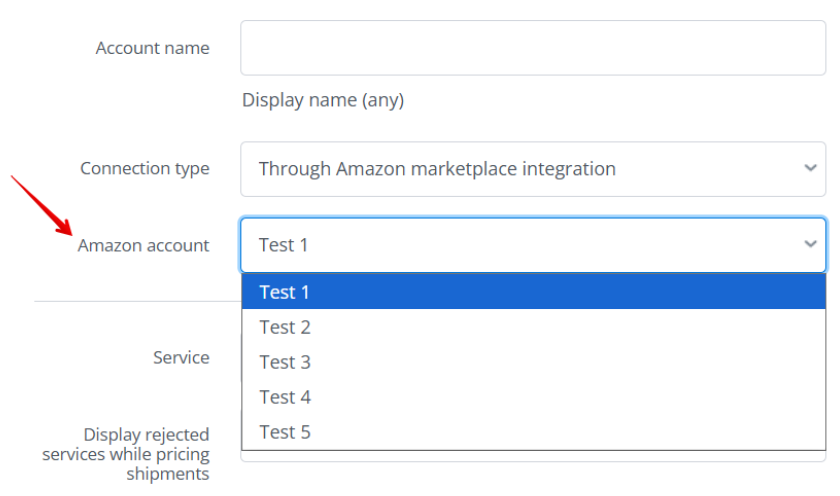
- Log in to your BaseLinker panel and go to the Integrations section.
- Click the green +Add integration button.
- From the list of available integrations, select Amazon Shipping. The plugin can be found in the Carriers section.
- Before filling in the form, decide which Connection type you prefer:
- connect the integration using an Amazon account already integrated in Base
- authenticate by logging in directly on amazon.com.
Log in via the Amazon Shipping portal (OAuth):
- Click the green Connect Amazon Shipping account button.
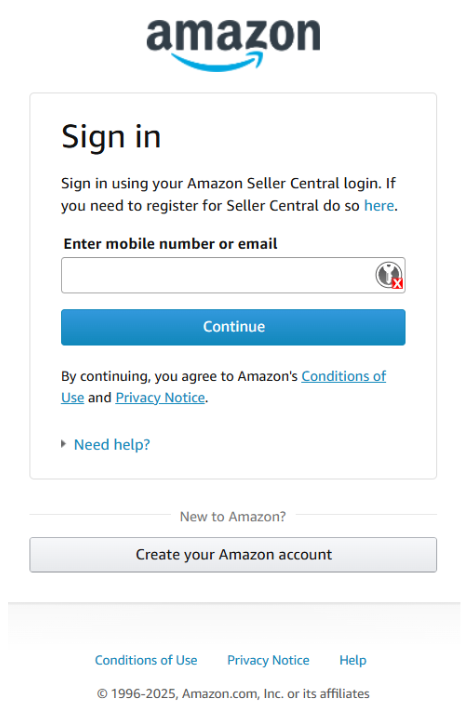
- You will be redirected to amazon.com.
- Log in to the Amazon account that is to be integrated.
- Confirm the authorization to connect the account with Base.
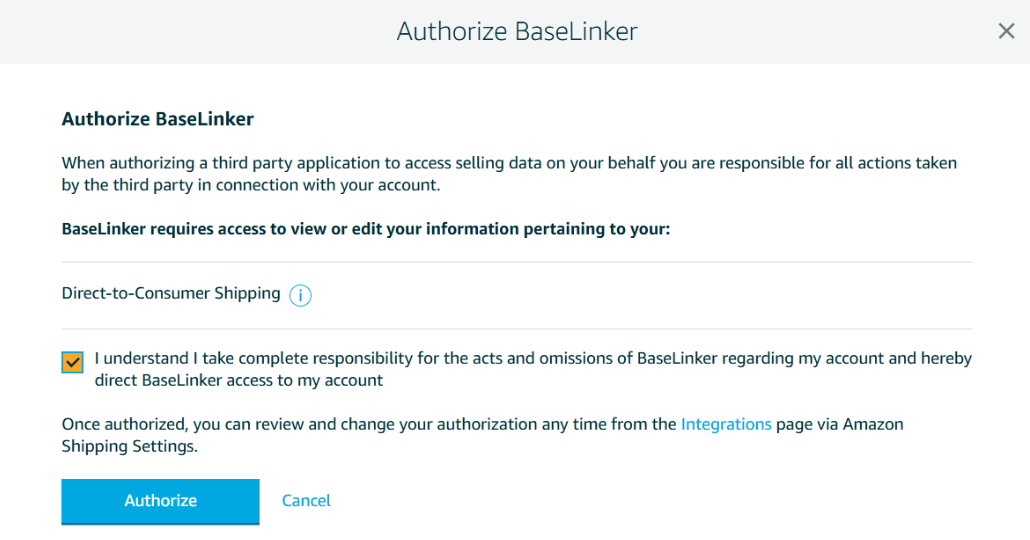
A new browser window will reopen the Base panel, where you have to complete and save the integration form for the integration to be added to your account.
Via Amazon marketplace integration
- Amazon account – select the marketplace account to which the courier integration will be assigned;
- Service – select the Amazon branch where you have an account;
- Show rejected services during shipment pricing – yes/no;
- Sender details:
- Company name
- Contact person
- Address
- Postal code
- City
- Country
- State/County
- Phone
- VAT number
- Save sub-parcels separately – yes/no – each sub-parcel will be saved as a separate item on the shipment list
- Print format – PDF, PNG, ZPL – label print format
- Label size – 4×6 / 8.5×11
- DPI – 203 / 300
- Label position on paper – Left / Right
- Print type – Waybill, Label, Fiscal receipt or Customs clearance form
- First page only – whether to print only the first page of the label
- Automatic service selection based on the selected shipping method – Cheapest, most expensive, or first from the list
- Default service – This field allows you to set a default service that the system will attempt to use when creating a shipment. Available services can be found in the pricing list by clicking the “Rate Amazon Shipping package” button and displaying the pricing table. The service code is shown in parentheses under the service name, e.g. SWA-UK-PREM
- Delivery confirmation services, Pickup confirmation services
- Retrieve dimensions and weight from warehouse – Retrieves product dimensions and weight from the warehouse. The weight provided in the order is treated as a priority.
- Liquid volume and units – the value will be retrieved from the selected additional field
- Method of calculating fixed packaging weight – percentage or fixed value; in both cases, the value will be added to the weight of each sub-parcel. The percentage value is calculated separately for each sub-parcel. The fixed value should be entered in kg
- Fixed packaging weight value – enter the appropriate value depending on the option selected above (number only, without % or unit)
Amazon Shipping integration
If the integration has been correctly connected, after going to Integrations → Amazon Shipping you will see the sections described below.
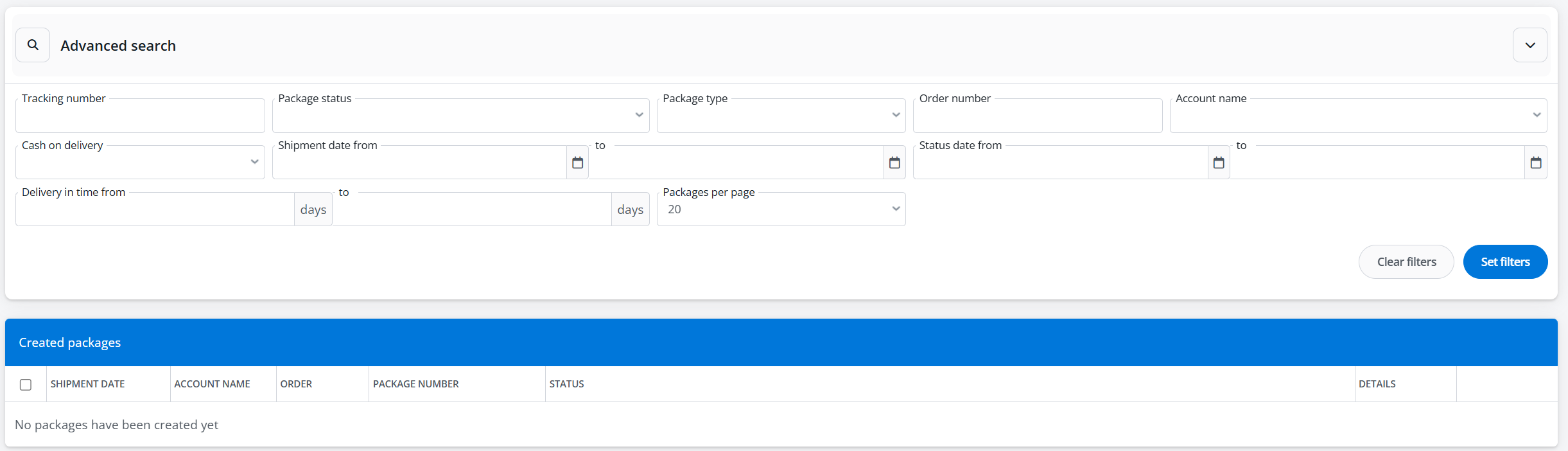
Created shipments
This section contains a list of all shipments created using the Amazon Shipping integration. For each shipment, you can download the label and check its status. Above the table, there is an Advanced search option that allows you to filter selected parcels.
Courier system accounts
This section displays a list of all courier accounts connected to the system. If you have more than one account, you can change their order using the arrows on the right side of the table. It is also possible to clone, edit, or delete each account. The edit window contains all the fields that were available when connecting the integration.
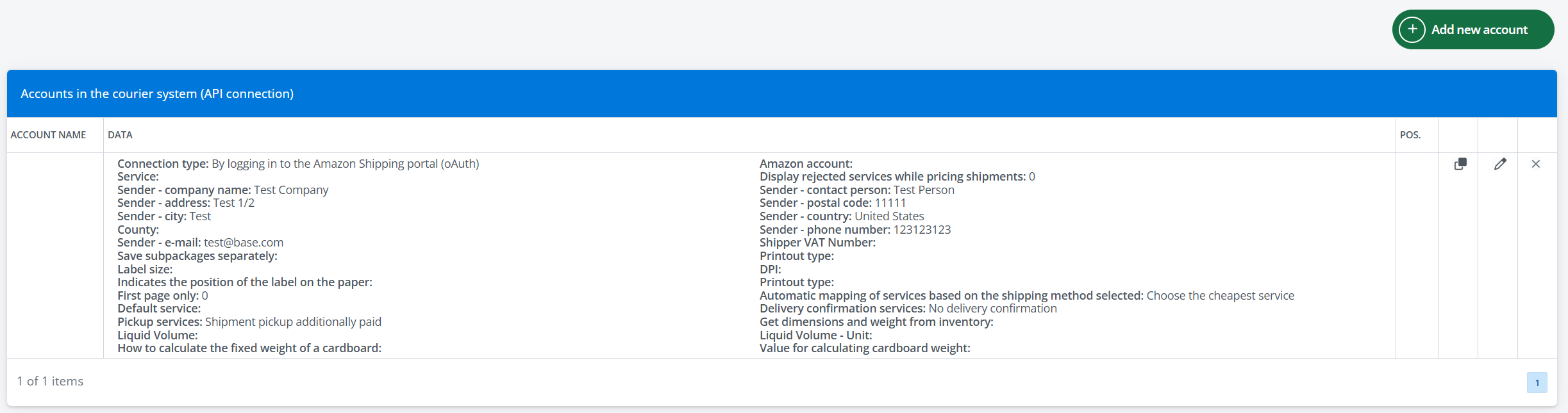
Above the table, there is a + Add new account button, which allows you to connect another Amazon Shipping account to the system.
Default shipment and print settings
The settings defined in this section will be applied by default to all shipments created using the integration. However, they are subordinate – if different values are entered in the shipment creation form or in an automatic action, those values will override the defaults defined here.
Dimension and weight templates
In this section, using the + Add new template button, you can define the dimensions and weight of a parcel. The created template will be available for selection when creating a shipment.

Creating shipments
With the Amazon Shipping integration, as with other courier integrations, shipments can be created from the order card, the order list (or returns), as well as using automatic actions.