The Cirro Fulfillment integration in Base is used to connect a merchant’s account with the CIRRO fulfillment network, so goods can be sent to CIRRO warehouses and outbound orders can later be handled from the same fulfillment stock.
Within Base, the integration supports the following main capabilities:
- creating/cancelling inbound fulfillment shipments,
- downloading fulfillment product lists and product details,
- checking inbound shipment details and statuses,
- downloading box labels and shipment labels,
- stock synchronization from CIRRO to Base,
- creating/cancelling/updating with tracking number outbound orders,
- checking outbound order statuses.
From the operational point of view, this means Base can be used both for preparing inbound deliveries to CIRRO warehouses and for handling outbound fulfillment flows based on the configuration of the CIRRO account and available shipping methods.
Creating account
In Base, add a new fulfillment account of type Cirro Fulfillment, then fill in the following fields.
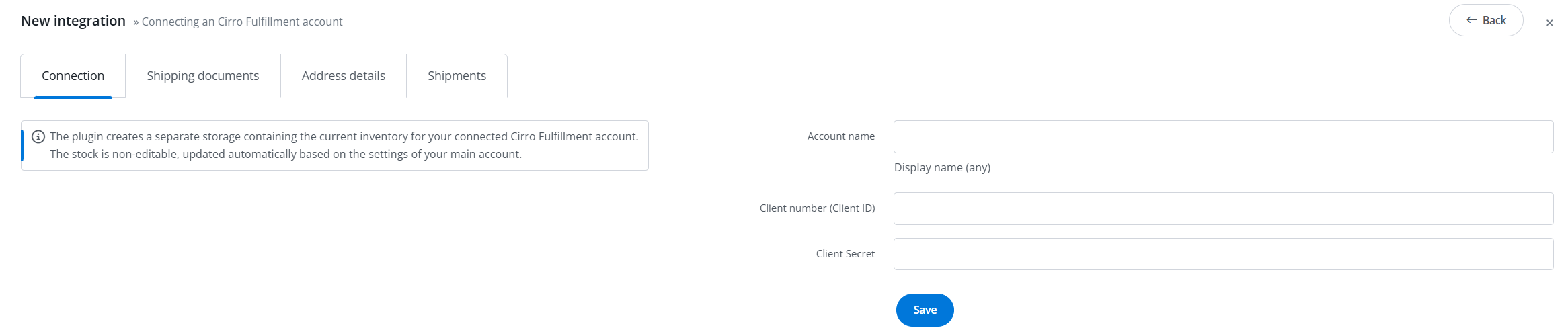
Connection settings
- Account name – any internal display name, for example Cirro PL.
- API environmental – environment selection. Production points to the live CIRRO API endpoint, while test points to the sandbox endpoint.
- Client ID – in practice, the app_key from CIRRO.
- Client secret – in practice, the app_token from CIRRO.
Address details
These values are used operationally by the integration, mainly as shipper data:
- Sender – company name – shipper company name.
- Sender – contact person – shipper contact person.
- Sender – phone number – shipper contact phone.
- Sender – state – state / province, sent to CIRRO as plain text.
- Sender – city – shipper city.
- Sender – street – street / address line 1.
- Sender – postal code – postcode.
- Sender – country – shipper country.
- Sender – address line two – second address line, if needed.
- Shipper VAT number – shipper VAT number.
- Shipper EORI number – shipper EORI number.
- Shipper IOSS number – shipper IOSS number.
In practice, API keys are enough to test the connection, but for live operation it is recommended to complete the full sender block immediately.
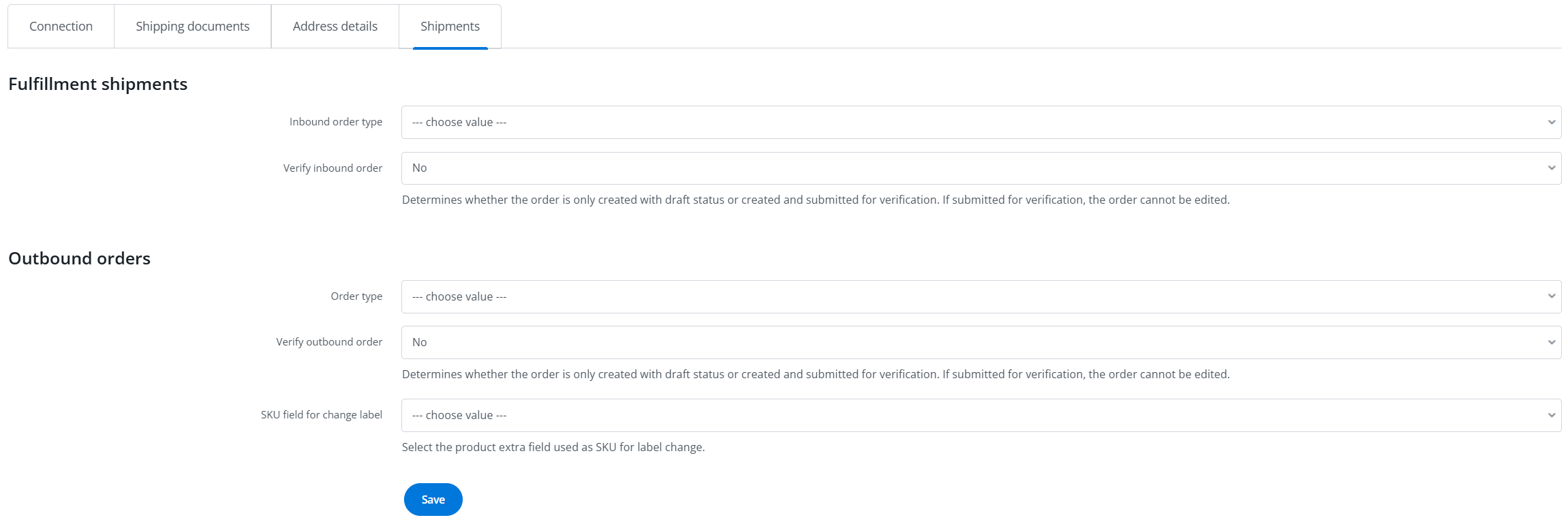
Shipment settings in the account
- Inbound order type:
- FBM – standard inbound shipment to the fulfillment warehouse.
- FBA Removal Order – inbound shipment of FBA Removal type; in this case Base additionally sends fba_product_code on box items.
- Verify inbound order:
- No – the inbound order is created in CIRRO as a draft.
- Yes – the order is created and immediately submitted for verification; later editing will not be possible.
- Order type:
- Default outbound order type: B2C, FBA, B2B, VC, WFS. Depending on the selected option, different fields for creating outbound orders will be displayed and required to send API requests.
- Verify outbound order – works the same way as inbound verification, but for outbound orders.
- Change label SKU field – selects the product extra field from which Base should read the SKU for the change label service – this is needed only if the label change service will be used in outbound orders.
Shipping documents
- Printout format – format of box labels downloaded from CIRRO for inbound shipments. Available values: 4×2, 4×4, 4×6, A4.
After the account is saved, Base immediately:
- Tests the connection,
- Downloads warehouses,
- Downloads shipping methods,
- Downloads platforms,
- Stores those lists in the account configuration so the later forms can be dynamic.
Creating a fulfillment inbound shipment
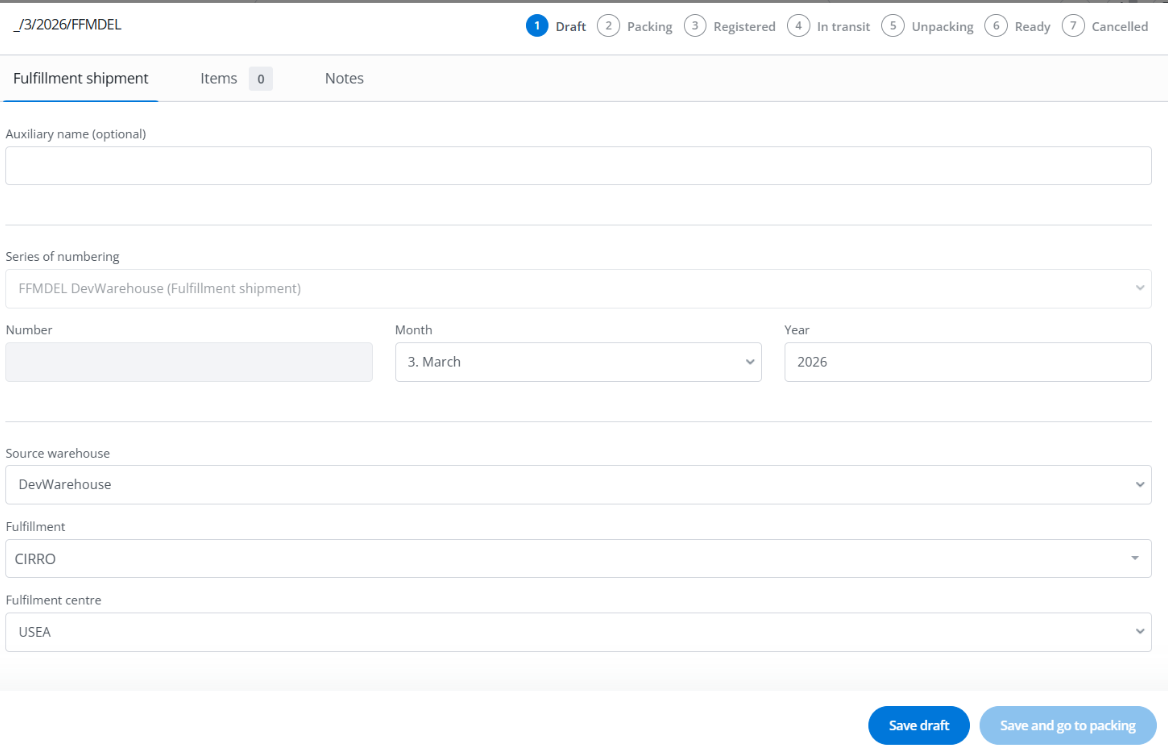
Step 1. Create a new fulfillment delivery
In the shipment form, fill in:
- Auxiliary name – optional internal working name.
- Numbering series, Number, Month, Year – document identifier.
- Source warehouse – warehouse from which the stock is shipped.
- Fulfillment – the fulfillment account that should handle the shipment.
- Fulfillment center – the specific CIRRO warehouse / warehouse code. This field is loaded dynamically from the warehouse list downloaded for the selected account.
- Shipment type – cartons / pallets / containers.
- Shipment count – number of shipping units.
- Estimated arrival time – expected arrival date at the fulfillment warehouse.
Step 2. Add items
Add the products and quantities that should be sent to fulfillment. The most important rule: each product must have the correct external identifier / SKU matching the one in CIRRO, when the inbound is created, Base sends product_sku based on that identifier.
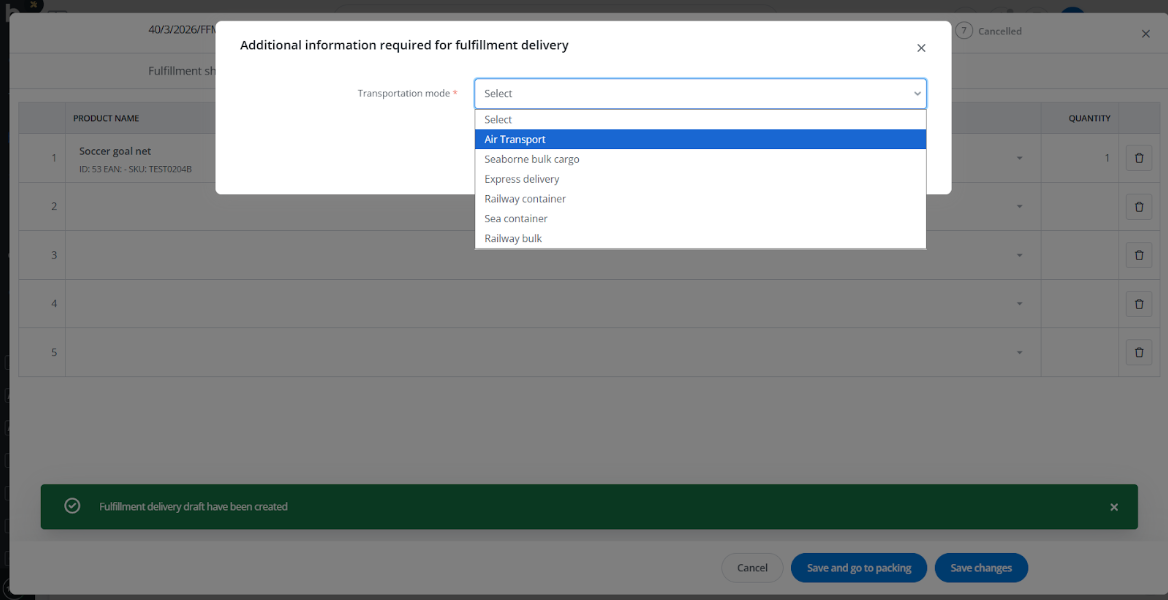
Step 3. Complete the registration modal for Cirro
An additional step appears before sending the inbound request. The modal contains the following fields:
- Transportation mode – This field is required. It describes the actual transport mode used to deliver the inbound shipment to the CIRRO warehouse. It contains values:
- Air transport
- Seaborne bulk cargo
- Express delivery
- Railway container
- Sea container
- Railway bulk
- Importer – this field appears only when the selected fulfillment center is in GB, FR, or DE, the importer list is downloaded from CIRRO, Base shows only active importers matching the given warehouse. In practice: Inbound order type from the account settings defines the business type of the inbound.
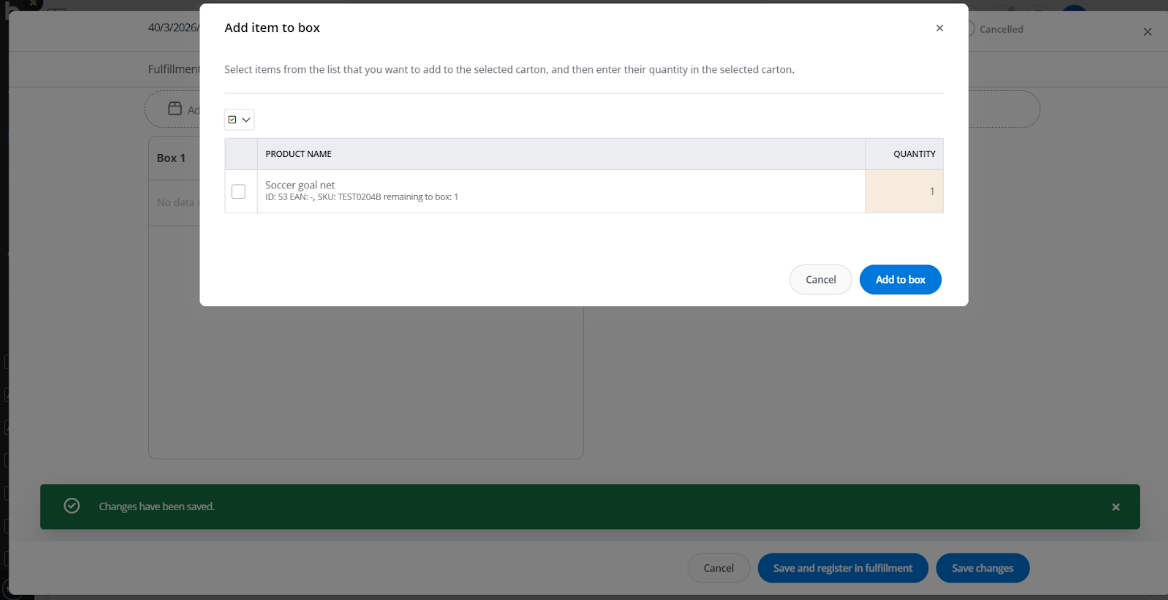
Step 4. Pack items into boxes
For CIRRO, the inbound request is built as a box_list, where each box contains a list of SKUs and quantities. This means: having only the item list is not enough, products must be assigned correctly to cartons.
Step 5. Register the shipment in fulfillment
When the shipment is ready, use the action Register in fulfillment. Effect: Base sends the shipment data to CIRRO, stock is deducted in Base according to the quantities defined in the shipment, after registration the shipment is no longer editable.
Step 6. Monitor the status
After registration and synchronization with CIRRO, the Base statuses usually move through the following stages:
- Registered
- In transit
- Unpacking
- Completed
Outbound to CIRRO in Base
The outbound part of the Cirro Fulfillment integration in Base allows users to create fulfillment shipments from Base orders and send them directly to CIRRO for warehouse processing and final delivery. Based on the current implementation, Base supports:
- creating outbound orders,
- checking outbound order details and statuses,
- deleting / cancelling outbound orders,
- retrieving carrier name and tracking number after order creation,
- using different outbound order types: B2C, FBA, B2B, VC, WFS, and Pickup.
Base builds the CIRRO request from the shipment form and sends it to the correct CIRRO endpoint depending on the selected order type. The current implementation is aligned with the main documented CIRRO outbound flow described in CIRRO API Documentation, especially for core fields such as warehouse, shipping method, consignee data, item list, verification mode, platform, and selected additional services.
How to create an outbound shipment to CIRRO
Make sure the Cirro Fulfillment account is already configured in Base. Required basics:
- valid API credentials,
- at least one active CIRRO warehouse,
- available CIRRO shipping methods,
- product SKUs in Base matching product SKUs in CIRRO.
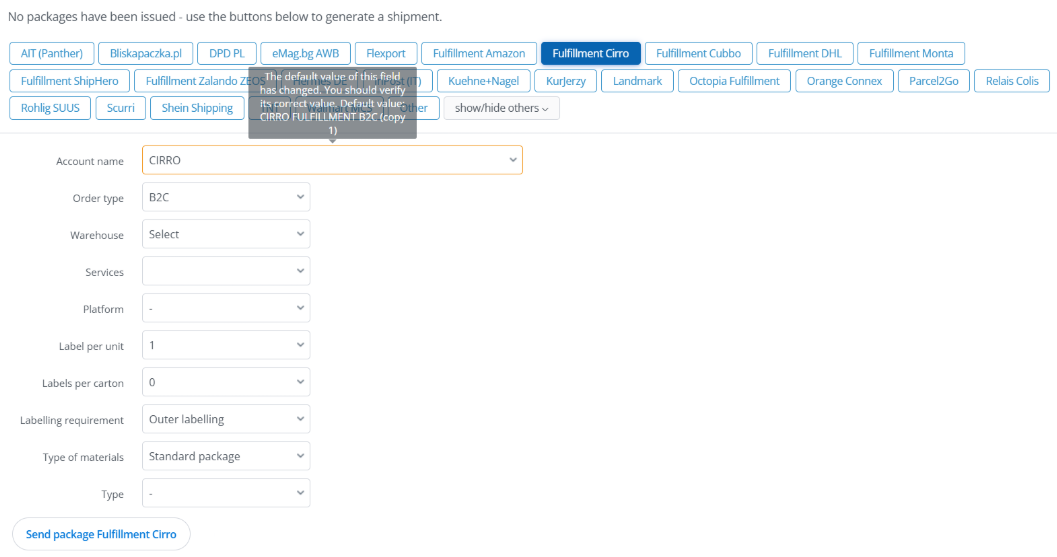
Open the shipment creation form in Base and choose Fulfillment Cirro as the shipping / fulfillment method. Fill in the main outbound fields:
- Order type – select the correct type: B2C, FBA, B2B, VC, WFS, or Pickup.
- Warehouse – choose the CIRRO warehouse.
- Services – choose the CIRRO shipping method available for the selected warehouse and order type.
Complete any optional fields shown by Base. Depending on order type and service, Base may show:
- Platform
- Additional services
- Insurance amount
- Age check
- Shipment ID
- PO number
- Walmart warehouse code
- packaging and labelling options
- customs / EORI-related fields
Save / create the shipment. Base sends the outbound request to CIRRO and, if successful, retrieves:
- CIRRO order identifier,
- carrier name,
- tracking number,
- current external status.
What Base sends to CIRRO?
In the standard outbound flow, Base sends:
- warehouse code,
- shipping method,
- verification flag,
- consignee data, except for pickup orders,
- product lines with SKU and quantity,
- optional HS code and declared value,
- optional additional services such as signature, palletization, lift gate, insurance, age check,
- optional platform and tax-related data.
In short: Base lets the user choose the outbound order type, warehouse, service, and optional fulfillment parameters, then converts that form into a CIRRO-compatible outbound order request and returns operational shipment data back into Base.