Erli is a platform that offers only new products from sellers who issue full VAT invoices in several popular categories, including home and garden, children, electronics, fashion, automotive, sports, and tourism.
The Base.com system offers two-way integration with Erli. It allows you to download orders and list auctions in bulk.
The module enables you to:
- downloading orders from all Erli accounts to the Base.com panel
- transfer orders to the online store
- automatically transfer shipping numbers assigned in the Base.com panel to Erli
- list offers based on products from a warehouse connected to the Base.com system (this can be a store warehouse, a wholesale warehouse, a Base.com warehouse, or an ERP system)
- manage offers
- automatically renew offers
- synchronizing the stock of the offer in accordance with the current stock of the product in the inventory
- synchronizing the price in the offer in accordance with the price of the related product in the inventory – taking into account the price multiplier.
How to connect the integration?
To connect your Erli account, follow these steps:
- Go to the Integrations section.
- Click the green +Add integration button, then select Erli in the Marketplace section.
- Next, enter your API key.
- Done!
Integration settings
After adding a new account, you will see 7 tabs:

- Connection – here you can test whether the connection is correct
- Orders – here you can enable order retrieval. However, we recommend that you configure the Order Manager beforehand
- Listing settings – here you can select a category for the entire account, set a price multiplier, and complete the general offer settings
- Order statuses – thanks to the linking of statuses, any change in the order status in Base.com will also change the order status in the service. However, synchronization does not work the other way around (a change in status in the service does not change the status in Base.com). Currently, the following statuses are supported in the Erla API:
- Created,
- In preparation,
- Prepared – waiting for courier,
- Awaiting pickup,
- In transit,
- Ready to ship,
- Shipped,
- Shipping status unavailable,
- Return to sender;
- Cancelled
- Prices – the price synchronization module allows you to automatically synchronize auction prices with the prices of products in stock
- Stocks – the stock synchronization module allows you to automatically synchronize stocks at auctions with the stock of products in the warehouse
- Advanced settings – in this tab, you can map the couriers transferred to the marketplace.
Module
On the left side of the Base.com panel, you can see the Erli module. Here you will find 7 tabs:
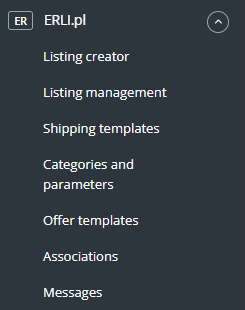
- Listing creator – here you can list auctions. To go to the listing form, select the inventory, Erli account, products, and click List selected (form).
- Listing management – here you can manage existing auctions. You can also import offers listed outside the Base.com system (and manage them directly in the panel), as well as export offers for further analysis.
- Shipping templates – here you can download shipping price lists created on the Erli side to the Base.com panel.
- Categories and parameters – in this tab, you can select your favorite categories and map parameters.
- Offer templates – here you can create a template for newly listed offers.
- Associations – here you can assign marketplace categories to categories (or products) from the warehouse.
- Messages – in this tab, you can handle messages from Erli using Responso.
Configuration
To list auctions with just a few clicks, configure the Erli module by following these steps:
- Connect your Erli account in the Integrations section → +Add integration.
- Import shipping templates.
- Select your favorite categories in the Erli module → Categories and parameters → Erli categories. This will make your favorite categories visible as a drop-down list when listing an offer.
- Complete the listing settings in the Integrations → Erli → Listing settings section. Here you can complete the default form settings.
- Map the parameters in the Erli module → Categories and parameters → Erli parameters. Thanks to the rules you create, the auction parameters will be automatically filled in on the listing form.
- Create your own offer templates.
- Create links in the Erli module → associations.
- Done!
To take full advantage of all the system’s capabilities, follow these steps:
- Configure the price synchronization module in the Integrations → Erli → Prices section.
- Configure the inventory synchronization module in the Integrations → Erli → Stock section
- Configure the Order Manager module and enable the download of Erli orders to the Base.com system in the Integrations → Erli → Orders section.
Then you can proceed:
- List your first offers.
- If you have listed offers outside of Base.com, you can import them according to the instructions in Import auctions and products.
Please note that when listing offers, the Erli marketplace only allows the following tags to be used in descriptions:
<h1> Title
<h2> Subtitle
<p> Paragraph
<b> Bold
<sup> Superscript
<sub> Subscript
<ol> Ordered list
<ul> Unordered list
<li> List item