Integrating FirstCry with Base.com can streamline your entire order management cycle. It brings all your orders, statuses, and shipping tasks into one place, reduces manual work, and creates a stable workflow you can rely on. This guide walks you through every step of the setup, from gathering the correct credentials to configuring order statuses, mapping couriers, and ensuring both B2C and B2B operations run smoothly.
The instructions below expand on the essentials, explain how each part works, and offer practical recommendations to prevent mistakes that merchants often face when connecting FirstCry for the first time.
Step 1: Obtain Your FirstCry Vendor Credentials
Before you open Base.com, you need the correct the credentials. These are not the same as the login details used for the FirstCry VCom panel. Your Base.com integration will fail if you try to use the VCom username or password, so make sure you request the exact credentials.
What you need
You will need only two details:
- Vendor Code
- Vendor Email / Login ID
These are unique to your seller account and your warehouse mapping. They act as identifiers that Base.com uses to authenticate your activity with FirstCry systems.
How to get them
You cannot generate these credentials yourself. Instead:
- Email your FirstCry Account Manager.
- Ask specifically for:
- Your Vendor Code
- Your Vendor Email / Login ID for ERP/API access
- Confirm the warehouse that is mapped to your seller profile.
They usually respond quickly, but if there is a delay, follow up with your seller onboarding representative. These two details are mandatory for Base.com to communicate with FirstCry.
How to cross check on VCom
If you want to verify you are requesting the correct account:
- Log into the FirstCry VCom panel.
- Hover over your email in the top right.
- Switch to the correct seller profile if you manage more than one.
- Note the vendor name and warehouse mapping shown there.
This information helps FirstCry confirm your identity when providing credentials.
Step 2: Add and Configure FirstCry Integration in Base.com
Once your credentials are ready, you can start setting up the connection in Base.com. The process is simple, but choosing the correct order type and aligning it with your workflow matters.
Steps to add the integration
- Log in to your Base.com admin panel.
- Go to Integrations in the left sidebar.
- Click Add Integration.
- Search for FirstCry.
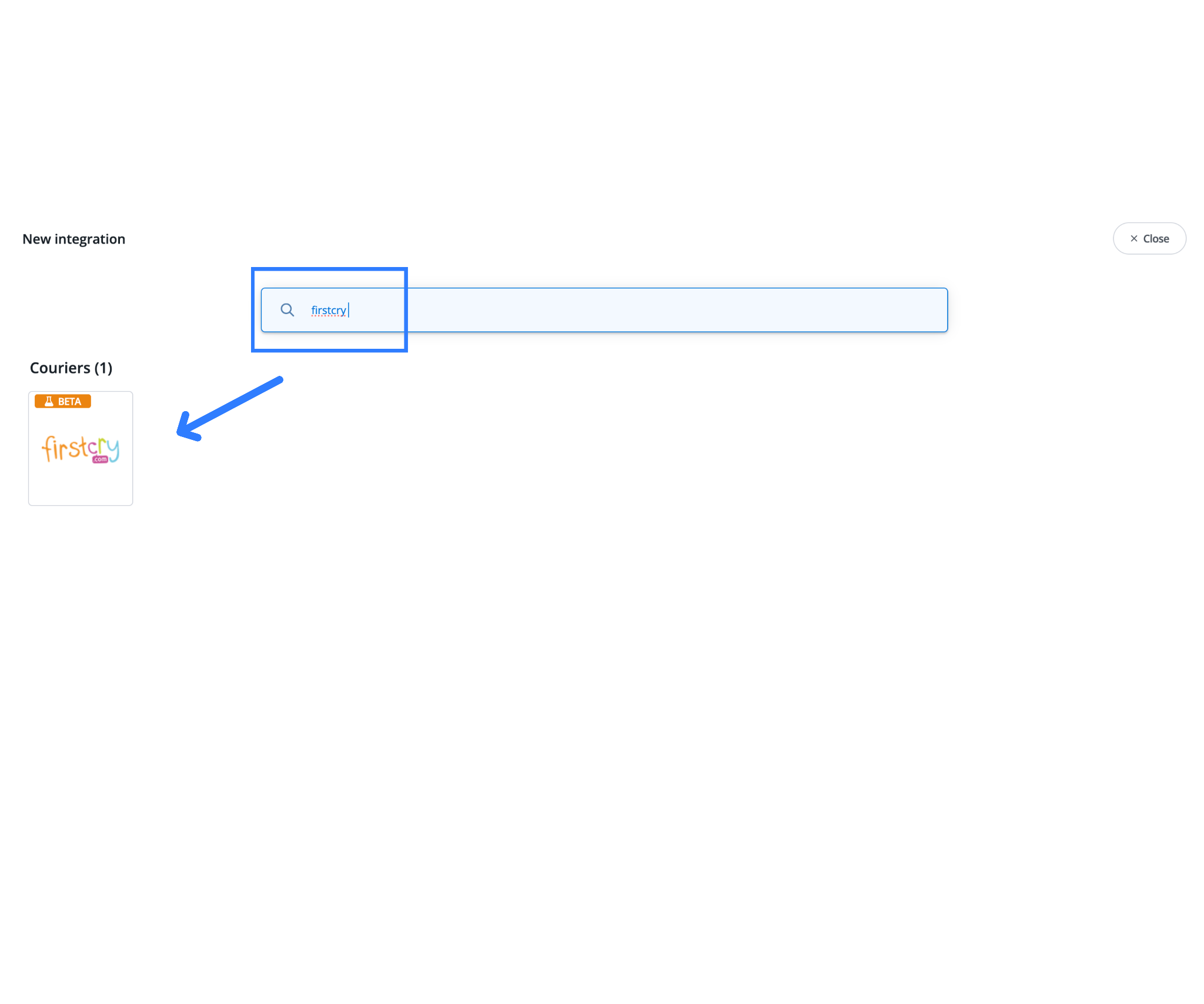
- Select the integration.
- Enter your Vendor Code and Vendor Login ID exactly as provided.
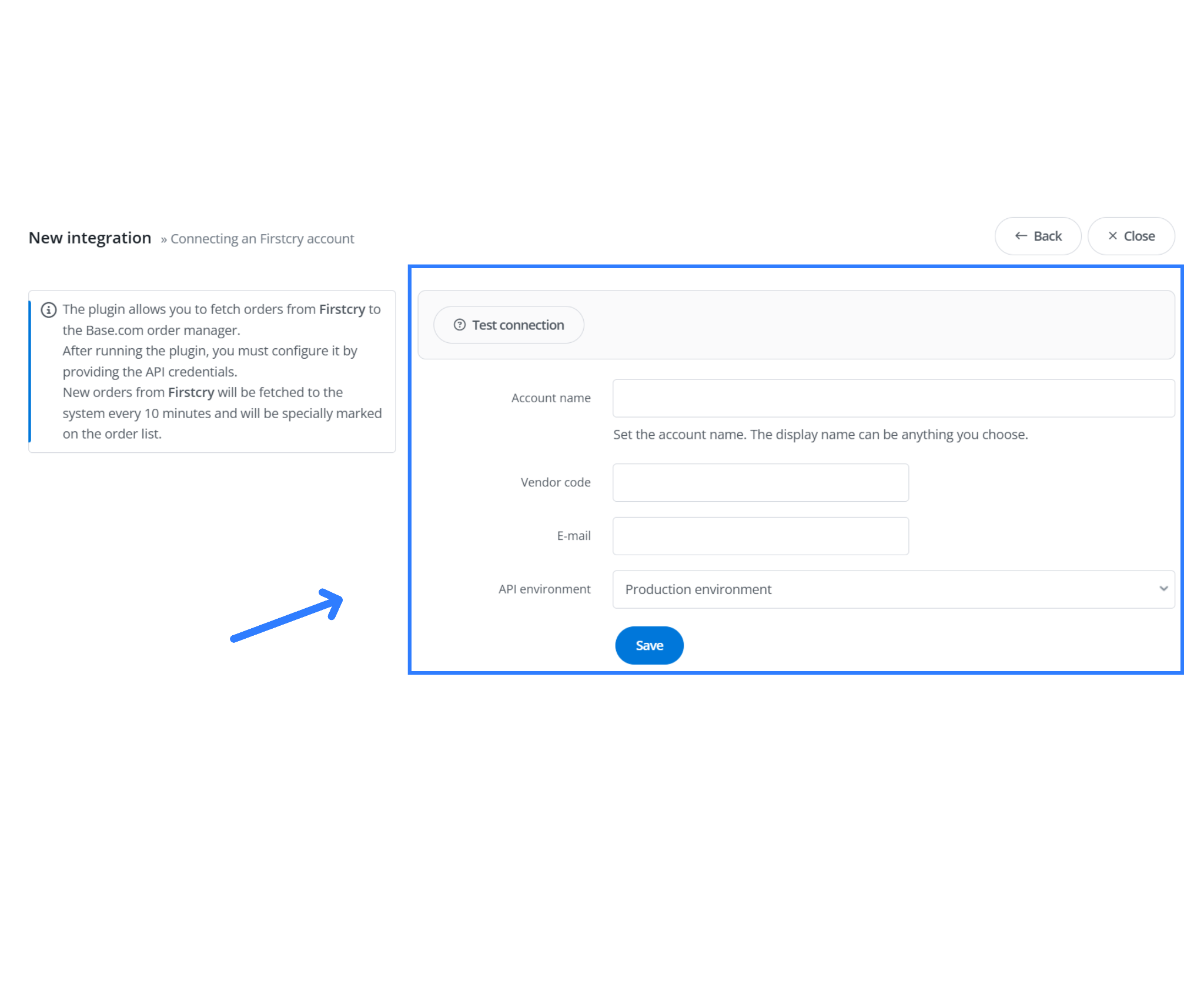
There is no password field. Base.com verifies access using these two values alone.
Choosing the right order type
Base.com offers two order type options. Selecting the wrong one can cause missing orders or incorrect workflow triggers.
Option 1: B2C
Choose this if:
- You only handle dropship orders.
- FirstCry ships to customers on your behalf.
- Your volume is mostly small parcel shipments.
Option 2: B2B + B2C
Choose this if:
- You dispatch both bulk orders (B2B) and single customer orders (B2C).
- You supply inventory to FirstCry warehouses.
- You use both seller-ship and marketplace-ship models.
This option gives Base.com full visibility across both operational types.
Why the order type matters
Base.com structures order imports, statuses, and shipping flows based on what you select.
For example:
- B2C includes customer address details and item-level packing.
- B2B includes warehouse delivery instructions, carton level quantities, and bulk documentation.
Choosing the correct option at the start prevents configuration errors later.
Step 3: Configure Order Status Mapping
Order status mapping is one of the most important parts of this integration. It ensures order status updates flow both ways. When you update an order in Base.com, FirstCry receives the change automatically.
Without proper status mapping:
- Orders may not be marked shipped.
- Tracking may not sync.
- FirstCry may hold payments due to missing status updates.
Suggested Status Mappings
| FirstCry Status | Base.com Status (Recommended) |
| CONFIRMED | NEW |
| SHIPPED | DISPATCHED |
Why use a DISPATCHED status
Base.com does not include a dedicated FirstCry shipment trigger by default. FirstCry only pushes updates when an order moves into a status mapped to SHIPPED.
Creating a dedicated DISPATCHED status helps you control when Base.com sends the shipment update to FirstCry. It also avoids accidental shipments being marked complete before a label is generated or tracking is live.
Two ways to move orders into DISPATCHED
Method 1: Manual
- Prepare an order and generate the shipping label.
- Once you confirm everything is correct, move the order to your custom DISPATCHED status.
- Base.com pushes the update to FirstCry.
This gives you full control and prevents accidental errors.
Method 2: Automation
If you prefer a hands-off approach:
- Go to Automations in Base.com.
- Set a rule to move orders from RTS to DISPATCHED automatically.
- Add a delay of 5 to 10 minutes after label creation.
This ensures your system updates FirstCry at the right time without manual steps.
Handling Shipping for FirstCry Orders
FirstCry works with two shipping models. Base.com can manage both, but the setup differs.
Scenario 1: FirstCry Shipping (Marketplace Ship)
When FirstCry manages delivery:
What you need to do
- Add FirstCry Courier as a separate integration in Base.com.
- Link your FirstCry marketplace integration to this courier profile.
- Pull labels and invoices through the courier module.
What Base.com handles
- Imports shipping labels issued by FirstCry.
- Pulls the invoice generated by FirstCry.
- Pushes updated statuses automatically once shipment is marked.
This works well if you rely on FirstCry for operations and do not want to manage your own couriers.
Scenario 2: Seller’s Own Shipping (Self Ship)
When you manage fulfilment yourself:
What Base.com handles
- Automates tracking number sync directly to FirstCry.
- Pushes SHIPPED status when the order reaches your DISPATCHED status.
- Maintains inventory updates across the catalog.
Your only responsibility is to:
- Generate your courier label inside Base.com.
- Ensure the tracking number is correctly attached to the order.
Base.com takes care of the rest.
What You Can Do After Integrating FirstCry with Base.com
Once the setup is complete, your account unlocks a full automation cycle that eliminates manual downloads, multiple logins, and scattered tracking tasks.
Here is a complete list of capabilities you gain:
1. Order Import
Every FirstCry order will appear in Base.com in real time.
This includes:
- B2B purchase orders
- B2C customer orders
- Dropship orders
You can combine these with orders from other marketplaces like Amazon, Flipkart, Meesho, Shopify, and more.
2. Order Fulfillment
Both FirstCry shipping and self shipping models work.
- Generate labels in Base.com
- Map couriers
- Attach invoices
- Trigger shipping updates
You can also assign workflows based on SKU, warehouse, or region.
3. Status Sync
Base.com pushes important statuses to FirstCry:
- SHIPPED
- DELIVERED
This ensures your payment cycle is not delayed due to missing updates.
4. Offer Import
You can sync your product offers from FirstCry directly into Base.com.
This helps you:
- Merge inventory from multiple sales channels
- Track your catalog in one place
- Update stock levels across all channels at once
5. Invoice and Label Pull (Marketplace Ship)
For FirstCry managed shipments:
- Base.com pulls the label from FirstCry
- It attaches the invoice provided by FirstCry
- Your packing team can print the entire pack slip bundle at once
This removes the need for manual downloads from VCom.
Pro Tips to Keep Your Integration Stable
Here are some practical lessons merchants usually learn the hard way. Following them from the start keeps your integration smooth and prevents order syncing issues.
| Tip | Explanation |
| 1. Keep your credentials safe | If you change anything on your VCom seller profile, notify your Account Manager. Even small updates, like warehouse changes, can affect vendor mapping and interrupt your integration. |
| 2. Avoid renaming your custom statuses later | Base.com tracks statuses by ID. Renaming is safe, but deleting and recreating statuses after mapping can break automation rules. |
| 3. Use a dedicated DISPATCHED status | A separate DISPATCHED status lets you decide exactly when shipment updates are pushed to FirstCry, giving you better control. |
| 4. Keep automations predictable | Limit automations to the essentials: automatic RTS move, RTS to DISPATCHED move, and tracking update. Too many rules can overlap and cause errors. |
| 5. Test with one order first | Before launching the setup, test order import, label generation, status updates, and tracking sync using a dummy or low value order. |
| 6. Do not mix B2B and B2C unless required | If you only manage dropshipping, stick to B2C. It keeps your Base.com setup cleaner and avoids unnecessary options. |
Final Thoughts
Integrating FirstCry with Base.com speeds up your entire order management cycle. The process becomes smoother once you have the right credentials and set your status mapping correctly. With a clean setup, you can automate order imports, track shipments, sync statuses, and manage both seller and marketplace shipping from a single dashboard.
If you follow the steps outlined in this guide and set up the recommended statuses and workflows, you will avoid the usual pitfalls and run a fast, reliable operation inside Base.com.
Click here, to integrate shopify and start your connected commerce journey.
FAQs
1. Are FirstCry VCom credentials the same as the API credentials used for Base.com?
No. The VCom login cannot be used for Base.com. You must request your Vendor Code and Vendor Login ID from your FirstCry Account Manager. Without these two fields, the integration will not connect.
2. How long does FirstCry take to share Vendor Credentials?
Most sellers receive them within 24 to 48 hours. If you don’t hear back, follow up with your account manager or onboarding representative.
3. What happens if I choose the wrong order type (B2C vs B2B+B2C)?
Selecting the wrong type may cause missing orders or incorrect workflows.
Use this simple rule:
- Only dropshipping: Choose B2C
- Bulk + Dropship: Choose B2B+B2C
4. Do I need to create a password in Base.com for FirstCry?
No. FirstCry uses only two fields for authentication:
- Vendor Code
- Vendor Login ID
There is no password field in this integration.
5. Why do I need a separate DISPATCHED status?
Because Base.com only pushes the SHIPPED update to FirstCry when an order moves into a status mapped to SHIPPED. Creating a custom DISPATCHED status allows you to control exactly when that happens.
6. Does Base.com automatically push tracking numbers to FirstCry?
Yes. As soon as a tracking number is added and the order reaches your mapped SHIPPED status, Base.com sends the update to FirstCry.