Base.com system offers two-way integration with the Morele platform, allowing both order retrieval and bulk listing. The module also includes basic offer management options.
The Morele module enables:
- downloading orders from all Morele accounts to the Base.com panel,
- transferring orders to the online shop,
- automatic transfer of shipment numbers assigned in the Base.com panel to the Morele platform,
- automatic transfer of order statuses from Base.com panel to Morele platform,
- listing Morele offers on the basis of products from a warehouse connected to the Base.com system (this may be a shop’s warehouse, a wholesale warehouse, Base.com’s warehouse or ERP system).
- management of offers,
- automatic renewal of offers,
- stock synchronisation according to the current state of the product in stock,
- price synchronisation according to the price of the related product in the warehouse – taking into account the price multiplier.
How to connect a new Morele account
To connect your account, follow these steps:
- Go to the Integrations section.
- Click the green ‘+Add Integration’ button, then under ‘Marketplace’select ‘Morele‘.
- Enter the required details in the integration settings – Client ID and Client Secret to be generated in Morele (API → Generate new API). The message App already registered! means that you need to generate a “fresh” previously unused token for your account in the morele panel.
- Done. You have just added a new Morele account
Integration settings
When you add a new account, you will see seven tabs:

- Connection – here you can test if the connection is correct;
- Orders – here you can enable order retrieval. However, we recommend configuring the Order Manager appropriately first;
- Listing settings – here you can choose a template and category for the entire marketplace account, set the price multiplier, and fill in general offer settings;
- Order statuses – by linking statuses, any change in the order status in Base will also change the order status in the service. However, synchronization does not work in the opposite direction (changing the status in the service does not change the status in Base);
- Prices – the price synchronization module will allow you to automatically synchronize prices in offers according to product prices in the warehouse;
- Stock – the stock level synchronization module will allow you to automatically synchronize stock levels in offers according to the product stock in the warehouse;
- Advanced settings – here you can set up courier mapping.
Morele module
On the left-hand side of the Base.com panel you will see the Morele.net module. Here you will find 5 tabs:
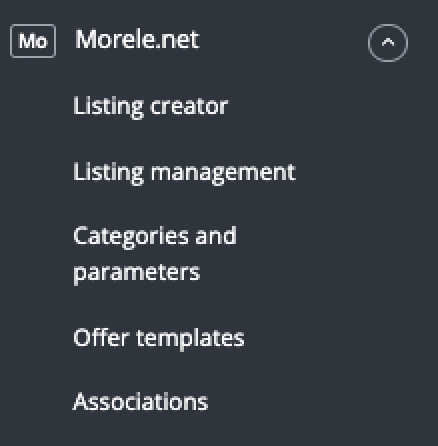
- Listing creator – here you can list offers. To access the listing form, select a warehouse, account, and products, then click List selected (form);
- Offer management – here, basic offer update functions are available. You can also import offers listed outside the Base system (and manage them directly in the panel), as well as export offers for further analysis;
- Categories and parameters – here, you can choose favorite categories and map parameters;
- Offer templates – in this tab, you can create and edit Morele offer templates;
- Associations – here you can assign marketplace categories and offer templates to storage categories (or products);
Configuration
To list offer with literally a few clicks, configure the Morele module by following these steps:
- Connect your account under Integrations → Add new integration.
- Select your favourite categories in Morele → Categories & Parameters → Morele Categories. This will make your favourite categories visible as a drop-down selection list when listing.
- Create your own auction templates in Morele → Listing Templates.
- Complete the listing settings in Integrations → Morele → Auction settings. Fill in the default form settings here (e.g. duration, auction format, multiplier, etc.) and create status links.
- Map the Morele parameters in Morele → Categories and Parameters → Morele Parameters. Thanks to the rules you have created, listing parameters will be completed automatically on the listing form.
- Create category and product associations in Morele → Associations. Assign marketplace categories, auction templates and shipping rates to categories (or products) from your store.
- Done!!! 🙂
To take full advantage of all the system’s features, follow these steps:
- Configure the price synchronisation module under Integrations → Morele → Prices.
- Configure the stock synchronisation module under Integrations → Morele → Stock.
- Configure the Order Manager module and enable the download of orders to the Base.com system under Integrations → Morele → Orders.
Additional information
- Morele verifies submitted offers – such verification is done by an assigned supervisor and usually takes a few days. The following statuses may be visible in the panel:
- pending verification – the operator has not yet started the verification process and the products are not visible on the site,
- pre-verified – offers are already visible on the front-end and have individual ID numbers, but some element of the offer is still missing (e.g. full description, photos or specification),
- verified – the offer is visible on the page with a full description, specification and photo.
- Productisation is based on the EAN number and the manufacturer’s code. Morele assigns an internal ID number to each offer
- Base.com does not import offers from Morele without an assigned Morele ID.
- If the description has links to external pages, words that do not refer to the product itself (e.g. free delivery, super offer, available from stock etc.), then the offer appears without a description. After some time Morele adds the description in accordance with morele.net standards
- Morele does not display images with logos or watermarks.
- Base.com updates the category list once a day.
- The API token needs to be refreshed every 90 days. The token is not reset directly by Base. In this situation, we suggest contacting Morele service directly.