Odoo is an all-in-one business management (ERP) platform used by sellers to run inventory, accounting, sales, purchases, manufacturing, and compliance from a single system. Instead of using separate tools for stock, billing, GST, and reporting, Odoo brings everything together in one structured database.
For sellers, the biggest value of Odoo is control and consistency. It acts as the central system where inventory quantities, product masters, tax rules, and financial records are maintained accurately and historically.
This guide explains how to connect Odoo to Base.com and run a scalable, audit-friendly commerce stack for India. The core idea is simple:
- Base.com = commerce operations hub (marketplaces, shops, order workflows, invoice timing)
- Odoo = ERP system of record (inventory pool, accounting, GST compliance, e-Invoice/e-Way Bill where enabled)
This setup is especially useful when you sell on multiple channels and want one inventory truth and one accounting truth without juggling spreadsheets, plugins, and manual corrections.
What you need before you start (validated)
Before connecting Odoo with Base.com, it’s important to confirm a few prerequisites to ensure the integration works smoothly and remains secure. These checks help avoid common authentication issues, data sync failures, and compliance gaps later. Taking a few minutes to validate them upfront saves significant troubleshooting time after go-live.
1) Odoo plan must allow External API access
Base connects to Odoo through Odoo’s external APIs (XML-RPC / JSON-RPC), which Odoo documents as official ways to access business objects remotely.
Important limitation: External API access is not available on Odoo One App Free / Standard plans. Odoo forum guidance (July 25, 2025) states it’s available only on Custom plans.
(If you’re on Odoo Online and unsure, confirm in your Odoo subscription or with your CSM before configuring Base.)
2) Rights to create an API Key in Odoo
Odoo supports user API keys via your profile security settings (Account Security → New API Key).
3) Your database name (DB name)
You need the exact DB name for RPC authentication. Odoo Online typically uses the instance name; Odoo.sh can differ (technical DB name may not match the subdomain). This is a common integration pitfall, so treat it as a “must verify” step.
4) India compliance features (optional but common)
If you want Odoo to generate IRN/QR via NIC e-Invoicing, Odoo’s India localization documentation describes configuring Indian Electronic Invoicing in Accounting settings and generating e-Invoices from invoices.
Step-by-step: Connect Odoo to Base.com
Connecting Odoo to Base.com is a straightforward setup that uses Odoo’s official external API and secure API-key authentication. Once linked, Base can send invoices and customer data into Odoo, while Odoo can serve as the master source for inventory and product information. Follow the steps below to complete the connection cleanly and verify it’s working end to end.
Step 1: Create an Odoo API Key
- In Odoo, open your Profile / Preferences.
- Go to Account Security.
- Click New API Key, label it (example: base-integration), generate it, and copy it.
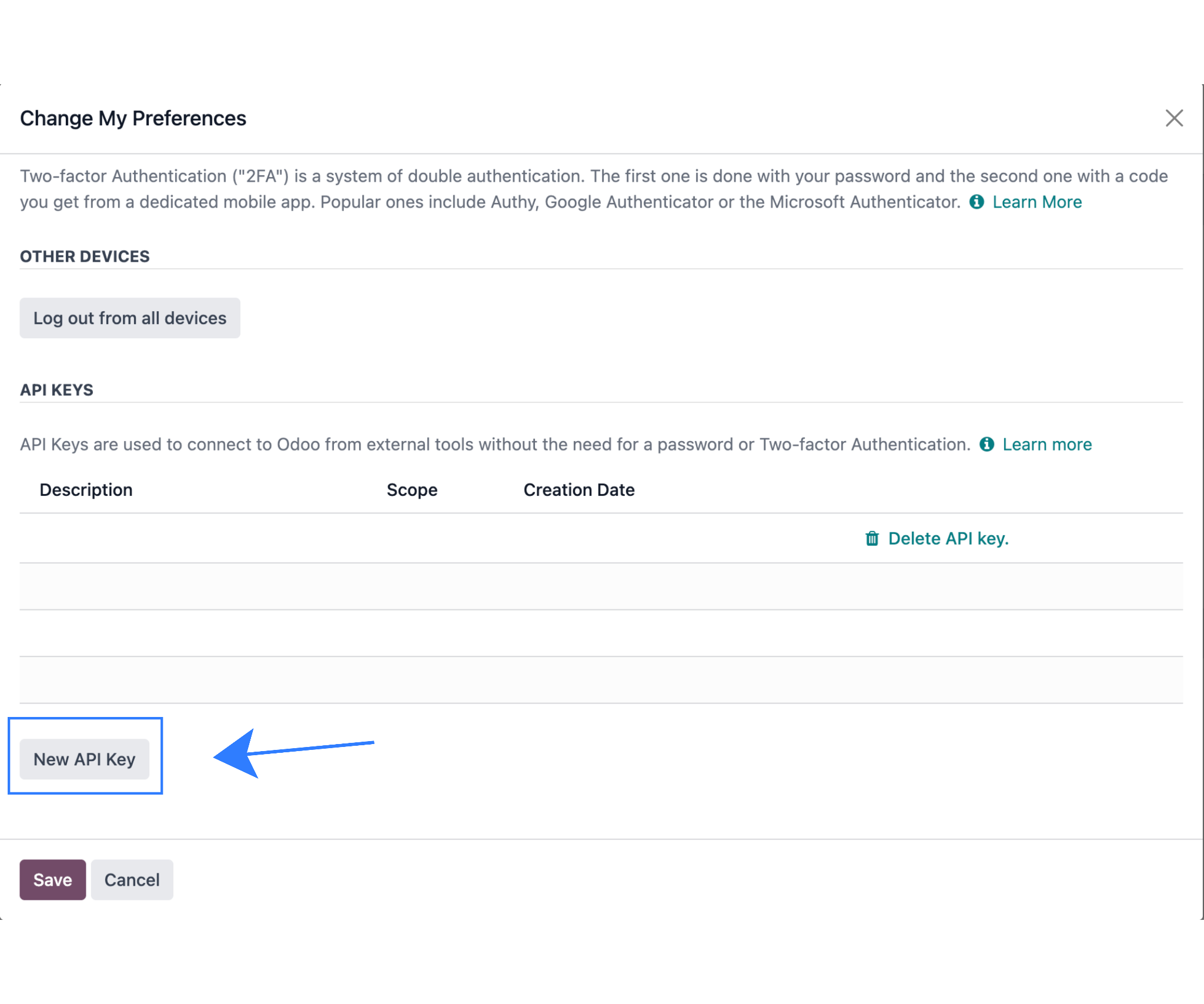
Odoo API keys are designed to be used in place of passwords for web services. You keep your normal login (email/username) and swap the password field with the API key.
Tip: Create a dedicated integration user (example: [email protected]) so you can control permissions tightly and rotate keys without disrupting real users.
Step 2: Identify your database name (DB)
- Odoo Online: DB name usually appears in the instance URL or in the “My Databases” area.
- Odoo.sh: DB name can be different from the URL. Check “My Databases” or your Odoo.sh project details.
Why this matters: RPC calls authenticate against a specific database, and a wrong DB name looks exactly like “wrong password.”
Step 3: Enter Odoo credentials in Base
In Base:
- Go to Integrations → Add Integration
- Search Odoo and open the Odoo tile
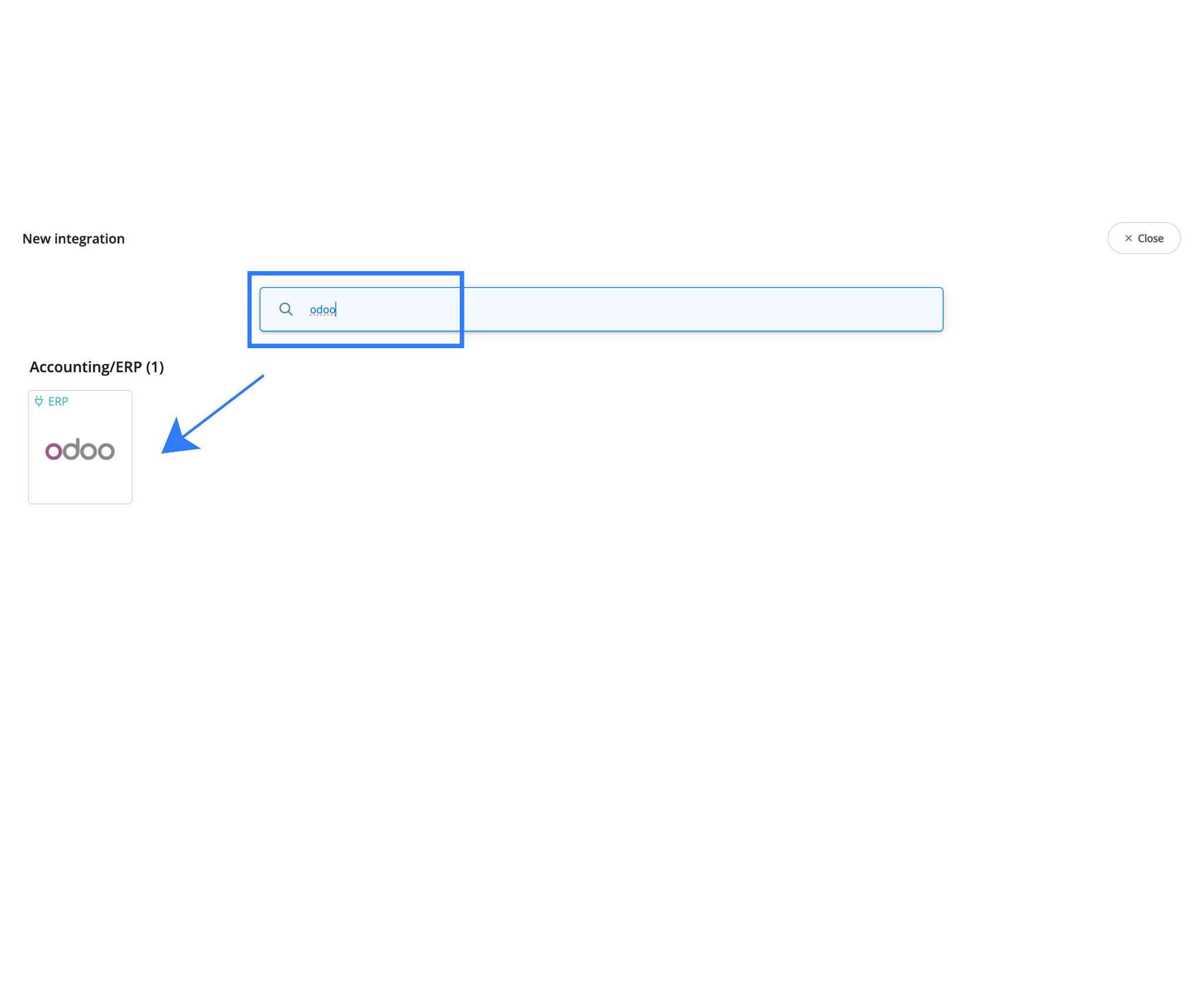
- Fill in:
- Login (your Odoo username/email)
- API Key (paste the generated key)
- Database name
- I use Odoo.sh (Yes/No)

- Click Save
Base tests the connection using Odoo’s external API endpoints (XML-RPC/JSON-RPC), which Odoo documents as supported access methods for business objects.
Post-connect setup for India (GST + e-Invoicing readiness)
1) Tax mapping (do this first)
To avoid invoice errors and reconciliation pain, align these across systems:
- CGST/SGST/IGST tax codes: Base tax lines should map cleanly to Odoo taxes.
- HSN/SAC on products: Missing or mismatched HSN/SAC causes downstream issues in reporting and e-Invoicing.
- Tax naming consistency: If you use state-specific variants or special cases (TCS/TDS, shipping tax, etc.), define a naming convention and stick to it.
This is where most “integration works but accounting is messy” outcomes come from. Spend time here once, and everything becomes boring (in a good way).
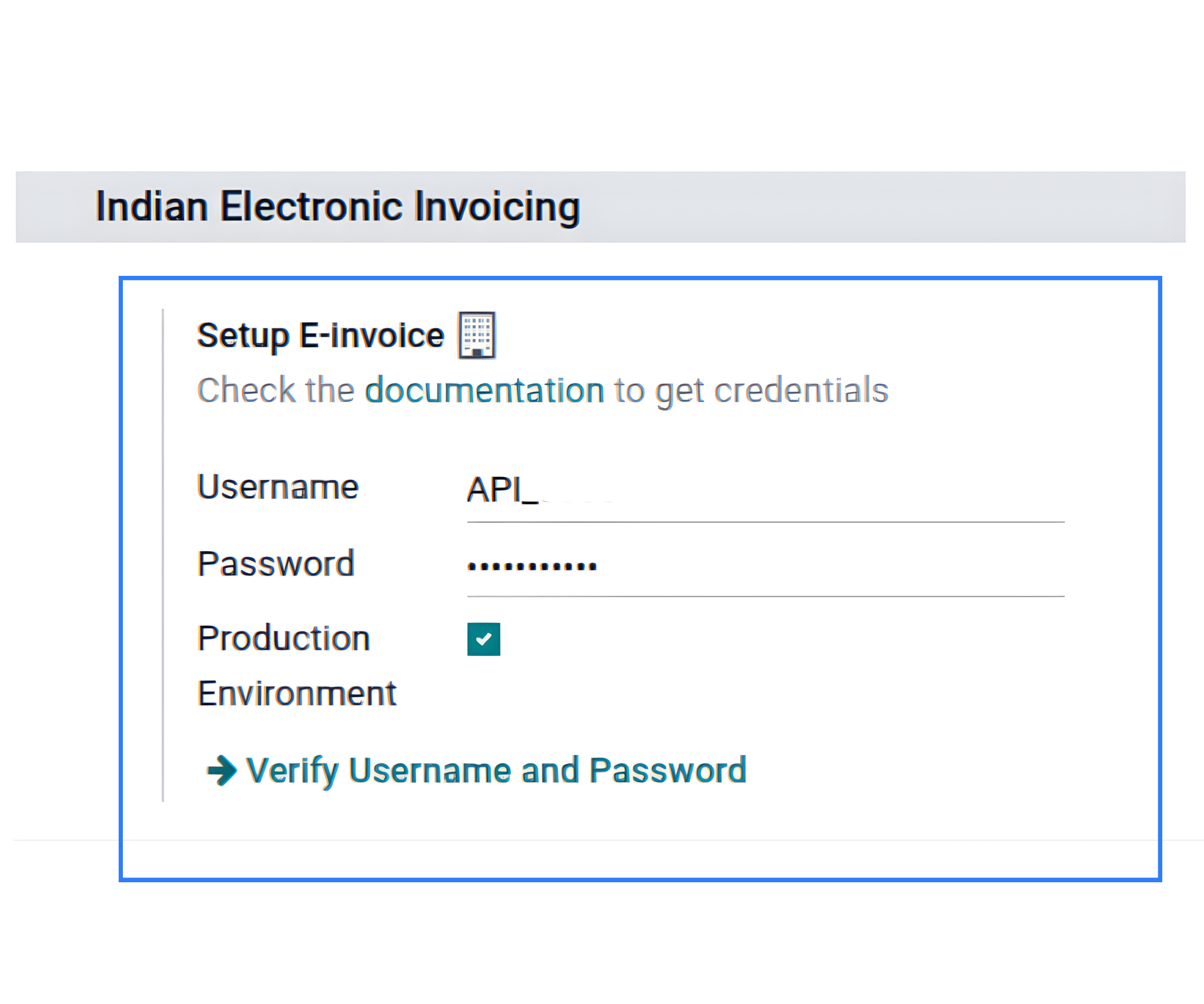
2) Odoo e-Invoicing (IRN/QR via NIC) — optional
Odoo’s India localization documentation covers configuring Indian Electronic Invoicing in Accounting settings (username/password/API details for the service) and generating an e-Invoice from a confirmed invoice.
A practical approach:
- Let Base decide when an invoice should be created and sent (based on your ops rules).
- Let Odoo handle how the invoice is posted, numbered (if applicable), and e-Invoiced (if enabled).
This keeps operations and compliance cleanly separated.
How Data Flows Between Base and Odoo
Understanding how data moves between Base and Odoo is critical for maintaining GST compliance, accurate inventory, and clean audit trails. The integration is intentionally document-driven, meaning accounting and stock changes are triggered by invoices rather than raw orders. This ensures that every movement is explainable, compliant, and easy to reconcile.
1. Base → Odoo: Invoices and Financial Documents
Once an order is processed in Base, the platform applies your operational logic such as payment confirmation, risk checks, packing status, or shipment readiness. When the invoice is issued, Base sends the finalized invoice to Odoo. This can happen in real time, through scheduled automation, or in bulk using export tools.
Only completed, GST-ready invoices are pushed to Odoo. This ensures that Odoo receives clean commercial documents for accounting. After receipt, Odoo records the invoice, creates the appropriate accounting entries, and prepares the data for statutory reporting and audits.
2. Odoo → NIC: Indian e-Invoicing (Optional)
If Indian e-Invoicing is enabled in Odoo, the posted invoice is automatically converted into a JSON payload that follows the GST e-invoice schema prescribed by the government. Odoo submits this payload to the NIC e-Invoice system for validation.
Once validated, the NIC system returns an Invoice Reference Number (IRN) and a digitally signed QR code. This confirms that the invoice is officially registered under GST and legally valid for compliance and reporting. This entire process runs inside Odoo, without manual uploads or separate portal logins.
3. Odoo → Base: Verified Invoice and Attachments
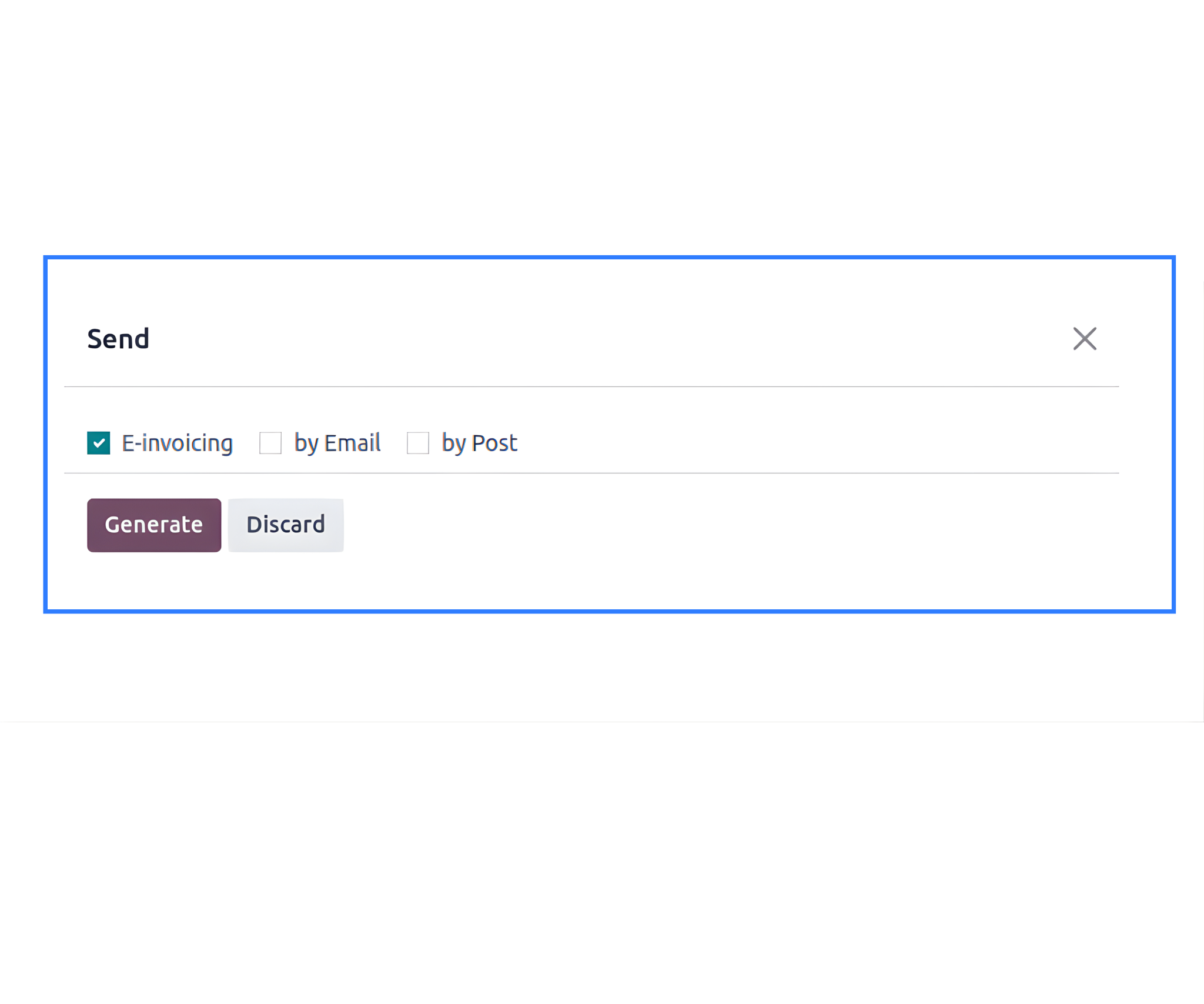
After the invoice is posted, and after IRN generation where applicable, Odoo generates the final invoice PDF. If e-Invoicing is enabled, the PDF includes both the IRN and the QR code.
Base then retrieves this verified invoice document and automatically attaches it to the corresponding order record. This ensures that operations, customer support, and finance teams all reference the same, legally validated invoice. It also keeps documentation complete and audit-ready inside Base.
4. Odoo Inventory → Base: Stock and Product Synchronization
Odoo acts as the system of record for inventory, warehouses, and valuation. When invoices are posted in Odoo, inventory is reduced using Odoo’s standard stock accounting flows.
Base periodically synchronizes inventory data from Odoo, including stock quantities and, if configured, base prices.
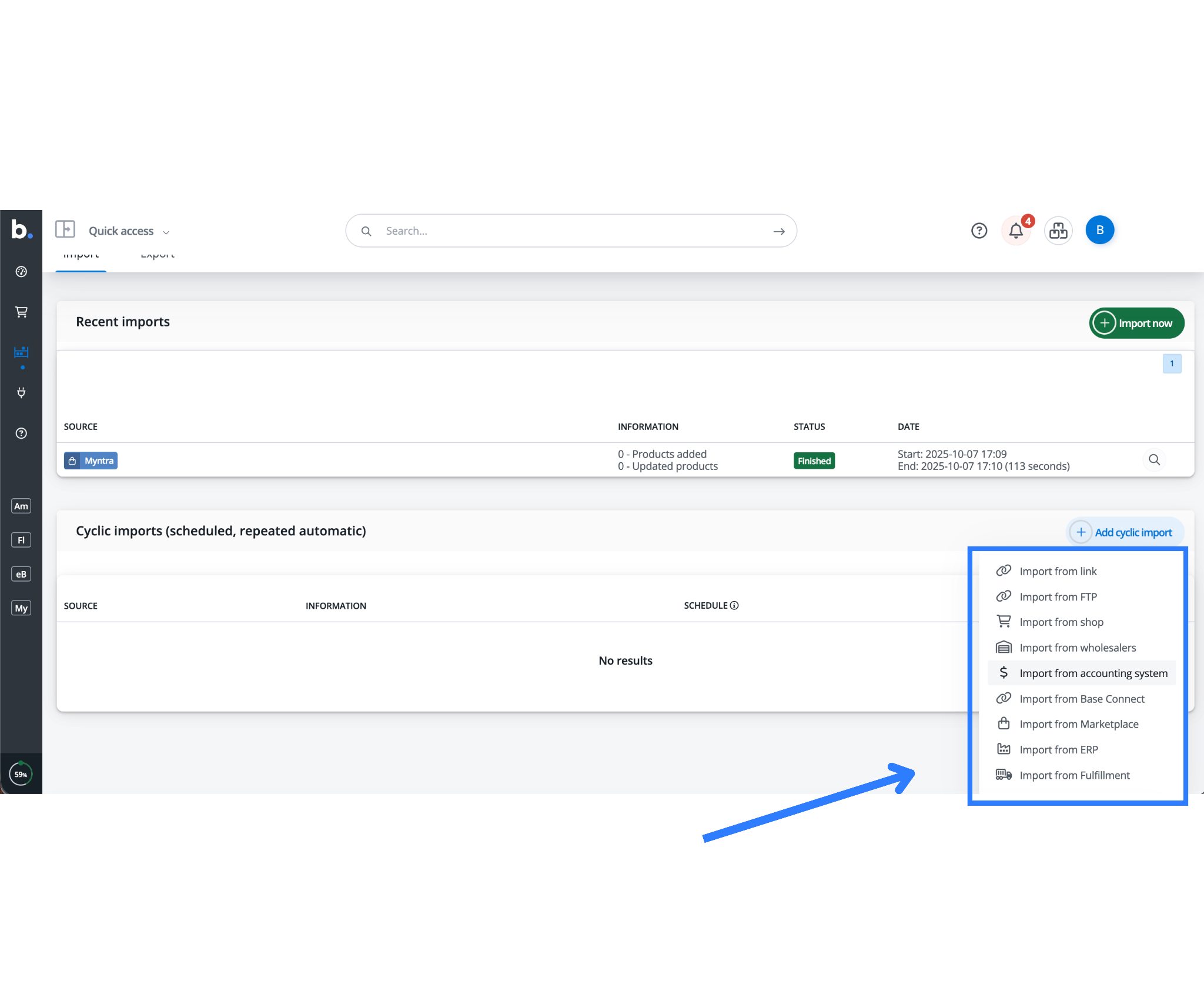
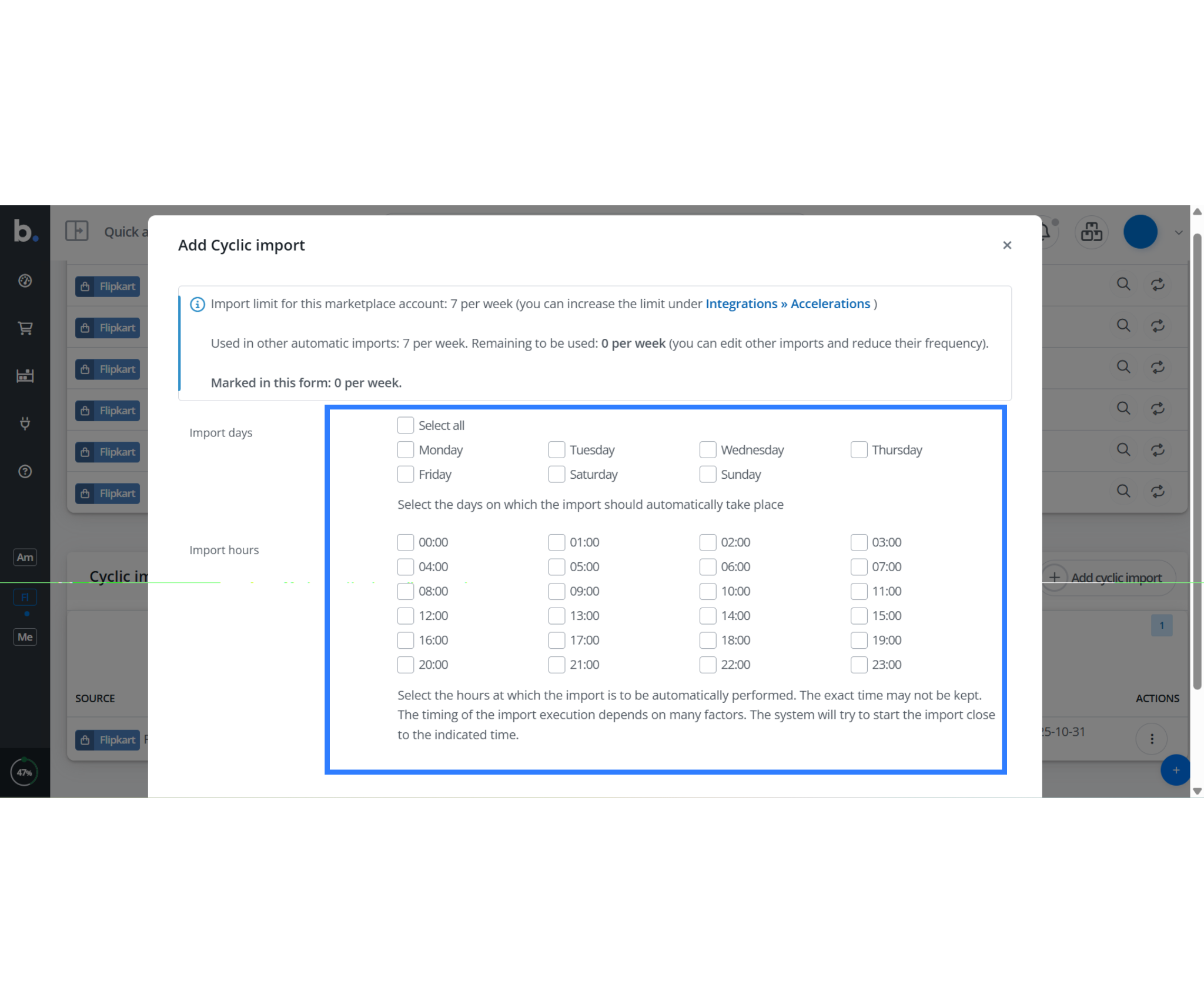
You can set the sync frequency to hourly, daily, or manual. This ensures that Base always reflects Odoo’s final inventory position, even when multiple channels such as marketplaces, B2B sales, retail, or offline adjustments affect stock. To eliminate manual product maintenance, Base supports cyclic imports from Odoo. With this feature enabled, Base automatically fetches product data from Odoo at defined intervals.
Imported data typically includes SKUs, product names, tax categories, HSN or SAC codes, pricing, and stock levels. Cyclic imports can run after real-time invoice syncs or on a scheduled basis, ensuring that Base reflects any product updates made in Odoo without manual intervention.
Automating Workflows with Base and Odoo
Automation is what brings the entire integration together. Base allows you to configure triggers and actions that align with your operational workflow. You can trigger invoicing immediately after order creation, after packing, after dispatch, or after delivery, depending on your business rules.
Common automations include issuing invoices when you mark an order as paid, automatically pushing invoices to Odoo, and exporting invoices in bulk for periodic accounting. Odoo then handles posting, inventory deduction, and compliance tasks such as e-Invoicing. This separation of responsibilities ensures faster processing, fewer errors, and consistent compliance with minimal manual effort.
Why This Data Flow Works Well
This structured flow ensures that inventory moves only after Odoo formally posts invoices, accounting entries always rely on valid documents, and Odoo centralizes GST compliance. Base stays fast and flexible for operations, while Odoo remains clean, accurate, and audit-ready as your ERP system of record.
How Sellers Use Odoo and Base Together
Below are the three most common and proven ways sellers use Odoo together with Base.com. Each use case solves a specific operational problem that growing sellers face as they add more channels, warehouses, and compliance requirements.
1: Odoo Inventory ERP → Base → All Marketplaces & Shops
The “single source of truth” inventory model
This setup is ideal when you want Odoo to remain the master system for products and inventory, while Base handles all selling channels.
How it works
- Odoo holds the complete master catalog:
- SKUs and product names
- Units of Measure (UoM)
- Tax categories and GST rates
- HSN/SAC codes
- Warehouse structure and stock valuation
- Base acts as the channel engine:
- Connects Amazon, Flipkart, Shopify, WooCommerce, and other channels
- Applies marketplace-specific rules, courier logic, and order workflows
- Base publishes listings and offers using data sourced from Odoo.
- Marketplaces never connect directly to Odoo.
Why sellers choose this
- You eliminate duplicate product masters across channels.
- Stock numbers stay consistent across marketplaces.
- Adding a new marketplace does not require changing anything in Odoo.
Operational win
Operations teams work entirely inside Base for orders, packing, and shipping.
Finance and inventory teams rely on Odoo as the authoritative ERP.
This separation removes confusion and internal debates about “which system is correct.”
2: Inventory Deduction via Invoice Posting
Marketplace → Base → Invoice → Odoo
This is the most reliable and audit-safe model for sellers who care about clean accounting and GST traceability.
How the flow works:
- An order arrives from a marketplace into Base.
- Base runs automation rules:
- Payment confirmation
- Order risk checks
- Packing or dispatch status
- Base issues the invoice at the correct operational point:
- Immediately after order creation
- After packing
- After dispatch
- Or after delivery (depending on your policy)
- Base sends the invoice data to Odoo.
- In Odoo, when the invoice is confirmed or posted:
- Accounting entries are created
- Inventory is reduced using Odoo’s standard stock accounting flows
Why this approach is reliable
- Stock movement is tied to a legally valid document (the invoice).
- Canceled or unshipped orders do not reduce inventory prematurely.
- Every inventory change has a clear accounting reason, which auditors expect.
Common mistake to avoid
Some sellers deduct inventory in Base when they create an order and deduct it again in Odoo when they post the invoice, which causes double depletion. In this model, sellers must treat Odoo as the inventory authority, not Base.
3: One Inventory Pool Across All Trade Channels
Online + B2B + Retail + Offline
This is the most important use case for brands selling both online and offline.
Typical seller scenario
You sell through:
- Online marketplaces (orders flow into Base)
- B2B or institutional sales (entered directly in Odoo Sales)
- Retail stores or POS (handled in Odoo POS)
- Manual or offline adjustments (also in Odoo)
The goal
Maintain one inventory pool that reflects the entire business, not just marketplace sales.
How the integration delivers this
- Base pushes marketplace invoices to Odoo, which reduces stock.
- B2B and POS sales already reduce stock inside Odoo.
- Base periodically pulls updated inventory levels from Odoo.
- Marketplaces always reflect stock based on the total business reality.
Why periodic sync beats “real-time everywhere”
- Reduces API load and sync failures.
- Avoids race conditions between channels.
- Reflects Odoo’s final, reconciled inventory position.
- Makes audits and troubleshooting easier because changes appear in batches, not scattered events.
This architecture is similar to how sellers structure integrations with accounting-first systems, but Odoo’s ERP depth makes it especially effective for multi-warehouse setups and mixed B2B/B2C operations.
Best Practices & Troubleshooting Guide (That Prevent 80% of Issues)
Before going live, a few disciplined setup and validation steps can eliminate most integration problems between Odoo and Base.com. These best practices focus on access control, data consistency, and testing, while the troubleshooting section helps you quickly diagnose and fix the most common errors sellers face. Treat this as a checklist to keep your operations stable, auditable, and low-maintenance.
| Area | Scenario / Issue | What to Do | Why It Matters |
| API Access & Security | Create a dedicated Odoo API user | Use a separate user only for Base integration with minimal permissions (Accounting + required Inventory rights). | Improves security, simplifies audits, and avoids accidental data changes by human users. |
| API key management | Generate a dedicated API key and rotate it periodically without impacting normal users. | Prevents downtime and limits blast radius if a key is compromised. | |
| Audit visibility | Use the integration user for all sync actions. | Makes it easy to trace which records were created or modified by the integration. | |
| Product Identifiers | SKU consistency | Treat SKU as the stable, unique identifier across Base and Odoo. | Prevents duplicate products and mismatched inventory updates. |
| SKU changes mid-season | Avoid changing SKU formats after go-live. | Mid-stream SKU changes break historical links and stock sync logic. | |
| Units of Measure (UoM) | Align UoM definitions in both systems (e.g., pcs, boxes). | Prevents quantity conversion errors and stock discrepancies. | |
| Taxes & Compliance | GST tax structure | Keep tax names, rates, and applicability rules identical in Base and Odoo. | Ensures invoices post cleanly and reports reconcile correctly. |
| HSN / SAC codes | Lock HSN/SAC codes at the product level and keep them consistent. | Reduces invoice rejections and compliance issues. | |
| Shipping & handling tax | Explicitly validate how shipping charges are taxed. | Shipping tax mismatches are a common cause of GST errors. | |
| Testing Before Go-Live | Initial validation | Run 20–50 realistic test orders end-to-end. | Surfaces edge cases early, before real money and stock are involved. |
| Scenario coverage | Test posting, stock deduction, cancellations, returns, and credit notes. | Ensures the full lifecycle behaves correctly, not just happy paths. | |
| API Layer Awareness | External API usage | Base uses Odoo’s XML-RPC / JSON-RPC external APIs. | Knowing the API layer helps with debugging and future-proofing. |
| API evolution | Track Odoo’s external API documentation and deprecation notes (Odoo 20 timeframe). | Prevents surprises if older endpoints change in future Odoo versions. | |
| Authentication Errors | “Access denied / authentication failed” | Confirm your Odoo plan supports external API access, re-check DB name, regenerate API key. | Most auth failures are due to plan limits or incorrect DB names. |
| Odoo.sh Specifics | DB name confusion | Do not assume the URL subdomain is the DB name; check “My Databases” or project config. | Incorrect DB name causes silent authentication failures. |
| e-Invoicing Issues | IRN not generating | Ensure India localization and Indian Electronic Invoicing are enabled; confirm invoice is posted. | IRN generation only works on confirmed invoices with complete GST data. |
| Data validation | Verify GSTIN, HSN/SAC codes, and CGST/SGST/IGST splits. | Even small data gaps can block IRN generation. |
Click here to learn how to integrate woocommerce with base.com.
FAQs
1) How do I connect Odoo to Base in 2 minutes?
Create an Odoo API key (Profile/Preferences → Account Security → New API Key), copy your database name from the URL or My Databases, then in Base add the Odoo integration and enter login, API key, DB name, and Odoo.sh = Yes/No. Save to test connectivity.
2) Where do I find my Odoo database name?
On Odoo Online, the database name often matches your instance and appears in the URL or My Databases. On Odoo.sh, the technical database name can differ from the subdomain, so confirm the exact DB name in My Databases or your Odoo.sh project details before entering it in Base.
3) Does Odoo Free/Standard support Base API integration?
No. Base needs Odoo’s external API (XML-RPC/JSON-RPC). Odoo guidance indicates external API access is available only on Custom Odoo plans and not on One App Free or Standard plans. If you’re on Odoo Online, confirm your subscription tier before attempting integration.
4) Can Base push invoices that generate IRN automatically in Odoo?
Yes, if you configure Odoo’s India e-Invoicing settings. Odoo’s India localization docs show e-Invoicing setup in Accounting settings and generating e-Invoices from confirmed invoices, which uploads the signed JSON to NIC and returns status/attachments. After Base syncs invoices, Odoo can handle IRN generation.
5) What endpoints does Base use to talk to Odoo?
Base connects through Odoo’s external API layer, which Odoo documents as XML-RPC and JSON-RPC interfaces for accessing business objects and models. These APIs authenticate using a database and a user, and they allow API keys to replace passwords. This is the standard approach for Odoo integrations.
6) I use Odoo.sh. Anything special I should do?
Yes. In Base, set Odoo.sh = Yes and be careful with the database name. On Odoo.sh, the technical DB name may not match your URL subdomain. Use the exact DB name shown in My Databases or the Odoo.sh project configuration, otherwise authentication will fail even with a correct API key.