The Base.com system can be integrated with the OtoMoto online platform. The integration uses the OtoMoto API.
The integration enables:
- listing offers on OtoMoto based on products from a warehouse connected to the Base.com system (this can be a store warehouse, a wholesale warehouse, a Base.com warehouse, or an ERP system connected to the Base.com warehouse)
- managing offers,
- automatically renewing offers,
- synchronizing stock levels in offers with the warehouse,
- synchronizing prices with the warehouse – taking into account the price multiplier.
How to connect your OtoMoto account
To connect your OtoMoto account, follow these steps:
- Go to the Integrations section.
- Click the green ‘+Add integration’ button, then select “OtoMoto” in the ‘Marketplace’ section.
- Enter your login, password, and any account name.
- Done 🙂
Integration settings
After adding a new account, you will see 4 tabs:
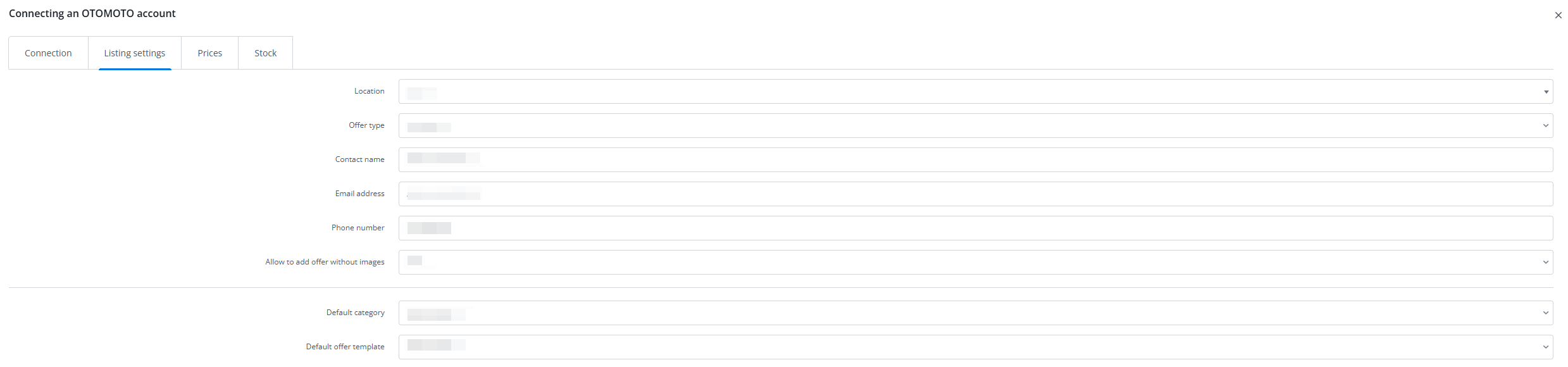
Connection – here you can test whether the connection is correct.
Listing settings – here you can select a template and category for the entire account, set a price multiplier, and complete the general listing settings.
Prices – the price synchronization module allows you to automatically synchronize prices in offers according to the prices of products in inventory.
Stocks – the stock synchronization module allows you to automatically synchronize stocks in offers according to the stock of products in inventory.
Module
The OtoMoto module is visible on the left side of the Base.com panel. Here you will find 5 tabs:
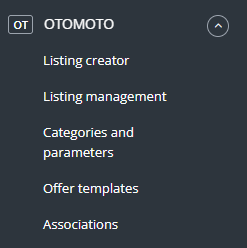
Listing creator – here you can list offers. To go to the listing form, select the warehouse, marketplace account, and products, and click ‘List selected (form)’.
Listing management – here you can manage existing listings. You can also import listings created outside the Base.com system (and manage them directly in the panel), as well as export listings for further analysis.
Categories and parameters – in this tab, you can add your favorite categories and map parameters
Offer templates – here you can create offer templates.
Associations – here you can assign marketplace categories and listing templates to categories (or products) from the warehouse.
Configuration
To post offers with just a few clicks, configure the OtoMoto module by following these steps:
- Connect your OtoMoto account in the Integrations section → Add a new integration.
- Select your favorite categories (or subcategories) in the OtoMoto section → Categories and parameters → OtoMoto categories. This will make your favorite categories visible as a drop-down list when listing an offer.
- Create your own offer templates in the OtoMoto section → Auction templates. You can also use the available templates.
- Complete the listing settings in the Integrations → OtoMoto → Listing settings section. Here you can complete the default form settings.
- Map the parameters in the OtoMoto → Categories and parameters → OtoMoto parameters section. Thanks to the rules you create, the auction parameters will be automatically completed on the listing form.
- Create links in the OtoMoto → associations section. Assign marketplace categories, auction templates, and shipping price lists to categories (or products) from the warehouse.
- Done! 🙂
To take full advantage of all the system’s capabilities, follow these steps:
- Configure the price synchronization module in the Integrations → OtoMoto → Prices section.
- Configure the stock synchronization module in the Integrations → OtoMoto → Stocks section.
And then you can get started 🙂
- List your first offers.
- If you have listed offers outside the Base.com system, you can import them according to the instructions Import auctions and products