Sprzedajemy.pl is one of the marketplaces available on the Polish market. Through the platform, you can sell items in various categories, such as automotive, toys, and electronics.
Integration with Sprzedajemy module enables:
- downloading orders from all Sprzedajemy accounts to the Base.com panel
- transferring orders to the online store
- automatically transferring shipment numbers assigned in the Base.com panel to Sprzedajemy
- automatically transferring order statuses from Base.com to Sprzedajemy
- listing offers on Sprzedajemy based on products from a warehouse connected to the Base.com system (this can be a store warehouse, wholesale warehouse, Base.com Inventory, or ERP system)
- automatically renewing offers
- synchronizing stock levels in the offer according to the current product stock in the warehouse
- synchronizing prices in the offer according to the price of the associated product in the warehouse – taking into account the price multiplier.
How to connect the integration?
- Register a Sprzedajemy seller account via this link.
- After successful registration, go to your Base.com panel and click the green +Add integration button in the Integrations section.
- Search for Sprzedajemy in the list of available integrations (Marketplace section).
- Enter your account name (any name displayed in the system) and the API token, which you will find in your account settings on the marketplace side.
- Click Save and you’re done! The integration will be added to your Base.com account.
Module configuration
When you add a new account you will see 7 tabs:

- Connection – here you can test if the connection is correct;
- Orders – here you can activate the download of orders. However, we recommend that you first configure Order Manager;
- Listing settings – here you can choose a template and category for each market separately, set the price multiplier and complete the general offer settings;
- Order statuses – by linking statuses, any change in the order status in Base.com will also change the order status in the service. However, synchronization does not work in the opposite direction (changing the status in the service does not change the status in Base.com.
- Prices – the price synchronization module will allow you to automatically synchronize prices in offers according to the prices of products in a storage;
- Stock – the stock synchronization module will allow you to automatically synchronize offer stock according to warehouse.
- Advanced settings – here you can mapp your couriers, used to sent packages.
The Sprzedajemy module
On the left side of the Base.com panel you will see the Sprzedajemy module. Here you will find 6 tabs:
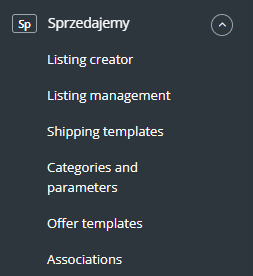
- Listing creator – here you list your offers. To proceed to the listing form, select the warehouse, Sprzedajemy account and products and click List selected (form);
- Listing management – here you can import offers listed outside Base.com (and manage them directly in the panel) and export auctions for further analysis;
- Shipping Templates – here you can fetch all your shipping templates created on the marketplace side
- Categories and parameters – in this tab you will select your favourite categories and you will map the parameters;
- Offers templates – here you will create offer templates;
- Associations – here you can assign marketplace categories and offer templates to the category (or products) from the storage.
Configuration
To list offers with literally a few clicks, configure the Sprzedajemy module by following these steps:
- Connect Sprzedajemy account in Integrations → Add new integration.
- Select your favorite categories in Sprzedajemy → Categories and parameters → Sprzedajemy categories. This way, your favourite categories will be visible from a drop-down list on the listing form.
- Complete the offer settings in Integrations → Sprzedajemy → Listing settings. Please complete here the default form settings (e.g. duration, offer format, multiplier, etc.).
- Map parameters in Sprzedajemy → Categories and parameters → Sprzedajemy parameters. Thanks to the created rules, offer parameters will be completed automatically on the listing form.
- Create category and product links in Sprzedajemy → Associations. Assign marketplace categories and offer templates to categories (or products) from the storage.
- Congratulations, you have just fully set up your account 🙂
To get the most out of the system, follow these steps:
- Configure the price synchronization module in Integrations → Sprzedajemy → Prices.
- Configure stock synchronization module in Integrations → Sprzedajemy → Stock.
- Configure the Order Manager and activate Sprzedajemy order downloading to Base.com in Integrations → Sprzedajemy → Orders.