If you already have offers listed on a marketplace via Base.com, you can list them on additional platforms in just a few easy steps!
Due to differences between marketplaces (different categories, required parameters, description formatting), it is not possible to automatically mass-transfer offers from one marketplace to another. However, you can create products in the Base.com warehouse based on your currently active offers and use them to list offers on subsequent marketplaces.
If you haven’t yet connected a marketplace account with active offers to the system, first add the integration to your Base.com account.
To transfer offers between Allegro accounts, simply connect both accounts to the system, import the offers, and use the List on another account operation.
Importing offers with the option to create products in the inventory
To transfer offers from one marketplace to another, you must import the products into the Base.com Inventory.
If you already have a warehouse with products (external, connected to the system, or within Base.com), there is no need to perform such an import – you can list products using the existing warehouse. You can read more about this in the article Warehouse configuration scenarios.
Creating products in Base.com based on marketplace offers is possible through the offer import process.
You can perform this in the Marketplace → Offer Management → Import offers section.
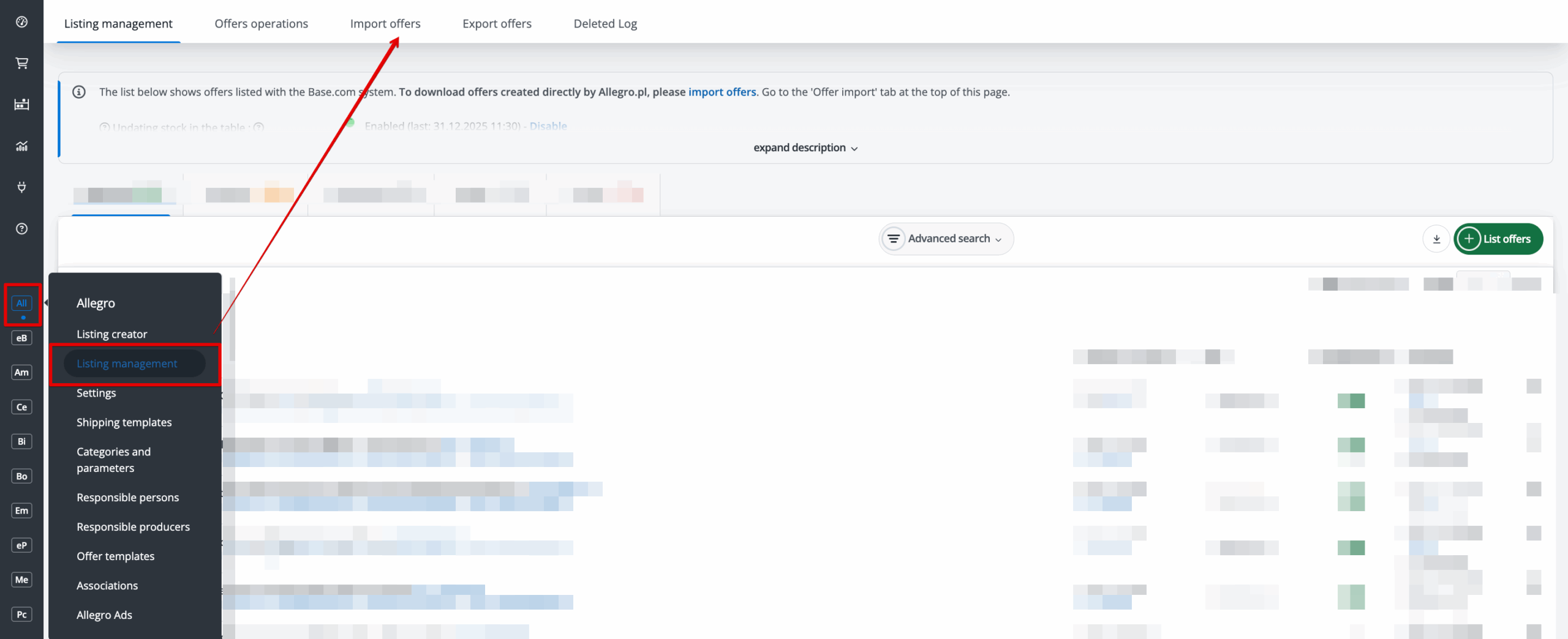
To create products, in the import settings for the Create products in warehouse option, select the value: Yes – create products in warehouse. I do not have an external shop with these products.
For detailed instructions on how to perform such an import, please refer to the article Creating products in Base.com based on marketplace offers.
On the product card, you can use the DeepL translator integration or artificial intelligence functionality to translate all product data into the selected language and save it in the inventory. This will allow you to use it multiple times when listing on different platforms.
To translate product data in the Base.com inventory using any of the tools listed above, you need to add the language you are interested in to the inventory.
Configuring a second marketplace
Information on connecting and configuring individual marketplaces can be found HERE.
Please note the following important settings when transferring offers:
- Select your favourite categories in which you want to list your offers in the Marketplace → Categories and parameters → Categories section;
- Import shipping price lists (only selected marketplaces, including Allegro, eBay, Wszystko.pl) in the Marketplace → Shipping price lists section;
- Create your own listing templates (only selected marketplaces, including Allegro, Etsy, eMAG) in the Marketplace → Auction/listing templates section;
- Configure default listing settings in the Integrations → Marketplace account → Auction/listing settings section;
- You can also create specific associations (for specific categories and/or products) in the Marketplace → Links section;
- Map parameters in the Marketplace → Categories and parameters → Parameters section.
Listing
Once you have configured the marketplace module correctly, you can start listing new offers – it only takes a few clicks!
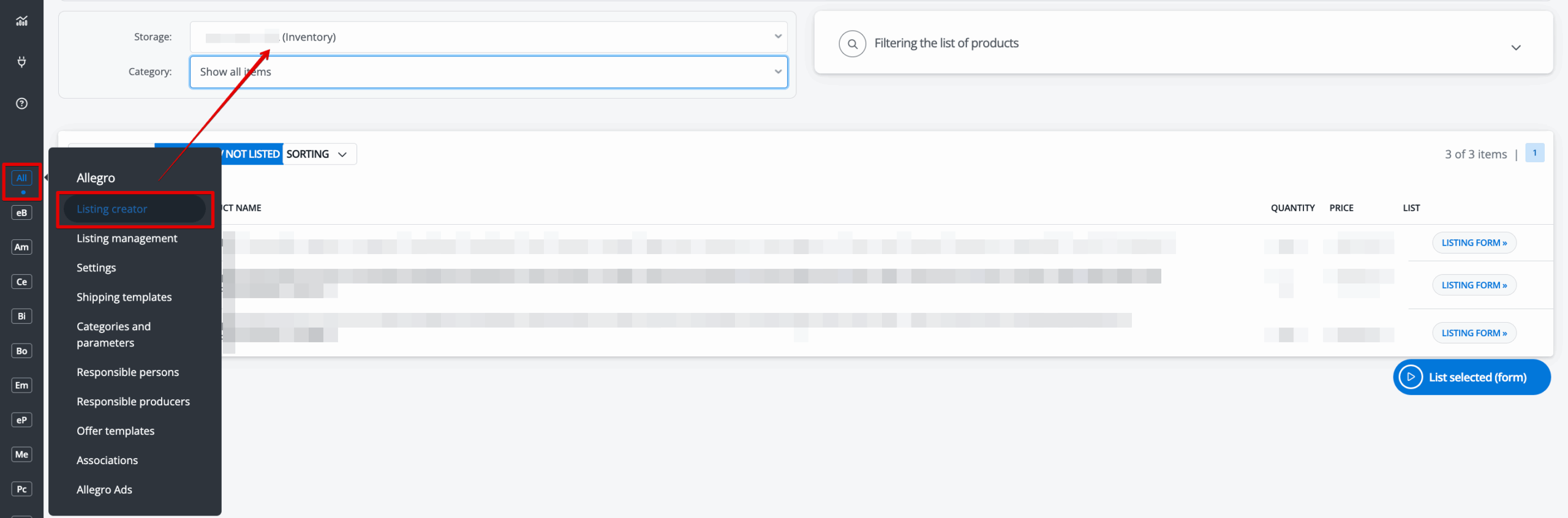
To do this, go to the Marketplace → Listing section and select the account (if you have more than one account connected to the selected marketplace), warehouse and category from which you want to list products.
When transferring offers from another marketplace, select the inventory to which you previously imported as the warehouse.
To list offers, select the products you want to list and go to the listing form using the blue button at the bottom of the List selected (form) list.
If you have fully and correctly configured the marketplace module, all fields should be filled in automatically. All you have to do is click List auctions/offers at the top of the form.
The process of listing new offers on the marketplace is described in detail in the article Listing offers.
If the language of the marketplace on which you want to list offers is different from the language in which you have product data in your catalogue, you can translate directly on the listing form using our integration with the DeepL translator or generate data in the correct language thanks to artificial intelligence capabilities.