For Indian online sellers, managing orders, stock, couriers, and fulfillment across multiple platforms can quickly get overwhelming. While Wix.com offers a smooth website builder and ecommerce engine, most businesses still rely on external tools to automate logistics, reduce errors, and accelerate delivery operations.
Base solves this problem by acting as a central OMS + WMS hub where all your workflows come together like orders, inventory, shipping labels, GST invoices, and courier integrations.
If you run a Wix store and want a seamless way to handle fulfillment across India, this guide explains everything you need to know. You’ll learn how to connect Wix with Base, what data syncs both ways, how Indian couriers fit in, and what steps ensure your operations run smoothly at scale.
Why Connect Wix With Base?
Many Indian sellers rely on Wix.com to manage storefronts, product pages, customer communication, and sales. However, Wix alone does not provide deep integrations with domestic couriers or operational tools such as:
- Bulk shipping label generation
- GST invoice creation
- Automatic pickup scheduling
- Multi-warehouse routing
- Marketplace consolidation
- Seller flexibility across India’s fragmented logistics network
Base becomes the operational backbone behind your Wix store. Once connected, Base handles everything from order import to courier assignment and tracking updates. It helps you eliminate manual work, reduce order delays, and scale your online store across multiple locations or marketplaces.
Step-by-Step: How to Connect Your Wix Store to Base
Integrating Wix with Base takes only a few minutes, and you do not need technical expertise. Follow these steps to configure the connection correctly.
1. Open Base → Integrations → Add Integration
Begin in your Base dashboard.
- Log in to your Base.com seller account.
- Navigate to Integrations from the left menu.
- Click Add Integration.
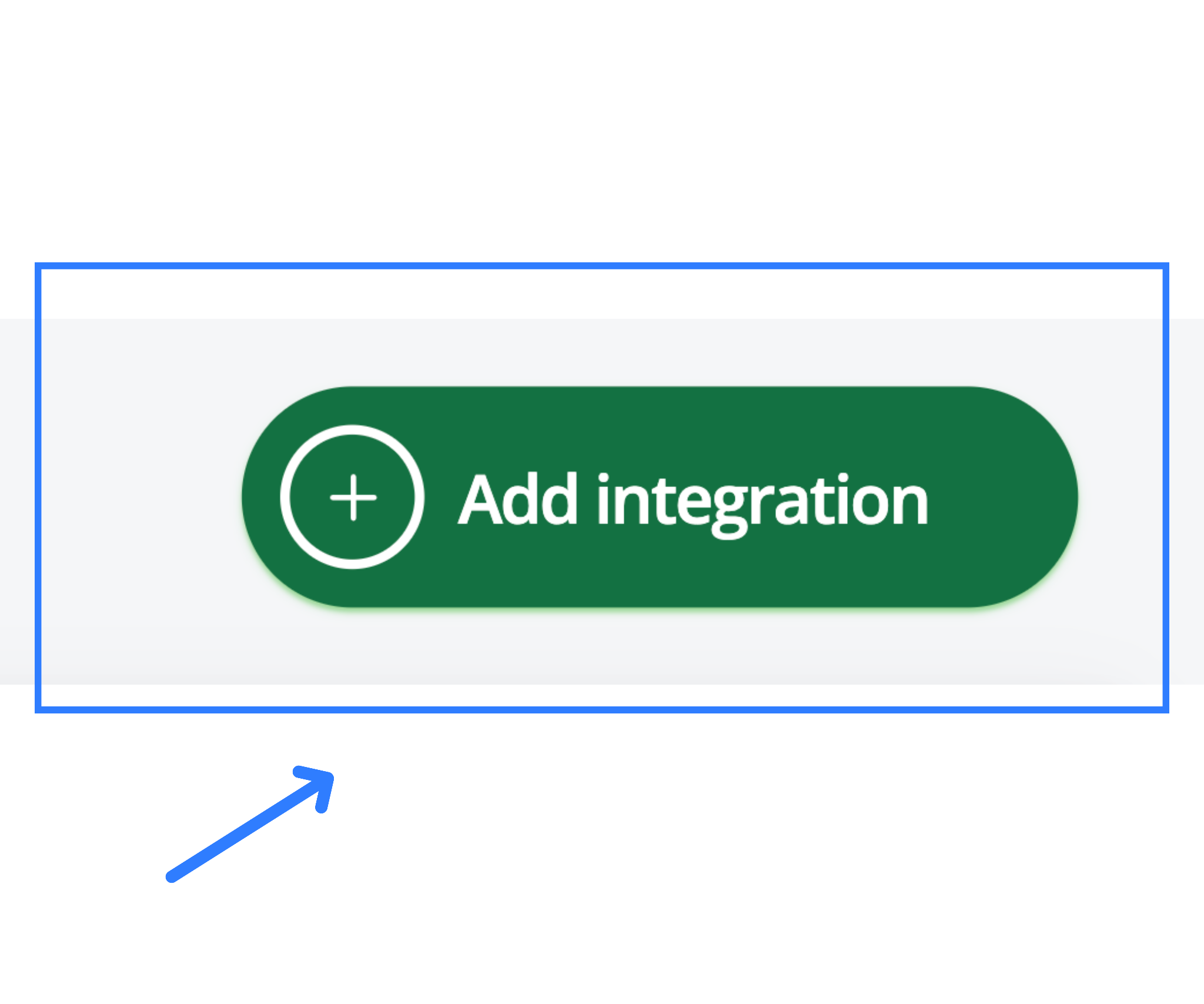
A list of ecommerce, courier, and marketplace integrations will appear.
2. Search “Wix” and Select the Wix.com Integration Tile
Scroll or use the search bar to find Wix.
Click the Wix.com tile to begin the connection process.
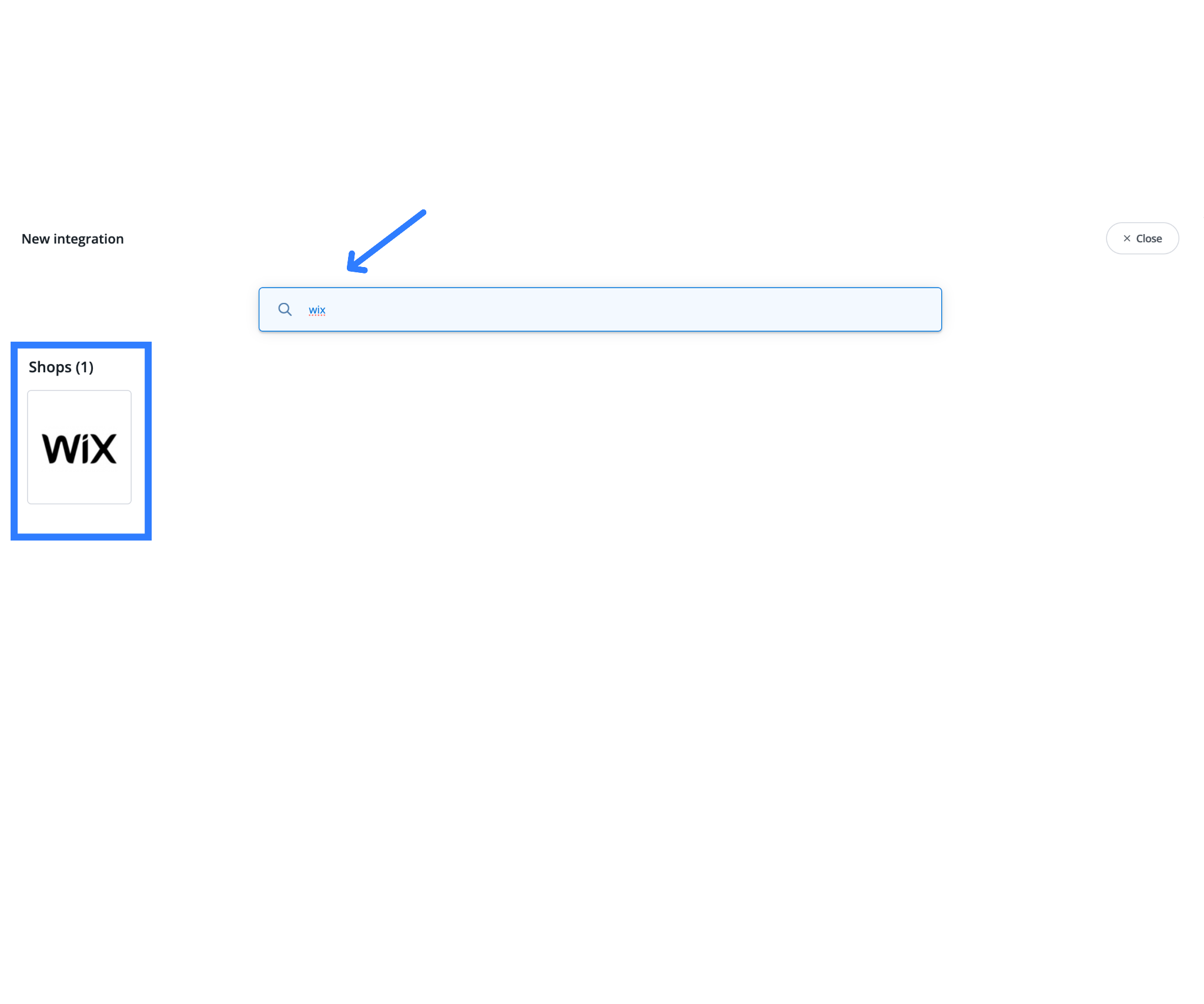
You will now be asked to authenticate your Wix account using a secure OAuth window.
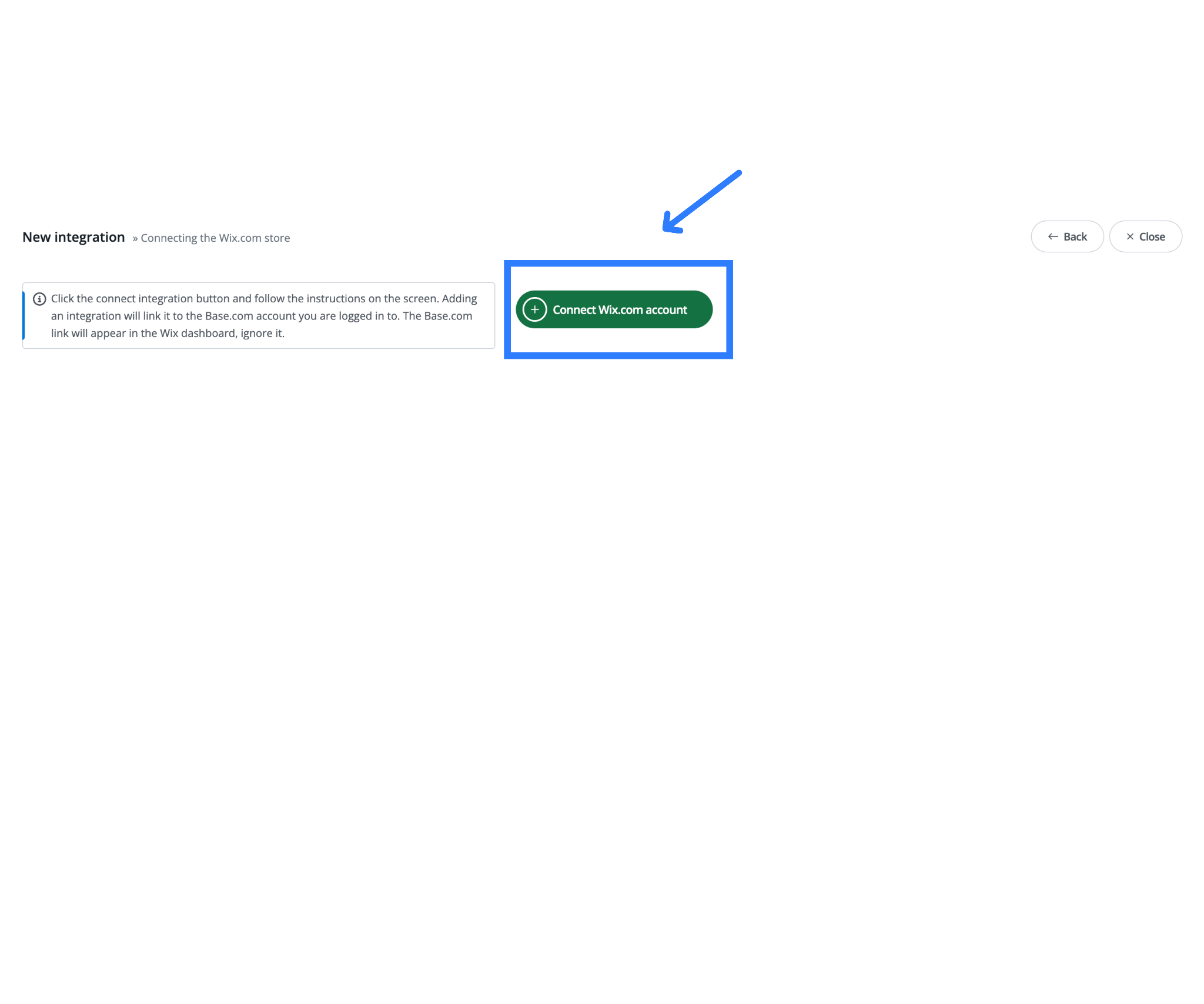
3. Click “Connect Wix.com account”
Base will redirect you to an official, secure Wix login page.
This ensures your credentials are never stored in Base, and the connection is fully API-based and revocable anytime.
4. Log In to Wix and Grant Access
Enter your Wix account credentials. Wix will prompt you to approve permissions for:
- Orders
- Catalog
- Fulfillments
- Inventory updates
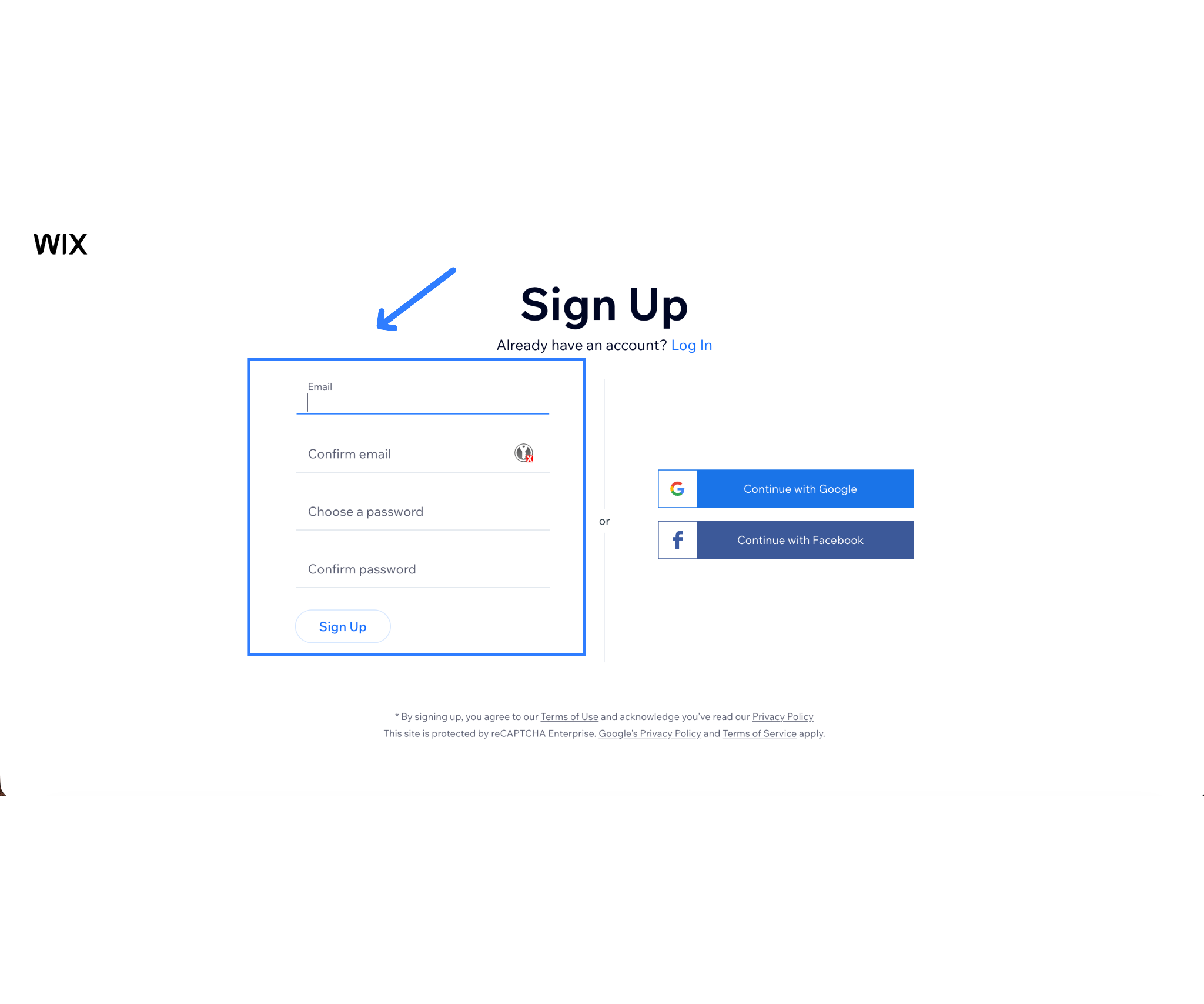
These access scopes are defined by Wix and must be granted for the integration to work correctly. If you manage multiple Wix stores, Wix will ask you to select the correct website for integration.
5. Return to Base to Complete the Configuration
After approval, Wix redirects you back to Base.
Here, you must finalize your integration settings, including order rules, inventory sync preferences, default shipping setup, and fulfillment behavior.
Below is what each setting means for Indian sellers.
What to Configure in Base After Connecting Wix
Base provides several customization options that help you control how your Wix orders and stock behave inside the OMS.
A. Order Import Rules
Choose which Wix orders Base should import.
Most Indian sellers choose:
- Paid orders only – common for prepaid and UPI orders
- Paid + Unpaid – helpful for COD-heavy stores
- All statuses – if you want full synchronization
You can also choose how often Base checks Wix for new orders.
Most sellers prefer real-time or 5-minute sync for fast fulfillment.
B. Inventory Sync Settings (Optional but Recommended)
Base can automatically update your Wix inventory when orders are processed.
This prevents:
- Overselling
- Stock mismatch issues
- Cancellations due to unavailability
Wix’s Inventory API supports:
- Product variants
- Sku-level quantity updates
- In-stock/out-of-stock toggles
Choose Base as your stock “master” if you use:
- Multi-warehouse operations
- Offline store inventory
- Marketplace order source-of-truth
- Automated purchase orders and replenishment
If you prefer Wix as the stock master, you can reverse the sync direction.
C. Shipping Defaults for Faster Dispatching
Configure your preferred settings:
- Sender name, address, GST details
- Default label size for your thermal printer
- Preferred carriers (Delhivery, Shiprocket, Bluedart, Shadowfax, etc.)
- Auto-courier assignment rules
- Automatic pickup scheduling
You can also map Wix order statuses to Base events like:
- Processing → Create shipping label
- Packed → Trigger auto-print
- Fulfilled → Send tracking to Wix
This creates a smooth workflow without manual clicks.
D. Test the Integration End-to-End
Before going live, create a test order in your Wix store.
Verify the following:
- Order appears instantly in Base
- You can generate a label in Base with your integrated courier
- Tracking updates from Base appear in the Wix order timeline
- Inventory adjusts correctly if you enabled stock sync
If all steps work smoothly, your integration is complete.
Tip: Install Base Printer for Automatic GST Invoices and Labels
Base Printer is a desktop application for Windows/macOS that enables:
- One-click label printing
- One-click GST invoice printing
- Automatic print-on-status-change
- No PDF downloads
- Connecting multiple printers in different warehouses
For Indian sellers working with compliance-heavy shipping, Base Printer ensures your team avoids manual downloads and repetitive printing tasks.
Setup Tips for Indian Sellers
Here are some India-specific recommendations to streamline operations.
1. Use Native Courier Integrations
Base supports leading Indian carriers:
- Delhivery (preferred for pan-India coverage)
- Bluedart (premium express shipping)
- Shadowfax (fast metro deliveries)
- DTDC (budget-friendly shipping)
If you prefer a consolidated view, use:
- Shiprocket
- NimbusPost
- iThink Logistics
Base provides seamless integration guides for all.
2. Setup Automatic Pickup Scheduling
Some carriers allow daily scheduled pickups.
You can configure this once so your team never has to book pickups manually.
3. Automate Printing Across Multiple Locations
If you operate multiple warehouses:
- Install Base Printer at each location’s computer
- Choose printer defaults per user
- Use Automatic Actions to trigger prints based on status
Example:
When an order moves to “Packed,” automatically print label + invoice.
4. Prevent Stock Mismatch Issues
To ensure accurate stock sync:
- Enable “Track Inventory” in Wix for all products
- Ensure correct SKU → Variant mapping
- Avoid duplicate SKUs across product groups
- Review your master stock location (Wix vs Base)
If you sell on marketplaces like Amazon or Flipkart, let Base act as your stock master.
Troubleshooting Common Issues
Even with a clean integration, you may run into occasional setup issues. Here’s how to fix them quickly.
| Issue | What to Check in Wix | What to Check in Base | Additional Notes |
| 1. Wix Account Not Showing in Base | – Logged into the correct Wix owner/admin account
– Permissions fully granted for Orders, Catalog, Fulfillment, Inventory – Correct Wix site/store selected |
– Disconnect and reconnect the integration if needed | Wix may hide sites if you’re logged into a collaborator/limited role |
| 2. Orders Not Importing | – Order status included (Paid / Unpaid / Processing)
– A test order exists after integration |
– Import filters set correctly
– Sync interval frequency (real-time / 5 minutes) – Refresh credentials if required |
Orders created before integration may not sync unless manually pulled |
| 3. Labels Not Printing via Base Printer | (Not applicable in Wix) | – Base Printer desktop app running
– Printing Key correctly linked – Correct printer selected in settings – Test print successful – Stable internet connection – Restart Base Printer if needed |
Required for automatic GST invoice + label printing |
| 4. Inventory Not Updating | – Inventory tracking ON for products
– SKU and variant IDs match exactly – Product is active and published on store |
– Inventory sync enabled in settings
– Correct warehouse mapped – No conflicting catalog/stock rules |
SKU mismatch is the #1 cause of Wix-Base inventory sync failures |
For any Indian business selling on Wix, Base delivers a powerful and scalable backend designed for fast-moving ecommerce operations. Whether you ship 20 orders a day or 2,000, the Wix ↔ Base integration keeps your workflows organized, your stock accurate, and your courier processes fully automated.
With a few simple setup steps, you unlock a complete fulfillment engine—one that saves time, reduces errors, and helps your ecommerce business grow across India’s complex logistics landscape.
Click here to integrate Myntra with your account in Base.com.
FAQs
Q. How do I connect my Wix website to Base in India?
Go to Base → Integrations → Add → search Wix → Connect Wix.com account. Sign in to Wix, approve permissions, and then configure order import, stock sync, and shipping rules inside Base.
Q. Will Base update my Wix stock automatically?
Yes. If stock sync is enabled, Base will update Wix using the Inventory API, including variant-level quantities and stock status. Keep SKUs consistent across both platforms.
Q. Can I print GST invoices and labels automatically?
Yes. Install Base Printer (India) to print directly from Base, no file downloads needed. You can even automate printing based on order status.
Q. Which couriers are best for Wix orders through Base?
Indian sellers commonly use Delhivery and Shiprocket, but you can also connect others like Bluedart, Shadowfax, DTDC, or NimbusPost depending on your coverage needs.
Q. Does Wix receive tracking numbers from Base?
Absolutely. Base sends fulfillment updates to Wix’s API, including carrier name, tracking number, and dispatch/fulfilled statuses.
Q. I operate from multiple locations. Can Base Printer work across warehouses?
Yes. Install Base Printer on each warehouse computer, set printer defaults per user, and automate print triggers using Base’s workflow automation.