The integration is currently in the beta phase.
Worten marketplace is the undisputed leader in consumer electronics and household appliances in Portugal, having successfully transformed into a powerful marketplace with an international reach. Thanks to its omnichannel model, the platform has become the first choice for millions of consumers on the Iberian Peninsula.
Base.com offers two-way integration with Worten, which allows not only to import orders but also to list offers based on products from the warehouse in bulk with just a few clicks.
Integration with Worten module enables:
- importing orders from all Worten accounts to the Base.com panel,
- forwarding orders to an online store,
- automatic transfer of shipment numbers from Base.com panel to Worten ,
- bulk listing on Worten based on products from a warehouse connected to the Base.com system (it can be an online store warehouse, wholesaler warehouse, Base.com warehouse or ERP system).
- basic offer management,
- automatic relisting,
- stock synchronization,
- synchronizing prices across various channels and promotional price synchronization.
How to link Worten account
To connect your account, follow these steps:
- Go to Integrations.
- Click the green button ‘+Add integration’, and then in the ‘Marketplace’ section select ‘Worten‘.
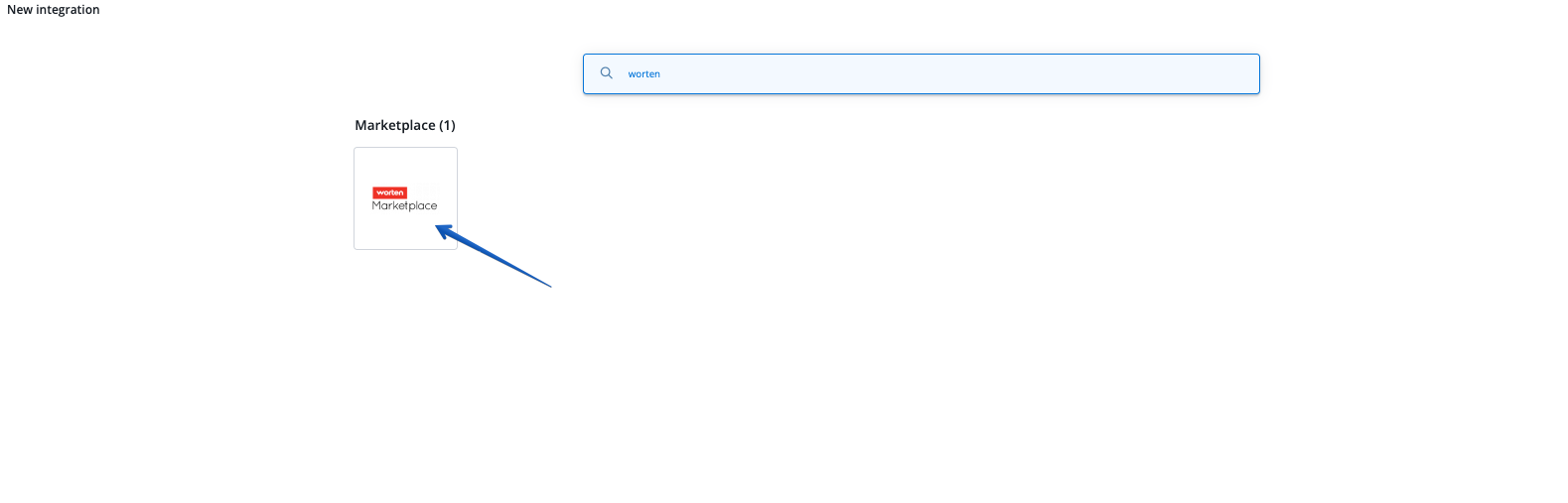
- Select the channel you are interested in and press “Connect Worten account”
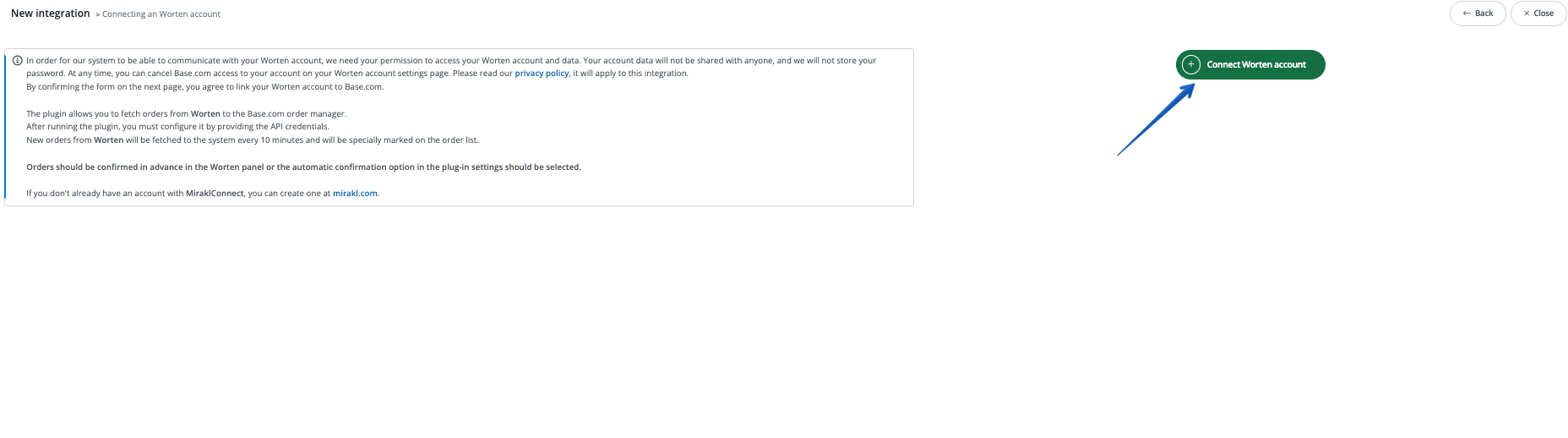
- Log in to your Mirakl account
Integration settings
When you add a new account you will see 8 tabs:
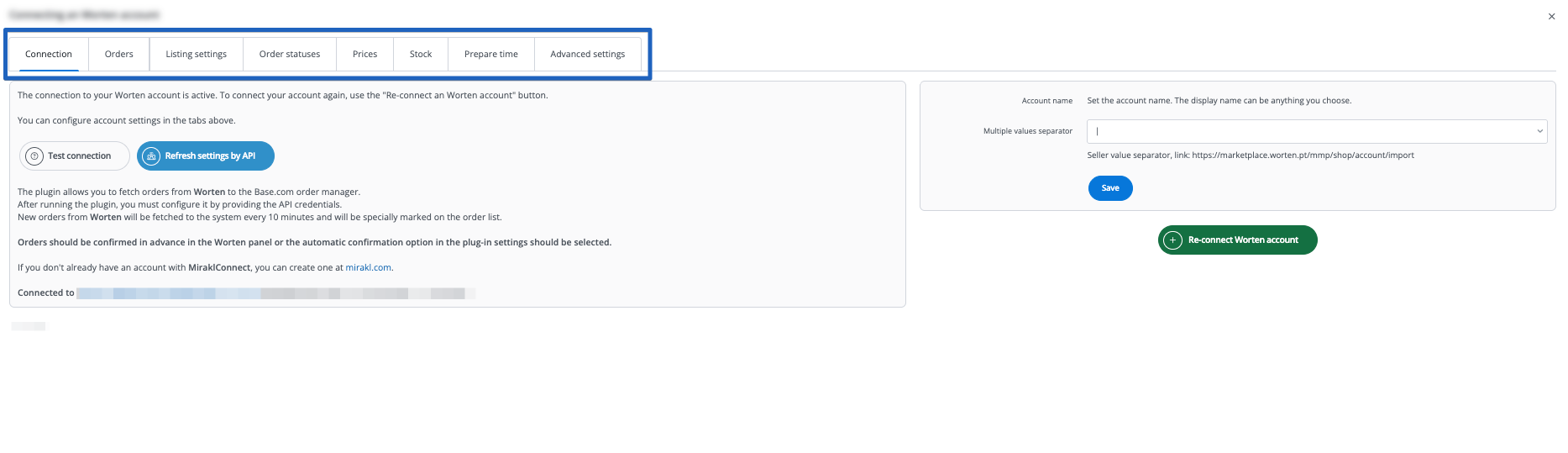
- Connection – here you can test if the connection is correct.
- Orders – here you can activate the download of orders. However, we recommend that you first configure Order Manager.
- Listing settings – here you can choose a template, price list and category for your entire account.
- Order statuses
- Prices – the price synchronization module will allow you to automatically synchronize prices in offers according to the prices of products in stock.
- Stock – the stock synchronization module will allow you to automatically synchronize offer stock according to warehouse.
The Worten module
On the left side of the Base.com panel you will see the Worten module. Here you will find 5 tabs:
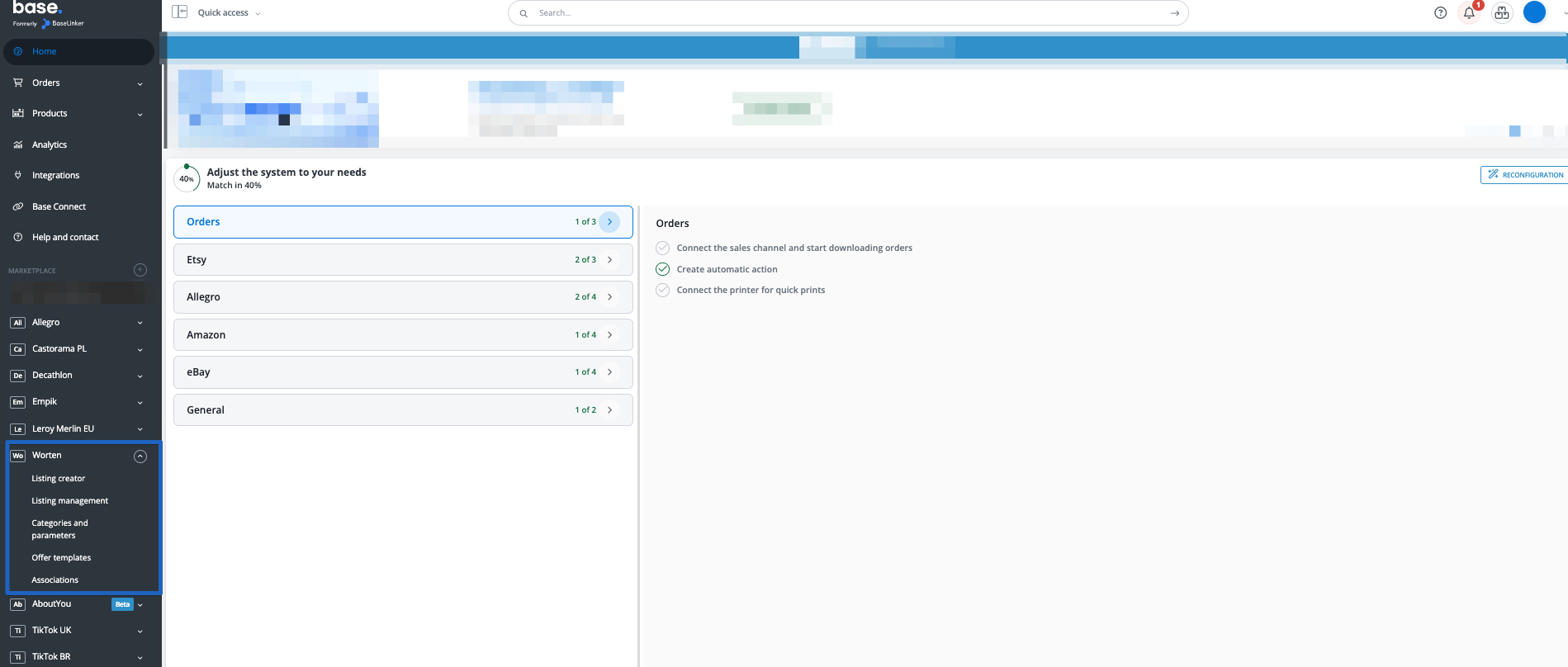
- Listing – here you list your offers. To proceed to the listing form, select the warehouse, Worten account and products and click ‘List selected (form)’.
- Offer management – here you can update existing offers. You can also import offers listed outside Base.com (and manage them directly in the panel) and export auctions for further analysis.
- Shipping templates– here you will import shipping templates,
- Categories and parameters – in this tab you will select your favourite categories and you will map the parameters
- Associations – here you can assign marketplace categories and shipping templates to the category (or products) from the warehouse.
Configuration
To list offers with literally a few clicks, configure the Worten module by following these steps:
- Connect account in Integrations → Add new integration.
- Create and import shipping templates in Worten → Shipping templates
- Select your favorite categories in Worten → Categories and parameters → Worten categories. This way your favorite categories will be visible from a drop-down list on listing form.
- Complete the offer settings in Integrations → Worten→ Offer settings. Please complete here the default form settings (e.g. duration, offer format, multiplier, etc.).
- Map parameters in Worten → Categories and parameters → Worten parameters. Thanks to the created rules, offer parameters will be completed automatically on the listing form.
- Create category and product links in Worten → Associations. Assign marketplace categories, auction templates and shipping rates to categories (or products) from the warehouse.
- Congratulations, you have just fully set up your account 🙂
To get the most out of the system, follow these steps:
- Configure the price synchronization module in Integrations → Worten → Prices.
- Configure stock synchronization module in Integrations → Worten → Stock.
- Configure the Order Manager and activate Worten order downloading to Base.com in Integrations → Worten → Orders.
Price synchronization for different channels
The Mirakl platform offers flexibility in price management, allowing sellers to assign different prices. By default, the system sends one set standard (default) price for all offers.
However, in the context of integration with sales management systems, such as Base.com, advanced configuration is possible. The Base.com system has been designed to meet the requirements of various pricing strategies, enabling the transmission of specific prices depending on the target marketplace (sales channel) in Worten. This is crucial for companies conducting international sales or differentiating their pricing policy depending on the customer’s location.
The step-by-step instructions below describe how to configure sending different default prices for each integrated marketplace (channel) for Worten.
- To synchronize prices for different channels in the Worten marketplace, you first need to create price groups for each channel and assign them to the catalog from which you list products on Worten.
- After creating and adding price groups for each channel and adding them to the catalog, the price groups should be visible on the product card.
- In the Worten integration settings, under the Listing settings tab, you must assign the previously created price groups for each Worten market.
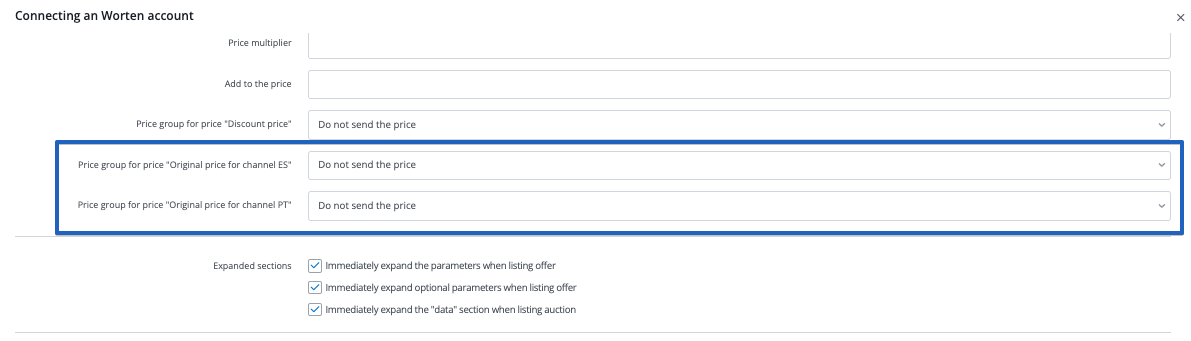
- The same price group settings must be assigned for each active market in the integration settings.

- You can then check the assigned prices in the Worten offers management in the Base panel.
Promotional price synchronization
- To synchronize the promotional price on the Worten marketplace, first create a new price group where you will store the promotional prices. After creating and linking the price group with the catalog on the product card, you will see the created price group.
- In the Worten integration settings, under the Listing settings tab, you must assign the previously created price group.
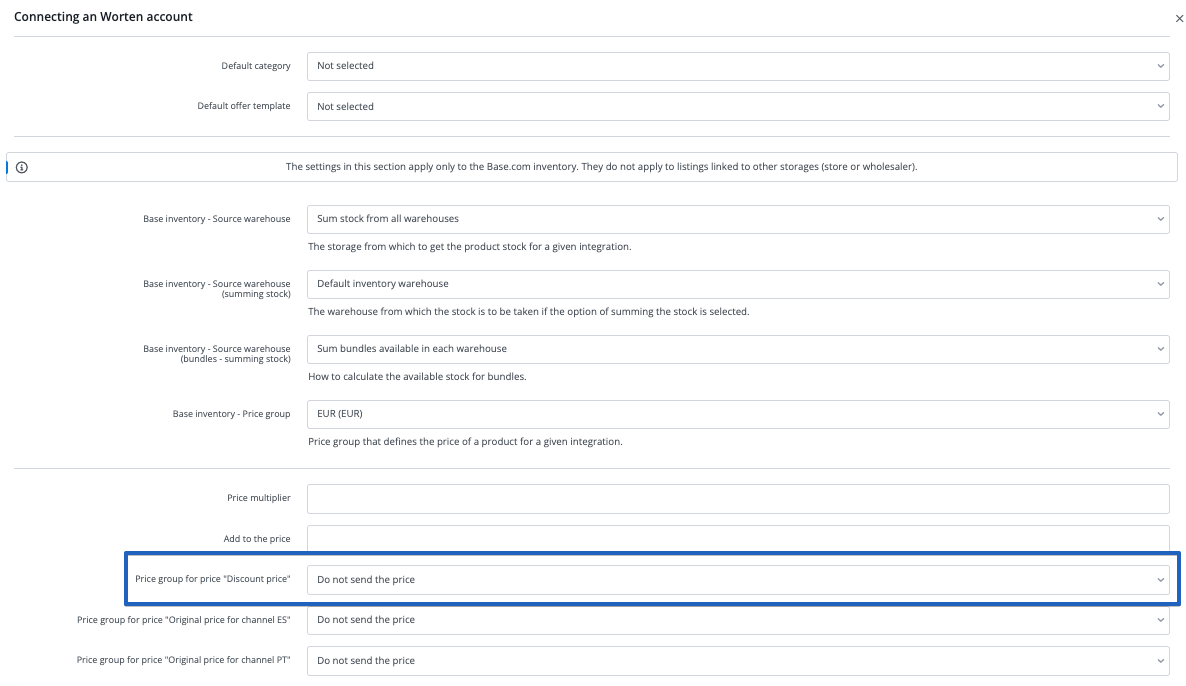
- The promotional price group must be assigned for each active market in the integration settings.
- You can then check the assigned prices in the Worten offers management in the Base panel.
Listing offers
Now you can proceed to the real sales 🙂
- List your first offers.
- Offers can be marked as offers relisted automatically
- If you have listed offers outside Base.com, you can import them following instructions in Import offers and products