This guide covers everything you need to connect Zoho Invoice, Zoho Books, and Zoho Inventory with Base.com. Whether you’re managing e-invoicing under GST, streamlining inventory tracking across multiple warehouses, or seamlessly syncing tax-compliant invoices with IRP, this integration offers automation, compliance, and operational control in one place.
Prerequisites
Before setting up the integration, a few system requirements must be in place to ensure smooth and compliant operation.
| Requirement | Why It Matters |
| Zoho organisation | Required to access GST fields, IRP connections, and HSN/SAC code validation |
| Base.com admin access | Enables setup of integrations and automation rules |
| GSTIN & HSN/SAC codes | Mappings in Base Inventory should be the same as Zoho |
These prerequisites ensure that the integration supports end-to-end GST compliance from invoice generation to e-invoice upload and archiving.
How to Connect Zoho to Base.com
The actual connection process between Zoho and Base.com is straightforward and secure, using OAuth authentication.
Steps:
- Log in to your Base.com dashboard.
- Navigate to Integrations > Add Integration.
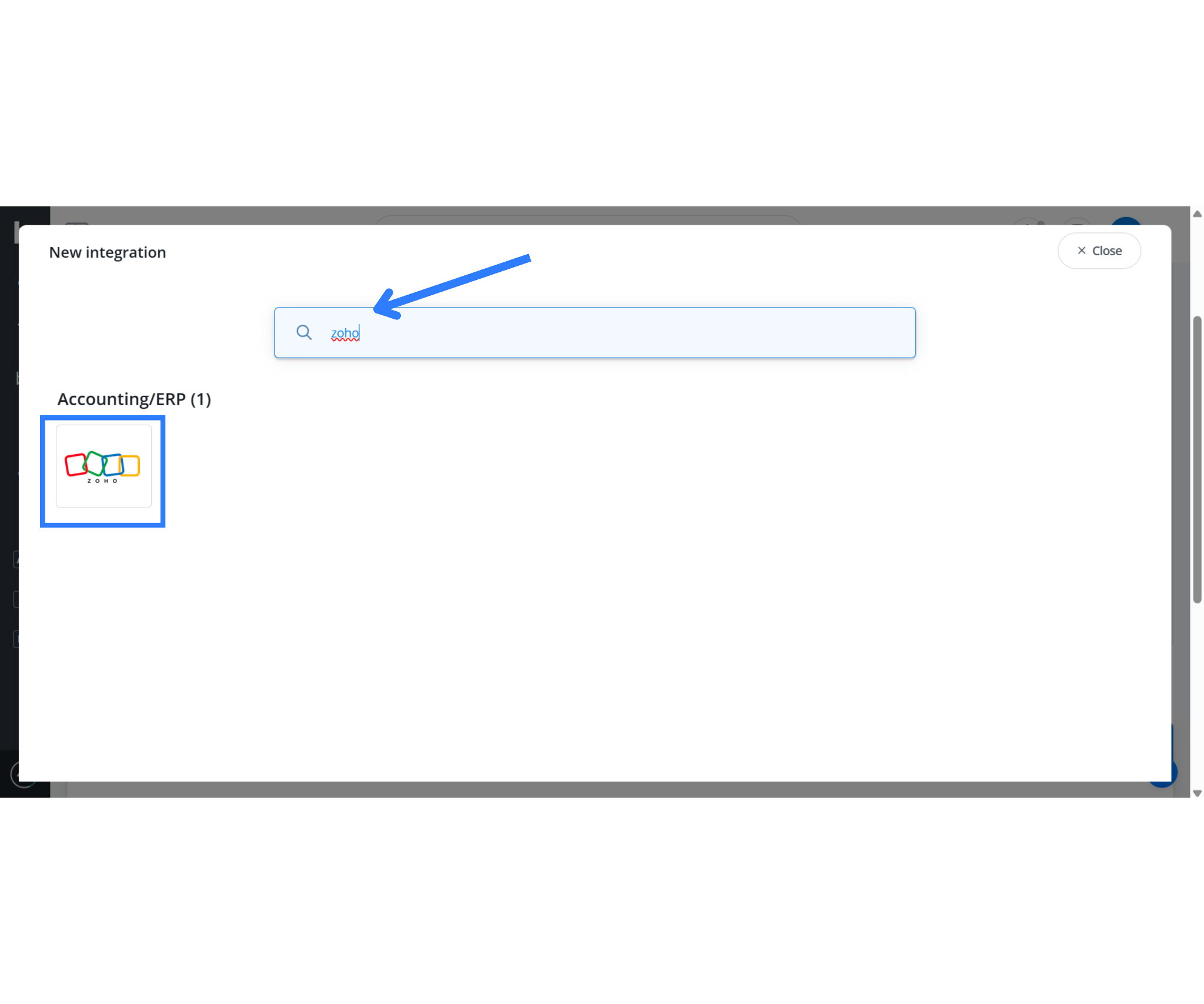
- Search for Zoho and click the tile labeled accordingly.
- Choose the service you want to connect:
- Zoho Invoice
- Zoho Books
- Zoho Inventory
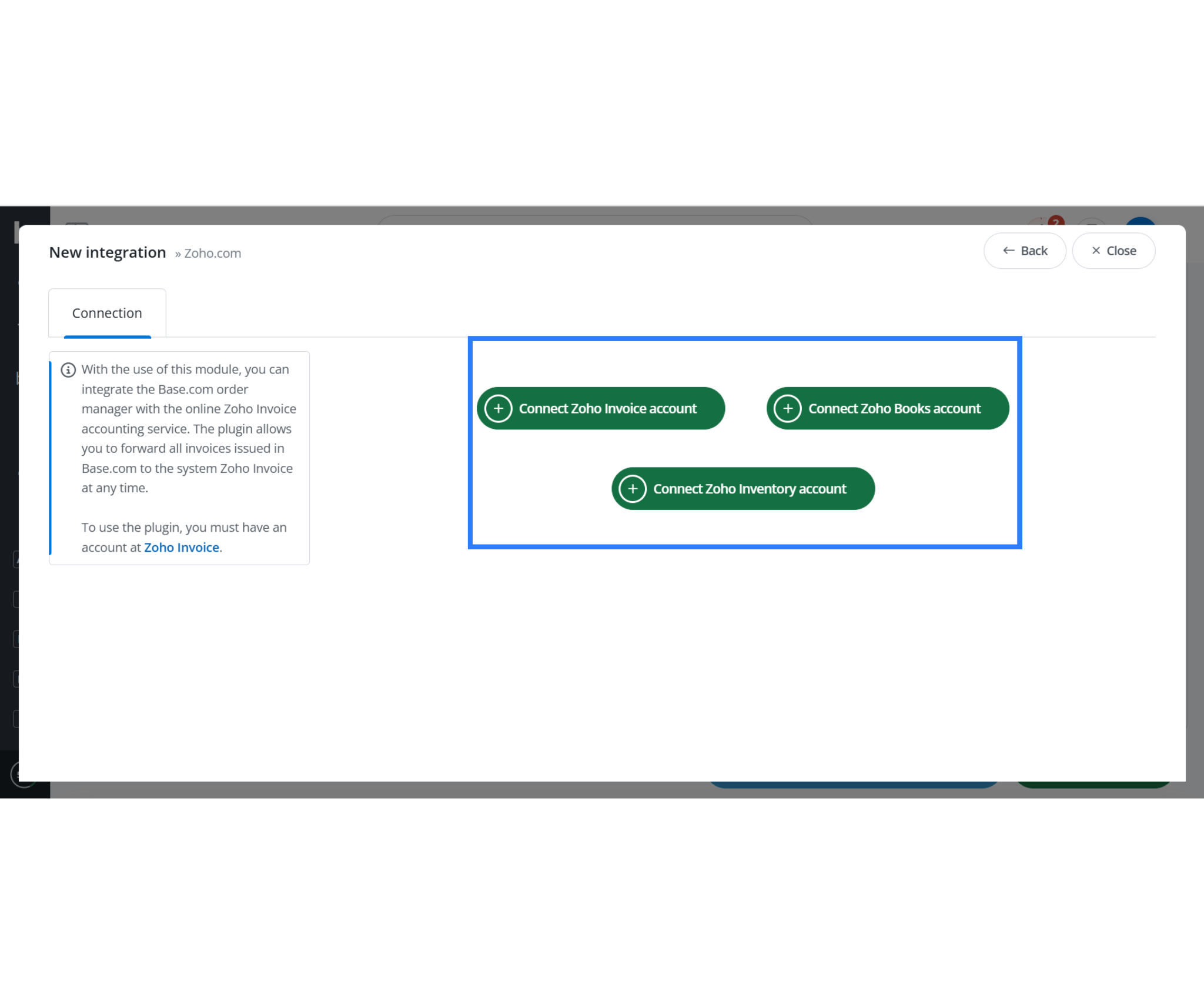
- You can link all three services at once if required.
- Click Connect Zoho account. This will open a pop-up OAuth window.
- Log in with your Zoho Super Admin credentials and grant access.
- Once authorization is complete, return to the Base dashboard and click Save.
Now Base has successfully connected to your Zoho account. This connection allows invoice data, product catalogs, contractors, and tax codes to sync between both platforms.
Configure GST Settings
To comply with Indian tax regulations, you need to set up GST-specific configurations in both Base and Zoho.
Key Areas:
| Panel | Action |
| Series Mapping | Match each Base invoice series (e.g., INV‑24) to Zoho’s invoice numbering. |
| GST Tax Setup | Import CGST, SGST, IGST codes from Zoho and map them to Indian states. |
| IRP Auto-Upload | Toggle on to automatically push invoices to IRP for real-time IRN creation. |
| HSN/SAC Validation | Ensure every item has a valid HSN/SAC code. Zoho will block uploads without it. |
This step ensures the IRP portal accepts your invoices and automatically returns the IRN and QR code to your Base order panel.
How Data Flows Between Base and Zoho
Understanding how and when data moves between platforms is critical for compliance, performance, and accuracy.
1. Base → Zoho
Base sends invoices, credit notes, and delivery challans directly to Zoho. This transfer can occur instantly after invoice creation, in bulk through the export panel, or automatically via API. It records all transactional documents in Zoho, ensuring complete accounting and GST compliance. The integration also supports Reverse Charge Mechanism (RCM) self-invoicing, a feature introduced in Zoho Books in April 2025, allowing self-billing for applicable purchases or services.
2. Zoho → IRP (Invoice Registration Portal)
Once an invoice reaches Zoho, it automatically converts each invoice into a JSON payload formatted according to India’s GST e-invoice schema. Zoho sends this payload in real time to the government’s Invoice Registration Portal (IRP). The IRP validates the data and returns an Invoice Reference Number (IRN) along with a QR code, officially registering the invoice under GST regulations.
3. Zoho → Base
After the IRP validation is complete, Zoho generates a final, signed PDF invoice that includes both the IRN and the QR code. Zoho then automatically sends this document back to Base, which stores it as an attachment within the corresponding order record. This seamless loop links every Base invoice with its verified Zoho version, keeping your documentation complete and audit-ready.
4. Zoho Inventory → Base
Zoho Inventory continuously synchronizes stock quantities and product base prices with Base. Updates typically occur between every 10 minutes and 24 hours, depending on the sync frequency configured in the integration settings. This keeps product availability and valuation aligned across systems. It fully supports multi-warehouse tracking and SKU-specific adjustments, maintaining consistency between online orders and physical stock.
This real-time flow ensures every invoice complies with the GST schema, and inventory stays in sync across systems.
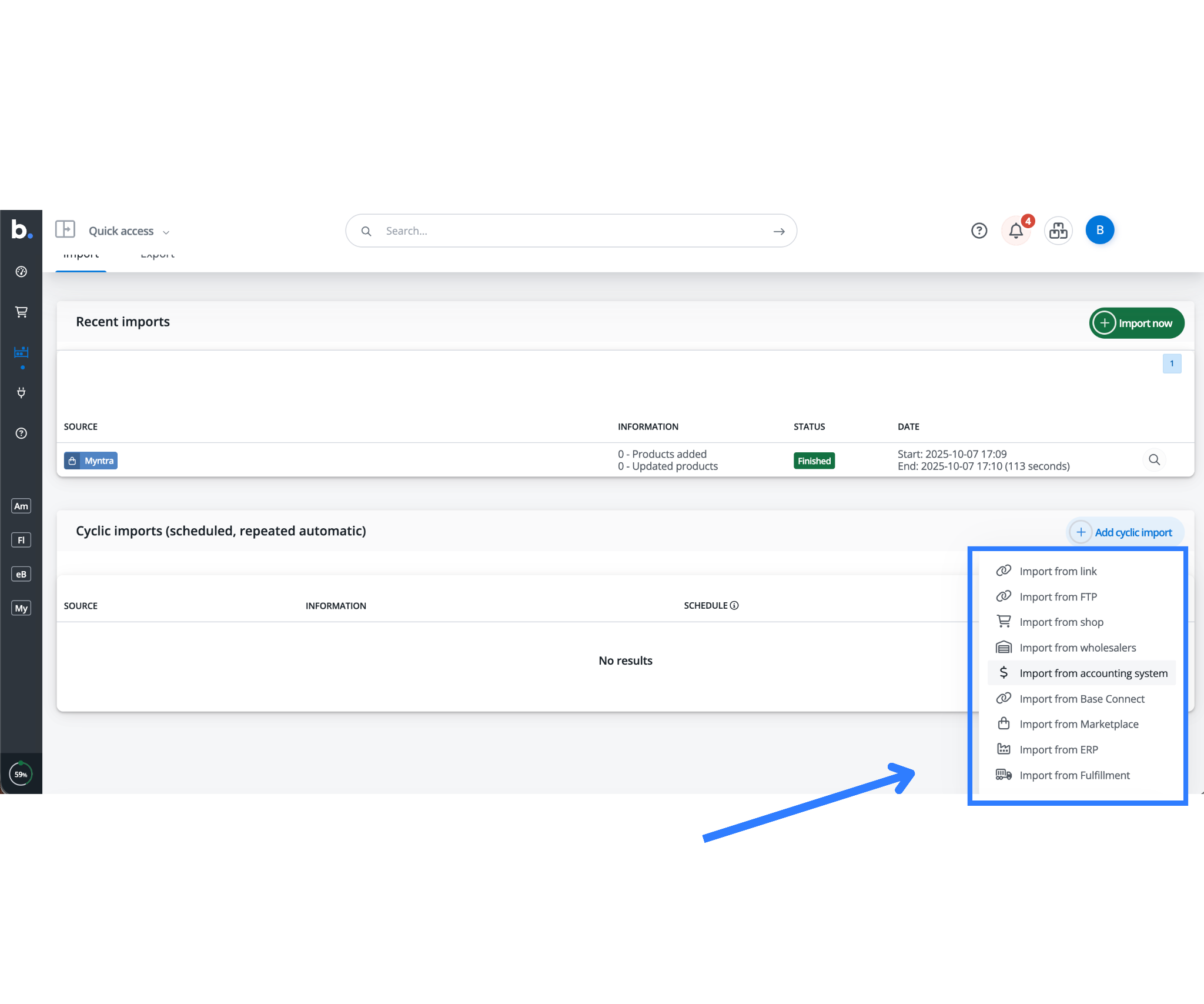
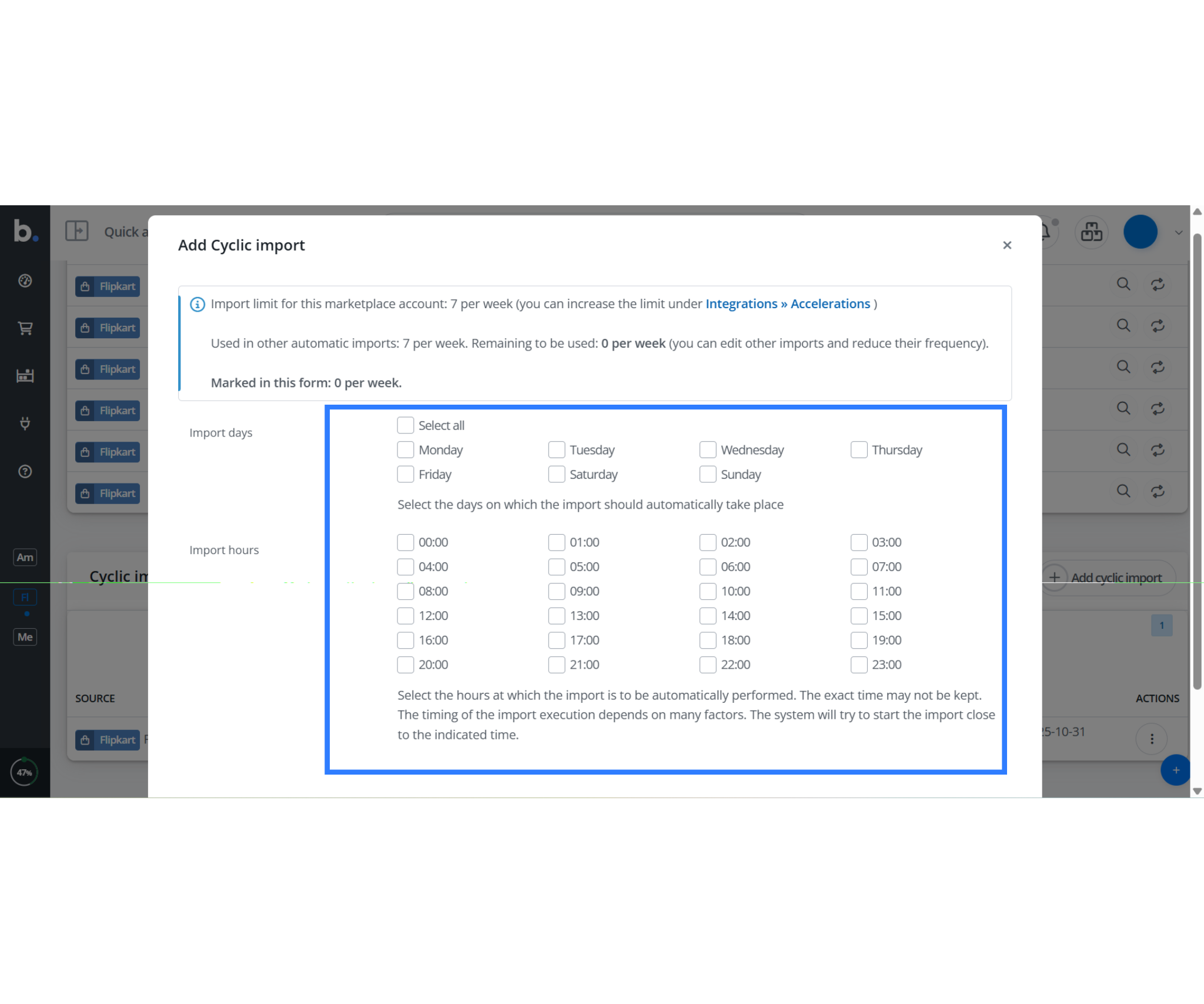
To eliminate manual data entry and ensure your catalog always stays current, Base supports Cyclic Import, a scheduled synchronization process that automatically fetches product data from Zoho on a recurring basis post invoice creation real time sync or monthly basis.
When you enable Cyclic Import, Base automatically imports product details like SKUs, tax categories, stock levels, pricing, and HSN/SAC codes at set intervals (e.g., hourly or daily). This keeps your Base catalog perfectly in sync, ensuring any new or updated products in Zoho appear automatically without manual input.
Automating Workflows
Automation is key to leveraging the full potential of this integration. Base lets you configure triggers and actions to simplify compliance workflows across invoices, shipments, and tax documentation. The automation stages are fully customizable and can be configured based on when the invoice is issued, whether right after order creation, after packing, or once shipment is scheduled. This flexibility enables businesses to design automation logic that aligns perfectly with their operational cycle, ensuring faster turnaround times, consistent compliance, and minimal manual intervention.
Recommended Automations:
- Order Paid → Issue Invoice → Upload to IRP: As soon as an order is marked paid (via Razorpay, COD, etc.), Base issues an invoice, pushes it to Zoho, and Zoho generates the IRN in seconds.
- Amount > ₹50,000 + Country = India → Generate E-Way Bill: Use Zoho Books’ E-Way Bill automation for shipments above the compliance threshold.
- Weekly Bulk Export: If you prefer batch processing, you can use the Export Documents tab in Base to push multiple invoices for IRP registration.
These automations save time and reduce the risk of non-compliance by keeping your processes consistent.
Detailed Overview of Base.com’s Zoho Module
The Base.com Zoho integration module gives full control over invoice behavior, sync logic, and compliance configuration.
1. Zoho Integration Settings – Connection Tab
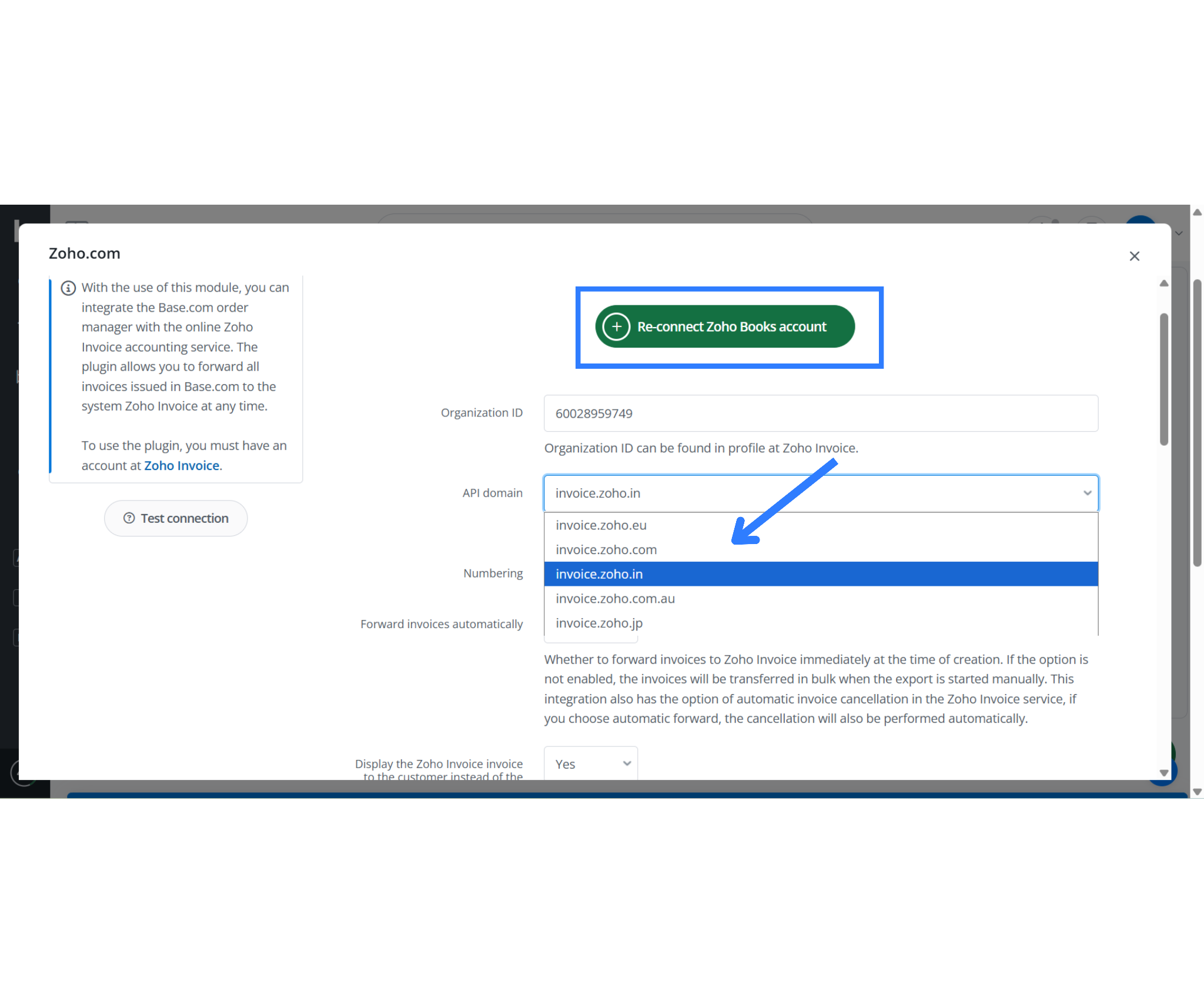
With the use of this module, you can integrate the Base.com order manager with the online Zoho Invoice accounting service. The plugin allows you to forward all invoices issued in Base.com to the system Zoho Invoice at any time.”
To use this module, you must have an active Zoho Invoice, Books, or Inventory account.
Zoho Integration – All Connection Settings Explained
| Field | Purpose / What to Do |
| Organization ID | Unique ID from Zoho required to link your Zoho account. Find it in Zoho under Settings > Organization Profile. |
| API Domain | Choose the correct API region:
• invoice.zoho.in (India) • invoice.zoho.com (Global) • invoice.zoho.eu (Europe) • invoice.zoho.com.au (Australia). |
| Numbering | Select how invoices are numbered in Zoho:
• Add invoices with Base.com numbering – Keeps Base invoice numbers. • Use Zoho numbering – Applies Zoho’s internal numbering rules. |
| Forward invoices automatically | If set to Yes, invoices are pushed to Zoho instantly upon creation in Base.
If No, you’ll need to manually export them later. |
| Display Zoho invoice in customer email | If Yes, Base emails will contain a Zoho invoice link using [invoice_link] – useful for marketplaces and print modules. |
| Add contractors | If Yes, Base will auto-create customers in Zoho if they don’t exist already. If No, contractors must exist beforehand. |
| Add products | If Yes, Base will add missing products to Zoho automatically when forwarding invoices. |
| Convert prices of added products to base currency | If Yes, prices will convert to Zoho’s base currency using product settings or current exchange rate. If No, prices are forwarded as-is. |
| Warehouse ID (optional) | Select the warehouse (if applicable) to track inventory through Zoho Inventory. Click “Load available options” to view connected warehouses. |
| Stock levels | Choose how stock is managed:
• “Stock on Hand” reflects available quantities pulled from Zoho Inventory. |
| Forward payment details | If Yes, payment details from Base are transferred into Zoho with the invoice. |
| Payment reference number – Comment | Define how payment comments are passed. Choose from dropdown (e.g., use Base comments or leave blank). |
| Treat products with negative price as a discount | If enabled, any item with a negative price on the invoice is treated as a discount line item in Zoho. |
| Shipment SKU | Optional field to pass a specific shipment SKU (Stock Keeping Unit) to Zoho Invoice. |
| Tax prefix | Used to add a prefix (e.g., “GST-”) before the tax codes sent to Zoho. Useful for distinguishing tax regions. |
| Forward order source (custom field label) | Allows sending a custom field to Zoho, typically to track the platform or order source (e.g., Amazon, Flipkart). |
| Shipping HSN code | Enter the default HSN (Harmonized System of Nomenclature) code for shipping charges. Required for e-invoice compliance. |
| Push to IRP | Toggle whether the invoice should be submitted to the Invoice Registration Portal (IRP) from Zoho. Set to Yes to enable e-invoicing. |
| Save IRP error to extra field | Choose how Base handles IRP upload errors. You can save them to an extra field for tracking or select “Don’t save.” |
| Pass discount values from extra field | Specify whether Base should pass discount amounts (defined in extra fields) to Zoho. Useful for advanced discount handling. |
2. Exporting Documents
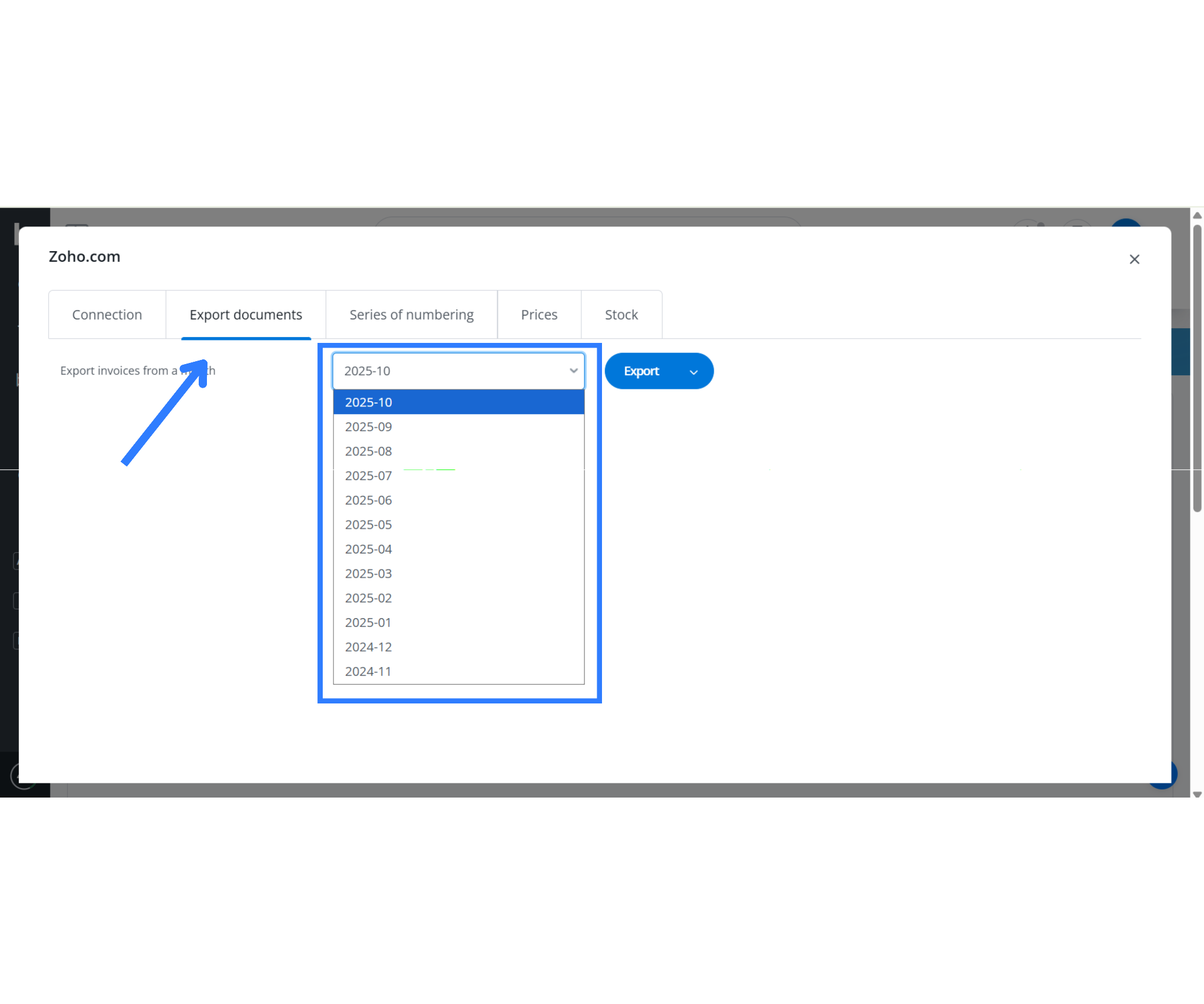
The Export Documents tab in the Zoho integration module within Base.com allows you to manually send invoices to Zoho for a specific month. This becomes especially useful when you turn off automatic invoice forwarding or need to re-export past invoices for compliance, reporting, or e-invoice generation.
To use this feature, you begin by selecting a month from the dropdown list. The system displays available months based on your invoice history in Base. Once you’ve selected the desired period, for example, October 2025, you simply click the Export button. This action pushes all invoices generated during that month from Base to your connected Zoho account (Invoice, Books, or Inventory).
This feature is crucial for handling:
- Bulk exports before monthly GSTR-1 filings
- Syncing older invoices that were not automatically forwarded
- Reprocessing failed or corrected documents
3. Numbering Series Control
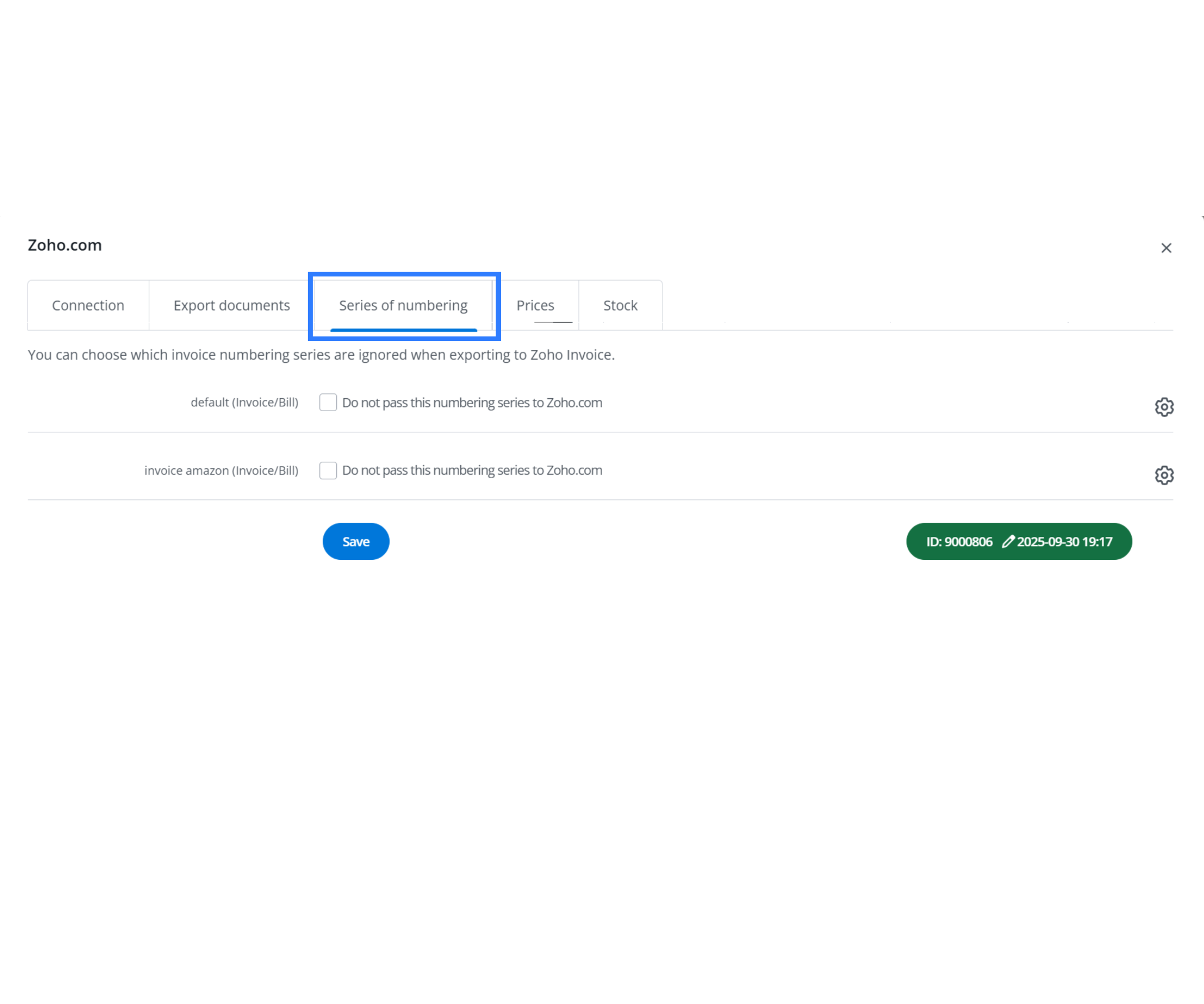
The Series of Numbering tab in Base.com’s Zoho integration module lets you control which invoice series are included or excluded from being exported to Zoho Invoice. This feature is particularly useful for businesses operating across multiple sales channels or using different invoice templates for various purposes (e.g., marketplace orders vs. direct sales).
You’ll see a list of all active invoice numbering series in your Base account. You can choose the option “Do not pass this numbering series to Zoho.com” for any series. When enabled, invoices from that series aren’t sent to Zoho, helping you maintain clean and organized accounting records by excluding internal or channel-specific documents.
This ensures better control over your financial records and reduces clutter in Zoho by avoiding unnecessary invoice syncing.
Key Uses:
- Exclude marketplace-specific invoices (e.g., Amazon, Flipkart).
- Prevent test or proforma invoices from syncing.
- Maintain separate books for B2B and B2C operations.
4. Price & Stock Synchronization
Both price and stock can be synced from Zoho to Base.
Prices Tab – Automatic Price Synchronization
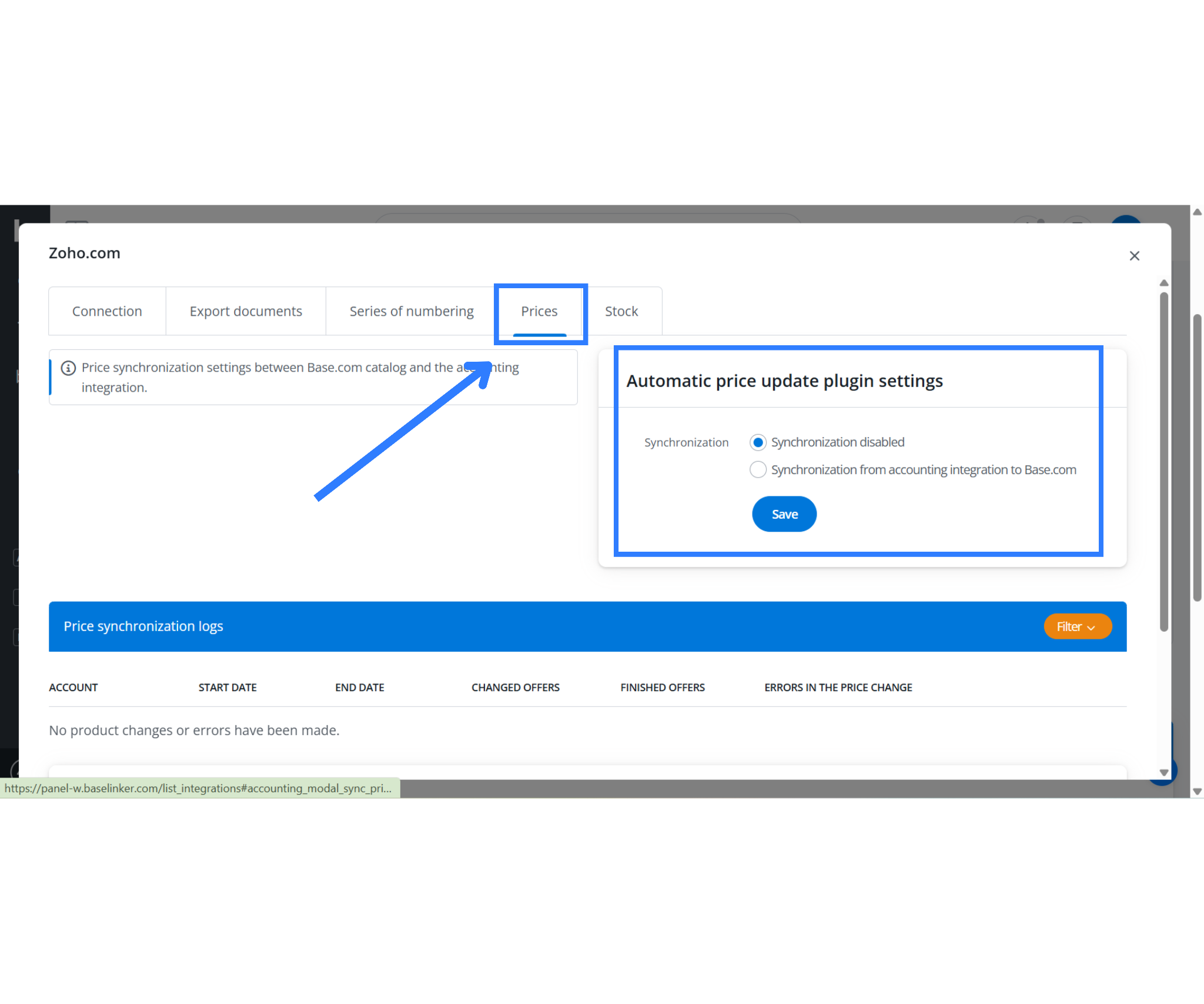
The Prices tab in Base.com’s Zoho integration module manages how product pricing syncs between Zoho and Base. This is especially helpful for keeping product listings accurate across sales platforms, accounting, and inventory systems.
At the top, you’ll find a section titled Automatic price update plugin settings with two synchronization options:
- Synchronization disabled – This is the default setting. No prices are pushed from Zoho to Base.
- Synchronization from accounting integration to Base.com – When selected, Base.com will receive updated product prices from Zoho Invoice, Books, or Inventory based on the latest pricing data stored in Zoho.
Once enabled, this ensures all product price changes made in Zoho (e.g., cost updates, MRP adjustments) reflect in Base without manual updates.
Features:
- The Price Synchronization Log below shows which products changed, when they changed, and whether each sync succeeded or failed.
- You can also search by product ID to find the sync status of individual items.
- A Filter option helps you quickly analyze finished offers, changed offers, or price change errors.
This setup is ideal for teams who manage pricing centrally in Zoho but sell across marketplaces via Base.com.
Stock Tab – Automatic Quantity Synchronization
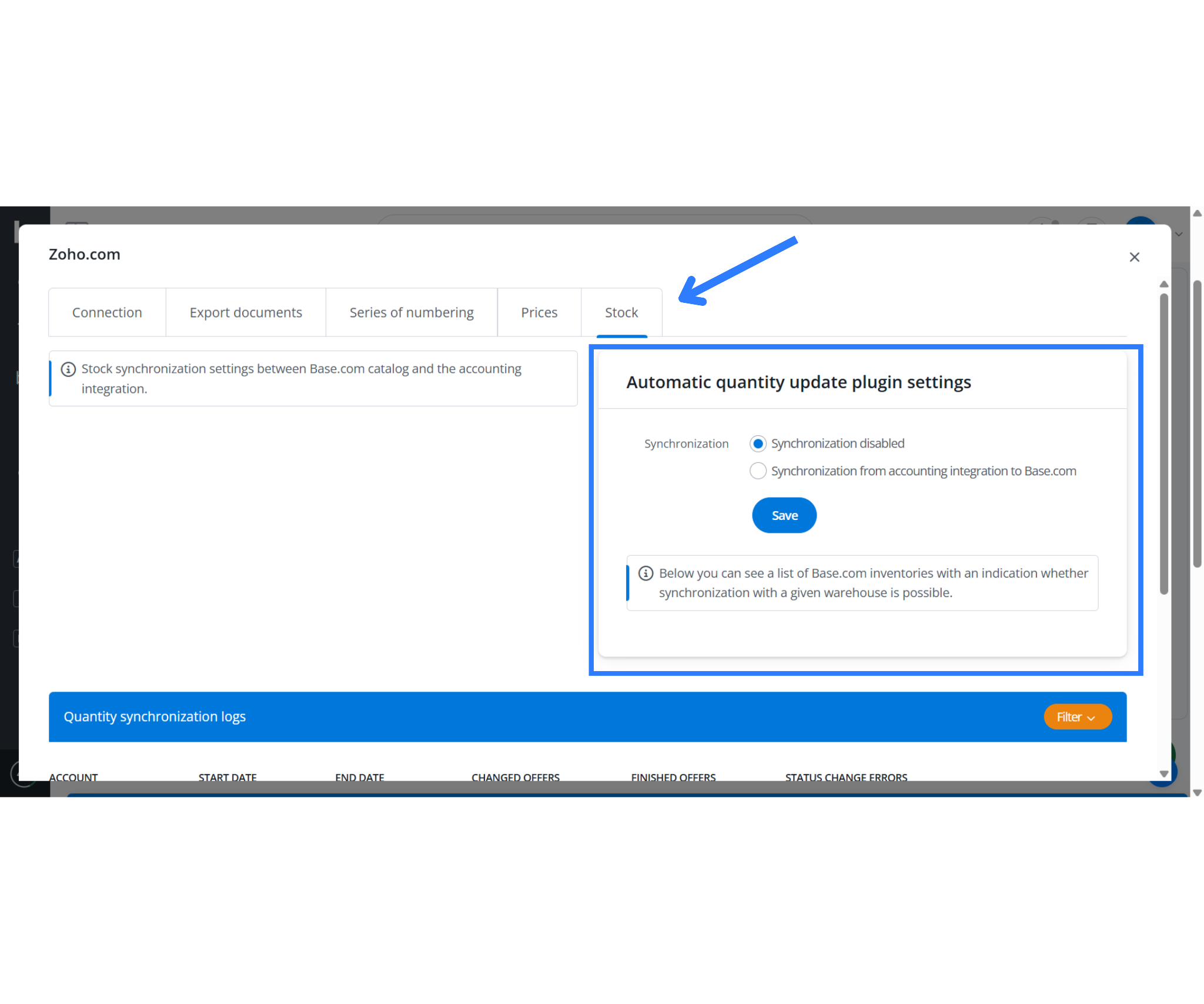
The Stock tab controls how inventory quantities flow between Zoho Inventory and Base.com. It keeps stock levels consistently updated across platforms, preventing overselling, out-of-stock errors, and mismatched warehouse data.
At the top, under Automatic quantity update plugin settings, you’ll see the sync options:
- Synchronization disabled – No stock updates occur between Zoho and Base.
- Synchronization from accounting integration to Base.com – Enables real-time or scheduled inventory sync from Zoho Inventory to Base.com.
Once activated, this plugin pulls stock values from Zoho (across connected warehouses, if configured) and updates Base’s inventory to match.
Features:
- A Quantity Synchronization Log records every sync event, identifies which products changed, and confirms whether each update was applied successfully.
- The Search by product ID field lets you pinpoint the stock status of any SKU.
- A Filter dropdown allows sorting based on sync status, errors, or changed offers.
- The interface will also display a list of Base.com inventories and whether they can sync with Zoho, depending on warehouse compatibility.
This setup is essential for sellers using Zoho Inventory as their stock source while managing multi-channel orders via Base.
Out of Box Features which Base.com Supports
The Base.com integration with Zoho Invoice, Books, and Inventory provides a reliable foundation for automating invoicing, syncing product data, and maintaining tax compliance. While the out-of-the-box features are strong for most e-commerce and B2B operations, understanding the full landscape, including what Zoho supports via API and what the integration currently lacks, is crucial for advanced users or developers.
What Base.com Supports Natively
Base.com’s native integration offers a set of key features designed for businesses managing orders from multiple sales channels:
- Invoice Forwarding (Base → Zoho): Base.com automatically sends invoices created from marketplaces or direct channels to Zoho for compliance and accounting.
- Bulk or Real-Time Export: Users can automatically export invoices as they’re created or manually export them in bulk by month.
- Invoice Retrieval (Zoho → Base.com): Zoho generates the final invoices including the IRN and QR codes and lets you download them back into Base to attach to orders for communication or printing.
- Product and Inventory Sync: Base.com can import master product data from Zoho and keep stock levels and pricing aligned, ensuring marketplaces reflect accurate inventory.
- Inventory Sync using Cyclic Updates: Orders are first processed in Base. Zoho Books automatically reduces inventory as soon as it creates the invoice, whether the invoice was pushed in real time or on a monthly schedule. If both systems manage stock, you can schedule cyclic imports at regular intervals to keep inventory levels perfectly synchronized from Zoho to Base.
- Marketplace Listing from Zoho Products: Products synced from Zoho can be directly used to create offers on sales platforms via Base.com, minimizing duplicate data entry.
- Workflow Automation: Users can create automatic flows like “Order Paid → Create Invoice → Push to Zoho,” streamlining compliance with GST and IRP uploads.
- Multi-language and Multi-series Support: Invoicing can be customized based on country, language, or order source,useful for cross-border sellers.
- Marketplace Compliance: Invoices from Zoho can be forwarded through Base to marketplaces like Amazon, ensuring platform-level document compliance.
- Direct Printing Support: Invoices from Zoho can be printed via Base’s network printer modules for shipping or offline operations.
What Zoho Offers Through APIs
Zoho provides REST APIs across its suite of products that extend well beyond invoicing:
- Zoho Books / Invoice: APIs cover invoices, credit notes, payments, expenses, GSTR filing, and ledgers.
- Zoho Inventory: Full access to items, stock, warehouses, purchase orders, and transfers.
- Zoho CRM: Supports syncing of leads, contacts, deals, and custom fields.
- Zoho Creator: Enables building custom workflows, apps, and integrations via APIs.
- Zoho Analytics & Desk: Offers reporting dashboards and supports ticket integration.
These APIs let you read, create, or modify nearly all business data, while respecting user permissions and usage limits.
Conclusion
The Zoho–Base.com integration empowers Indian businesses to automate GST compliance at scale. It enables real-time e-invoicing, IRN generation, warehouse stock sync, and HSN validation, ensuring full regulatory compliance with minimal manual effort.
Click here to automate your D2C journey today!
Frequently Asked Questions
Q1. How can I automate GST e-invoice creation through Base.com and Zoho?
You can automate GST e-invoice creation by enabling Automatic Actions in Base.com. Set the trigger to “Order Paid” → “Issue Invoice” → “Export to Zoho.” Once you send an invoice, Zoho automatically pushes the JSON payload to the Invoice Registration Portal (IRP), generates the IRN and QR code, and sends the signed PDF back to Base.com in real time. This automation ensures real-time e-invoicing compliance and eliminates the need for manual uploads or separate IRP logins.
Q2. Is Zoho Invoice still free for Indian users, and what are its limitations?
Yes. Zoho Invoice remains free in India, offering unlimited e-invoices for GST-registered businesses. The free plan supports invoice creation, IRN generation, and automatic IRP submission. However, users who need ledger management, bank reconciliation, GSTR-2A matching, or expense tracking should upgrade to Zoho Books. Zoho Books integrates seamlessly with Base.com and offers advanced financial modules, making it a preferred choice for growing businesses that require deeper accounting functionality beyond invoicing.
Q3. How do I handle Reverse Charge Mechanism (RCM) invoices with Zoho and Base.com?
With Zoho Books’ April 2025 update, the “Download Self-Invoice” feature enables full RCM handling. When you create a Reverse Charge transaction in Zoho, the system automatically generates a self-invoice and syncs it seamlessly to Base.com. Base then attaches this document to the corresponding order record for tracking and printing. This setup ensures your GST filings include RCM invoices correctly, reducing manual reconciliation errors for transactions where the buyer, not the seller, bears tax liability.
Q4. How can I manage multiple GSTINs across different states in Zoho and Base.com?
If your business operates in multiple Indian states under separate GSTINs, you’ll need to create a separate Zoho organization for each GSTIN. In Base.com, connect each Zoho organization individually using the integration panel. You can then configure warehouse rules or numbering series in Base to route invoices automatically to the correct Zoho organization. This setup ensures GST compliance per state and maintains accurate financial segregation for state-wise tax reporting and e-invoicing.
Q5. What should I do if my invoice is rejected by the IRP or if API limits are reached?
If the IRP rejects an invoice (commonly with error 2150), verify the HSN code format and ensure correct CGST/SGST or IGST splits for the buyer’s state. For large-scale exports, remember that Zoho enforces API rate limits. Base.com allows batching up to 200 invoices per minute. Schedule exports in intervals using Base’s scheduler to prevent throttling. These practices ensure uninterrupted IRP communication and prevent data loss during high-volume invoice pushes.