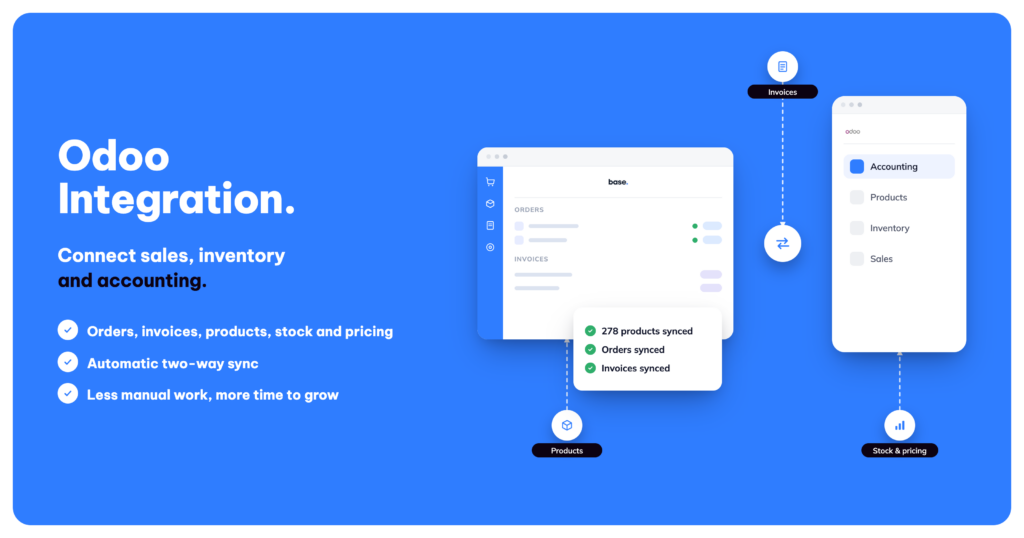
If you run accounting, invoicing, or warehouse operations in Odoo and sell across marketplaces and online stores through Base, connecting the two keeps products, stock, prices, orders, and invoices in sync automatically instead of updating each system by hand.
This guide walks through every configuration field you’ll see when setting up the integration.
Odoo is a native integration in Base, so there’s no separate add-on to install. It works with standard database.odoo.com accounts, Odoo.sh, and self-hosted or custom-domain instances.
Explore the Odoo integration →
What you’ll need before you start
- An active Odoo account (standard, Odoo.sh, or self-hosted)
- An Odoo API key (generate this from your Odoo user’s account settings, under Developer tools or API keys)
- Your Odoo database name (visible in your Odoo URL, or under “Databases” after signing in)
- Admin access to your Base account, to add a new integration
How to connect Odoo to Base
Step 1: add the integration
- In Base, open your integrations list and choose to add a new integration.
- Search for and select odoo.com.
Step 2: connect your Odoo account (Connection tab)
The Connection tab is where you enter your Odoo credentials, and it’s also where you’ll configure product matching and invoice/order export behaviour further down the same screen.
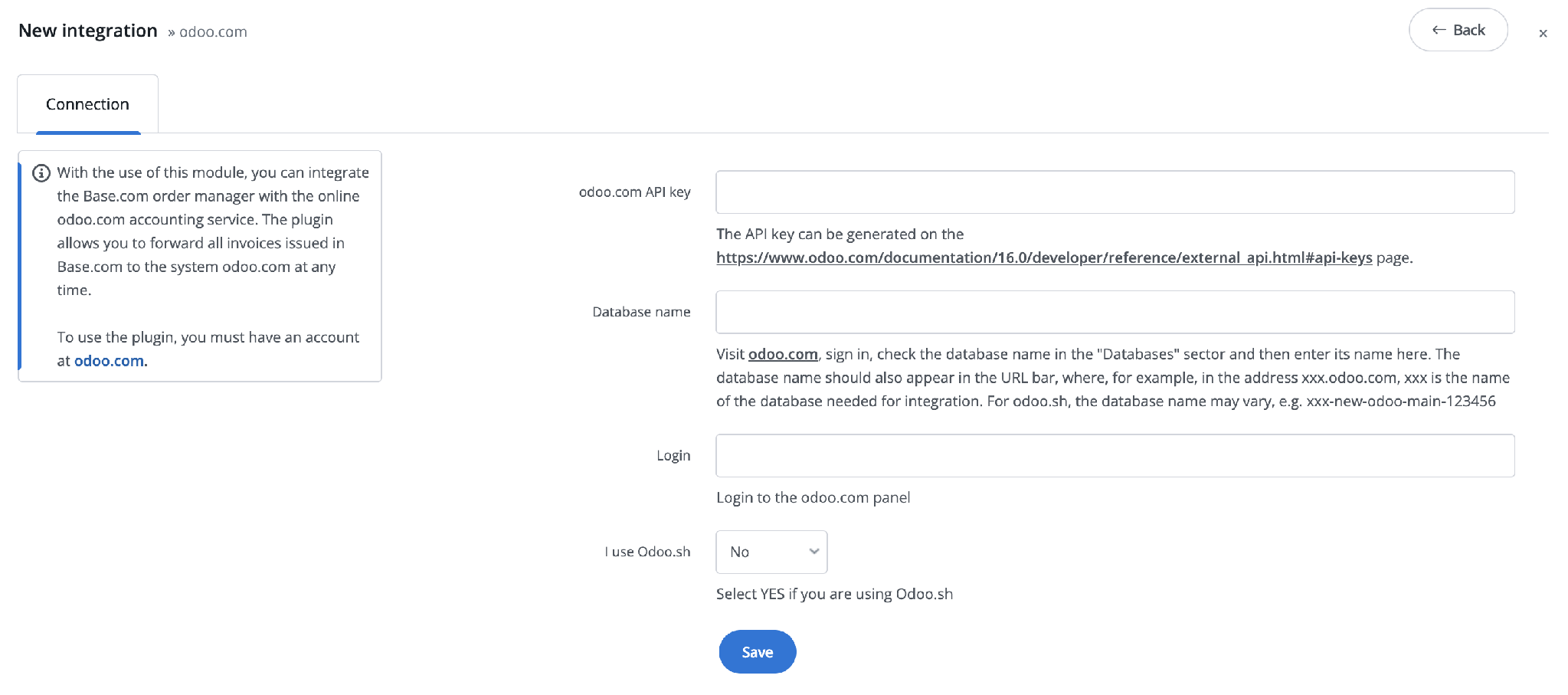
The Connection tab in Base, showing the odoo.com API key and Database name fields.
Connection details
| Field | What it does |
|---|---|
| Name of the ERP integration | A label for this connection, useful if you ever add more than one. |
| odoo.com API key | Generated in Odoo. Base links to the official Odoo documentation for this if you need it. |
| Database name | Your Odoo database identifier. Sign in at odoo.com and check the name shown under “Databases,” or in your browser’s address bar (for example, in xxx.odoo.com, xxx is the database name). For Odoo.sh, this may look like xxx-new-odoo-main-123456. |
| Login | Only needed on the older connection form. This is your login to the odoo.com panel. |
| I use Odoo.sh | Select “Yes” if your Odoo instance runs on Odoo.sh. |
| Domain (optional) | Only needed for a self-hosted or custom-domain Odoo instance. |
| Company ID | If your Odoo instance has multiple companies, enter which one Base should operate under. |
Once filled in, save the connection.
Product settings
| Field | What it does |
|---|---|
| Search for products by | Choose how Base matches products between the two systems: Automatically, SKU, EAN, or Name. |
| Add products | Turn on to let new products found in Odoo be created in Base automatically. This field appears on newer Odoo accounts; it won’t show on older ones. |
| Product type | Which Odoo product types to import: Consumable, Service, or Storable product. On older Odoo versions this last option may read “Storable product (Odoo version <= 17).” |
| Custom fields | Add any Odoo Studio field names (for example, x_studio_brand), separated by commas, if you want them pulled into Base. |
| I have the website module installed on the Odoo side | Confirms Odoo’s website module is active, which affects product data available for import, and also controls whether the Websites mapping (Step 9) is available. |
A few things worth knowing about product matching:
- Matching is fixed to specific Odoo fields rather than a manual mapping screen: SKU matches Odoo’s internal reference, EAN matches Odoo’s barcode, and Name matches Odoo’s product name.
- If a product already has an existing link between Base and Odoo, that link always takes priority over SKU/EAN/Name matching.
- “Automatically” tries SKU first, then EAN, then Name, in that order, until it finds a match.
Invoice and order export settings
| Field | What it does |
|---|---|
| Forward invoices automatically | Sends invoices to Odoo without manual action. |
| Type of invoice export | Choose whether Base creates a full order and invoice in Odoo, or just an invoice. |
| Send as a draft | Sends the invoice into Odoo as a draft rather than posting it immediately. |
| Forward invoice as paid | Never, or “Yes, according to the status of the order payment.” |
| Display the odoo.com invoice to the customer instead of the Base.com invoice | Shows the Odoo-generated invoice to your customer rather than the one issued in Base. |
| Comment / Own comment | Adds a note to the exported invoice or order. |
| Link the shipment to a delivery carrier on the Odoo side | Matches the Base delivery method to a carrier record in Odoo. |
| Forward the package number to an external system | Sends the tracking/package number through to Odoo. |
| Create an order source tag on the Odoo side for sales | Tags the Odoo order with where it came from in Base. |
Step 3: map your warehouses (Warehouses tab)
For each warehouse you sell from in Base, choose the matching Odoo warehouse.
| Field | What it does |
|---|---|
| <Base warehouse name> | Dropdown to select the corresponding Odoo warehouse. Leave as “— Not selected —” if you don’t want stock synced for that warehouse. |
| Price group (<Base warehouse name>) | Selects which Odoo price group’s prices should be used for this warehouse. |
| Fetch products from all available warehouses | Turn on to import products regardless of which Odoo warehouse they’re stocked in. |
| I have the inventory module installed on the Odoo side | Confirms Odoo’s inventory module is active, which affects how stock is read. |
| Warehouse ID (optional) | Advanced option to target a specific Odoo warehouse by its ID. |
| Get product locations during import | Also pulls each product’s rack/shelf location from Odoo. |
Step 4: configure orders (Orders tab)
| Field | What it does |
|---|---|
| Fetch orders | How often Base checks Odoo for new orders: No, 10 min, or 1 min. |
| Orders status | The Base status assigned to orders pulled in from Odoo. |
| Fetch from status | Which Odoo order statuses to pull in: Sales Order, Quotation Sent, Quotation, All non-cancelled, or All. This field only appears on the older connection form. On newer Odoo accounts, Base always pulls orders that are in the Sales Order state. |
| Date type | Which date Base uses when fetching orders: Creation date or Order date. |
| Forward orders automatically | Under “Forwarding orders,” turn on to send Base orders to Odoo without manual action. |
| Link statuses | Under “Mapping order statuses to statuses in the integration,” turn on to let Base push status updates to Odoo. |
If “Link statuses” is on, map each Base status to one of: Do not transfer this status to the integration, Quotation, Quotation Sent, Sales Order, or Cancelled.
Step 5: configure payments (Payment types tab)
| Field | What it does |
|---|---|
| The default payment type for not set below | The Odoo payment method used for any Base payment method you haven’t mapped individually. |
| <Base order payment-method name> | Map each of your Base payment methods to the matching Odoo payment method. |
| Default payments | A set of common mappings suggested automatically. |
Step 6: configure prices (Prices tab)
| Field | What it does |
|---|---|
| Forward prices | Whether Base displays prices coming from Odoo as Net or Gross. |
| Synchronization | Direction of price syncing. |
| Frequency | How often prices sync. |
The price group used per warehouse is set in the Warehouses tab (Step 3), not here. There’s also no separate pricelist selection field: Odoo automatically selects a pricelist based on currency.
Step 7: stock sync (Stock tab)
Stock only syncs one way, from Odoo to Base, and the sync frequency is set alongside your price settings. There’s no option to push Base stock levels back into Odoo.
Step 8: set your fiscal position
| Field | What it does |
|---|---|
| Fiscal position | Choose a fixed Odoo fiscal position, or select “Assigned to the external client” or “Search based on customer country” to have it determined automatically per order. |
There’s no separate tax-mapping field. Odoo taxes are matched automatically to the VAT rate used in Base.
Step 9: map order sources to websites (Other tab)
This tab only appears if “I have the website module installed on the Odoo side” (Step 2) is set to Yes.
| Field | What it does |
|---|---|
| Websites | Maps each Base order source to a corresponding website record in Odoo. |
What to check if something isn’t syncing
- Confirm the API key and database name are still correct.
- Verify the relevant toggle (fetch orders, forward orders automatically, forward invoices automatically) is switched on.
- Check the fetch/sync frequency setting. A “missing” update may just not have run yet.
- Confirm your warehouse mapping is set correctly if stock or prices look wrong.
- If it’s still not resolved, contact Base support with your integration name and a description of what isn’t syncing.
Limitations to plan around
- No two-way catalogue sync. Odoo is the source of truth for products; Base doesn’t push a full catalogue back.
- No two-way order editing. Once an order exists in Odoo, only its status updates from Base.
- No two-way stock or price sync. Both flow from Odoo to Base only.
- No general invoice import. Only invoices exported from Base come back as records in Base.
- Product matching fields (SKU, EAN, Name) are fixed to specific Odoo fields and can’t be remapped individually, though existing product links always take priority over any of them.
- Pricelists and tax mapping are handled automatically by Odoo (by currency and VAT rate) rather than through a manual mapping field.
Example: how the integration behaves in practice
Here’s a full cycle, using Odoo as the order management and warehouse system and Base as the marketplace hub.
Adding a new product
- The product is created in Odoo, not Base, with EAN/barcode, SKU, sales price, description, and image.
- Base pulls the new product in automatically, based on your product sync settings. After a refresh, it appears in Base’s product list with matching name, SKU, and EAN.
- At this point the product shows zero available stock in Base, because it hasn’t been received into inventory yet.
Receiving stock
- A purchase order is created and confirmed in Odoo for the product.
- The warehouse receipt is processed, often via Odoo’s barcode/scanner interface. Receiving can be multi-step: goods land in a receiving location first, then get moved to their shelf or rack location.
- Once stock reaches its final rack location, it becomes available, and that’s what shows as sellable quantity in Base.
- Base reflects both total on-hand stock and any quantity already reserved against open orders. For example, a product can show 58 in stock with 2 reserved against unconfirmed orders.
Order flow
- Marketplace orders (Allegro, Amazon, Kaufland, TikTok Shop, and others) pull into Base automatically once those marketplace channels are connected.
- Once an order is confirmed in Base, it pushes to Odoo automatically if “Forward orders automatically” is on. Order total, line items, and metadata (Base order number, buyer login, payment method, delivery method) carry over, matched by SKU.
- Delivery cost appears in Odoo as an additional service line on the order.
- Odoo’s warehouse system then drives fulfillment: it tells the warehouse worker which rack locations to pick from, moves stock through picking and packing, and marks the order shipped.
- Once shipped, on-hand stock decreases in Odoo, and that updated level syncs back to Base.
At any real catalogue size, keeping stock, prices, and order status aligned across every sales channel by hand isn’t realistic. This is what the integration is for: it handles the routine syncing so you’re not updating every SKU by hand across every channel.
Frequently asked questions
Does Odoo need a paid add-on to connect to Base?
No. The Odoo integration is built natively into Base, so there’s nothing extra to install in Odoo or in Base.
Can I sync my product catalogue from Base into Odoo?
No. Product sync only runs from Odoo to Base. Manage your catalogue in Odoo and let it flow down.
Will stock levels update in both directions?
No. Stock only syncs from Odoo to Base. If you need Base’s stock reflected in Odoo, that has to be managed separately.
Can I map SKU, EAN, and product name individually?
Not as separate mapping fields. Base uses fixed matching (SKU to Odoo’s internal reference, EAN to Odoo’s barcode, Name to Odoo’s product name); you choose which one to match on via “Search for products by.” Existing product links, when present, always take priority over this matching.
Do I need to set up a pricelist or tax mapping manually?
No. Odoo automatically selects a pricelist by currency and matches taxes to the VAT rate used in Base.
Where do I map my payment methods?
In the Payment types tab, map each Base payment method to its Odoo equivalent, and set a default for anything you don’t map individually.
Why don’t I see the “Add products” or “Fetch from status” fields?
Both are tied to your Odoo account’s API version. “Add products” and the newer Sales-Order-only order fetching apply to newer Odoo accounts; “Fetch from status,” with its full list of order statuses, appears only on the older connection form.
What is an ERP?
An ERP (Enterprise Resource Planning) system is software that helps businesses manage core processes such as finance, inventory, sales, procurement, and operations in one place.
Want to learn more about how ERP systems connect with other business tools? Read our guide on ERP integration, its types, benefits, and how it works.

[…] Setup is the same regardless of which marketplace you’re connecting. Add your Odoo database name, login, and API key under the Odoo integration in Base, map your product fields, and choose how orders should export. The full field-by-field walkthrough is in How to connect Odoo to Base: full integration setup guide. […]