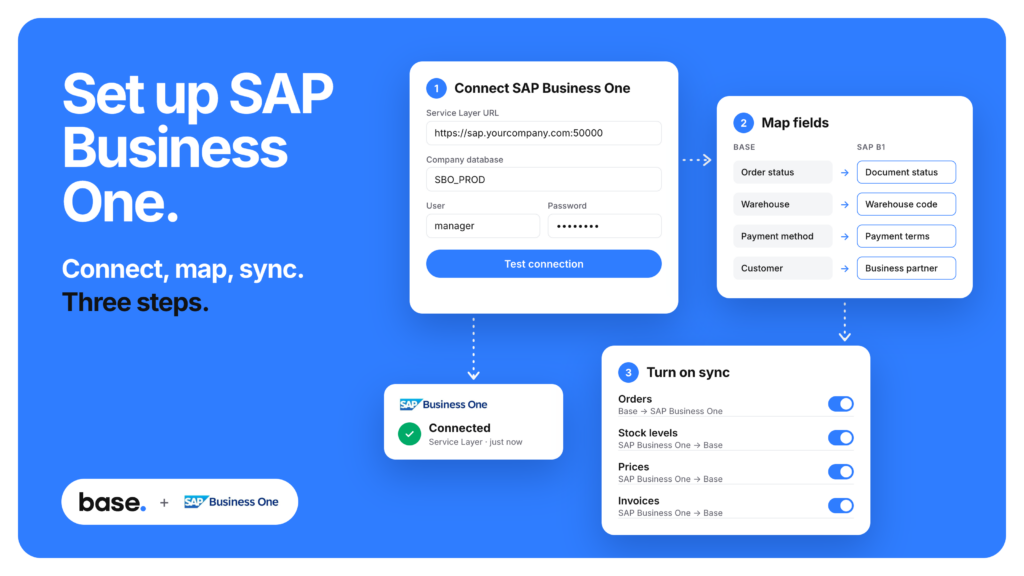
Orders and invoices flow from Base into SAP. Stock and prices flow from SAP into Base. Here is how to set it up, and what to check if something does not sync.
Base Team·8 min read·Integrations · ERP
Connecting SAP Business One to Base takes five steps: add the integration, enter your connection details, choose how documents are created in SAP, map your warehouses and price lists, then import products. If you sell on more than one channel, a sixth step maps your sales channels. Before you start, your SAP Service Layer must be reachable from outside your network.
Before you open Base
Most failed connections come down to two things.
01
The Service Layer is not reachable
It must be reachable from outside your network. It usually listens on port 50000.
02
Product codes do not match
Your SAP item codes must match the SKUs or EANs in Base.
The setup at a glance
Steps 1–5 for everyone · Step 6 if you sell on more than one channel
01
Add the integration
02
Enter connection details
03
Choose document settings
04
Map warehouses and price lists
05
Import your products
06 · If multichannel
Map your sales channels
Before you start
What you need before you start
Check all six items below before you open Base. If you are not sure about any of them, your SAP administrator or implementation partner will know.
Pre-flight checklist · 6 items
✓SAP Business One version
10.0 FP 2011 or later on Microsoft SQL Server, or SAP HANA 9.2 or later (9.3 or later recommended).
✓Service Layer
Running and reachable from outside your network. It usually listens on port 50000.
•API Gateway Optional
Only needed if you want PDF invoices generated in SAP. It usually listens on port 60020.
✓A SAP user account
Base signs in to the Service Layer with this user and its password.
✓Your company database name
One Base integration connects to one SAP company database.
✓Matching product codes Fix first
Your SAP item codes must match the SKUs or EANs in Base. This is the most common reason products do not import.
Step 01
Add the integration in Base
In Base, go to Integrations, open the Accounting/ERP category, find SAP Business One and select Connect.
Where to find it in Base
Integrations
Accounting/ERP
SAP Business One
Connect
Step 02
Enter your connection details
Base needs four values, plus a fifth if you want PDF invoices generated in SAP. Your SAP administrator or implementation partner will have all of them.
Connection form · 5 fields
Service Layer URL
What to enter
https://your-server:50000
Where to find it
From your SAP administrator. This is the address Base calls to sign in.
Company database
What to enter
The database name for the company you want to connect
Where to find it
Shown on the SAP Business One Choose Company screen.
SAP user
What to enter
The user Base signs in as
Where to find it
Created by your SAP administrator.
Password
What to enter
That user’s password
Where to find it
From your SAP administrator.
API Gateway URL Optional
What to enter
https://your-server:60020
Where to find it
Only needed for PDF invoice generation. Leave empty if you do not need it.
No Base API token needed
Base signs in to the Service Layer and keeps the session open in the background. You do not need a separate Base API token for this connection.
Step 03
Choose how documents are created in SAP
These settings control what Base writes into your company database. You can change them later.
Automatic invoice forwarding
Turn this on to have invoices posted to SAP as orders come in. Leave it off to export invoices manually.
Customer matching
Choose whether Base matches an existing business partner by CardCode, Federal Tax ID or email. You can also allow Base to create a customer automatically when there is no match.
Numbering series
Pick the SAP numbering series the documents should use.
Document details
Payment terms, salesperson, invoice remarks and layout are written onto the documents Base creates.
Incoming payments Optional
When enabled, Base creates an incoming payment in SAP once the invoice is settled.
Invoice cancellation
When enabled, cancelling or refunding an order in Base mirrors the cancellation to the SAP invoice.
Step 04
Map your warehouses and price lists
Map each Base warehouse to the SAP warehouse it corresponds to, and choose which SAP price list feeds which Base price group. Stock on hand is read from the SAP warehouse you select; prices are read from the price list you select.
What gets mapped
One direction: SAP to Base
SAP Business One
SAP warehouse
Stock on hand
base.
Base warehouse
SAP Business One
SAP price list
Prices
base.
Base price group
Stock and prices are read from the SAP warehouse and price list you select. Nothing in this step writes back to SAP.
Stock and prices travel in one direction only: out of SAP and into Base. Base does not write stock or product data back into SAP.
Step 05
Import your products
Run the product import. Base matches products by SKU or EAN and brings in:
What the import brings in
✓Core product data
✓Stock on hand
✓Prices from the selected price list
✓The tax group
✓Weight and dimensions
•Product images, optionally
If products fail to import
Products whose codes do not match anything in SAP will not import. If a large number fail, check that your SAP item codes and your Base SKUs are genuinely the same values before changing anything else.
Step 06 · If you sell on more than one channel
Map your sales channels
If you sell on more than one channel, Base can write the order’s source onto the SAP sales order, invoice and incoming payment.
Sales channel
An order comes in
From any channel you have connected to Base.
Channel mapping
base.
The order’s source travels with it into SAP.
SAP Business One
Source on every document
Sales order Invoice Incoming payment
This is what lets you answer “which channel did this revenue come from” inside SAP rather than in a spreadsheet.
Selling in Brazil
Nota Fiscal settings
Accounts selling in Brazil have extra fields on the connection:
Business place Nota Fiscal series and model Tax code Operation usage Payment accounts and cards Customer group Your own user-defined fields
Once these are set, the invoice is issued in SAP and Base waits for it before the order ships:
01
The order reaches SAP.
02
SAP issues the Nota Fiscal.
03
The authorised invoice number comes back to Base.
04
Only then does the shipment release to the marketplace.
The shipment does not release to the marketplace until the authorised invoice number returns to Base.
Test it
How to check the connection is working
One test order tells you whether orders, invoices and customer matching are all set up the way you expect.
01
Place or import a test order in Base on the channel you have connected.
02
Open your SAP company database and check that a sales order has been created.
03
If automatic invoice forwarding is on, check that the invoice appears too.
04
Confirm the customer was matched to the business partner you expected, rather than a new one being created.
Know the limits
What this integration does not do
These are deliberate limits, not bugs. Knowing them now saves a support ticket later.
×
Order edits do not sync back
Sales orders are created in SAP once. Changing the order in Base afterwards does not update SAP.
×
No receipts, proforma invoices or credit notes
Sales invoices and cancellations only.
×
Refunds do not create a credit memo
If invoice cancellation is enabled, a refund cancels the SAP invoice instead.
×
No product or stock push into SAP
Data moves from SAP into Base, not the other way.
×
Tracking numbers are not sent to SAP
Tracking is created in Base and sent from there to your sales channel.
×
Orders are not downloaded from SAP
Orders flow from Base into SAP only.
×
One integration, one company database
Multi-company setups need a separate Base integration instance per company database.
×
PDF invoices are generated, not sent
The API Gateway connection generates them in SAP. Printing, emailing and attaching them is not part of this integration.
Do I need a separate Base API token to connect SAP Business One?
No. Base signs in to the SAP Service Layer with your company database, user and password, and keeps that session open. No Base API token is involved in this connection.
Can I connect more than one SAP company database?
Not in one integration. Each Base integration instance connects to a single SAP company database. For a multi-company setup, add a separate integration instance for each company database.
Does Base send stock levels back into SAP?
No. Stock on hand is read from the SAP warehouse you select and brought into Base. Base does not write stock or product data into SAP.
What happens if an order is cancelled?
If invoice cancellation is enabled, cancelling or refunding the order in Base mirrors the cancellation to the SAP invoice. The sales order itself is not changed, because sales orders are created once and not edited afterwards.
Do I need the API Gateway?
Only if you want PDF invoices generated in SAP. The rest of the integration works without it. Leave the API Gateway URL empty if you do not need it.
Simon brings 15+ years of experience across SaaS, e-commerce, multinational corporations, and digital agencies. He leads the marketing function for Base in the UK, overseeing strategy, operations, and execution across demand generation, paid media, content, SEO, and brand. As Head of Marketing, he is responsible for positioning Base as the go-to platform for multi-channel e-commerce management, focusing on attracting high-volume sellers and driving measurable revenue impact.