Amazon Vendor is an integration for sales in the 1P model, in which you cooperate directly with Amazon Vendor Central. In Base.com, you can use it to handle orders, synchronize status, map warehouses for Direct Fulfillment, and manage offers from one panel.
Below you will find the Amazon Vendor integration configuration and a description of the functionalities that are currently available in Base.com.
Amazon Vendor integration possibilities
The Amazon Vendor integration in Base.com primarily enables order processing and working on offers. The scope of functions also depends on the selected account type: Direct Fulfillment or Retail Fulfillment.
- downloading orders from Amazon Vendor to Base.com;
- linking order statuses and passing them to the marketplace;
- forwarding orders to the shop or ERP system;
- creating shipments in Base.com;
- confirming orders in the Direct Fulfillment model;
- handling invoices and passing them to Amazon Vendor in the Retail Fulfillment model;
- synchronizing stocks and the possibility of reducing stock in the warehouse based on orders from Vendor;
- mapping Amazon locations to your own warehouses in Base.com;
- importing offers and managing offers already visible in Amazon Vendor;
- handling variants;
- supporting the Autosell function.
Amazon Vendor supports many markets, including UK, DE, ES, FR, IT, NL, SE, PL, TR, BE, IN, AE, IE, EG, SA, US, CA, MX, BR, JP, AU and SG.
How to connect the Amazon Vendor integration
Step 1. Add a new Amazon Vendor account
- Go to Integrations → +Add integration → Marketplace → Amazon Vendor.
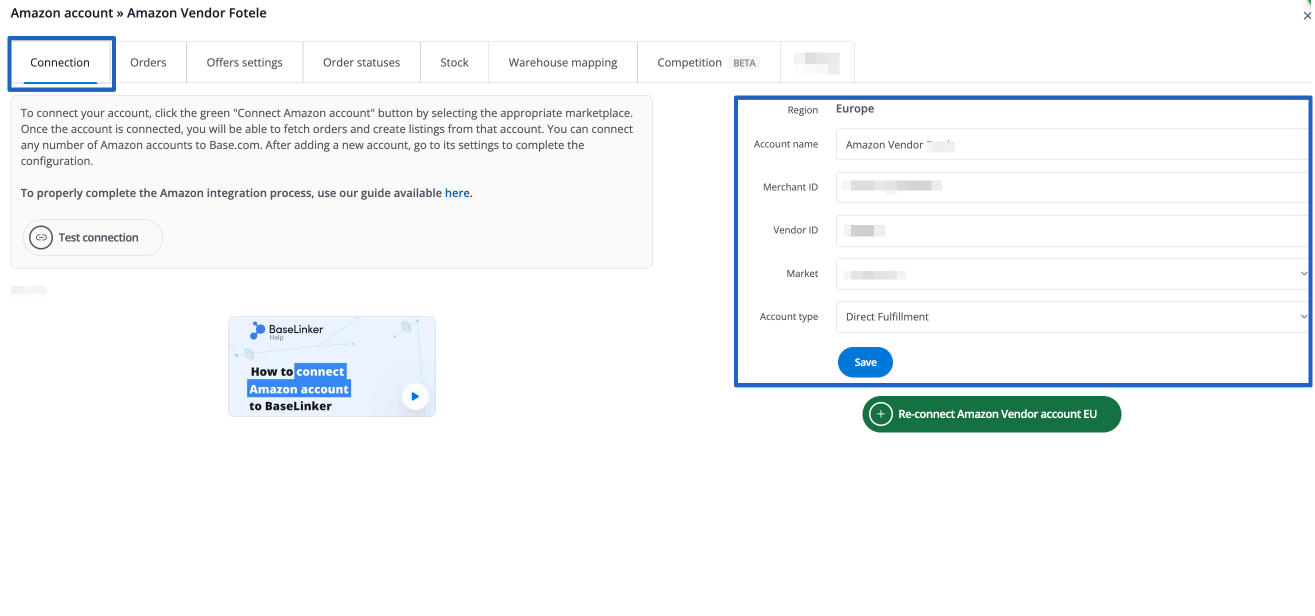
- Complete the account adding form.
- In the Account name field, enter your own name under which the integration is to be visible in Base.com.
- In the Vendor ID field, enter the identifier from Amazon Vendor Central.
- Select the appropriate market.
- Select Account type: Direct Fulfillment or Retail Fulfillment.
- Save the connection.
The Amazon Vendor account form contains the fields Account name, Vendor ID, Market, and Account type. The subsequent tabs and the range of integration functionalities depend on the choice of account type.
Step 2. Choose the correct account type
There are two account types available in Amazon Vendor:
- Direct Fulfillment – a model in which the order goes to the end customer, and you handle the shipment as the Vendor;
- Retail Fulfillment – a model in which you send goods to an Amazon warehouse.
If you choose Retail Fulfillment, the Warehouse mapping tab and tabs related to synchronization will not be visible in the integration. This is the correct behavior of this integration.
Step 3. Configure order downloading
After saving the account, go to Integrations → Amazon Vendor → Orders. In this section, settings for handling orders from the marketplace are available.
In the form, you can set:
- Order downloading – enables automatic import of orders to Base.com;
- Order downloading – status – determines which status new orders should go to;
- Forward orders to the shop – enables sending orders further to a connected shop;
- Invoice – forwarding – option available only when the Retail Fulfillment type is selected; allows for automatic forwarding of invoices immediately after creation or after the order enters a selected status;
- VAT rate in orders – on selected accounts, you can download VAT from the marketplace or set a fixed VAT rate.
If you plan for extensive order handling, configure the Order Manager beforehand. If you want to forward orders further to your own sales system, the article Forwarding orders to the shop will also be helpful.
Step 4. Map warehouses in Direct Fulfillment
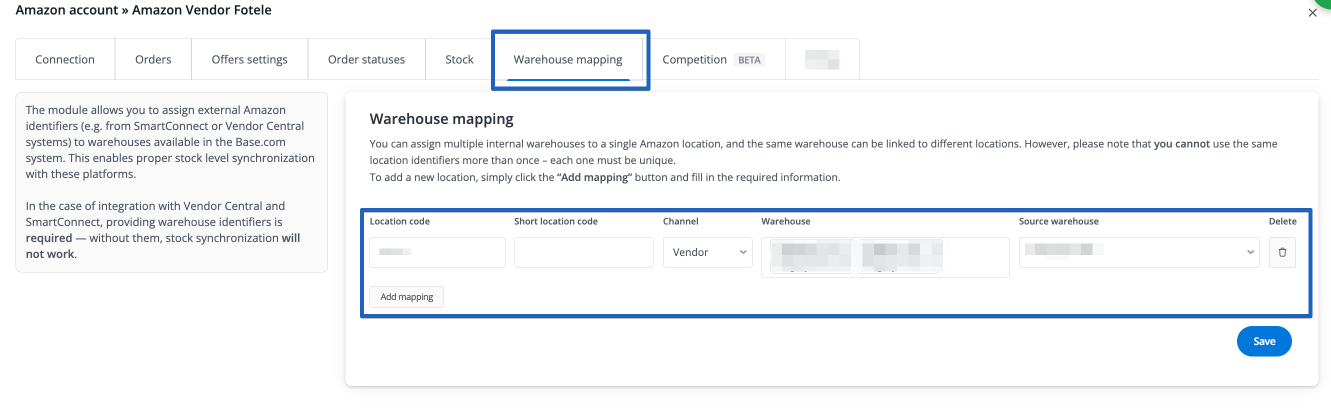
If you use the Direct Fulfillment account type, configure the mapping of Amazon locations to your own warehouses. This way Base.com knows which warehouse to download the stock from for a specific Vendor location.
The following fields are available in warehouse mapping:
- Location code – external identifier of the Amazon location;
- Short location code – required abbreviation of the location;
- Channel – for Vendor accounts, you select Vendor;
- Warehouse – you indicate one or more of your own warehouses in Base.com;
- Source warehouse – you specify which warehouse the stock is to be downloaded from for the given location.
If you enter an incorrect location ID here or do not complete the mapping, the stock synchronization may not work correctly.
Available integration functionalities
Order handling
Amazon Vendor in Base.com allows you to handle orders from the moment they are downloaded until fulfillment. In practice, this means you can:
- automatically download orders to Base.com;
- set the target status for new orders;
- map statuses and pass the status change to the marketplace;
- forward orders to your own shop or ERP system;
- create shipments in Base.com;
- use the automatic Confirm order action for Direct Fulfillment;
- issue an invoice and pass it to Amazon Vendor in the Retail Fulfillment model.
Sending the status change is triggered immediately after the change in Base.com. If the first attempt fails, the system makes further attempts cyclically.
Offers and catalog
The integration supports working on Amazon Vendor offers, but it’s worth remembering that listing is a beta function. After activation, you can:
- list offers from your own catalog;
- handle variants;
- use Autosell;
- import offers listed previously outside of Base.com;
- manage offers from within the Amazon Vendor module.
When importing offers, remember that in Amazon Vendor, SKU is required. Without a SKU, the system will not download the offer.
If you want to import previously listed offers, you can use the article Importing auctions and products.
Stock synchronization
Synchronization of stock is one of the most important elements of this integration, but its operation depends on the account type:
- Direct Fulfillment – warehouse mapping and stock synchronization are available;
- Retail Fulfillment – stock synchronization to Amazon Vendor is not available.
Base.com can also reduce the stock in your warehouse based on downloaded orders from Amazon Vendor. This is useful especially when Base.com is the main place for handling sales from various channels.
Integration limitations
Amazon Vendor has several limitations that are worth knowing about at the configuration stage:
- the integration does not support price synchronization;
- shipment numbers are not passed to Amazon Vendor;
- Base.com will not force the download of the invoice number if the Amazon API has not returned it yet;
- there is no possibility to update the List Price parameter;
- in the Retail Fulfillment model, you will not see tabs related to warehouse mapping and synchronization.
The invoice number will appear in Base.com only when it is returned by the Amazon API. It happens that Amazon makes this information available only after shipment or with a delay.
Frequently asked questions and problems
Where to find the Vendor ID?
The Vendor ID can be found in Amazon Vendor Central on the product list, in the Vendor code column. This field is required during integration configuration – without it, saving the connection or importing offers will not work correctly.
Why don’t I see the Warehouse Mapping or synchronization tab?
Most often this means that the Retail Fulfillment type was selected on the account. In this model, tabs related to warehouse mapping and stock synchronization are not available. If you want to use them, the account must be configured as Direct Fulfillment.
Why does offer import return the error “Missing required identifiers or keywords”?
This message means that no SKU was provided during import. In Amazon Vendor, a SKU is required to download an offer.
Why does the error “Invalid sellerId and marketplaceId combination provided” appear?
The most common cause is a missing Vendor ID in the integration settings. Complete this field, save the account, and retry the import.
Why does the error “Unauthorized #101” appear?
This error usually means an authorization problem or an attempt to use the wrong integration. Make sure you are connecting Amazon Vendor, not the standard Amazon integration. In case of problems, try again after logging out of the Amazon session and starting the browser in incognito mode.
Why is invoice or warehouse data missing from the order?
If invoice data or location/warehouse data is missing from an Amazon Vendor order, it most often means a missing or unrecognized warehouse code. After completing the missing location, subsequent orders should download correctly, while previously downloaded orders usually need to be completed manually.
What to do when orders stop downloading?
Do not immediately remove the integration. It is best to reconnect the account and check if the account type hasn’t been changed to Retail Fulfillment. After correcting the settings, you can perform a force download – new orders usually appear after the next synchronization.