You are trying to move from spreadsheets to a new system but still have 300 orders to process every day. What happens if your stock levels are incorrect after migration? You don’t get orders from Amazon or Flipkart. You may ship incorrect items, oversell or miss dispatch times.
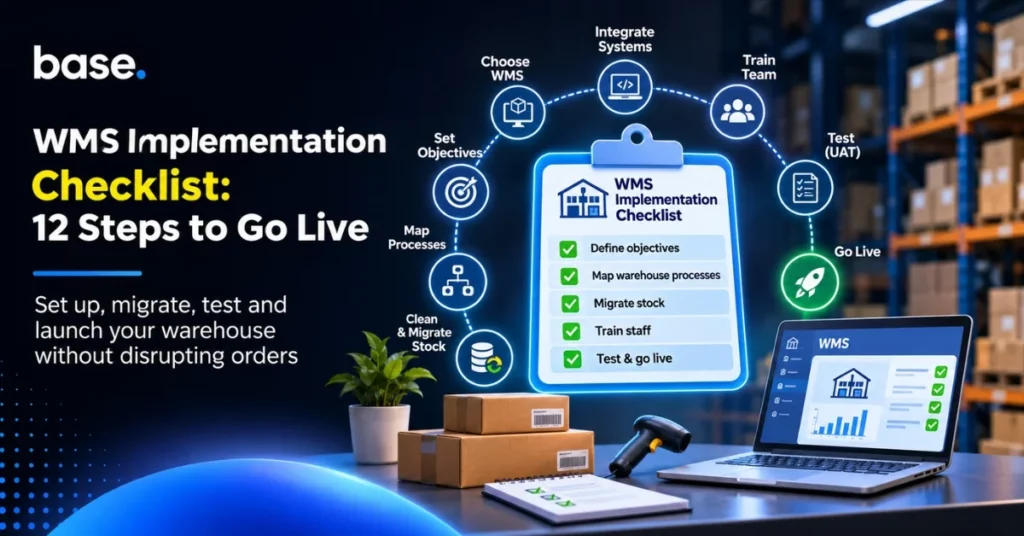
This WMS implementation checklist will guide you through 12 steps to get your warehouse ready, migrate your stock, ensure processes are tested and you can move systems without causing any disruption.
A WMS implementation involves setting up your software, ensuring your data is accurate, your integrations are working, your staff are trained and you have a go-live plan.
What is WMS Implementation?
WMS Implementation involves setting up your warehouse software. Warehouses typically use WMS to help with receiving, storing, tracking stock, picking, packing, dispatch and returns. This depends on what features your software offers.
Businesses will use warehouse management software to help reduce stock discrepancies, picking errors, manual updates and late orders.
If you have 50 units in your spreadsheet, but only 43 in your warehouse and incorrectly migrate your stock, you will start off with inaccurate data in your new system.
Understanding the difference between WMS and other business software:
| System | Purpose |
|---|---|
| WMS | Manages physical stock in your warehouse |
| OMS | Manages orders |
| ERP | Connects financial, procurement and other areas of your business. |
Whilst there may be some overlap, they are not interchangeable.
WMS Implementation Checklist
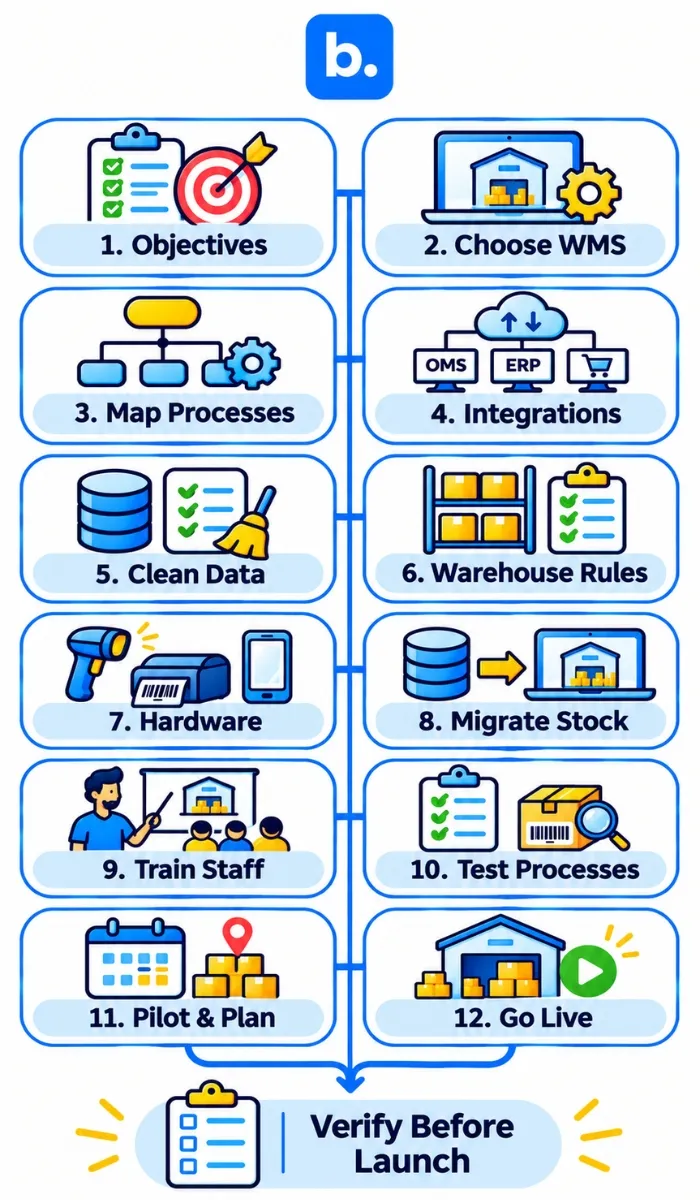
| Step | Action | Outcome |
|---|---|---|
| 1 | Define Objectives and Ownership | Project plan |
| 2 | Choose the right WMS software | Requirements approved |
| 3 | Map Warehouse Processes | Process maps |
| 4 | Plan Integrations | Data flow plan |
| 5 | Clean Stock Data | Verified SKUs |
| 6 | Set up warehouse rules | Warehouse set-up |
| 7 | Prepare hardware | Tested hardware |
| 8 | Migrate stock | Opening stock reconciled |
| 9 | Train staff | Staff trained |
| 10 | Test processes | UAT approved |
| 11 | Run pilot and go-live plan | Go-live approved |
| 12 | Go-live and monitor | Stable processes |
Assign ownership to each step. Some can be done at the same time but make sure the key checks are done before going live.
1. Define Objectives and Ownership
Start by identifying what issues you have in your warehouse. Are staff picking the wrong items? Are you missing orders? Is your system showing stock that you don’t have?
Define what you want to achieve from your project. Maybe you want to reduce stock discrepancies, picking errors or increase on time dispatches.
Define what your project will cover. This includes the warehouses, SKUs, daily orders, sales channels and integrations you will need. Define who will be responsible for what:
| Role | Responsibilities |
|---|---|
| Project Owner | Budget, timeline and decisions |
| Warehouse Manager | Warehouse processes |
| Inventory Lead | Stock records and counts |
| IT Lead | Integrations and hardware |
| Training Lead | Staff training |
Define how you will report and resolve issues.
You should have defined your objectives, responsibilities and success criteria.
2. Choose the Right WMS Software
Ensure your WMS software will work for your warehouse.
If you have 50 orders a day, your software requirements will be very different to a warehouse with 5000 orders and multiple locations.
Ensure the software you choose has the features you need:
| Feature | Consider |
|---|---|
| Barcode Scanning | Can staff scan items during receiving and picking? |
| Bin Management | Can you track items by bin? |
| Order Integration | Can orders be pulled from your OMS? |
| Batch Tracking | Can you manage batches and expiry dates? |
| Returns | Can staff log returned stock? |
| Reporting | Can managers view stock and orders? |
Don’t just look at the subscription price. You may have to pay for set-up, integrations, migration, scanners, printers and training. Ask vendors to show you how your processes would work in your warehouse. You should have chosen a software that covers your key requirements.
3. Map Processes
Before making any changes you need to understand how your warehouse currently works.
Define how your items are received, stored, picked and prepared for dispatch.
| Process | Current Method | Proposed Method |
|---|---|---|
| Receiving | Manual entries | Scanner to verify stock |
| Putaway | Staff know where to place items | Bin records |
| Picking | Printed orders | Digital picking |
| Packing | Manual checking | Barcode scanning |
| Dispatch | Manual updates | Integrated shipping updates |
Your WMS software should be able to support your catalogue, order volume and fulfilment requirements.
For example, if your staff are currently printing orders and manually searching for items, having a scanning process will help them verify items whilst picking. Don’t try to change all processes at once.
You should have approval from your warehouse manager for current and new processes.
4. Plan Integrations
Your warehouse will need to pull in data from other systems.
You may be receiving orders from Amazon, Flipkart, Shopify and your website. Your stock and shipping updates also need to go to the right place.
Your WMS software will need to pull in the right data from your OMS, ERP and shipping systems.
| Data | From | To |
|---|---|---|
| New Orders | OMS | WMS |
| Stock Updates | WMS | OMS / ERP |
| Dispatch Status | WMS / Shipping | OMS |
| Tracking | Shipping | OMS |
| Returns Received | WMS | OMS / ERP |
Depending on your set-up you may have data going in different directions. Define what system will be responsible for each piece of information.
Test what happens if your integrations fail, duplicate messages, delayed updates and incorrect SKUs. For example, if your WMS records a sale but the stock update doesn’t reach Flipkart, your listing may still show stock that has already been sold.
You should have defined your integrations, data and error handling processes.
5. Clean Stock Data
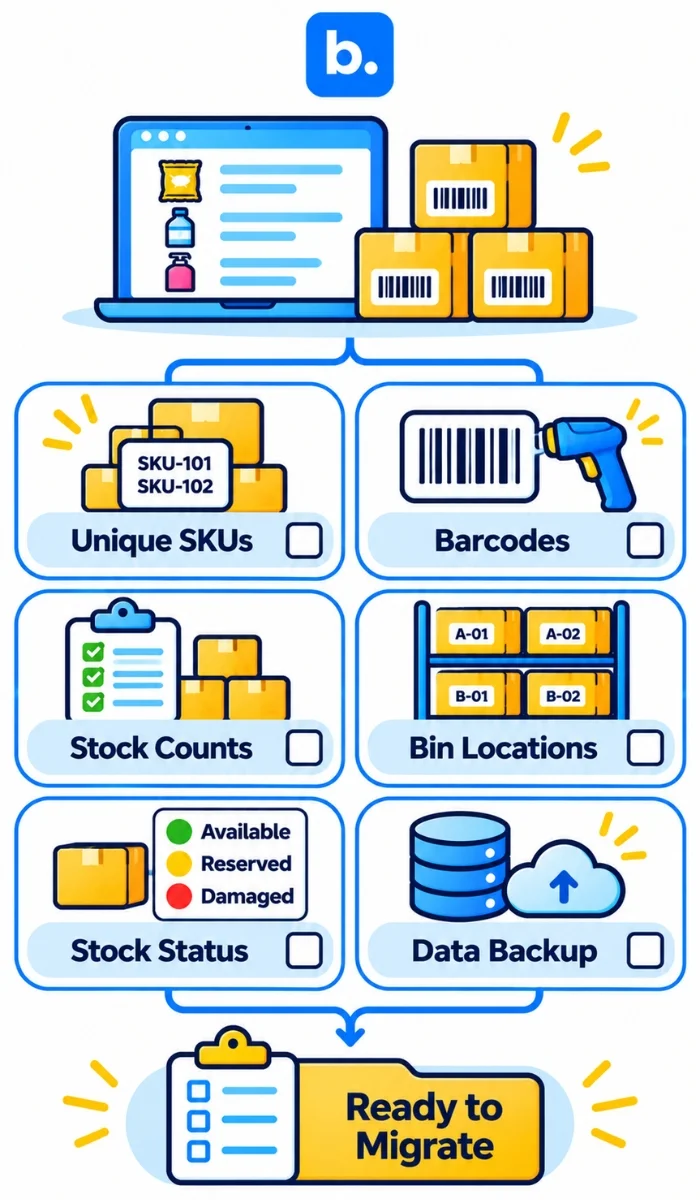
Just because you are moving to a new system doesn’t mean incorrect data will be correct. Before migrating your stock, check your SKUs, item names, barcodes, stock levels, units and warehouse locations. Also check your reserved, damaged and unsellable stock.
A warehouse stock management system will require accurate item identification and locations.
| Issue | Example | Resolution |
|---|---|---|
| Duplicate SKU | 2 items with SKU-101 | Unique identifiers |
| No Barcode | Unable to scan item | Create or map barcode |
| Incorrect Stock Level | Shows 120 in system but only 112 in stock | Investigate discrepancy |
| Incorrect Location | Item in Bin C but shows in Bin A | Correct location |
| Damaged Stock | Damaged items included in sellable stock | Separate stock statuses |
Don’t change stock levels unless you have investigated why there is a discrepancy. Make a back-up of your original records. Your products and stock data should now be verified and ready to migrate.
6. Set Up Warehouse Locations and Rules
Your WMS should reflect your warehouse. Set up your warehouses, zones, aisles, racking, shelves and bins.
Many warehouse systems have location codes to make it easier for staff to find and move items.
Set up processes for:
- Receiving and storage
- Static or dynamic putaway
- Single or batch picking
- Stock statuses
- Permissions
For example, if your warehouse is for clothing you may need to have variations for sizing and colour. If your warehouse is for food you may need to have batch and expiry dates. Not all WMS will have advanced picking or automatic putaway.
Test your set-up using real SKUs and locations. Your warehouse locations, stock statuses and permissions should be working.
7. Prepare Scanners, Printers and Infrastructure
Even if your software is perfect, if your label printer breaks you will miss orders.
Before going live check your:
| Equipment | Check |
|---|---|
| Barcode Scanner | Can scan the right item and location codes |
| Label Printer | Clear labels with the right size |
| Mobile Device | Can complete tasks |
| Warehouse Wi-Fi | Can be used for receiving, storage and dispatch |
| Packing Station | Can view orders and shipment information |
| Back-up | Can be used for your agreed outage process |
Test your devices in the actual locations your staff will be using. For example, your scanner may work near your office but not in a far away storage area. Ensure you have back-up devices for key processes. Your devices, labels and connectivity should be working.
8. Migrate Stock
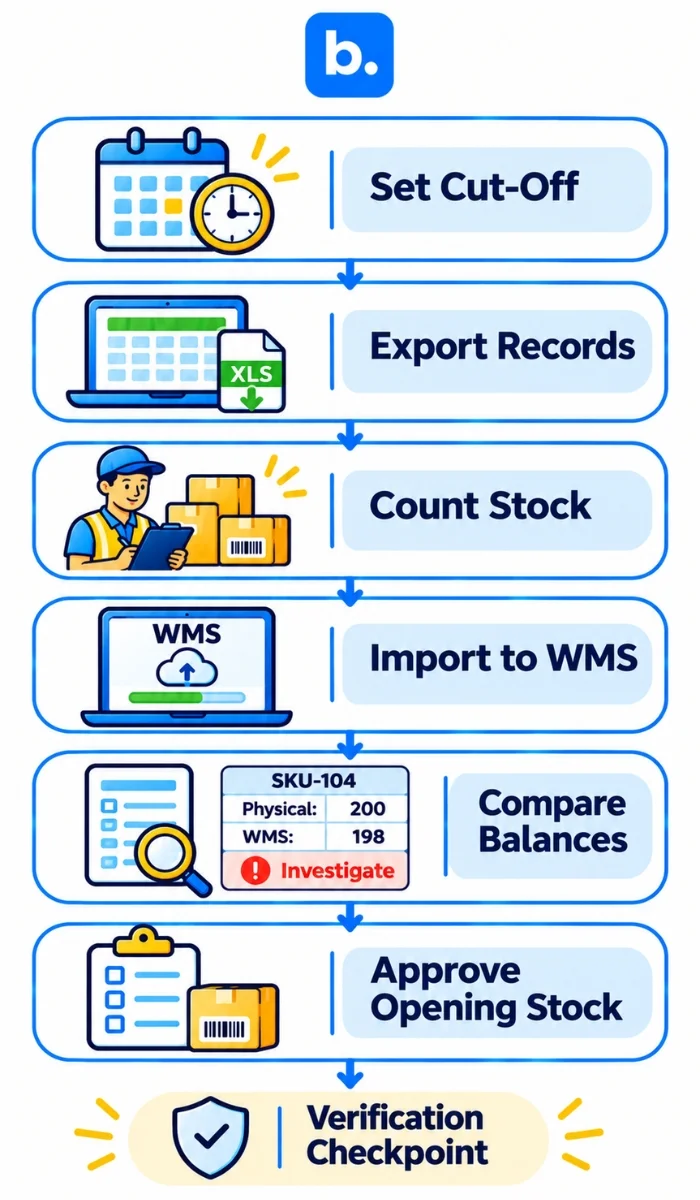
This is one of the most risky parts of your project. You will be moving your item records, locations, stock levels, reserved items and possibly partial orders.
Follow a controlled process:
- Agree a cut-off time.
- Export verified records.
- Identify any open, picked and dispatched orders.
- Note any reserved items.
- Complete stock verification.
- Import into your new WMS.
- Compare stock levels and locations.
- Investigate any discrepancies.
- Check stock statuses.
- Approve opening balances.
Example of Stock Reconciliation:
| SKU | Old System | Physical Stock | New WMS | Status |
|---|---|---|---|---|
| SKU-101 | 120 | 118 | 118 | Matches Physical Stock |
| SKU-102 | 75 | 75 | 75 | Matches |
| SKU-103 | 48 | 45 | 45 | Matches Physical Stock |
| SKU-104 | 200 | 200 | 198 | Discrepancy |
SKU-101 and SKU-103 match the verified physical stock in your new WMS. However, you should still note why the old data was incorrect.
SKU-104 has an issue with the migration. There are 200 items in your warehouse but only 198 in your new system. Investigate why there are 2 missing items before going live.
Ensure items are in the right bins and reserved items are accounted for.
Your opening stock should match the verified stock levels, locations and relevant stock statuses.
9. Train Staff
Your staff may understand your old process but not your new software.
Train each team on what they need to do:
| Team | Training |
|---|---|
| Receiving | Log items and discrepancies |
| Putaway | Scan locations and move items |
| Picking | Complete orders and missing items |
| Packing | Verify items and print labels |
| Inventory | Count and adjust stock |
| Supervisors | Monitor and resolve issues |
Use practical examples. For example, ask your picker to complete an order but the item they need isn’t in the right bin.
Define how they should complete the process. Your staff should be able to complete their processes with little support.
10. Test End-to-End Processes
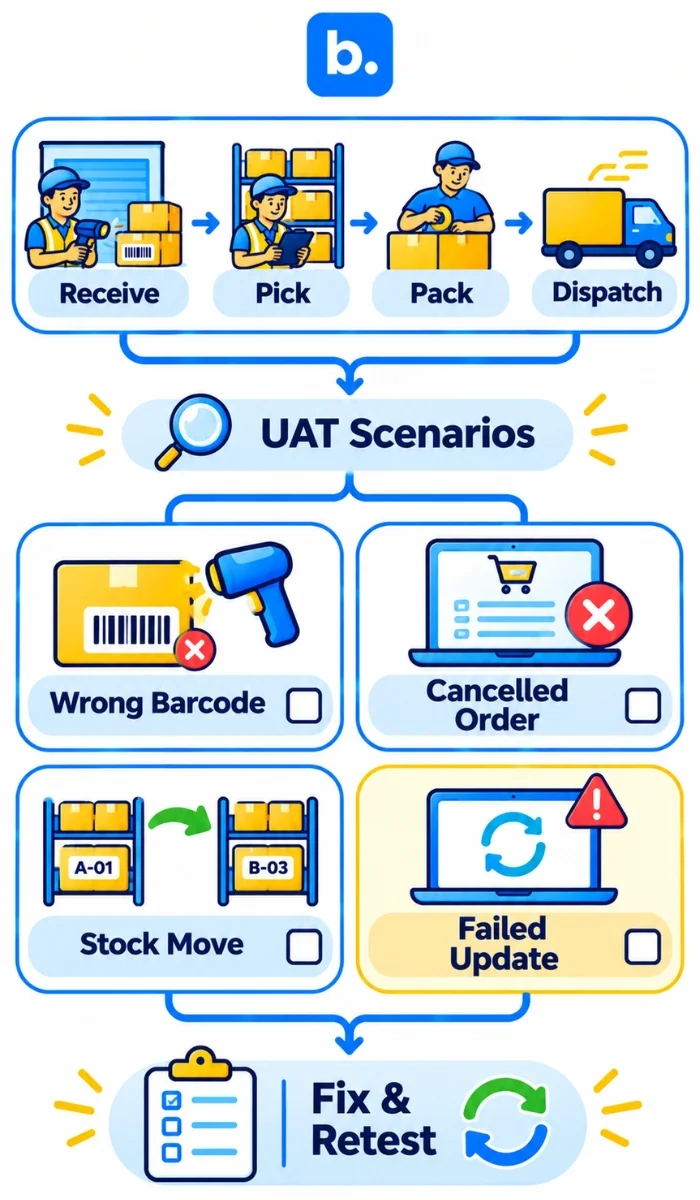
Don’t just test individual screens. Ensure you can complete an order from start to finish.
This is known as User Acceptance Testing (UAT).
Test normal processes and also any exceptions. For example cancelled orders, missing items, incorrect barcodes, damaged returns and failed integrations.
| Test | Expected Outcome | Result |
|---|---|---|
| Single Item Order | Correct SKU sent | Pass |
| Incorrect Barcode | Reject item if set up | Pass |
| Stock Move | Both locations updated | Pass |
| Cancelled Order | Remove from active picking | Pass |
| Failed Stock Update | Error identified and recovered | Fail |
If your stock update fails, you may oversell. Assign someone to fix the issue and re-test.
Try to include busy order scenarios if possible. All of your key processes should be passing with no blocking issues.
11. Run Pilot and Go Live Plan
Before going live with your whole warehouse try a small pilot. Maybe start with one zone, certain SKUs or a low volume of orders.
This will help you identify any issues. If you are replacing your current WMS systems be careful not to have both systems reserving the same stock.
Your go-live plan should include the time to go live, final data export, open orders, stock reconciliation, integration activation and testing your first live order.
Assign someone to approve each process. Also have a back-up plan. What will you do if you stop receiving orders or can’t generate shipping labels? Define when you should pause your go-live and how you will account for any transactions. You should have approved your pilot results and have a go-live and back-up plan.
12. Go Live and Monitor
Going live doesn’t mean your project is finished. Monitor your orders, stock, picking, packing, dispatch and any system errors for the first few days.
Monitor the following KPIs:
| KPI | Description |
|---|---|
| Stock Accuracy | Stock in system vs physical stock |
| Picking Accuracy | Correct items picked |
| On Time Dispatch | Orders dispatched on time |
| Order Processing Time | Time taken to process orders |
| Integration Failures | Failed data transfers |
| Stock Adjustments | Frequency of stock adjustments |
Compare to your objectives from step 1. Review any issues daily during the initial go-live. Assign ownership to any unresolved issues.
Your key processes should be stable and you know who is responsible for providing support.
How Long Does WMS Implementation Take?
The time it takes to implement your WMS will depend on the size of your warehouse, quality of stock, integrations and how prepared your staff are.
Below is an example of a project taking 8 weeks:
| Week | Key Activity |
|---|---|
| 1 | Define Objectives and Ownership |
| 2 | Evaluate Software and Map Processes |
| 3 | Plan Integrations and Clean Data |
| 4 | Set up Warehouse Processes |
| 5 | Prepare Hardware and Test Migration |
| 6 | Train Staff and UAT |
| 7 | Fix Issues and Run Pilot |
| 8 | Complete Migration and Go Live |
This is an example and can vary. If you have complex integrations, a large number of SKUs and poor quality stock it may take longer.
Allow extra time for testing and unexpected issues.
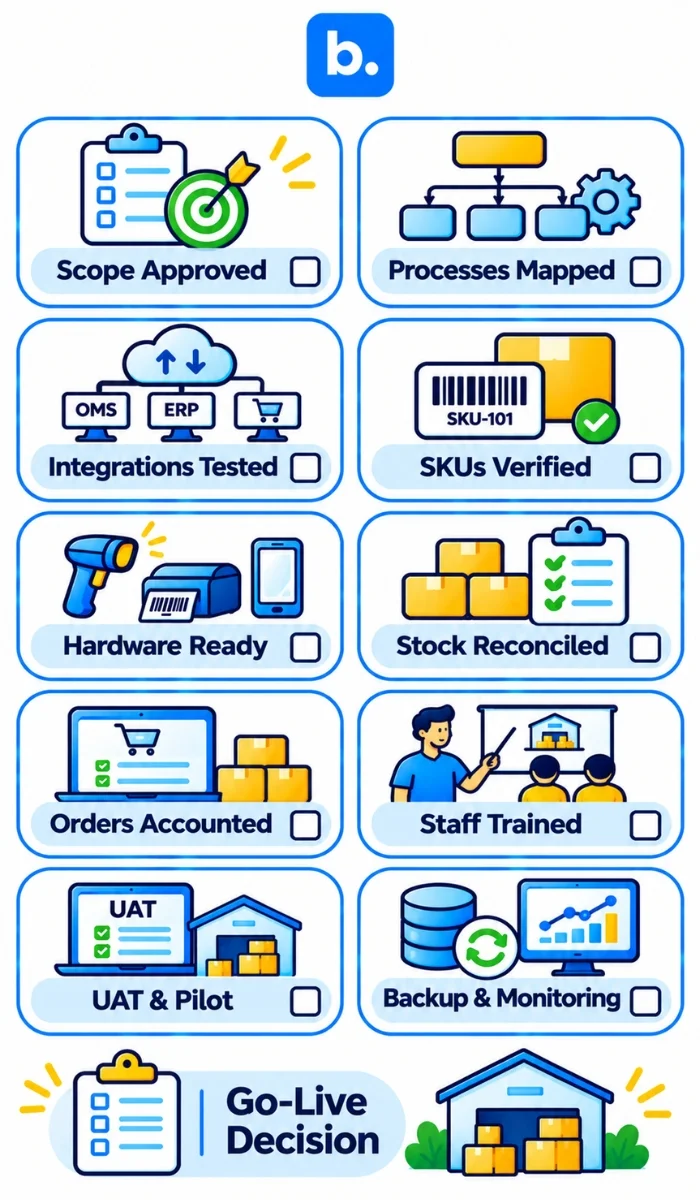
Final WMS Go Live Readiness Checklist
| Readiness | Complete |
|---|---|
| Project scope and ownership approved | ☐ |
| Software requirements met | ☐ |
| Warehouse processes mapped | ☐ |
| Integrations tested | ☐ |
| SKU data verified | ☐ |
| Locations set up | ☐ |
| Scanners and printers tested | ☐ |
| Stock reconciled | ☐ |
| Open orders accounted for | ☐ |
| Staff trained | ☐ |
| Key UAT tests passed | ☐ |
| Pilot completed | ☐ |
| Go-live plan approved | ☐ |
| Back-up processes in place | ☐ |
| Monitoring team assigned | ☐ |
Don’t just verbally approve your go-live. Ensure you have a record of who has completed each check. Ensure any key issues are resolved.
Common WMS Implementation Mistakes
| Mistake | Impact | How to Avoid |
|---|---|---|
| Incorrect Stock Migration | Stock discrepancies | Verify data |
| Not considering current processes | Confusion | Map processes |
| Not testing all integrations | Missed updates | Test end-to-end processes |
| Not accounting for open orders | Double fulfilment | Review any open orders |
| Not training staff | Picking errors | Use practical examples |
| Not running a pilot | Unexpected issues | Controlled testing |
| No back-up plan | Longer disruption | Plan recovery processes |
| Stop monitoring too soon | Repeated errors | Review performance |
Don’t rush your go-live. Having incorrect stock and causing disruptions can cause more issues than a short delay.
How Base OMS Can Help Manage Integrated Ecommerce Processes
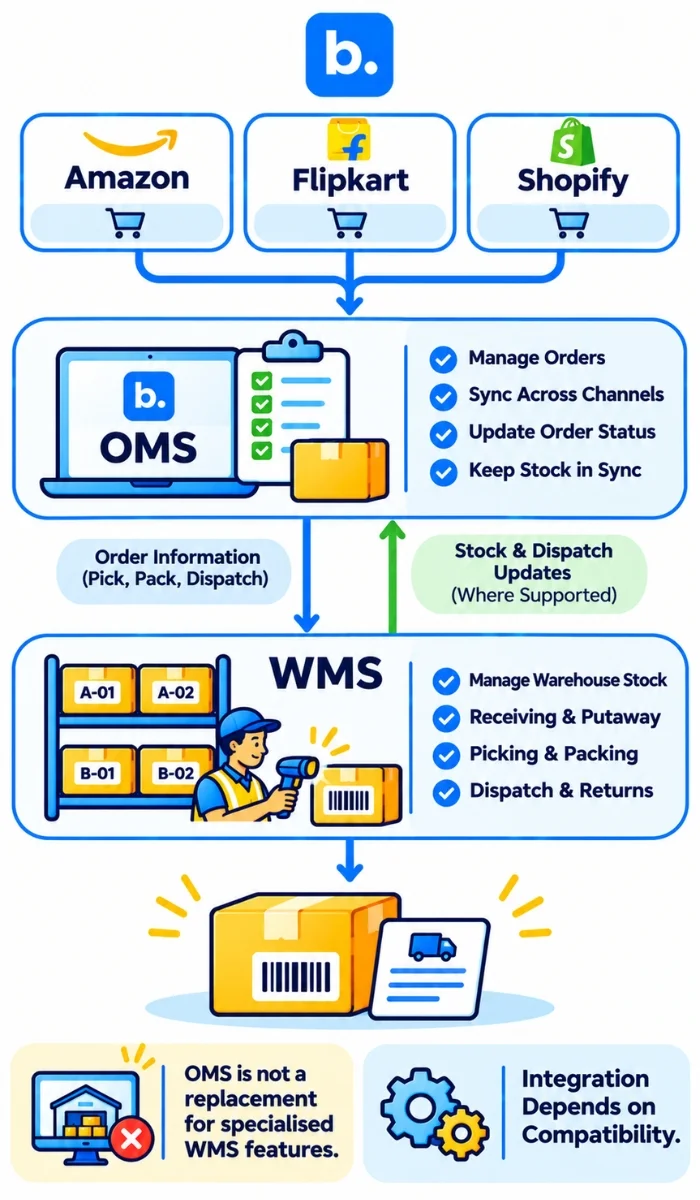
If you are selling on Amazon, Flipkart, Shopify and other supported channels it can take time to manage your orders.
Base OMS can help ecommerce businesses manage integrated orders, stock and fulfilment processes. It can help with order processing and stock visibility for supported sales channels.
For example, your warehouse may have a dedicated WMS to manage physical stock but your OMS will manage your orders and stock updates. Both systems will need accurate information.
Base OMS shouldn’t be used as a replacement for all the specific features of a WMS. Depending on your warehouse system, it may be compatible.
Find out how Base OMS can help you manage your orders and stock from one place.
Conclusion
Having accurate stock, clear processes, working integrations and trained staff will help you have a successful implementation.
Use this WMS implementation checklist to get your systems ready, test your processes and manage your transition.
Don’t rush your go-live. Ensure orders are flowing correctly and your stock is accurate.
Base OMS can help you manage your orders and stock for supported ecommerce channels.