Miravia – Integration Setup
Miravia is a marketplace operating in the Spanish market. The Miravia integration in Base.com allows you to manage sales in both directions: receive orders, list and update products, and synchronize prices and inventory based on products from a selected warehouse or catalog.
Below you will find the most important information needed to set up a Miravia account in Base.com, prepare products for listing, and configure order processing.
The Miravia integration allows you to
- importing orders into Base.com,
- creating listings based on products from the warehouse or catalog,
- managing and updating listings,
- synchronizing prices
- synchronizing stock
- sending tracking numbers to the marketplace,
- mapping order statuses from Base.com to Miravia,
- supporting variant listings.
How do I set up the Miravia integration?
If you’re just getting started with marketplaces in the system, be sure to check out the article “Adding Marketplace Accounts.”
- Go to Integrations → +Add Integration → Marketplace.
- Select Miravia.
- Go to the Miravia panel and fill in the required information
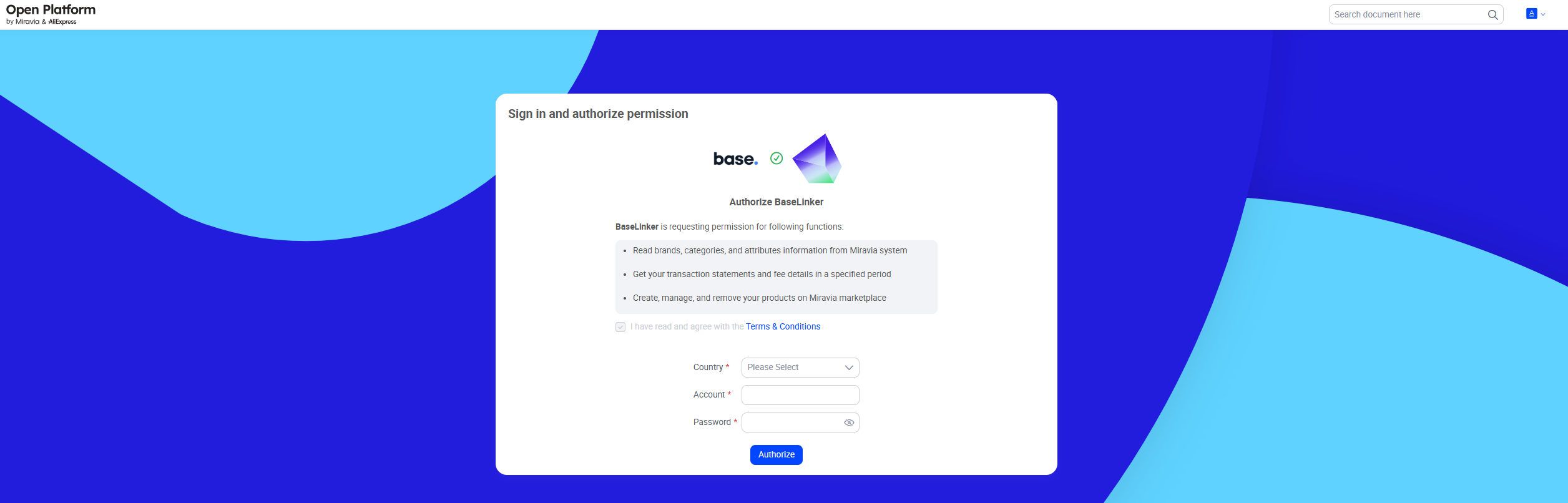
- After saving, go to the Integrations → Miravia → Connection tab and click the Test Connection button.
What to configure immediately after connecting your account
After adding your account, it’s a good idea to review the tabs available under Integrations → Miravia right away:
- Connection – test the connection,
- Orders – retrieve orders,
- Listing settings – default offer settings,
- Order statuses – map Base.com statuses to Miravia,
- Prices – price synchronization,
- Stock – stock synchronization,
- Shipping time – shipping time synchronization,
- Advanced settings – courier mapping.
How to set up your account and list products
Orders
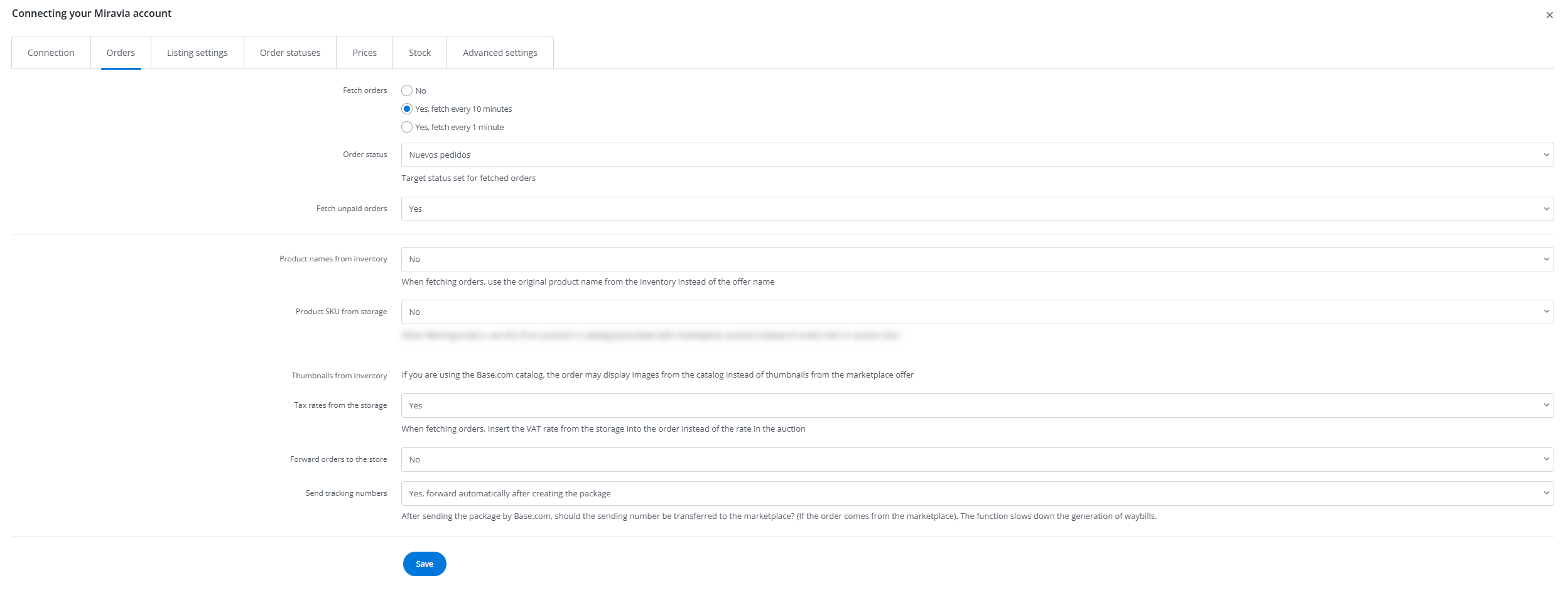
In the Integrations → Miravia → Orders tab, enable order retrieval and select the target status for new orders. If you want to properly configure the entire order management area in Base.com, see the article Order Settings.
Listing Settings
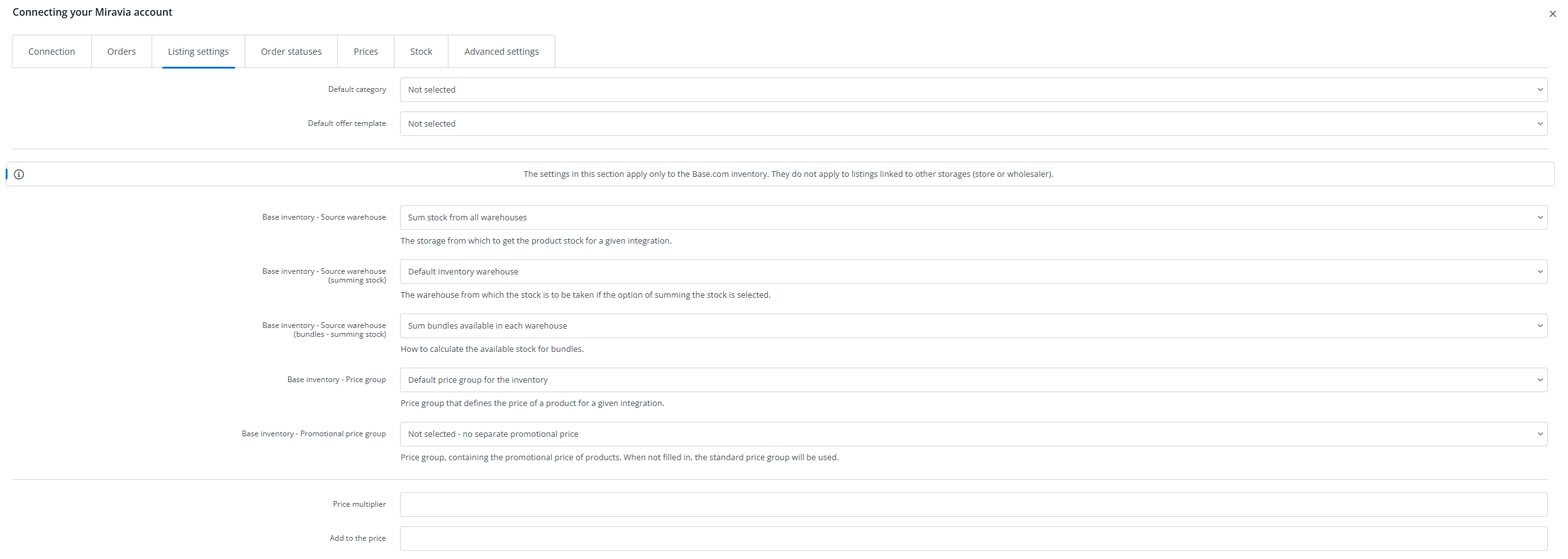
In the Integrations → Miravia → Listing Settings tab, you can set the default values used when creating listings. The most important options are:
- Default category,
- Default listing template,
- Source warehouse from which product data and inventory levels are to be retrieved,
- Price group and promotional price group,
- Price multiplier and Add to price,
- Maximum available quantity,
- Photo gallery settings,
- Variant name and variant settings,
- Name filter and case sensitivity.
How to prepare a product for listing
You can list your products from the Miravia → Listing section. To ensure the form is filled out correctly, the product must have the required information ready.
The Miravia listing form primarily requires the following:
- category,
- EAN,
- package weight,
- package length, width, and height,
- shipping method,
- GPSR – manufacturer name,
- GPSR – person in charge.
- Additionally, you can include, among other things, SKU, in-store pickup, and GPSR safety warnings.
Variants, Categories, and Links
Miravia supports variant listings. When listing items, you can:
- choose not to list variants,
- list all variants as separate listings,
- create variant groups.
- You can also limit listings to variants with positive stock levels.
To speed up your work with the form, configure the following in advance:
Miravia → Categories and Parameters – category selection and parameter mapping,
Miravia → associations – assigning marketplace categories to warehouse categories or products.
If you already have listings outside of Base.com, import them in the Miravia → Listing Management → Offer import section. After importing, remember to link them to products from your inventory—without this, price and stock synchronization will not work. For details, see the articles Offer import and Linking offer to Products from Your Inventory.
Order Management and Important Limitations
Order, Shipment, and Courier Statuses
In the Integrations → Miravia → Order Statuses tab, you can map a status in Base.com to a status in Miravia. This allows a status change in Base.com to automatically update the order status on the marketplace.
Synchronization works in the direction of Base.com → Miravia. This means that a status change in Miravia does not automatically update the status in Base.com.
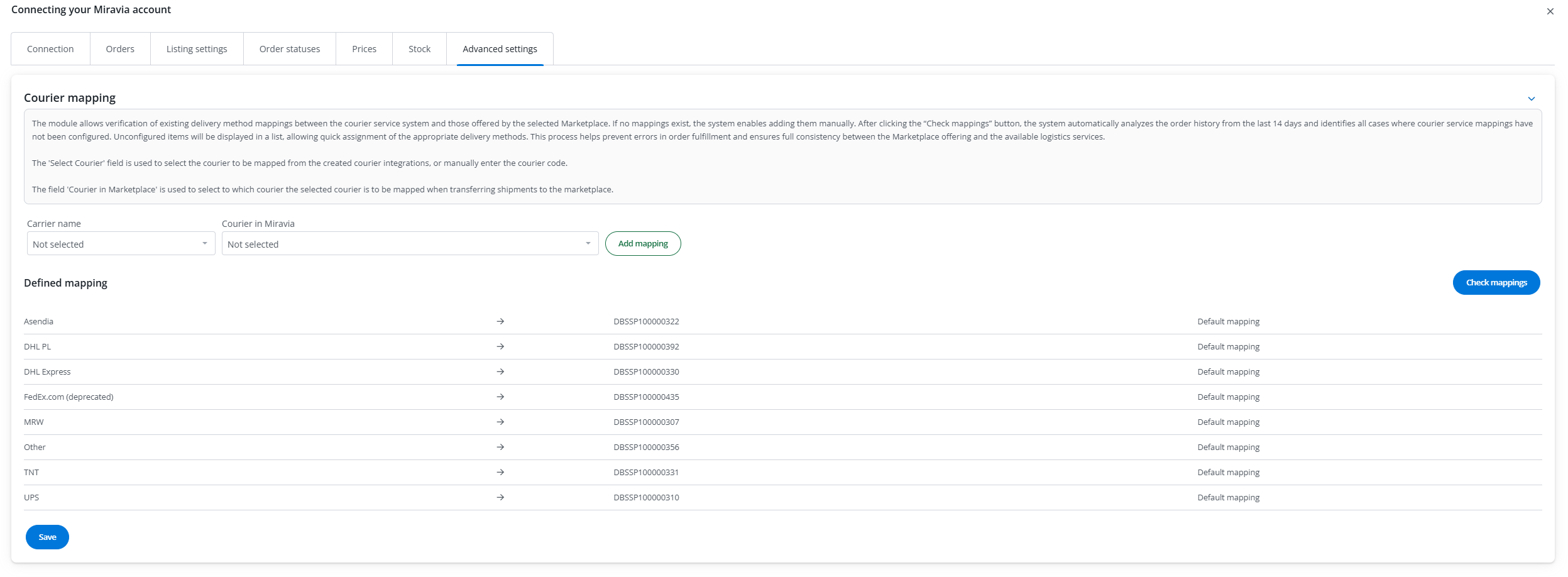
Miravia also supports sending the shipment number to the marketplace. For this to work correctly, configure courier mapping in Integrations → Miravia → Advanced Settings.
Prices, Stock synchronizaion, and Shipping Times
You can enable automatic updates for prices and stock levels in the Integrations → Miravia → Prices and Integrations → Miravia → Stock tabs. There, you can set the synchronization frequency, the action to take when stock reaches zero, and limits related to ending listings.
If you want to learn more about how these mechanisms work, see the Synchronization article.
In the Integrations → Miravia → Shipping Time tab, you can enable shipping time synchronization based on a selected product custom field. Enter a numerical value representing the number of days in this field.
Frequently Asked Questions
Why does an error regarding the Manufacturer_info and EU_Responsible fields appear when listing?
This usually means that the GPSR data is missing. First, add the manufacturer and the responsible person manually in the Miravia Seller Center under My Account → Settings, and then enter the exact same name or ID in Base.com.
Does Miravia transfer shipment data created on the marketplace to Base.com?
No. In practice, shipment data is transferred from Base.com to the marketplace. If a shipment is created directly within Miravia, the status in Base.com may not update automatically.
Does the integration send invoices to Miravia?
No. The Miravia integration does not support sending invoices to the marketplace. If you want to send an invoice to the buyer, you can do so, for example, via email from Base.com.
Does the integration support returns?
No. Miravia does not support importing returns into Base