Integration with Heureka in Base.com allows you to connect the price comparison engine with your panel, download orders, synchronize prices and stock, and pass order status. This solution is especially useful when you want to sell on the Czech or Slovak market and manage sales from one place.
Unlike many classic marketplaces, Heureka acts as a price comparison engine and requires a valid link to the product in the store. Therefore, before starting the configuration, it is worth making sure that you already have a store connected to Base.com and a correctly prepared offer link pattern in the settings of this integration.
How the Heureka integration works in Base.com
The Heureka integration in Base.com enables:
- downloading orders to Base.com,
- synchronization of prices and stock,
- passing the order status to Heureka,
- passing the tracking number,
- working on offers linked to a product in the inventory.
In the integration settings, you can choose the region of operation:
- Czech Republic,
- Slovakia.
Heureka requires a link to the product in the store. Offers can only be handled based on data from the store’s warehouse, so before configuration, make sure that in the connected store integration you have set the correct offer link pattern in the Products tab.
How to add Heureka integration
Step 1. Add a new Heureka account
- Go to Integrations → +Add integration → Marketplace → Heureka.
- In the connection form, enter the Account name – this can be any name visible only in your panel.
- Complete the API URL field.
- Select Region: Czech Republic or Slovakia.
- Save the settings and use the Test connection button to check if the data is correct.
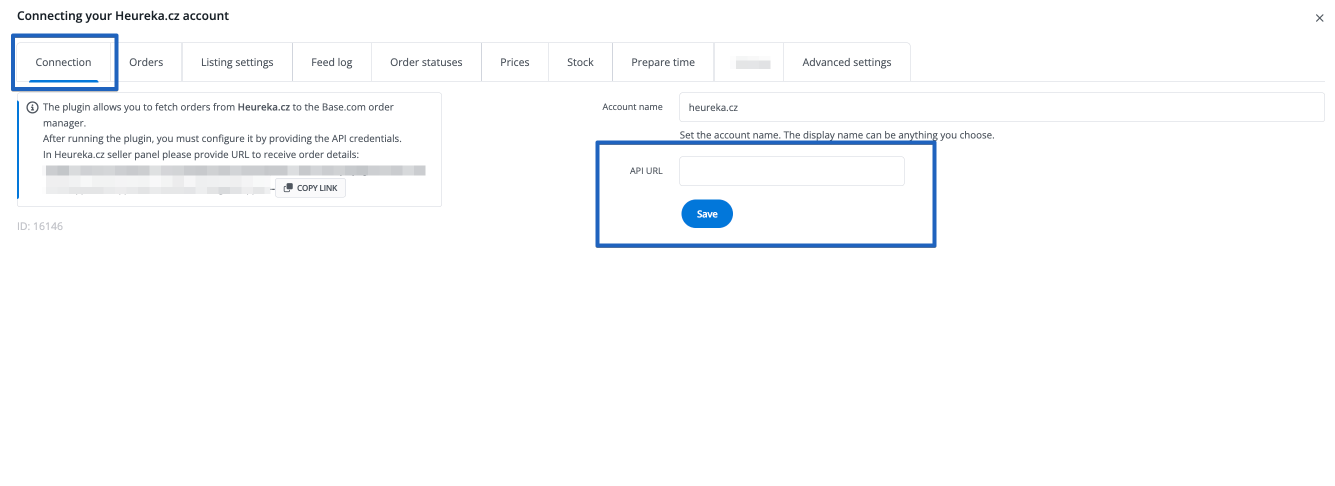
Step 2. Copy the webhook from Base.com
After adding the account, go to the Integrations → Heureka → Connection tab and copy the webhook address provided by Base.com. This address will be needed on the Heureka side to configure communication between systems.
Step 3. Paste the webhook in the Heureka panel
Log in to the Heureka seller panel and go to the marketplace API settings. The webhook configuration address is:
https://sluzby.heureka.cz/marketplace/marketplace-api-settings
In the Heureka panel, fill in all required endpoints using the webhook address copied from Base.com. For each entry, change the end of the address to the appropriate path:
- /products/availability
- /payment/delivery
- /order/send
- /order/status
- /order/cancel
- /payment/status
Addresses must have the correct format with the suffix uri–/endpoint, for example:
…uri–/order/send
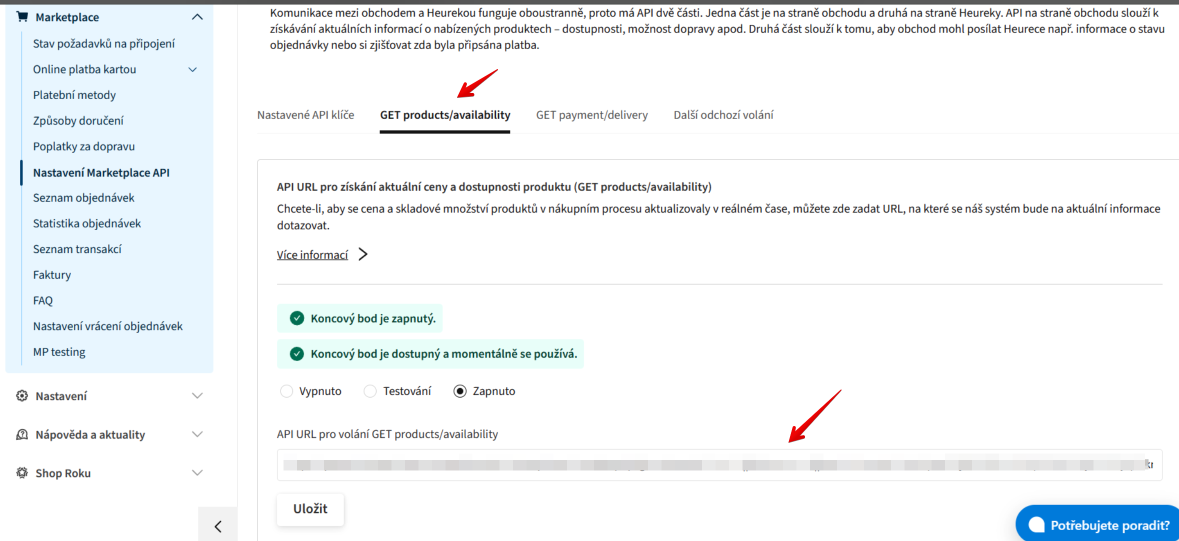
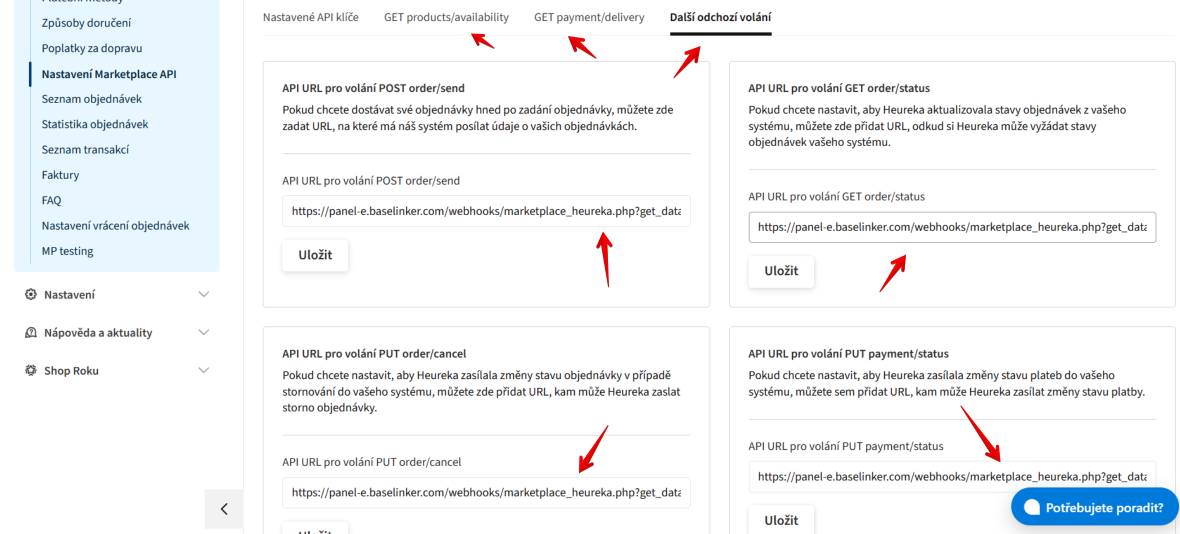
If any endpoint is saved in an incorrect format, Heureka may return 422 or 500 errors. The most common cause is a missing uri–/… suffix or a missing slash before the endpoint name.
How to configure Heureka integration settings
Connection Tab
After saving the data and configuring the webhooks, return to Integrations → Heureka → Connection and test the connection again. This is the simplest way to make sure that Base.com sees the account correctly and can communicate with Heureka.
Listing Settings Tab
In the Integrations → Heureka → Listing Settings tab, you will configure how to build data for offers and the sources of prices and stock.
- Enable the Generate offer file option if you want Base.com to build a file with current offers for Heureka.
- Select the Source warehouse from which the stock should be taken. You can indicate one warehouse, sum of stocks, or selected warehouses.
- Select the Price group from which prices should be taken.
- If you use promotional prices, also set the Promotional price group.
- Fill in the optional Price multiplier and the Add to price field if you want to automatically calculate the price for Heureka.
- If you want to include additional costs, you can use options related to adding shipping costs or marketplace fees.
- Set the Default category and Default shipping price list, if they are available for your account.
- Configure photo gallery options, product names, and variants – for example, photo order, number of photos, or the way the name is built.
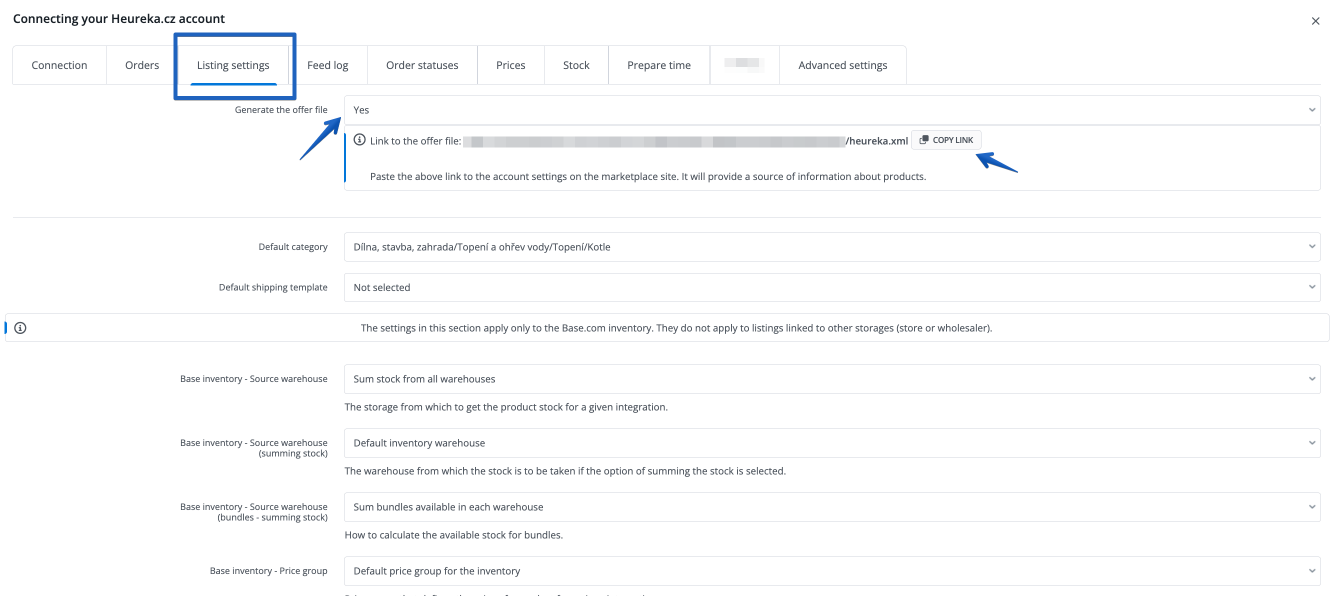
If you sell in different languages on one account, remember that one XML feed should not contain multiple languages. In such a case, it is best to prepare separate configurations for each market or language.
Orders Tab
In the Integrations → Heureka → Orders tab, you will set the method for downloading and handling orders from Heureka.
- Enable downloading orders.
- Select the status to which new orders should go after being downloaded to Base.com.
- Upon first launch, decide whether to download only new orders or also orders from the last few hours or days.
- If you want Base.com to pass orders further to the connected store, leave the Pass orders to store option enabled.
- If you want to send tracking numbers, configure the Send tracking numbers option.
- For the Heureka integration, a Download gift information option is also available. You can decide whether the information should be added as a new item or saved in the buyer’s comment.
Before enabling the passing of orders to the store, make sure that offers are correctly linked to products in the inventory. You can read more about this in the Links article.
On the Heureka side, it is also worth making sure that in the marketplace settings, the option to send orders to the store is active. Without this, orders may not reach Base.com correctly.
Order Statuses Tab
If you want to pass status changes from Base.com to Heureka, go to Integrations → Heureka → Order Statuses.
- Enable the Status mapping option.
- For each status from Base.com, select the corresponding status in Heureka.
- Save changes.
From this point on, every change of order status in Base.com can be passed to Heureka according to the prepared mapping.
Prices Tab
In the Integrations → Heureka → Prices tab, you can launch automatic price synchronization.
- Choose the synchronization frequency, for example, every 24 hours, every 12 hours, every 4 hours, or every hour.
- Determine what should happen when the price in the inventory is 0.
- Establish behavior separately for lower and higher prices in the inventory than the current offer price.
- If necessary, set price rounding.
- If you use the option to end offers at price 0, also set a daily limit for such operations.
If you want to better understand how synchronization works, also see the Synchronization article.
Stock Tab
In the Integrations → Heureka → Stock tab, you will set up stock synchronization.
- Enable synchronization and select the update frequency.
- Determine what the system should do when the product stock drops to 0.
- Configure behavior for lower and higher stock in the inventory relative to the offer.
- Set the Maximum quantity, which is the highest stock that can be sent to the offer.
- Optionally set the End offer at stock threshold if you want to turn off sales earlier.
Advanced Settings Tab
If you create shipments in Base.com and want to pass them to Heureka, go to Integrations → Heureka → Advanced Settings and perform courier mapping. Thanks to this, the tracking number and carrier data will be correctly sent to the marketplace.
Important requirements and common problems
- Product must be available in the store and have a valid link
Heureka requires redirection to the product in the store, so every product should have a valid link to the product card. If the link pattern in the store integration is incorrect, the offer may not work properly.
- Offers must be linked to products in the inventory
Synchronization of prices, stock, and correct order passing only work when the offer is linked to a product in the inventory. A missing link can cause Inactive or Invalid status and a lack of data updates.
- Product and availability feeds must be complete
If your Heureka configuration is based on XML feeds, remember that the product feed alone is not enough. An availability feed containing stock is also needed. A lack of stock data can cause a lack of synchronization or product updates.
- Deliveries and payments must be correctly filled in
If the XML data lacks a delivery section or payment methods, Heureka may reject the data or not correctly create delivery templates. In practice, this means that after adding a new delivery method, you must update the data on the Heureka side and perform a re-import.
- Variants are best listed as separate offers
Heureka does not support classic variant groups in the same way as some other marketplaces. It is safest to treat variants as separate offers.
- Integration does not support returns or passing invoices
In the Heureka integration, you can download orders, synchronize data, and pass the tracking number, but the integration does not support downloading returns or passing invoices.
If after enabling order downloading nothing reaches Base.com, check three things: the correctness of webhooks, enabled order downloading in the integration, and offer-to-product links. These are the most common causes of Heureka configuration problems.
Before launching sales, it is also worth configuring the Order Manager, so that new orders from Heureka immediately go to the correct handling process.