If you use Amazon FBA and want to see the current stock levels of products in the Base.com panel, you can do this using the Amazon fulfillment integration and an Amazon account as a marketplace. This configuration allows you to download the stock level from the Amazon FBA warehouse to Base.com and then work on it in your catalog.
Two elements are key here: correctly selected Amazon fulfillment integration, importing FBA offers to the offer management module, and proper linking of offers with products in the Base.com catalog. Only then will the automatic import start filling in the stock level in the appropriate warehouse.
This instruction applies only to Amazon FBA / Amazon fulfillment. It does not apply to Amazon Multi-Channel Fulfillment (MCF) — in this integration, it is not possible to download product stock levels to the Base.com panel.
How downloading Amazon FBA stock levels to Base.com works
The standard stock synchronization module in the Amazon integration is primarily used to update quantities in Amazon offers based on the stock level in Base.com. In the case of FBA, downloading the stock level to the Base.com panel is done through the Amazon fulfillment integration and the FBA offers associated with it.
In practice, the process looks like this:
- in the Amazon fulfillment integration settings, you indicate the Amazon Seller account,
- you import FBA offers to Base.com,
- you make sure that the offers are linked to products from the catalog,
- you add an FBA warehouse to the catalog where these products are located,
- after the next import and automatic synchronization, Base.com downloads the stock level to the appropriate warehouse.
If you want to organize the general rules of synchronization, also take a look at the article Synchronization of stock levels and prices.
Step-by-step configuration
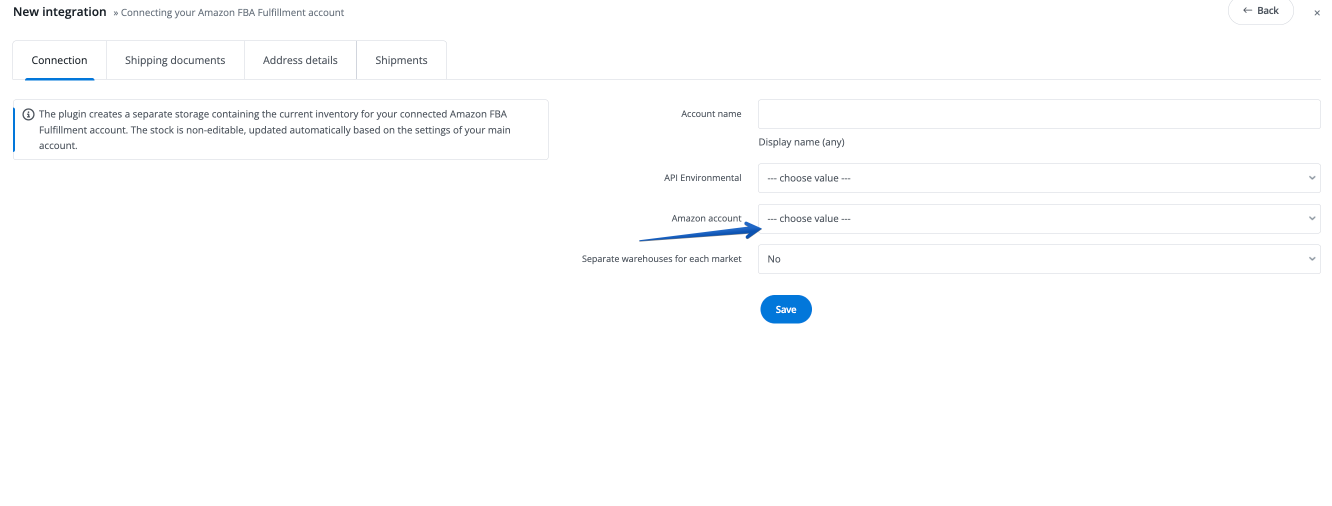
1. Select the Amazon Seller account in the Fulfillment by Amazon integration.
Go to the Integrations section and open the settings of your Amazon fulfillment account. In this integration, select the Amazon Seller account from which FBA data is to be downloaded.
This is an important step because the fulfillment integration needs to know which Amazon account to work with.
2. Import FBA offers to offer management
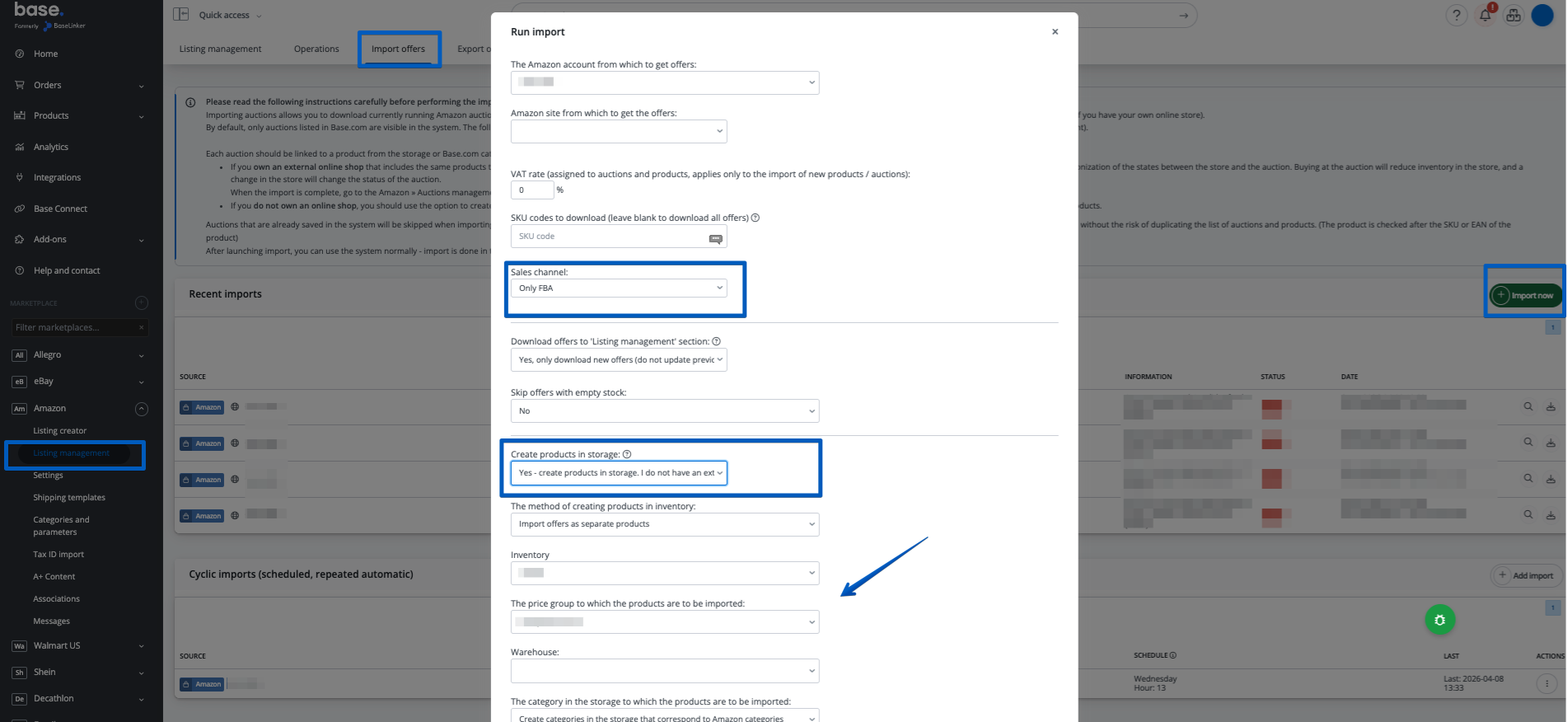
Then go to Amazon → Offer management → Import offers → Import now and run the offer import.
In the import form, pay attention primarily to the Sales channel field — select the variant that includes FBA offers.
- Select the Amazon account and the correct market.
- In the Sales channel field, select FBA offers.
- Decide if you only want to download offers for offer management or also update them.
- If you don’t have products in the catalog yet, select the option to create products in the warehouse during import.
- If products already exist in Base.com, perform the import without creating new products and use automatic linking by EAN, SKU, name, or ASIN.
If you need to manually correct links later, the article Linking offers with products will also be helpful.
3. Make sure that FBA offers are linked to products from the catalog
The presence of offers in the Amazon module alone is not enough. FBA offers must be linked to products from the Base.com catalog. Without this, the stock level will have nowhere to be saved in the panel.
If you don’t see correct links after importing, go to Amazon → Offer management and create them manually, then save.
If you already have products in the catalog, it is best to import FBA offers without creating new products, and instead match them to existing items by SKU, EAN, or ASIN.
4. Add an FBA warehouse to the catalog with linked products
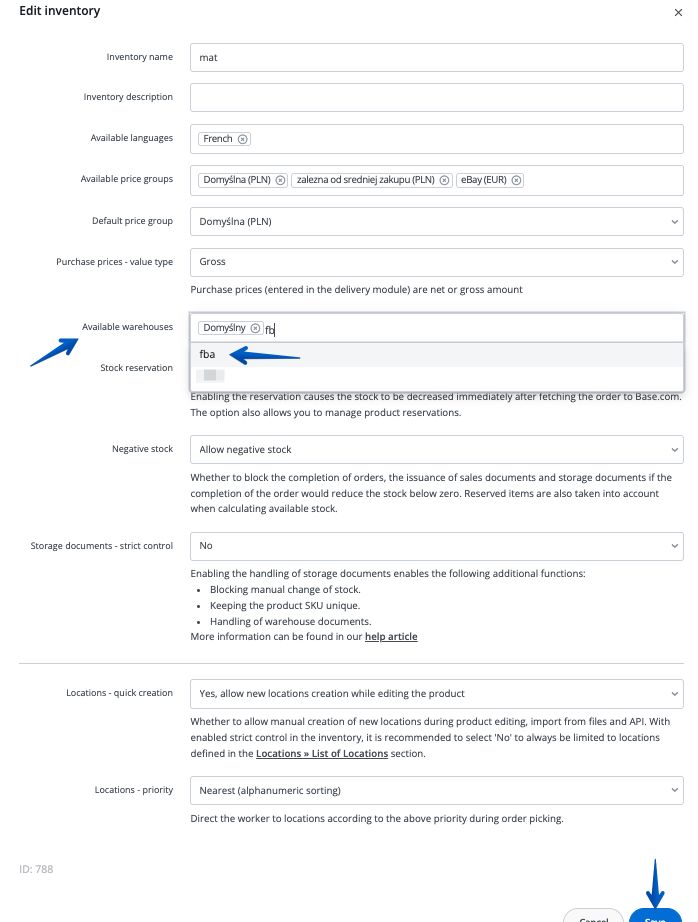
The next step is to add an FBA warehouse to the catalog that contains products linked to Amazon FBA offers.
Most often you will work in the Products → Settings → Warehouses and Products → Settings → Catalogs sections. It is important that products and the FBA warehouse are in the same catalog structure where you want to see the downloaded stock level later.
5. Repeat the offer import to save links
After adding the FBA warehouse, perform the offer import again. This step is needed for Base.com to save the links in the correct configuration and start downloading the stock level correctly.
Only after this stage will automatic import start downloading the stock level to the warehouse.
6. Enable synchronization in the Amazon integration
Finally, go to Integrations → [Amazon account] → Stock levels and enable the stock synchronization module.
In the synchronization form, settings are available including:
- Synchronization,
- Zero stock,
- Smaller quantity,
- Larger quantity,
- Fulfillment offer sync.
For downloading FBA stock levels alone, you can have synchronization enabled and leave the other options at “Do nothing”. If you see the Fulfillment offer sync option in the form, set it to Yes.
Automatic import of FBA stock levels is performed every hour. If you have just finished the configuration, the stock level may not appear in the catalog immediately.
How to check if stock levels are downloading correctly?
Where you will see the downloaded stock level
After correct configuration, Base.com will start downloading the stock level to the FBA warehouse assigned to your catalog. You can check this most easily directly on the product card or in the product list in the catalog where the FBA warehouse was added.
Additionally, in the Integrations → [Amazon account] → Stock levels section, you will find quantity sync logs. This is a good place if you want to check if synchronization is working and if the system processed specific offers.
Common problems and their solutions
- Stock level does not appear in the catalog — this most often means a lack of link between the FBA offer and the product in the Base.com catalog.
- Products do not exist in the panel yet — perform an import of FBA offers with the option to create products.
- Products exist, but stock is not downloading — repeat the import after adding the FBA warehouse to the catalog.
- No links visible — create them manually in Amazon → Offer management and save.
- The same SKU occurs on several offers — the stock level is summed for one SKU, but the system does not add quantity from offers that are not in the offer management module.
If you use other offer update mechanisms in parallel, remember that manual changes in offers may be overwritten by active synchronization. You can read more about working on offers in the article Offer update.
Sending products to the Amazon FBA warehouse
This article describes only downloading current stock levels from the Amazon FBA warehouse to Base.com. If you want to physically send products to the Amazon FBA warehouse from Base.com, the full process — from creating a shipment, through configuring parameters, packing products in cartons and registering in Amazon FBA, to downloading labels and documents — is described in a separate article: Shipments to fulfillment (Amazon FBA).
If you want to organize the topic of fulfillment integrations more broadly, the article Fulfillment Integrations will also be helpful.