Fulfillment integrations in Base.com allow you to pass orders to an external warehouse that packs and ships parcels on your behalf. This way, you manage your sales in one panel without the need to run your own warehouse. Below you will find a description of the types of fulfillment integrations, how to connect them, and an overview of the places in the system where you configure and manage fulfillment processes.
Types of fulfillment integrations
There are two types of fulfillment integrations available in Base.com:
- Marketplace/catalog fulfillment – e.g. One Fulfillment by Allegro. Connects your Base.com account with the fulfillment service offered by a given marketplace. Requires a prior connection of the marketplace integration (e.g. Allegro).
- Courier fulfillment – e.g. Oex fulfillment, Amazon Multichannel Fulfillment. Passes order data (product identifier, weight, quantity, recipient data) to the fulfillment provider, which handles the entire process from packing to shipping.
How to connect a fulfillment integration?
- Log in to your Base.com panel and go to the Integrations section.
- Click the green button + Add integration
- From the list of integrations, select the appropriate plugin
- After connecting, fill in the account form. At the top of the fulfillment plugin form you will find:
- Account name – any name visible in the Base.com panel to help identify the account;
- [Marketplace] account – a dropdown list to select the marketplace account related to the fulfillment, e.g. Allegro account (not visible for fulfillment integrations without marketplace/catalog integrations).
- The remaining fields depend on the specific integration – the form adapts to the selected fulfillment provider.
Added fulfillment accounts are visible in the account table of the given integration. You can edit, clone, or delete them. Above the table, there is a +Add new account button.
Fulfillment integration configuration
After connecting a fulfillment integration, go to Integrations → the selected integration to configure fulfillment accounts (adding, editing), default settings, and – depending on the integration – synchronization of stock levels with the fulfillment service.
For marketplace fulfillment (e.g. Allegro), additional options may be available, such as auction stock synchronization (full synchronization, close only at stock 0, only decrease/increase stock, etc.).
Order card and fulfillment
The order card contains the data passed to the fulfillment provider: product identifier, weight, quantity, and recipient data. The fulfillment provider processes the order based on this information.
From the order card and the order list, you can create shipments (in the case of courier fulfillment integrations) and perform other order-related actions.
Automatic actions for fulfillment orders
In the conditions of automatic actions, you can use the Fulfilled by filter and select Fulfillment so that actions are executed only for orders fulfilled by the fulfillment provider. This allows you to handle your own orders and fulfillment orders differently.
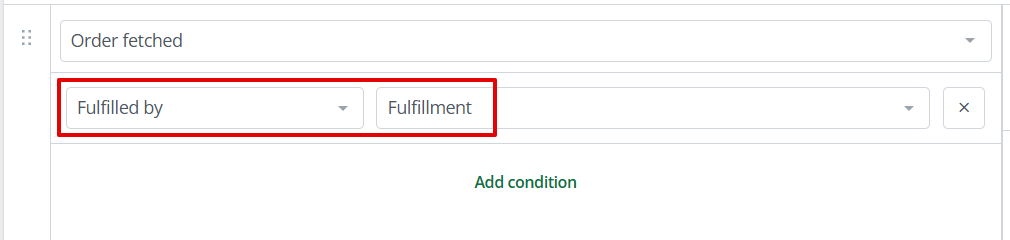
You can learn more about automatic actions in our article: Automation.
Shipments to fulfillment
In the Products → Stock control → Shipments to fulfillment section, you manage product deliveries to the external fulfillment warehouse.
You can create a shipment to fulfillment, select products and quantities, and arrange them in boxes or pallets according to the warehouse requirements – synchronization with the Base.com warehouse happens automatically.
The delivery list allows you to filter by status (Draft, Packing, Registered, In transit, Unpacking, Ready, Cancelled), date, warehouse, etc. Deliveries can be edited, duplicated, viewed in history, or deleted (if not yet registered in the fulfillment system).
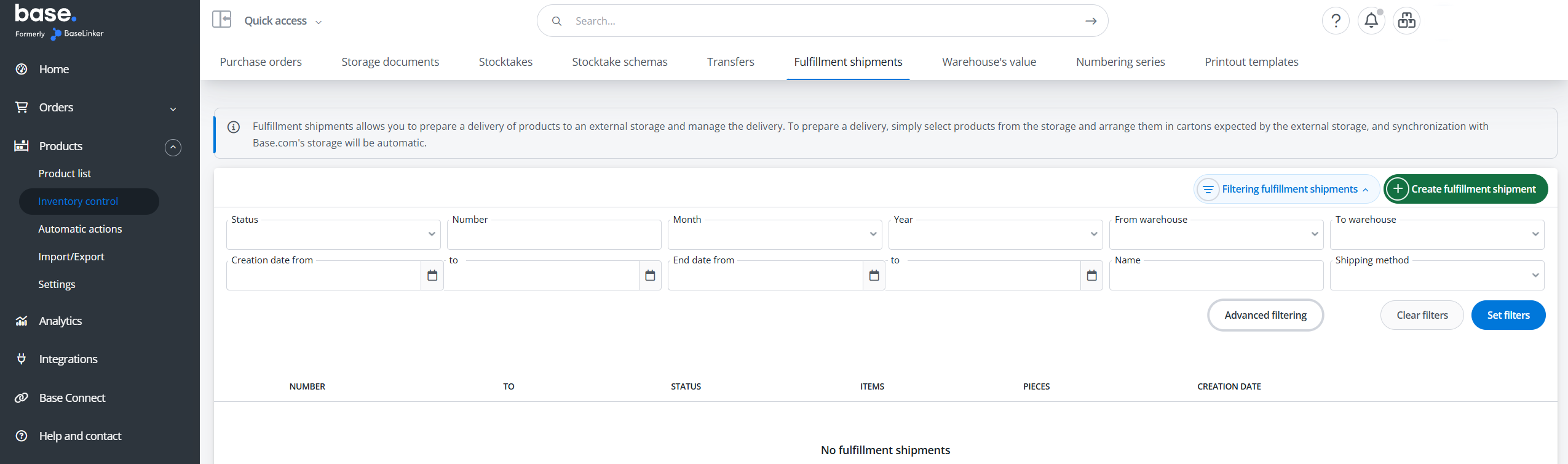
Shipments to fulfillment are useful when you do not have your own warehouse or when you transfer part of your stock to an external warehouse (e.g. due to product dimensions). A connected fulfillment integration is required to use this module.
Delivery registration modes
Depending on the fulfillment integration, deliveries to the external warehouse can be registered in two ways:
- Automatically – Base.com sends the full delivery data to the external warehouse via API and receives the delivery identifier, placement suggestions, and labels in response. The whole process – from creating the delivery to registering it – takes place inside Base.com. Applies to, among others, Amazon FBA Fulfillment, Cirro, and Shein Consignment.
- Semi-automatically – Base.com prepares the list of delivery items and makes it available as a file (e.g. XLSX). You upload the file manually to the fulfillment panel (e.g. Seller Center), register the delivery on the partner’s side, and return to Base.com with the delivery identifier and expected arrival date. Product labels are still generated in Base.com. Stock is moved from the source warehouse to the fulfillment warehouse only after the delivery status changes to Registered. Applies to, among others, Mercado Livre Fulfillment.
Warehouses and warehouse documents
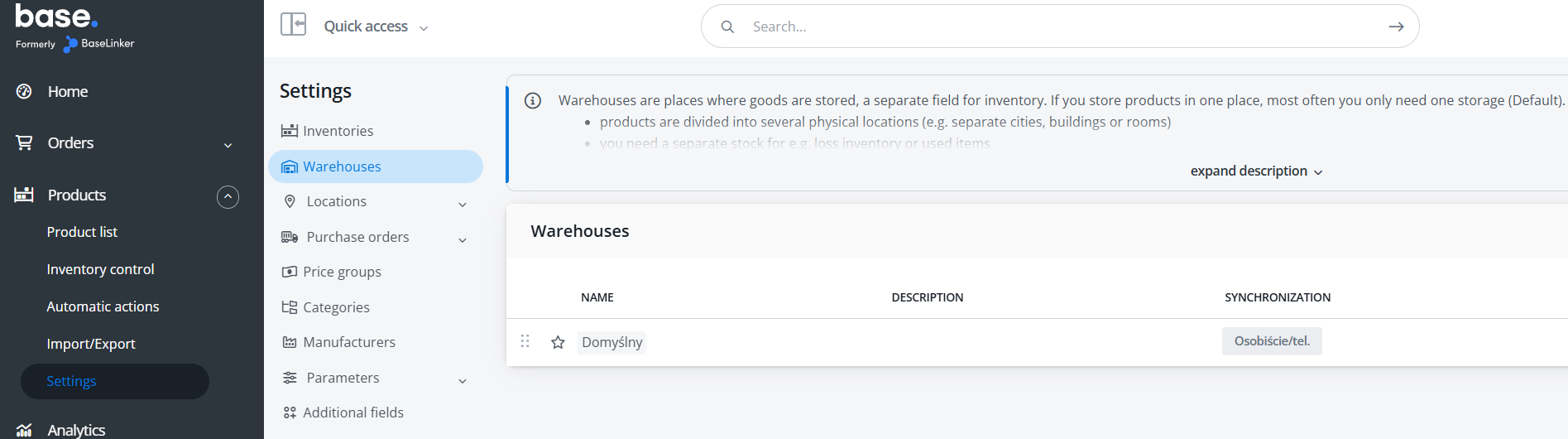
In the Products → Settings → Warehouses section, external warehouses (e.g. the fulfillment warehouse) will be available, which you can use when creating and filtering shipments to fulfillment.
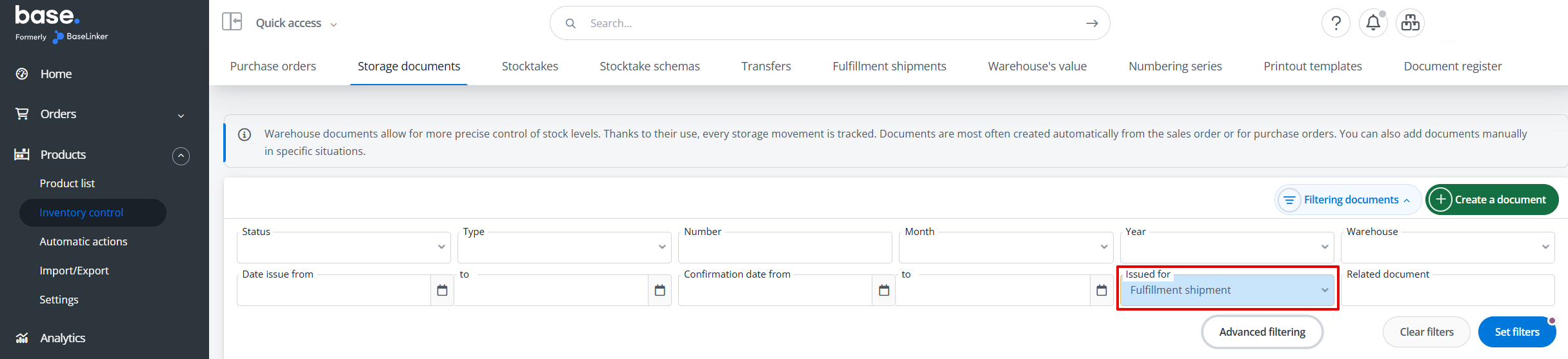
In the Products → Stock control → Warehouse documents section, you can filter documents by the Issued for field with the value Fulfillment shipment to see documents related to fulfillment deliveries.
Summary
- Connecting the integration – Integrations → + Add integration → Fulfillment → select the plugin and fill in the account form.
- Configuration – Integrations → [Your fulfillment integration] → accounts, default settings, stock synchronization.
- Shipping stock to the warehouse – Products → Stock control → Shipments to fulfillment.
- Order fulfillment – data from the order card is passed to the fulfillment provider; you can identify fulfillment orders by the Fulfilled by: Fulfillment condition in automatic actions.
- Stock levels – synchronization in the integration settings; external warehouses in Products → Settings → Warehouses.