Shein Consignment is Shein’s fulfillment service operating in the fully-managed model, in which Shein packs and ships orders to end customers. The integration in Base.com allows you to receive purchase orders from Shein, prepare deliveries to Shein warehouses, synchronize stock levels, and print labels – all from a single panel.
In the fully-managed model, there are two related integrations in Base.com:
- Shein Consignment (marketplace integration) – responsible for listing offers.
- Shein Consignment (fulfillment integration) – responsible for order fulfillment, deliveries to Shein warehouses, stock synchronization, and labels.
How to connect the Shein Consignment integration?
The Shein Consignment integration requires a prior connection of the Shein Consignment marketplace account, to which the fulfillment integration will be linked.
Step 1. Connect the Shein Consignment marketplace account
- Log in to your Base panel and go to the Integrations section.
- Click the green + Add integration button.
- From the available list of integrations, select Shein, and then choose Shein Consignment from the available models (fully-managed model).
- Click the green Connect Shein Consignment account button to link your Shein Consignment account to Base.com.
- Confirm the connection on the Shein side – Base.com will be granted permission to communicate with your Shein Consignment account.

Step 2. Connect the Shein Consignment integration
- In the Integrations section, click + Add integration.
- From the available list of integrations, select Shein Consignment – you will find the plugin in the Fulfillment category.
- Fill in the account form:
- Account name – any name visible in the system to help identify the account;
- Shein Consignment account – select the marketplace account connected in Step 1;
- leave the remaining fields at their default values (you will return to the environmental labels configuration after saving the integration – see the Environmental labels section at the end of the article).
- Click Save.
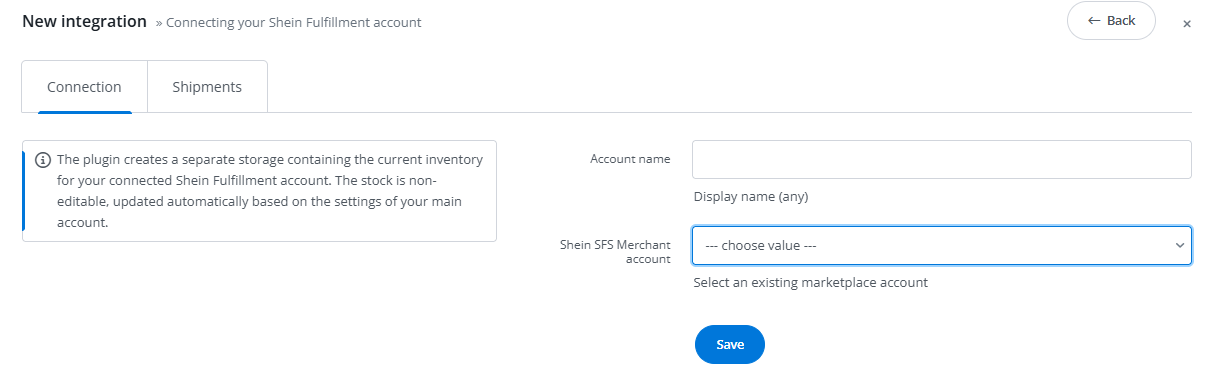
Step 3. Configure the warehouse and inventory
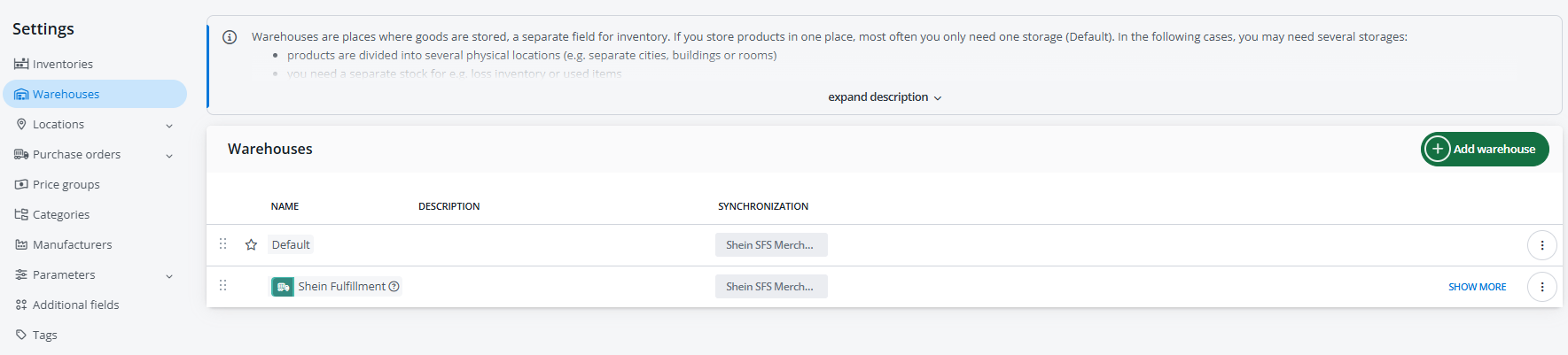
When you connect the integration, a dedicated warehouse for Shein fulfillment is automatically created in the Products → Settings → Warehouses section, with the same name as the integration.
Create a new inventory for this warehouse:
- Go to Products → Settings → Inventories and click + Add inventory.
- In the Available warehouses field, select both the source warehouse (your own warehouse) and the Shein fulfillment warehouse.
- In the inventory settings, set Stock reservation to No.
- Save the inventory.
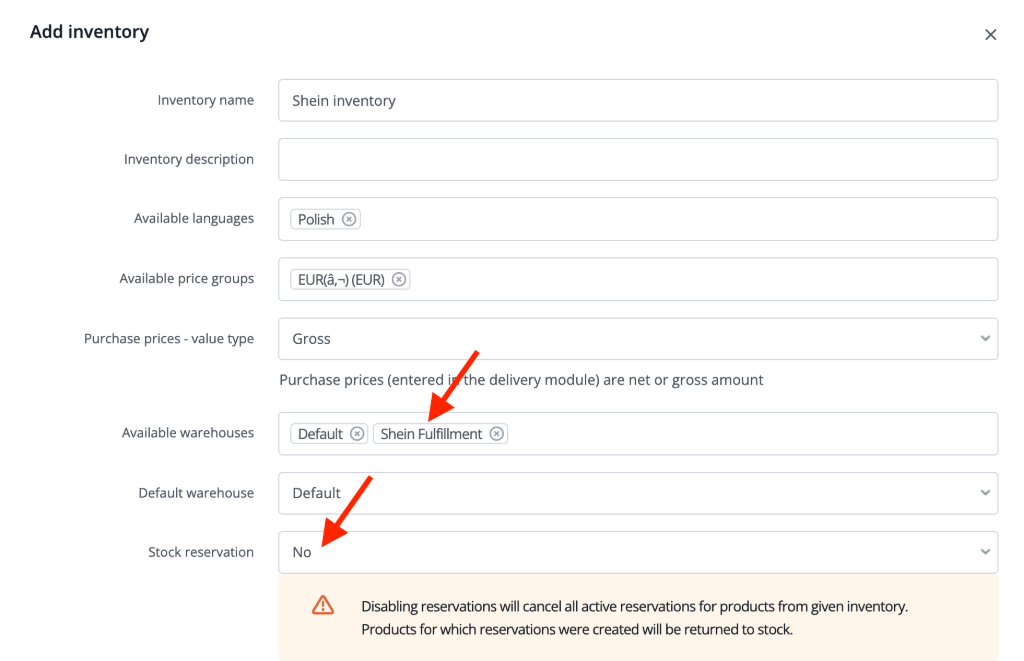
The Shein Consignment integration
Once the integration is correctly connected, after going to Integrations → Shein Consignment you will see the sections described below.
Fulfillment accounts
A list of all connected Shein Consignment accounts. You can edit, clone, or delete each account. The editing window contains all the fields available when connecting the integration. Above the table, there is a +Add new account button, which lets you connect another Shein Consignment account.

Created deliveries
A list of all deliveries created within the Shein Consignment integration.

Stock synchronization warehouse
In the Products → Settings → Warehouses section, a warehouse is created for synchronizing stock levels from the Shein warehouse into the Base.com inventory. You assign this warehouse to the selected inventory (see: Step 3. Configure the warehouse and inventory).
Listing offers and product links
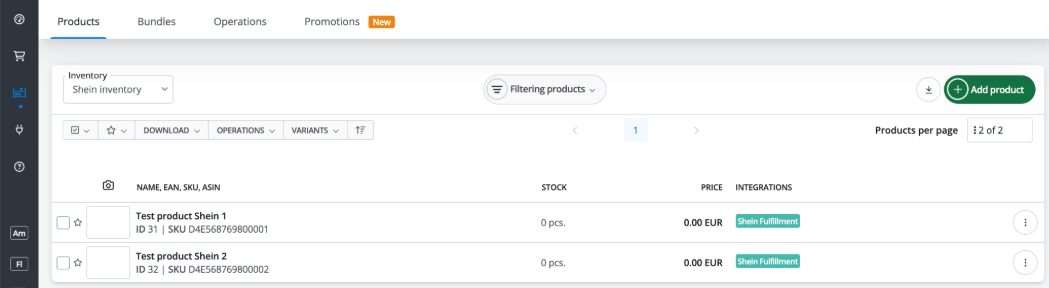
In the Shein Consignment marketplace account, create a new listing or import existing listings into the inventory created for fulfillment.
After adding or importing listings, product links in the fulfillment warehouse are created automatically – there is no need to create them manually.
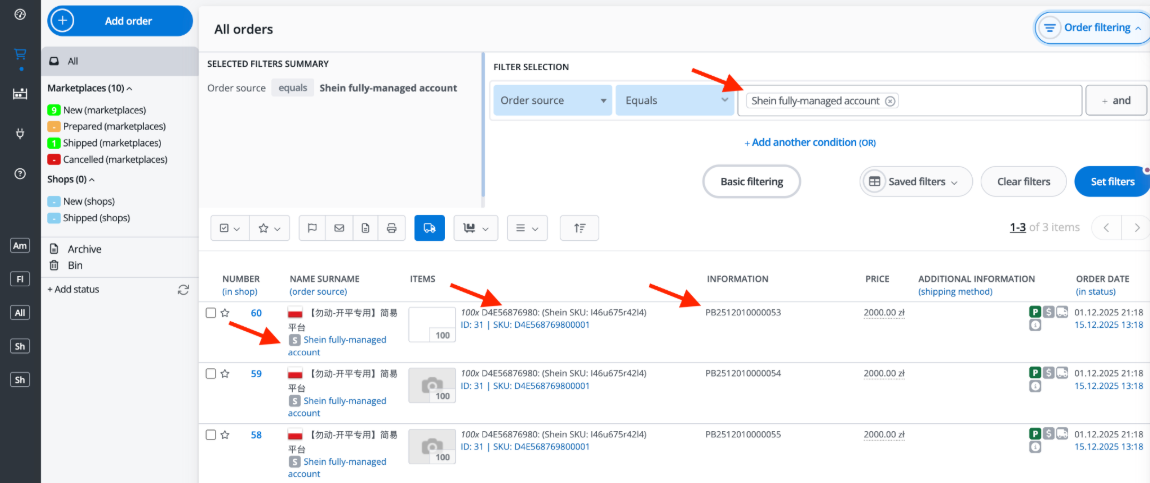
Orders from Shein
A background task runs periodically to check if there are any new purchase orders in the Shein panel and automatically creates corresponding orders in Base.com.
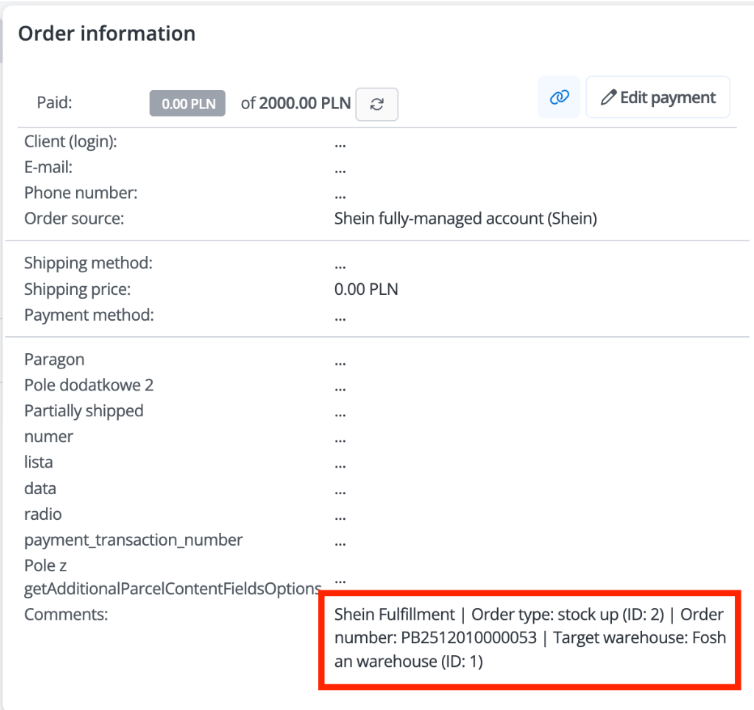
- The Transaction ID on the order card in Base.com is the Shein order number – it will be required when creating a delivery to fulfillment.
- The order card shows the list of products and quantities that should be sent to fulfillment, as well as detailed information about the Shein purchase order itself.
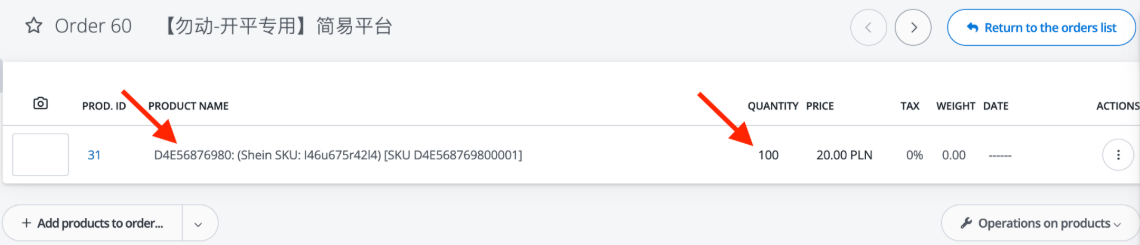
The order also contains detailed information about the purchase order itself:
Shipments to fulfillment
Shipments to fulfillment let you prepare a delivery of products to the Shein warehouse. For Shein, the delivery is created based on the Shein order number (transaction ID in Base.com).
Delivery creation is available in the Products → Stock control → Shipments to fulfillment section.
How to create a delivery to Shein fulfillment?
- Click the green + Create shipment to fulfillment button. A form will open in which you need to select:
- Numbering series;
- Month / Year;
- Source warehouse – the warehouse from which the goods are shipped;
- Fulfillment – the Shein Consignment account for which the delivery is being created;
- Type and number of shipments;
- Shipping method.
- In the Items tab, add the products from the purchase order from the source warehouse and specify the quantities.
- Click Save and go to packing.
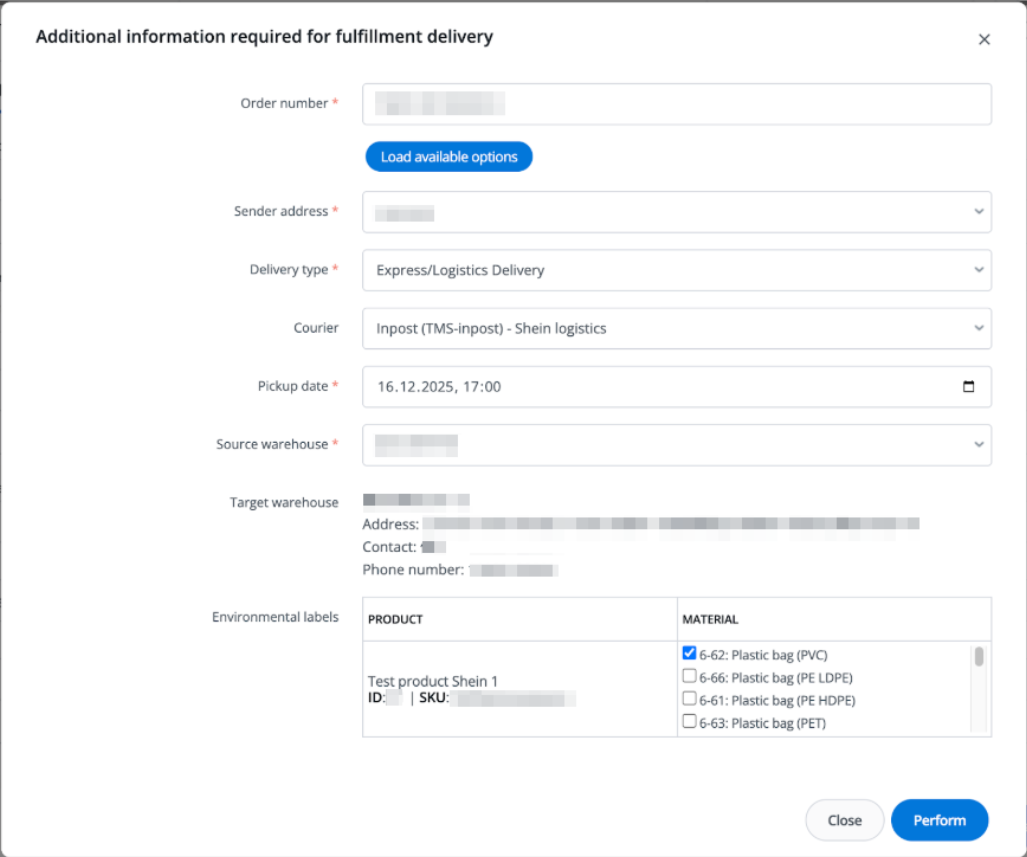
- In the next step, an additional Shein shipping configuration modal will appear. In the Order number field, paste the Shein order number (transaction ID from the order card in Base.com) and click Load available options.
- Once the order has been successfully downloaded, fill in the required fields of the delivery form:
- Sender address ID,
- Delivery type,
- Courier,
- Tracking number,
- Pickup date,
- Source warehouse / Target warehouse. If you are using environmental labels for selected products, fill in the material for each product, or leave it empty if the material is already assigned to the product in the additional field (see: Environmental labels). Then click Perform.
- Pack all required products according to the warehouse requirements and register the delivery by clicking Save and register in fulfillment. When the additional modal appears, leave the fields unchanged and click Register in fulfillment.
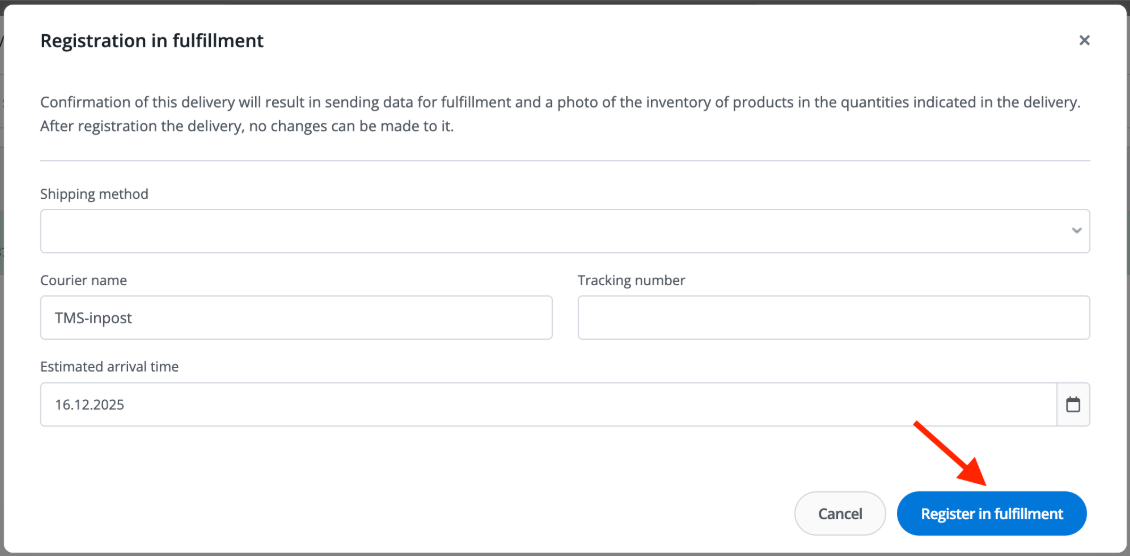
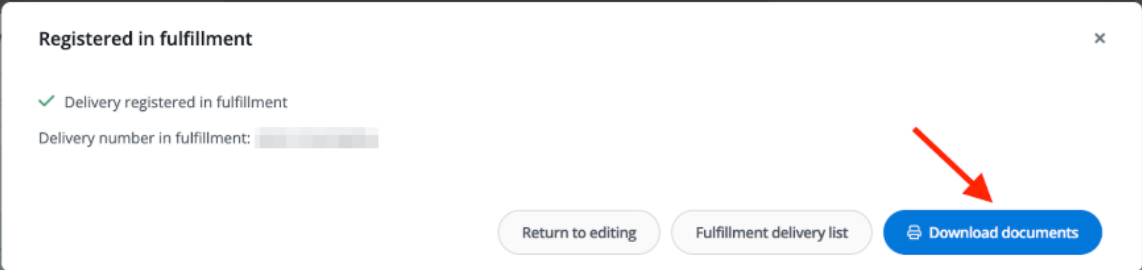
- Once the delivery is correctly registered, you can print the labels – by default delivery labels and product barcodes, and optionally environmental labels (if materials have been assigned to the products).
Delivery statuses
- Draft – the shipment to fulfillment is being edited;
- Packing – the shipment to fulfillment is being packed;
- Registered – the delivery is registered in Shein fulfillment; stock levels in Base.com have been reduced accordingly;
- In transit – the delivery is being transported to the Shein warehouse;
- Unpacking – the delivery is being unpacked at the Shein warehouse;
- Ready – the delivery is completed; stock levels on the Shein side should increase by the shipped quantities;
- Cancelled – the delivery has been cancelled.
Environmental labels
If you sell products that require environmental labels, you can assign appropriate materials to them, which will be printed together with the shipping labels.
Create an additional field with the list of materials
- Go to the Shein Consignment integration account settings.
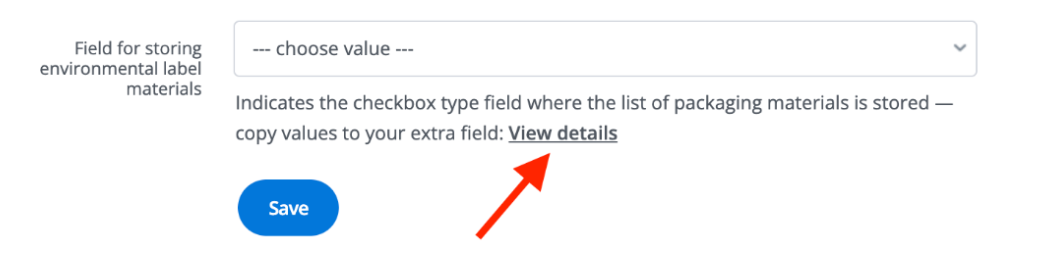
- Click View details next to the Material field option – the full list of available materials will be displayed. Copy it.
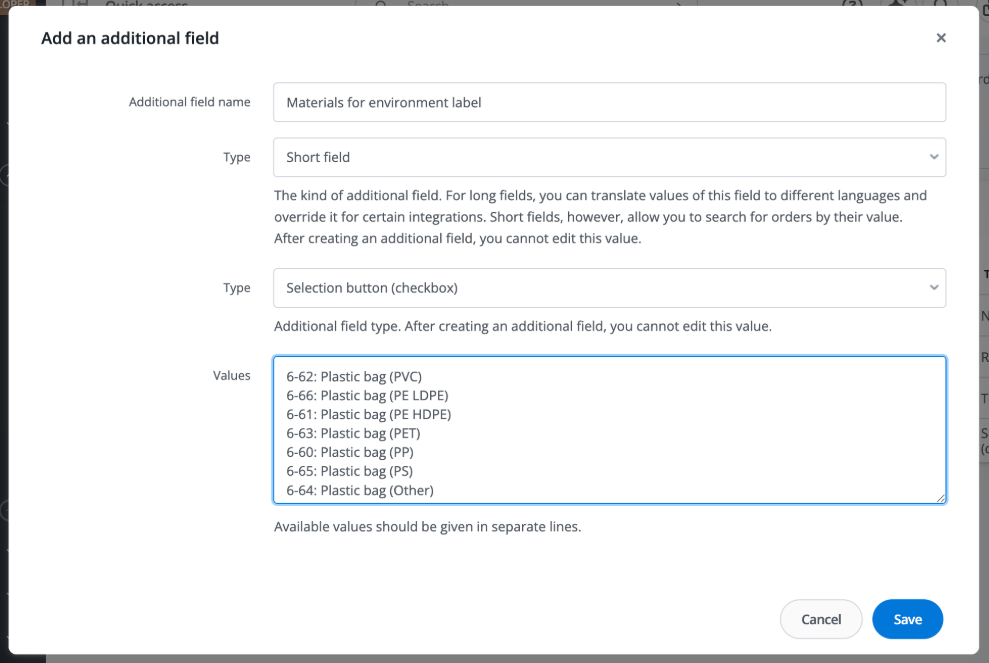
- Go to Products → Settings → Additional fields and click Add an additional field.
- Create a new additional field of the checkbox type and paste the copied list of materials as its values. Save the field.
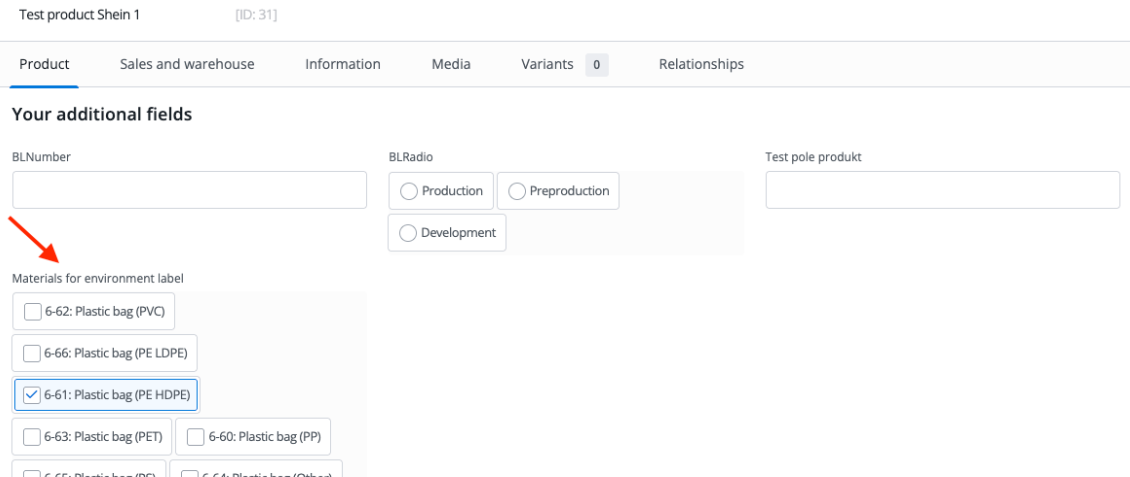
Assign materials to products
In the product editing view, in the newly created additional field, select the appropriate materials. From now on, when creating a delivery, the materials will be automatically read from the product field and used to generate environmental labels.
Summary
- Connect the marketplace account – Integrations → + Add integration → Shein → Shein Consignment (requires the fully-managed cooperation mode enabled on the Shein side).
- Connect the fulfillment integration – Integrations → + Add integration → Fulfillment → Shein Consignment, selecting the Shein Consignment marketplace account from Step 1.
- Configure the warehouse and inventory – Products → Settings → Inventories, source warehouse + Shein fulfillment warehouse, Stock reservation: No.
- List offers – from the Shein Consignment account; product links in the fulfillment warehouse are created automatically.
- Order fulfillment – new orders from Shein are downloaded periodically in the background; the transaction ID in Base.com is the Shein order number.
- Shipments to fulfillment – Products → Stock control → Shipments to fulfillment; the delivery is created based on the Shein order number.
- Environmental labels (optional) – an additional field of the checkbox type with the list of materials + materials assigned to products.