One Fulfillment by Allegro is Allegro’s fulfillment service that allows you to pass orders to the Allegro warehouse, where they are packed and shipped to your customers. The Base.com integration lets you manage product deliveries to One Fulfillment and synchronize stock levels from a single panel.
The plugin creates a separate warehouse containing the current stock levels for your connected One Fulfillment by Allegro account. The stock level is updated automatically based on the settings of your main account.
How to connect the integration?
Before adding the One Fulfillment by Allegro integration, you need to connect the Allegro marketplace account to which the fulfillment integration will be assigned.
- Log in to your Base panel and go to the Integrations section.
- Click the green button + Add integration.
- From the list of available integrations, select One Fulfillment by Allegro. You will find the plugin in the Fulfillment section.
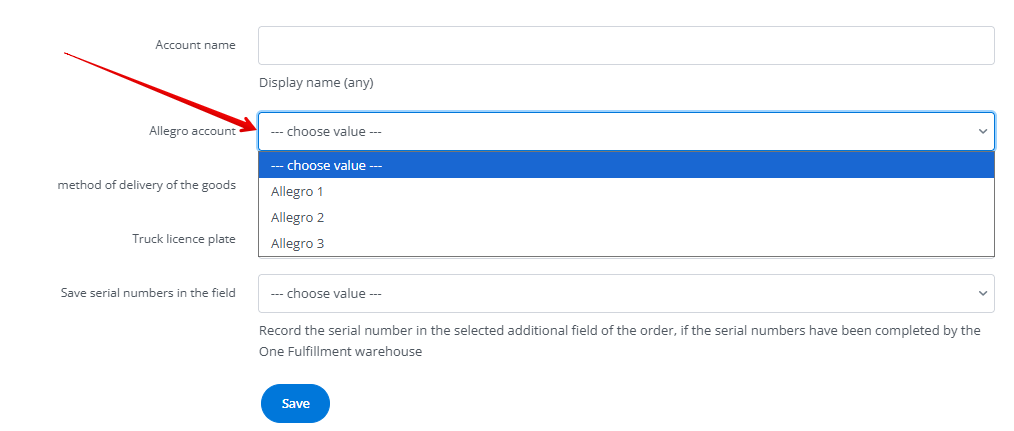
- Fill in the form:
- Account name – any name displayed in the system;
- Allegro account – select the marketplace account to which the fulfillment integration will be assigned;
- Method of delivery of the goods – delivery by courier or own transport;
- Truck licence plate;
- Save serial numbers in the field – the serial numbers will be saved in the selected additional order field if they have been provided by the One Fulfillment warehouse.
- Click Save and you’re done! If the required fields have been filled in correctly, the integration will be added to your account. You can modify all the above settings later in the account edit view.
One Fulfillment by Allegro integration
If you have connected the integration correctly, after going to Integrations → One Fulfillment by Allegro you will see the sections described below.
Created shipments to fulfillment
Here you will find a list of all shipments created using the One Fulfillment by Allegro integration.

Accounts in the fulfillment system
Here you will find a list of all fulfillment accounts connected to the system. If you have more than one, you can change their order using the arrows on the right side of the table. You can also clone, edit, or delete each account. The edit view contains all the fields available when connecting the integration.

Above the table, there is a +Add new account button that allows you to connect another One Fulfillment by Allegro account to the system.
Stock synchronization warehouse
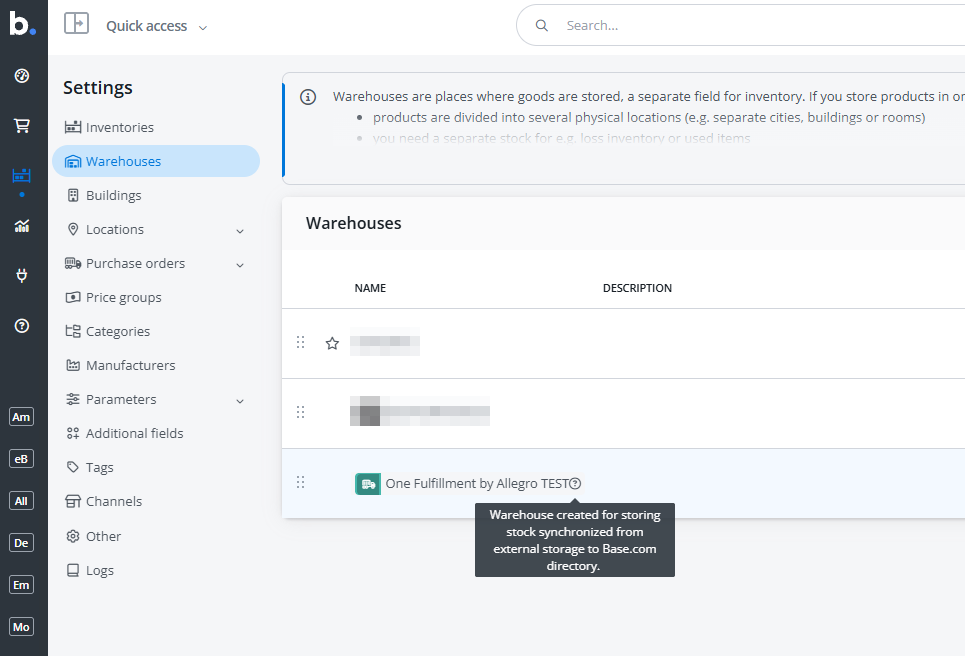
In the Products → Settings → Warehouses section, a warehouse will be created for synchronizing stock levels from the external warehouse to the Base.com catalog, which you can assign to a selected catalog.
Shipments to fulfillment
Fulfillment shipments allow you to prepare a delivery of products to an external warehouse and manage the delivery. To prepare a delivery, simply select products from the warehouse and arrange them in cartons expected by the external warehouse, and synchronization with the Base.com warehouse will be automatic.
Creating a shipment to fulfillment is available in the Products → Inventory control → Fulfillment shipments section.

How to create a shipment to fulfillment?
- Click the green button + Create fulfillment shipment. A form will open where you need to select:
- Numbering series;
- Month / Year;
- Source warehouse – the warehouse from which the goods are shipped;
- Fulfillment – the fulfillment account to which the shipment is created;
- Shipment type and quantity;
- Shipping method.
- In the following steps, add the products that should be transferred to the external warehouse.
- Proceed to packing and choose how to arrange the products in cartons.
- Register the shipment in fulfillment.
Once the shipment has been registered, the documents and labels will be available to download and print.
Shipment statuses
- Draft – the fulfillment shipment is being edited;
- Packing – the fulfillment shipment is being packed; at this stage, the tracking number can no longer be changed;
- Registered – the shipment is registered in the fulfillment system; the customer can no longer make changes to the shipment. Product stock levels have been reduced by the corresponding quantities in the selected warehouse;
- In transit – the shipment is being transported to the fulfillment center. The order status will be verified based on information received from the fulfillment provider;
- Unpacking – the shipment is being unpacked at the fulfillment center; the goods are being checked for compliance with the submitted advice note;
- Ready – the shipment is complete; stock levels on the fulfillment side should increase by the delivered quantities;
- Cancelled – the shipment has been cancelled by the customer or by the fulfillment provider.