Zalando Fulfillment (ZEOS) is a service for fulfilling orders from the Zalando warehouse. ZEOS packs and ships products to buyers from other sales channels, for example from a store or from a marketplace other than Zalando. The Base.com integration sends such an order to ZEOS, receives the tracking number and shipment status, and synchronizes stock levels.
Base.com has two separate Zalando fulfillment integrations:
- Zalando Fulfillment (ZFS) – deliveries of goods to the Zalando warehouse. You handle them in Shipments to fulfillment.
- Zalando Fulfillment (ZEOS) – fulfillment of orders that are to leave the Zalando warehouse for the customer. You create them from the order card, from the order list, or with an automatic action.
How to connect the integration?
- Log in to the Base.com panel and go to the Integrations section.
- Click the green + Add integration button.
- In the Fulfillment category, select Zalando Fulfillment (ZEOS).
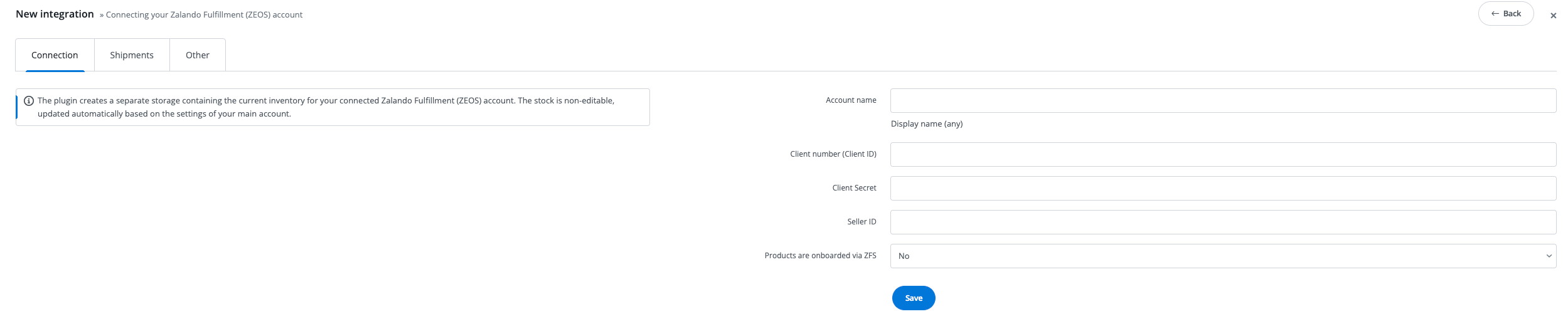
- On the Connection tab, fill in the form:
- Account name – any name displayed in the panel;
- Client number (Client ID) and Client Secret – ZEOS access credentials;
- Seller ID – the merchant account identifier in ZEOS. After you fill it in, Base.com downloads the active sales channels of that account;
- Products are onboarded via ZFS – how products are recognized when creating a shipment. Both settings are described in the Products in the order section. For products managed directly in ZEOS, leave No.
- Click Save.
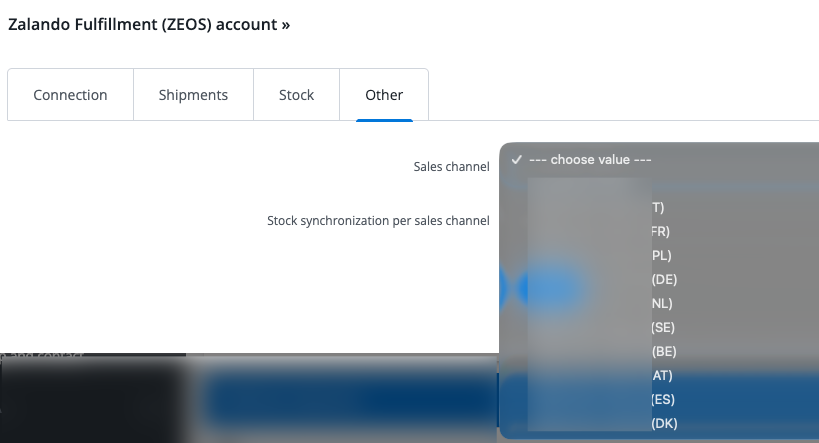
After a successful save, open the account again and go to the Other tab. The Sales channel field shows the list of active channels downloaded from the merchant account. Select the channel that Base.com should use by default when creating shipments, and save the account again.
The same tab has the Stock synchronization per sales channel switch. For the first connection, leave No. Turn it on only after you select a channel.
Shipments tab
In the Outbound orders section, you set the default shipment values:
- Fulfillment policy
- If any of the order lines is out of stock, the order will be canceled.
- All available order lines will be fulfilled. Unavailable lines will be canceled.
- Save return packages when provided by fulfillment – when ZEOS returns a return tracking number together with the outbound shipment, Base.com saves it on the order as a return package.
You can change the fulfillment policy and the sales channel for a specific shipment. The values from the account are filled in on the shipment form.
Accounts in the fulfillment system
Go to Integrations → Zalando Fulfillment (ZEOS) to see the list of connected accounts. You can edit, clone, or delete an account. Above the table there is an Add new account button.

Warehouse
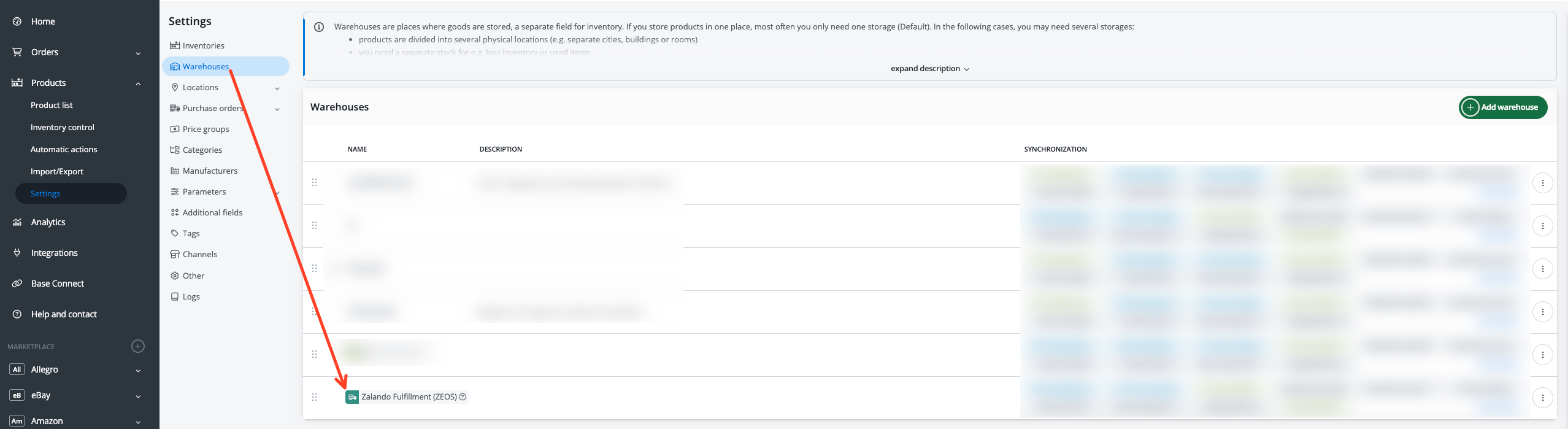
The plugin creates a separate warehouse with the stock of the Zalando Fulfillment (ZEOS) account. Stock in this warehouse cannot be edited and is updated according to the synchronization settings. You will find the warehouse in Products → Settings → Warehouses. Assign it to the inventory that contains the products fulfilled from Zalando: Products → Settings → Inventories, the Available warehouses field.
Products in the order
When creating a shipment, Base.com needs to know which ZEOS article to send. This is decided by the Products are onboarded via ZFS field on the Connection tab.
Products onboarded via ZFS
Set the switch to Yes when the articles in ZEOS come from a ZFS onboarding. Two additional fields then appear on the form:
- Zalando account – the Zalando marketplace account. It is required for the connection. Connect the marketplace account as described in the article Zalando module configuration.
- Automatically link products – only for products onboarded via ZFS. After you turn it on, Base.com periodically checks ZFS articles and links catalog products with the same SKU to the ZEOS account.
When creating a shipment, the product identifier is the SKU from the order item. Linking the product to the ZEOS warehouse is not required to create the order. Each item must have an SKU, and an SKU cannot be repeated in one shipment.
Products managed directly in ZEOS
Leave the switch set to No when the articles are onboarded in ZEOS and do not come from ZFS. When creating a shipment, Base.com sends the identifier from the link between the catalog product and the warehouse of this ZEOS account. That identifier is the SKU of the article in ZEOS.
The product in the order must come from the Base.com catalog and be linked to this warehouse. Without the link, creating the shipment ends with a missing product error.
Stock synchronization
Stock from ZEOS is saved in the account warehouse, on products linked to that account. You turn synchronization on when editing the account, on the Stock tab, in the Automatic quantity update plugin settings section. The general synchronization rules are described in the article Synchronization of stock levels and prices.
How stock is downloaded depends on the Stock synchronization per sales channel field on the Other tab:
- No – Base.com downloads the quantity available for sale from the ZEOS warehouse and matches it to linked products by EAN.
- Yes – Base.com downloads the stock of the selected sales channel and matches it by SKU. The SKU of the product link to the ZEOS account must match the SKU of the article in ZEOS. A sales channel must be selected on the account.
Creating a shipment
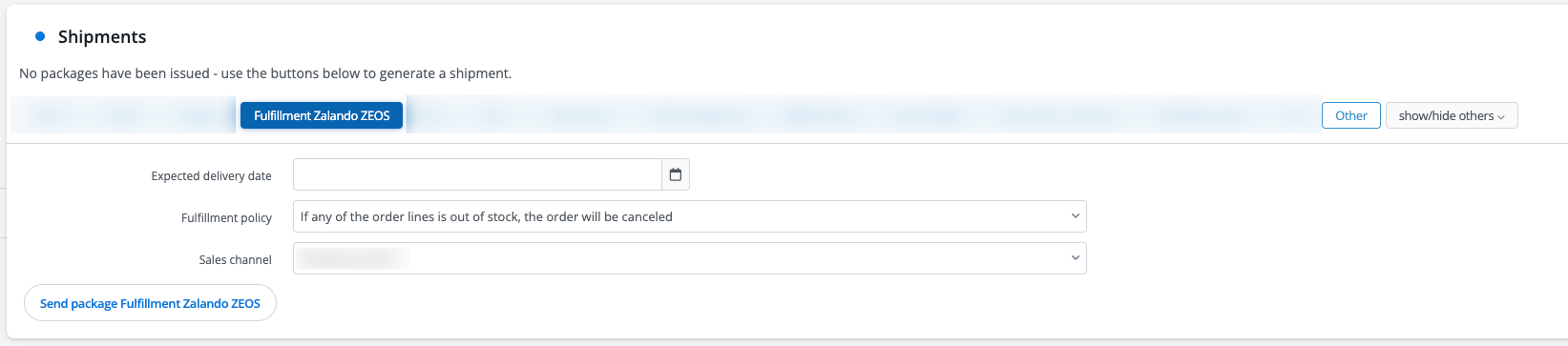
On the order card, in the Shipments section, select the Fulfillment Zalando ZEOS courier. The same shipment can be created from the order list and with an automatic action. You can read about automatic actions in the article Automation.
On the shipment form, fill in:
- Expected delivery date – required field;
- Fulfillment policy – the value from the account; you can change it for this shipment;
- Sales channel – the list of channels downloaded when the account was connected. The channel selected on the account is filled in by default.
Tracking, cancellation, and returns
The tracking number and tracking link appear on the shipment when ZEOS provides them. Labels are not downloaded to Base.com.
Deleting the shipment in Base.com cancels the order in ZEOS.
When saving return packages is turned on, the return number provided by ZEOS is saved on the order as a return package. Its status changes to returned when ZEOS marks that shipment as returned.