Path: Base.com panel → Products → Inventory control → Fulfillment shipments
The Fulfillment shipments module allows for advanced management of product deliveries to external warehouses (e.g. Amazon FBA) and handling of logistics processes directly from the Base.com panel. With this feature, you can prepare a delivery plan, assign products to cartons, and automatically synchronize this data with the warehouse partner’s system.
Prerequisites
Before you start creating a shipment to fulfillment, make sure that all of the conditions below are met. Without them, you will not be able to select the appropriate fulfillment integration, load products into the items list, or register the shipment in Amazon FBA:
- The Amazon FBA Fulfillment integration is added in Base.com – in the Integrations → + Add integration → Fulfillment → Amazon FBA Fulfillment section.
- Both warehouses are assigned to the same product catalog – when the integration is added, a dedicated warehouse for Amazon FBA is automatically created in Products → Settings → Warehouses. Both warehouses must be added to the selected product catalog: the source warehouse and this automatically created fulfillment warehouse.
- Products are linked to the fulfillment integration – without an active link between products and Amazon FBA, it is not possible to add them to the items list in the shipment.
Additional settings
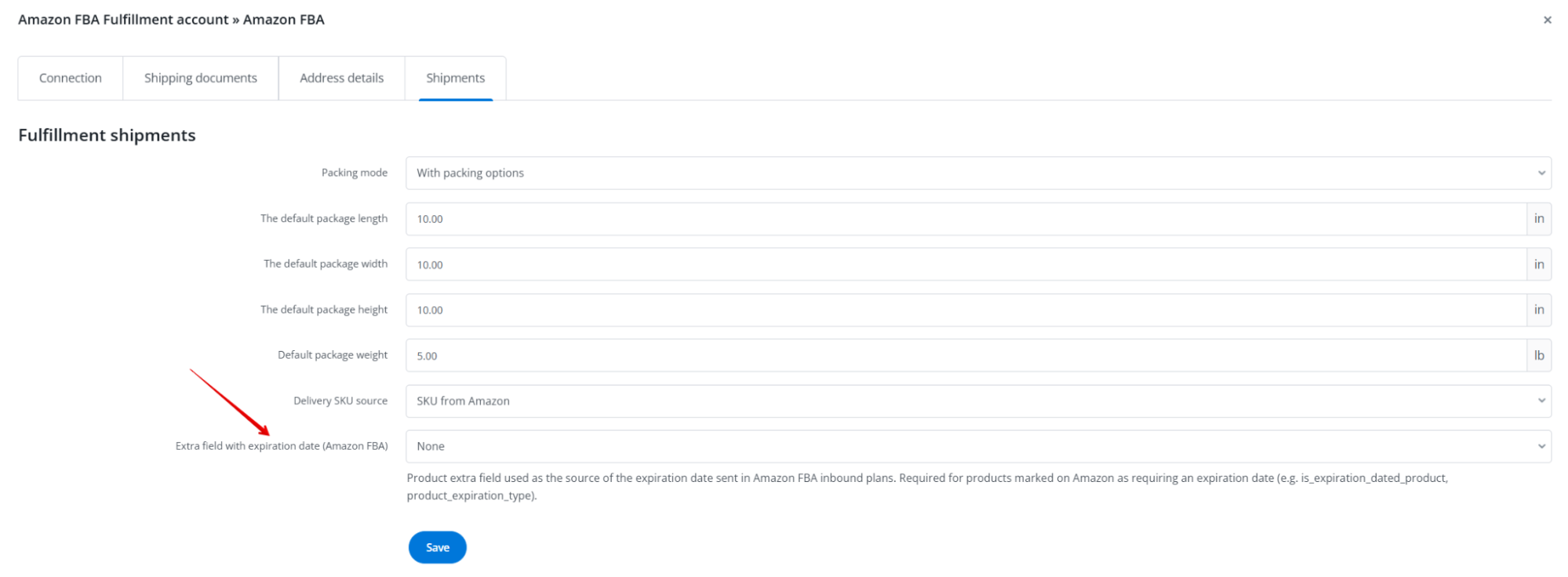
In the Amazon FBA Fulfillment account settings, in the Shipments tab, an additional configuration option related to product expiration dates is available:
- Additional field with expiration date (Amazon FBA) – a product additional field from which the expiration date sent in the shipment to Amazon FBA is taken. Required for products marked in Amazon as requiring an expiration date (e.g.
is_expiration_dated_product,product_expiration_type).
Creating the expiration date additional field
If you do not yet have a suitable additional field, create one in Products → Settings → Additional fields by clicking the green + Add additional field button.
After saving the field, return to the Amazon FBA Fulfillment account settings (Shipments tab) and select the created field from the list in the Additional field with expiration date (Amazon FBA) option.
Creating a new shipment
To start preparing goods for shipment to an external warehouse:
- Go to Products → Inventory control.
- Select the Fulfillment shipments tab.
- Click the green + Create fulfillment shipment button.
Configuring shipment parameters
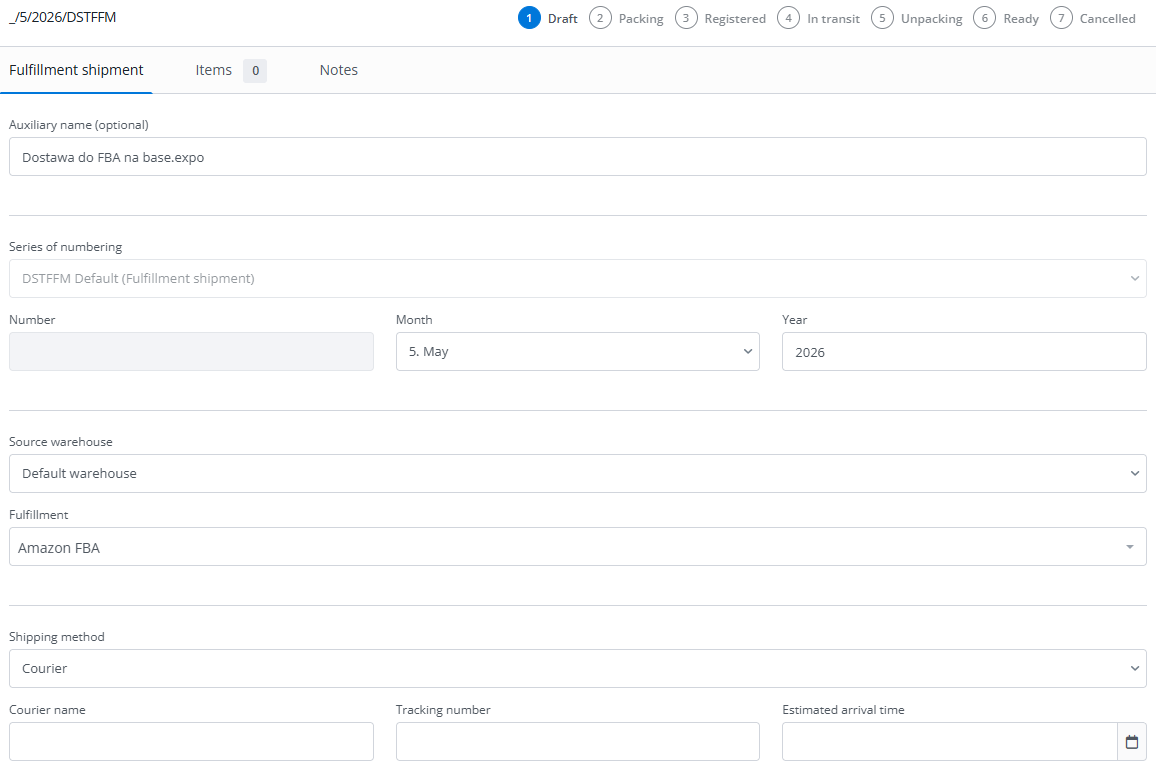
In the newly opened window, define the basic logistics parameters:
- Numbering series – select the appropriate document numbering series for outgoing deliveries.
- Source warehouse – specify which warehouse in Base.com the goods will be taken from.
- Fulfillment – select the target integration (e.g. Amazon FBA Fulfillment).
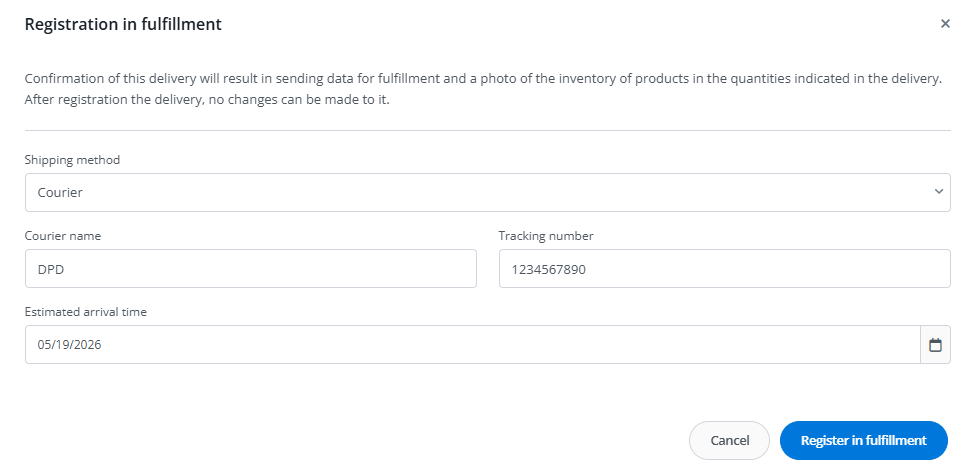
- Shipping method – decide whether the goods will be collected by a courier (e.g. DHL, UPS) or delivered using your own transport.
Adding products to the shipment
- Go to the Items tab.
- Search for products from your warehouse and add them to the table.
- In the Quantity column, enter how many units of each product you want to send to fulfillment.

Packing products
- After adding the products, click the Save and go to packing button.
- The system will display a message that editing the product list is now locked – from this moment you can no longer change product quantities, only how the products are arranged in boxes.

- Depending on the Packing mode selected in the integration settings, in the next step you need to choose:
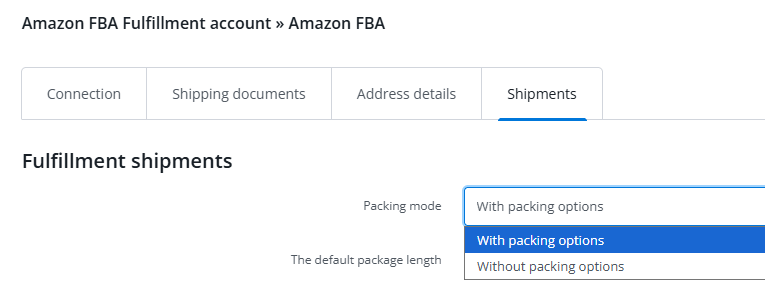
- Destination warehouses – the “No packing options” option (FTL, own transport).
- Packing groups – the “With packing options” option (SPD – small parcel delivery, shipments created by Amazon).
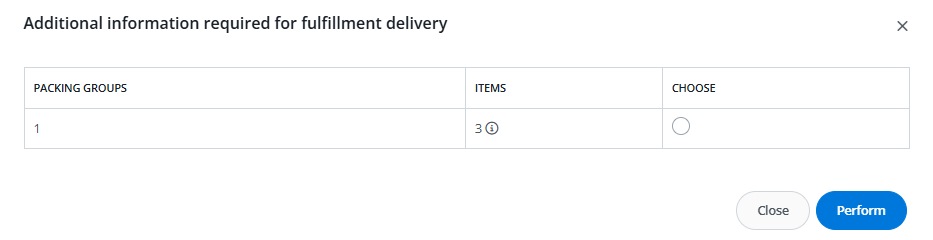
- Destination warehouses – the “No packing options” option (FTL, own transport).
- In the next step, you will receive product and carton placement suggestions prepared by Amazon. You can adjust them according to your needs.
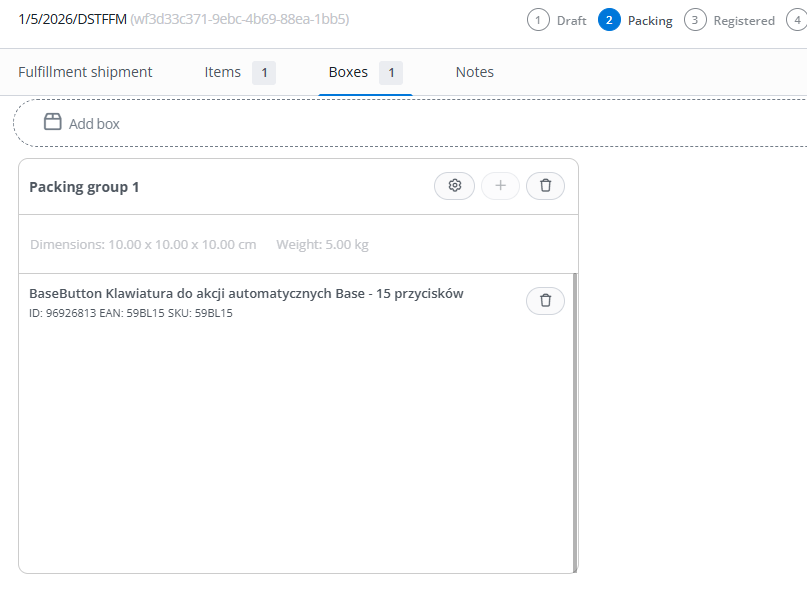
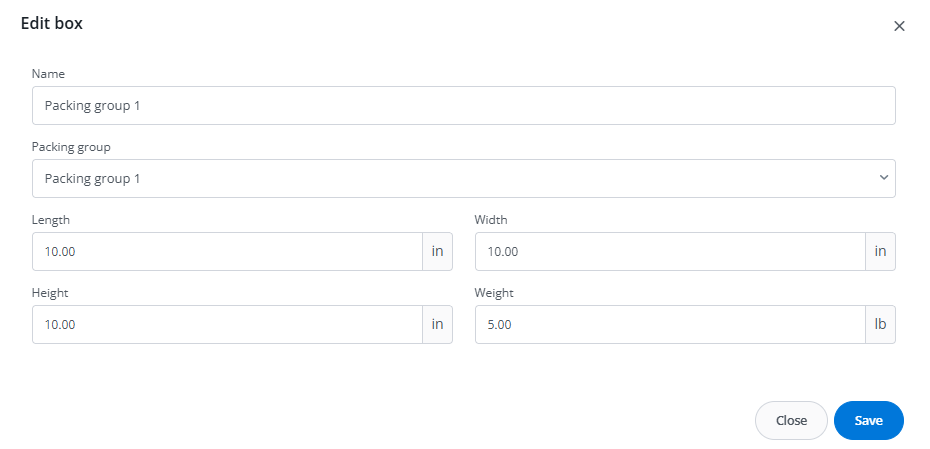
- For each carton, fill in its Dimensions and Weight.
Registration and transport
Once all products have been assigned to cartons:
- Click the Save and register in fulfillment button.
- Confirm the operation – at this point, the data is sent to the external system via API.
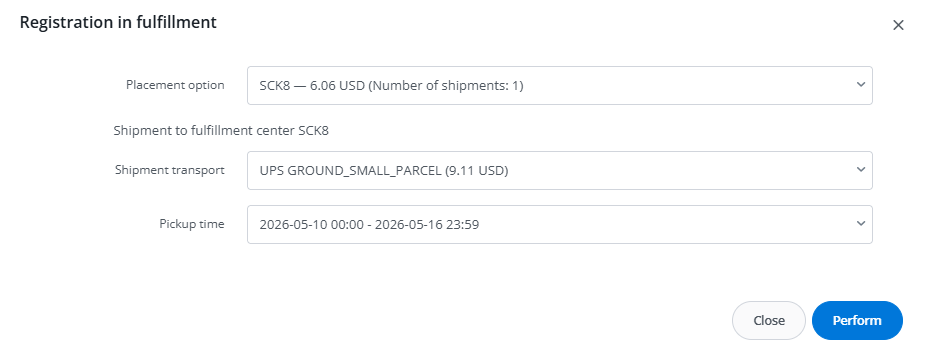
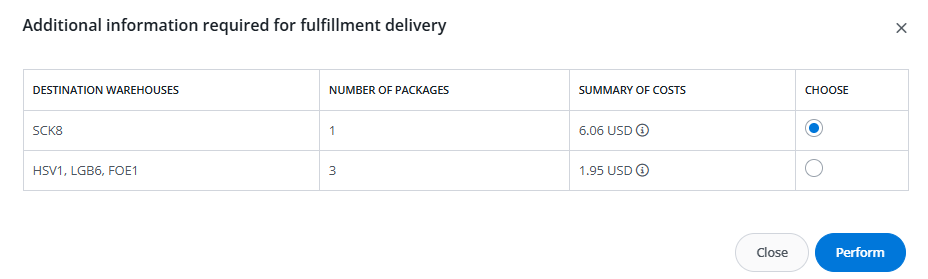
- In the next step, a window will appear where you can choose the placement option and carrier. Select the service (e.g. UPS GROUND) and declare pickup times for the shipment to all selected destination warehouses.
Documents and labels
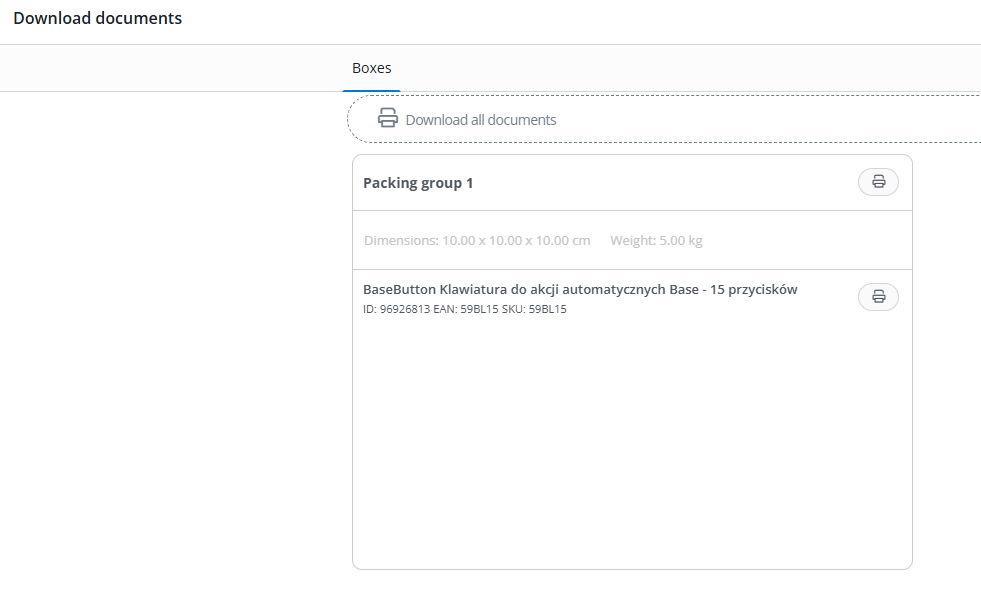
After successful registration, the shipment will receive the Registered status and a unique identification number.
Use the Download documents button to obtain:
- parcel labels,
- product labels.
Shipment statuses
Below is a description of the statuses used in the shipment to fulfillment process:
- Draft – the fulfillment shipment is being edited.
- Packing – the fulfillment shipment is being packed.
- Registered – the shipment has been registered in the fulfillment system. The fulfillment provider has registered the delivery request; stock levels in your warehouse have already been reduced accordingly.