The TikTok Shop Marketplace on Base.com lets you combine sales, listing, and order fulfillment in a single dashboard. With this integration, you can receive orders, list products from your selected inventory, sync prices and stock levels, and manage listings without switching between multiple tools.
Below you’ll find key information about connecting and configuring the TikTok Shop marketplace on Base.com, as well as practical tips on listing products, synchronization, and common issues.
TikTok Marketplace on Base.com – Integration Features
The TikTok Shop integration on Base.com is a two-way integration. This means you can use it both for order processing and for managing listings.
- importing orders into the Base.com dashboard,
- listing and managing offers based on products in stock,
- handling product variants,
- synchronizing prices and inventory,
- importing offers previously listed outside of Base.com,
- linking offers to products in the catalog or an external warehouse,
- providing tracking numbers to orders.
You can add the integration in the Base.com dashboard by going to Integrations → +Add Integration → Marketplace, and then selecting TikTok.
-
- Go to Integrations → +Add Integration → Marketplace.
- Search for TikTok in the list of available marketplaces.

- Select the market you want to log in to

- Click the authorization button and log in to the TikTok Shop seller dashboard.

- Once authorization is complete, click Save.
How to set up TikTok Shop integration
After registering your account, you’ll see the standard marketplace integration tabs, including Connection, Orders, Listing Settings, Prices, Inventory, and Advanced Settings.
Orders Tab
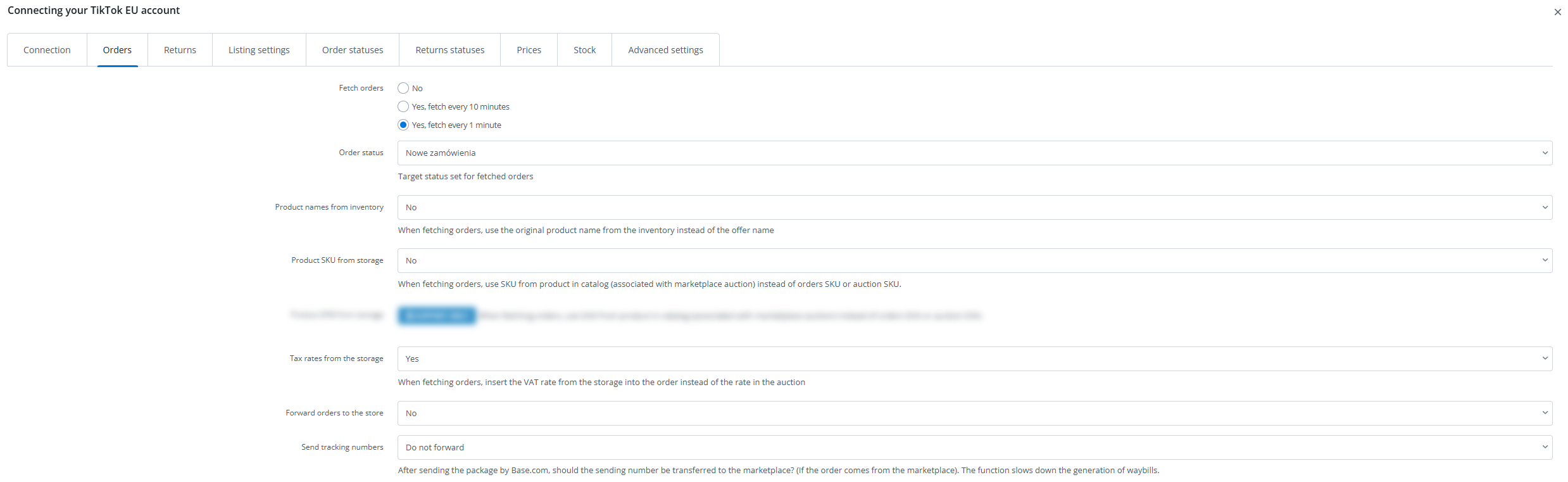
In the Integrations → TikTok Shop → Orders tab, you can enable order retrieval and set up basic rules for handling them.
Order fetching — enable the import of orders into Base.com.
Order status — select the status to which new orders should be assigned.
Shipping number forwarding – decide whether the tracking number should be automatically sent to the marketplace.
Voucher saving – a seller or platform voucher can be saved as a separate product, deducted from the product value, or applied using a promotional price.
If you want to better prepare for the entire order processing workflow, be sure to check out the article about Order Settings.
Listing Settings Tab
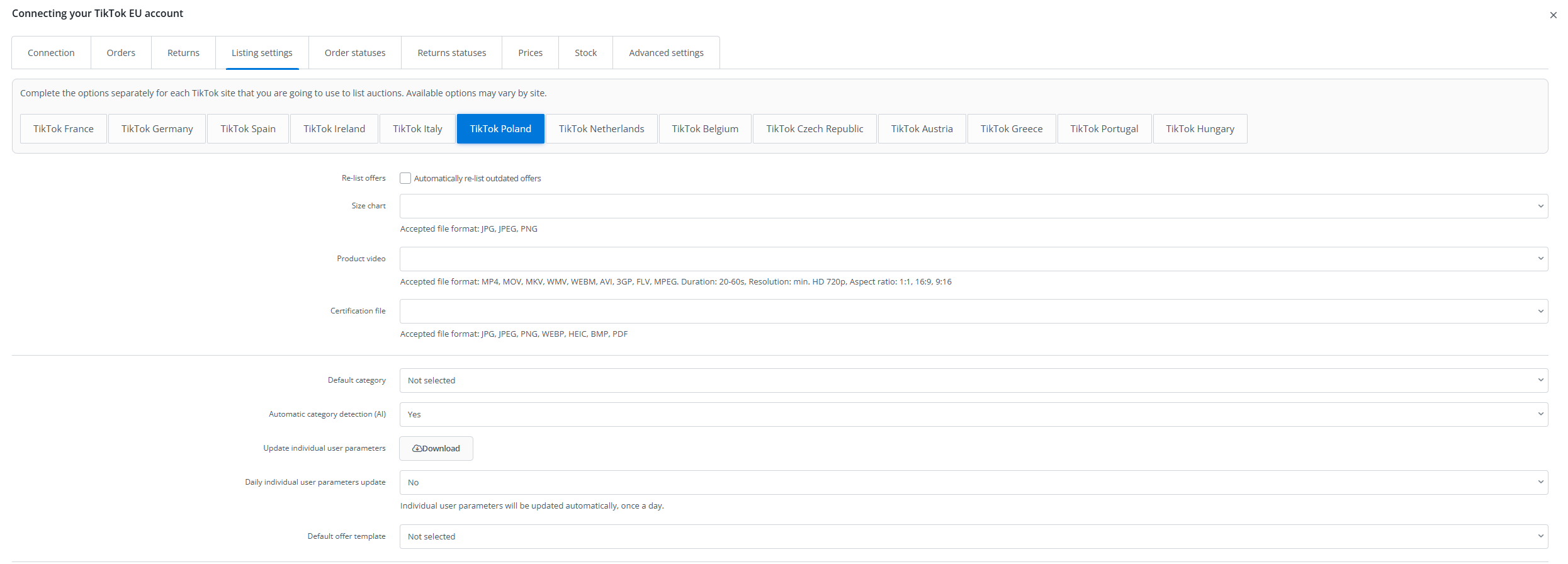
The Integrations → TikTok Shop → Listing Settings tab sets the default values for new listings.
Source Inventory – select where inventory levels for listings should be retrieved from.
Price Group – specify the price source for new listings.
Price Multiplier and Add to Price – set price adjustments for the marketplace.
Photo Gallery – specify the number and order of photos uploaded to the listing.
Variants – decide whether variants should be listed as separate listings or as a variant group.
Size Chart, Product Video, and Certification File – you can specify additional files used during listing.
You can set up automatic synchronization in the Integrations → TikTok Shop → Prices and Integrations → TikTok Shop → Stock levels tabs.
- Specify the synchronization frequency,
- decide what should happen when stock levels reach zero,
- set the maximum quantity to be sent to the listing,
- enable automatic increases or decreases in the listing quantity based on inventory data.
Courier Mapping and TikTok Shipping
In the Integrations → TikTok Shop → Advanced Settings tab, it’s a good idea to set up courier mapping right away. This is very important for correctly transferring tracking numbers.
- Map all the couriers you use to ship orders from TikTok,
- verify that the tracking number matches the carrier,
- test sending the tracking number on a single order.
Listing Products on TikTok Shop
You can list products from the TikTok module → Listing. If you’ve previously sold on TikTok outside of Base.com, you can first import your listings and then link them to the products in your inventory.
How to Prepare a Product for Listing
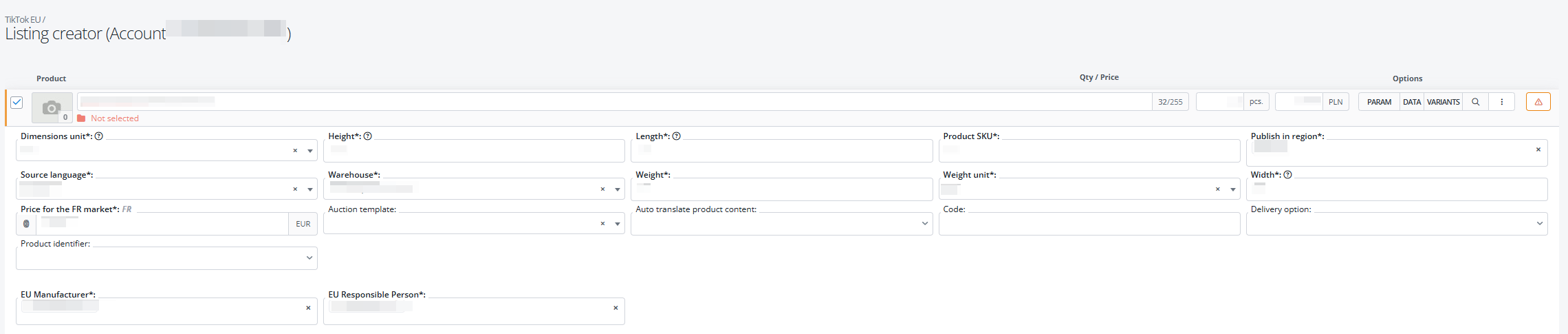
The TikTok Shop listing form requires you to fill in basic product information. In practice, before listing, it’s a good idea to make sure the product has:
- an SKU,
- an identification code, such as an EAN, if required for the category,
- an assigned category,
- weight and unit of weight,
- height, width, and length,
- a designated warehouse,
- and high-quality photos.
If you want to speed up your work when dealing with a large number of products, set up the relationships and mapping rules in advance. The article “linking categories and products” is very helpful in this regard.
Variants, brands, GPSR, and certificates
TikTok Shop supports variants. In your listing settings, you can choose whether to list them as separate offers or as variant groups.
- If you use variants, make sure each variant is correctly linked.
- If you add a new brand on the TikTok side, refresh it in Base.com using the “Download User Parameters” button.
- GPSR data, such as Responsible Person or Manufacturer, must first be completed on the TikTok side and then downloaded to Base.com.
- In some categories, TikTok requires you to add certificates in the form of files or photos.
Photo Requirements
If TikTok Shop rejects your submission due to an issue with the photos, first check the following:
- JPG or PNG format,
- maximum file size of 5 MB,
- minimum resolution of 100 × 100 px, and at least 300 × 300 px for the main photo,
- whether the description contains any additional images with too low a resolution,
- whether too many photos are being uploaded to the gallery.
Warehouse Mapping in TikTok Shop – Greater Stock Control in International Sales
Today, multichannel selling requires not only efficient order handling but also full control over product availability across different channels and regions. That’s why, in the TikTok Shop integration, we have introduced the warehouse mapping feature, which allows for precise linking of warehouses in Base with warehouses defined on the TikTok side.
This solution was created for sellers operating in a multi-warehouse model—for example, those serving different markets from different locations or having separate warehouses assigned to specific countries.
What is warehouse mapping in TikTok Shop?
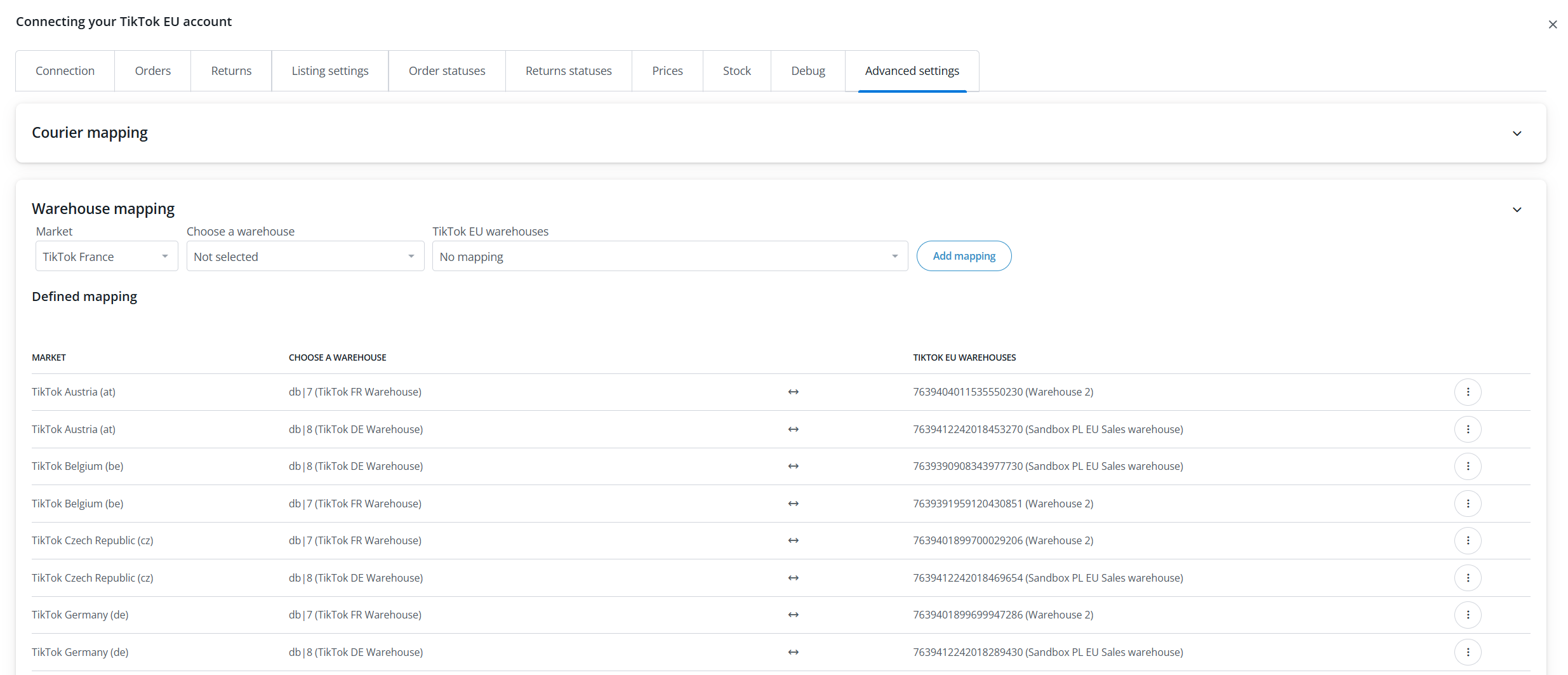
The function allows assigning a specific Base warehouse to a specific TikTok Shop warehouse. This way, the system knows exactly from which source to retrieve the stock status and to which marketplace warehouse to transfer it.
In practice, this means that:
- every Base warehouse can be connected to its corresponding TikTok warehouse,
- stock synchronization is carried out in accordance with the seller’s actual logistical structure,
- product availability in offers is updated more accurately and without the need for manual stock monitoring.
Why is this important?
In the case of selling in multiple markets or operating with several warehouses, discrepancies are very easy to occur. If one sales channel uses a simplified, common stock status, a situation may arise where the offer shows incorrect product availability for a given market.
Warehouse mapping solves this problem because it:
- organizes stock synchronization between Base and TikTok Shop,
- allows for a better representation of the actual division of goods between warehouses,
- reduces the risk of errors in product availability,
- supports the development of international and multi-warehouse sales.
Benefits for the seller
Thanks to this feature, the seller gains:
- greater precision in stock synchronization — each warehouse can operate according to its intended purpose,
- better organization of international sales — especially where different markets are served from different locations,
- less manual work — once mapping is configured, the system automatically manages the proper stock assignment,
- greater operational security — lower risk of selling a product that is not available in the correct warehouse.
How does it work in practice?
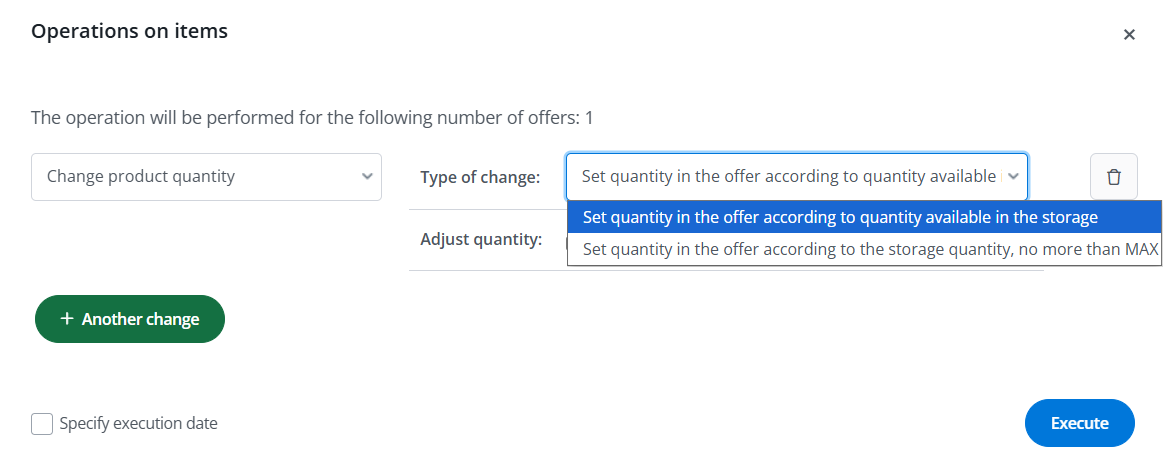
On the TikTok Shop integration side, the user can indicate that the source of stock status should be warehouse mapping. They then assign the Base warehouses to the warehouses available on TikTok. From this moment on, stock synchronization takes into account the set connections and transfers data exactly where it should go.
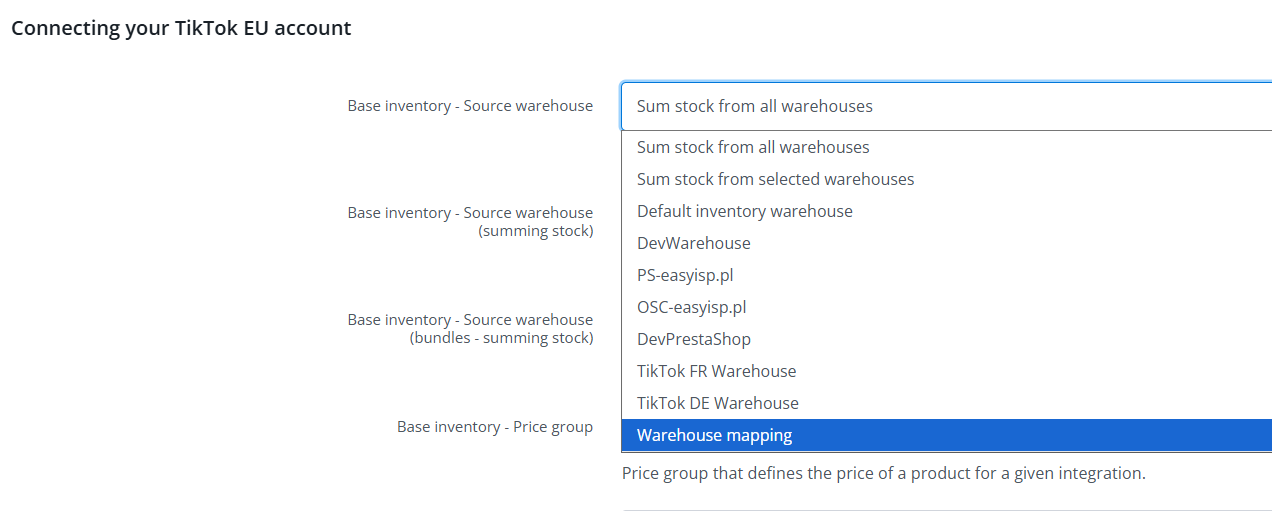
This is especially useful in scenarios where:
- different countries have different warehouses assigned,
- the company conducts sales from several logistics centers,
- the TikTok Shop offer should reflect local availability of the goods.
Who is this feature for?
Warehouse mapping in TikTok Shop will be particularly useful for:
- sellers operating multiple warehouses simultaneously,
- companies expanding sales across multiple markets,
- brands that want better control over logistics and marketplace stock levels,
- teams looking for greater automation in offer management.
Summary
Warehouse mapping in TikTok Shop is another step towards more advanced and flexible multichannel sales management. The feature allows for a better representation of the company’s actual logistics model, increases the accuracy of stock synchronization, and facilitates sales management across multiple warehouses and regions.
As a result, sellers can focus on scaling their business instead of manually controlling product availability across individual sales channels.
Importing and inking Offers
Offers created directly on TikTok won’t be immediately ready for synchronization in Base.com. First, import them, and then link them to the corresponding products.
- Go to TikTok Shop → Offer Management.
- Run the Offer Import.
- After importing, link the offers to products from your inventory.
- Only then should you enable price and stock synchronization.
Frequently Asked Questions and Issues
Why can’t I see the full customer details in the order?
If you see anonymized information in the recipient’s details, such as ****, this usually means the order is being processed through the TikTok Shipping model. This is normal behavior on the marketplace’s end.
Why can’t I enter the tracking number?
The most common cause is a missing courier mapping or a mismatch between the tracking number and the selected carrier. Check the settings under Integrations → TikTok → Advanced Settings and run a test on a single order.
What does the error “A required certification is missing” mean?
The category requires a certificate. After refreshing the category and parameters in the listing form, a field for uploading the certification file should appear.
How do I add a brand to the listing form?
First, add the brand on the TikTok Shop side. Then return to Base.com and, in the Integrations → TikTok Shop → Listing Settings tab, download or refresh the user parameters.
How do I add GPSR data?
You must first fill in the GPSR data on the TikTok Shop side in the seller account section. After saving the data, download the user parameters in Base.com. The data usually appears in the form within about an hour.
Can I edit active listings from Base.com?
Yes, but in practice, price and stock updates work most reliably. If you want to change the description, photos, or some product details, be prepared to relist the item.