Royal Mail – new Sapient API (Intersoft)
The Royal Mail API integration in Base.com allows you to create Royal Mail shipments, generate labels, retrieve tracking numbers, and monitor shipment statuses. The new version uses the Sapient API provided by Intersoft.
The basic shipping process remains similar to other courier integrations. The most important thing to keep in mind is the new method of generating manifests using the Shipment Collection table.
Capabilities of the Royal Mail Sapient API integration
- creating shipments individually, in bulk, and via automatic actions;
- support for Package and Letter shipment types;
- sending domestic and international shipments using services active on your Royal Mail OBA account;
- generating labels and tracking numbers directly in Base.com;
- retrieving shipment statuses and displaying them on the order card and in the integration settings;
- support for additional services, such as SMS and email notifications, Recorded Signed For, Saturday delivery, or Local Collect – if available for the selected service;
- transmitting customs data and generating CN23 declarations as an additional label page;
- generating manifests by closing shipment collections.
How to connect and configure the Royal Mail API integration
What to prepare before connecting your account
To use the production version of the integration, you need an active Royal Mail OBA (Online Business Account) along with the details assigned to that account and your posting location.
Prepare the following information:
- Royal Mail Account Number (OBA);
- Postcode assigned to the OBA account;
- Posting location code;
- Posting location postcode;
- sender details to appear on the label;
- information regarding used services, weights, descriptions, and customs clearance.
The data entered in Base.com must match the information saved in Royal Mail OBA. A mismatch in the account number, postcode, or posting location may cause Royal Mail to reject the connection.
Adding a new Royal Mail shipping account
If you are not yet using a Royal Mail account in the new API version, add a new shipping account. To do this:
- Go to Integrations → +Add integration.
- In the Couriers section, select Royal Mail API.
- In the account creation form, enter a name that allows you to identify the account in Base.com, for example, “Royal Mail – main location”.
- In the API Environment field, select the production environment if you want to dispatch actual shipments.
- Fill in your Royal Mail account and posting location details.
- Go through the remaining tabs of the form and complete the sender, documents, shipments, dimensions, and customs clearance settings.
- Click Save.
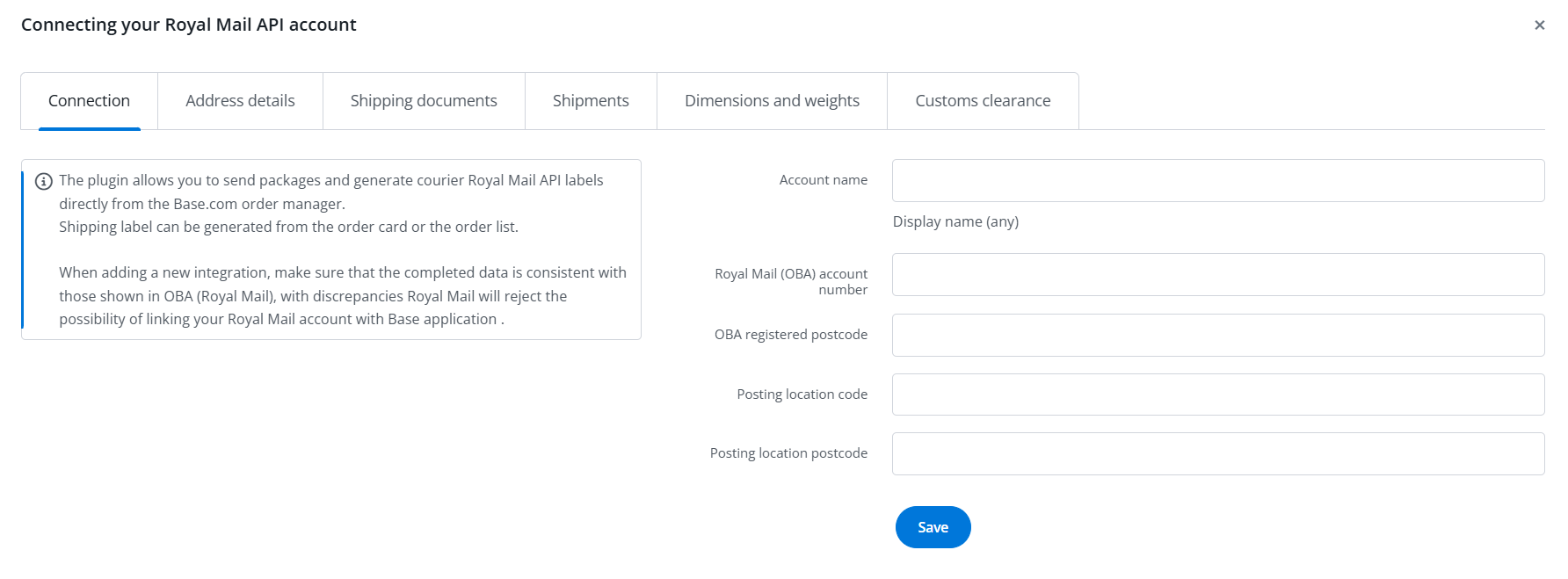
In the new connection form, you will find the following fields:
- Account name – the name visible in Base.com;
- Royal Mail Account Number (OBA);
- Postcode assigned to the OBA account;
- Posting location code;
- Posting location postcode.
Migrating an existing Royal Mail account
If you already have a Royal Mail account and see a migration button in its edit view, you can switch to the new API without manually re-entering the entire configuration.
- Open Integrations → Royal Mail API.
- In the shipping accounts section, open the edit view for the relevant account.
- Click Migrate account to the new API or the migration button visible in the form.
- Refresh the account status using the status refresh button or by reopening the account for editing.
- Wait until the status changes to Active.
Activation on Royal Mail’s side usually takes about 10–15 minutes, though in isolated cases it may take up to a few hours. Start dispatching new shipments from this account only after it reaches the Active status.
Account status and getting started
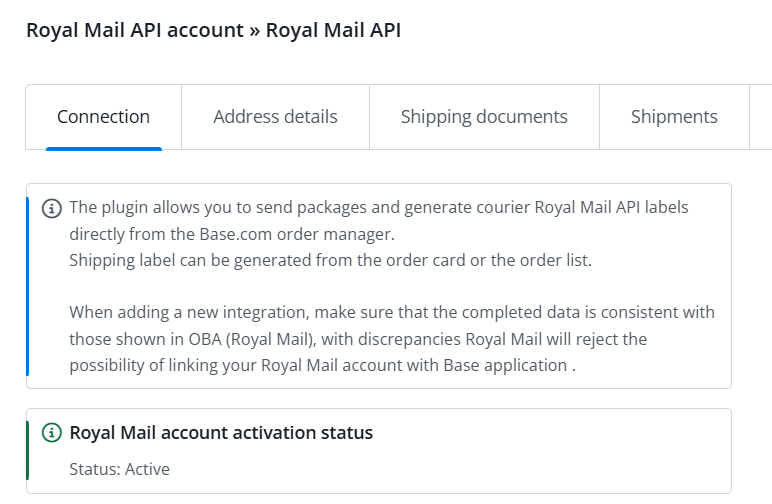
After saving or migrating an account, its status may remain Pending or Inactive for some time. The status is retrieved from the Royal Mail API and can be refreshed in the account form.
Once the status changes to Active, the account is ready to create shipments, fetch contract services, and generate labels.
Key shipping account settings
After connecting the integration, go to Integrations → Royal Mail API. In the Courier system accounts (API connection) section, you can open the account edit view and configure its detailed settings.
-
- Address details – company name, address, postcode, city, country, contact person, phone number, and sender email;
- Shipping documents – printout type, reference number, and additional shipment description;
- Shipments – blocking dispatch if no house number is detected in the address and filling in an empty recipient phone number;
- Dimensions and weights – maximum package weight lock, fixed package weight, and adding packaging weight;
- Customs clearance – data required for international shipments;
Default shipment and printout settings
In addition to individual settings for each shipping account, the integration also provides default shipment and printout settings that are shared across all shipping accounts within the Royal Mail integration.
- Service and insurance – selecting the default service and shipment type, as well as specifying the insurance amount for prepaid and COD shipments. Entering
-1allows using the order value as the insurance amount; - Package dimensions and weight – specifying the default length, width, height, and weight of the package. The default weight is used when the system does not know the weight of the products in the order;
- Shipment details and dispatch date – setting a Safe Place delivery location, contents description, order ID, and text appended to the package contents description. You can also specify the dispatch day, use the current date, and enable Saturday dispatches;
- Customs data and trade terms – specifying the default country of manufacture for items, product HS Codes, and International Commercial Terms (Incoterms), e.g., Delivery Duty Paid (DDP). These settings apply to international shipments and customs clearance;
- Default selected additional services – selecting additional services to be automatically checked when creating a shipment, including SMS and email notifications for the recipient (for selected services), Recorded Signed For, Saturday delivery, and Local Collect;
- Royal Mail Services – option to enter a list of available services based on the Service Contracts table downloaded from baselinker.intelligentshipper.net. The table should be pasted without headers. To reset the service list, enter
null.
If you ship packages in recurring packaging sizes, create Dimension and weight templates. A template can automatically populate weight and dimensions when shipping from the order card, order list, or an automatic action.

Creating shipments and generating manifests
How to create a single shipment
You can create a shipment directly from the order card. A detailed description of the standard process can be found in the sending packages and shipments article.
- Open the order card and go to the Shipments section.
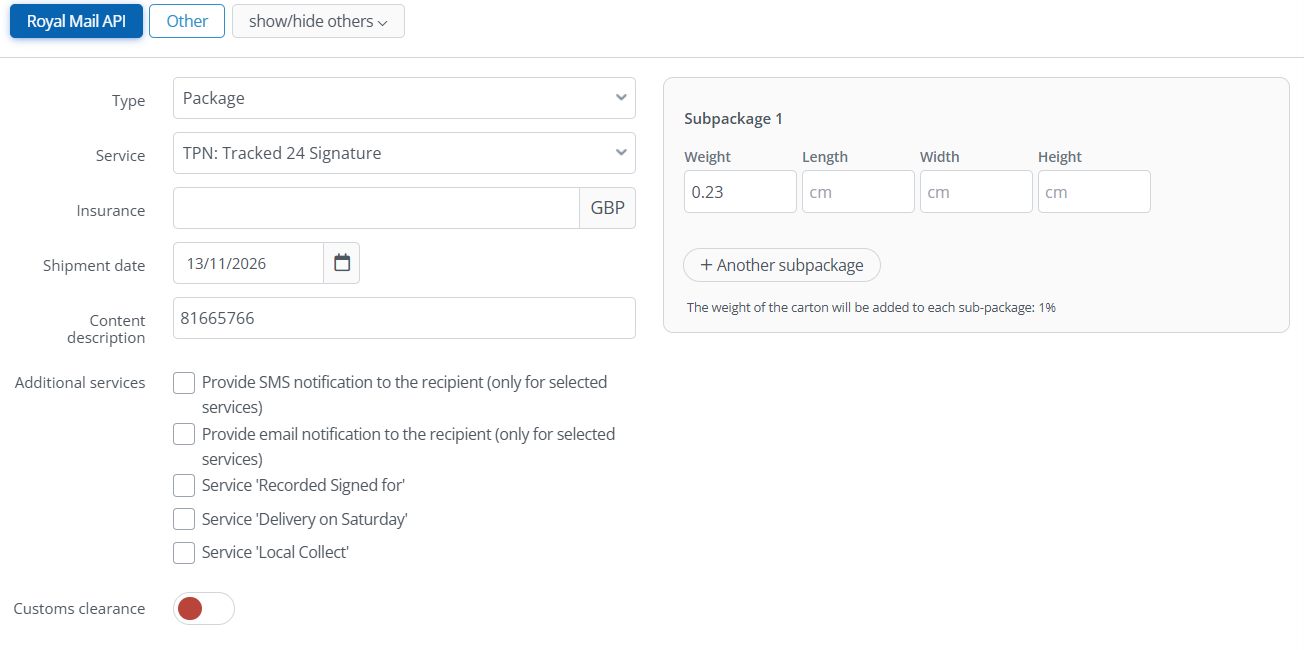
- Select Royal Mail API and the shipping account (if multiple shipping accounts have been added).
- Select Type: Package or Letter.
- Select the Royal Mail service.
- Verify the weight, dimensions, dispatch date, contents description, and any additional services.
- For international shipments, fill in the required customs data.
- Click Dispatch shipment.
Once the shipment is successfully created, the tracking number and label should be available in Base.com.
Bulk and automatic shipping
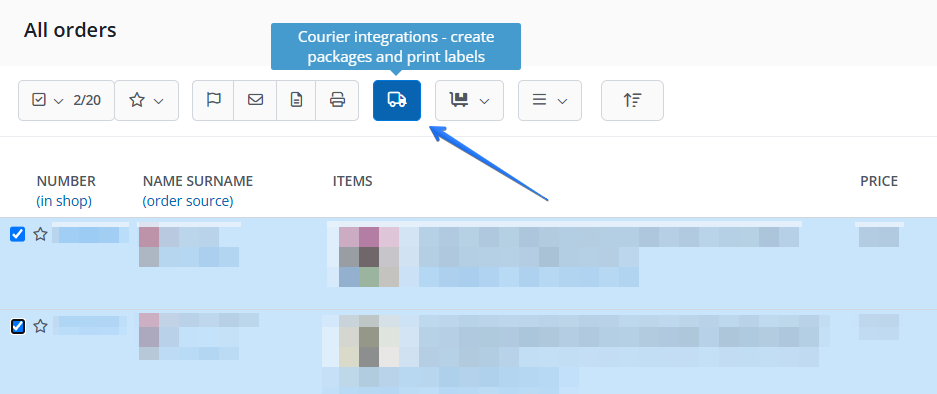
To dispatch multiple shipments at once, go to the order list, select the desired orders, and click the car icon. Then select the package creation option and configure the Royal Mail API parameters.
You can also automate the shipping process. To do this, create an automatic action that creates packages, and select the Royal Mail API account, service, and shipment parameters.
Automatic actions can create shipments when a specific order status is set, after an order is packed, or based on the shipping method or weight range. If you enter parameters in the automatic action that differ from the integration settings, the values from the action will be applied.
Labels and tracking
Royal Mail labels are generated via the carrier’s API. You can download them from the order card or from the created shipments table.
Tracking is not updated in real time. By default, shipment statuses are refreshed roughly every 4 hours. If you want to automatically forward the tracking number to a marketplace or online store, configure the appropriate settings according to the forwarding tracking numbers guide.
For international shipments requiring customs clearance, the Royal Mail API generates CN23 as an additional label page. Neither the CN22 declaration nor a separate customs document printout is available via the API.
Manifests in the Shipment Collection table
In the new API, the manifest is not generated using the previous protocol button. Instead, the manifest is created for a specific collection of shipments in the Shipment Collection table on the Royal Mail integration page.
To generate and print a manifest:
- Go to Integrations → Royal Mail API.
- Locate the Shipment Collection table.
- Next to the relevant active collection, click Close.
- Closing the collection will generate the manifest.
- Once the collection is closed, click the active Print button to download or print the manifest.
- Repeat this step for each active collection.
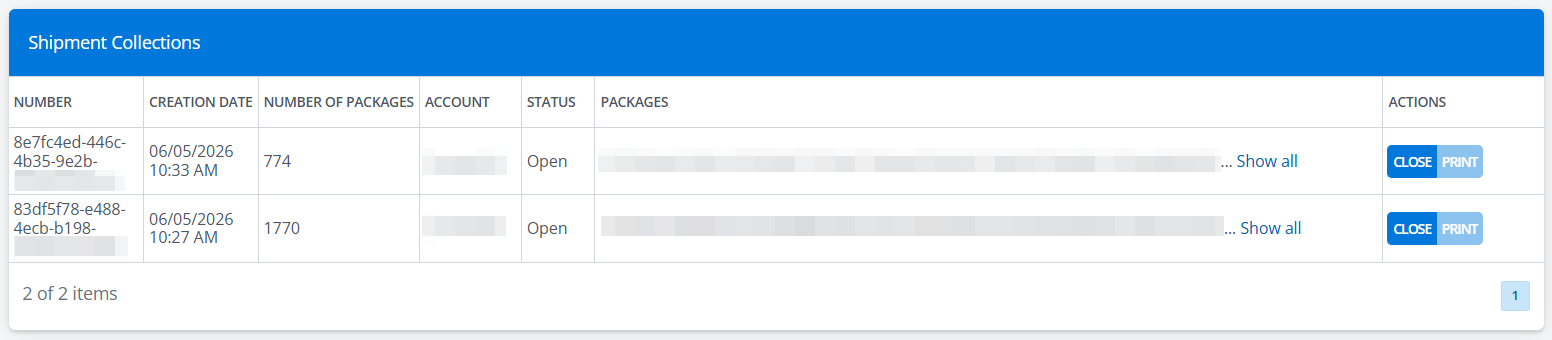
A maximum of 3 collections can be active at the same time, depending on the type of shipments dispatched. A manifest must be generated separately for each of them. We recommend creating a new shipment collection each day and closing it at the end of the day to avoid unexpected surcharges.
Shipment weight and manifest billing
Royal Mail bills shipments within a manifest according to weight bands. The average weight of a collection affects the billing of all shipments included in that manifest, so verify the shipment weights and how they are grouped into collections before closing.
In the table of created Royal Mail shipments, a Weight column is available. After selecting shipments, the system can display the number of selected items, total weight, and average weight. Whenever possible, group shipments of similar weight to avoid unexpected surcharges resulting from exceeding a weight band.
If you see a shortened list of packages belonging to a collection in the table, expand it using the Show all button.
Is the Download protocol button still used to generate a manifest?
Services, international shipments, and common issues
Royal Mail service availability
The list of services depends on what has been activated on your Royal Mail OBA account. You may see more services in the integration settings than on the shipping form. On the order card, only services assigned to your account and active for the given conditions are available.
If you do not see a required service:
- check whether the service is active on your Royal Mail OBA account;
- contact Royal Mail to have it activated;
- after activation, refresh the account in Base.com or ask support to refresh the service list;
- verify that the service is compatible with the destination country, weight, and shipment type.
International shipments and customs clearance
For shipments requiring customs clearance, prepare a contents description, value of goods, country of manufacture, HS code, and reason for export. Depending on the situation, pre-registration numbers such as IOSS, OSS, GST, VOEC, or UKIMS are also supported.
You can enter the HS code by default in the integration settings or prepare it in the Base.com catalog. Instructions on creating fields for HS codes can be found in the HS Codes (Harmonized System) article.
For customs shipments, use the NDX (Package) type. The DOX (Letter) type is not suitable for shipments containing goods subject to customs clearance.
In the Royal Mail API, PID data can be transmitted as SKU, Manufacturer product number, and GTIN. If GTIN is unavailable, the system can use EAN.
Field and data limits
Pay special attention to the length of fields transmitted to Royal Mail:
- Department reference / Additional package description can contain a maximum of 10 characters;
- sender details, such as VAT number and EORI number, can be up to 15 characters long;
- do not select long buyer comments or full product lists for the description if the value is mapped to a field with a 10-character limit;
- longer delivery instructions can be moved to the Safe Place Instructions field, if supported by the selected service.
Common issues and FAQ
The account has a Pending or Inactive status
This may mean that activation on the Royal Mail or Intersoft side is still in progress. Refresh the account status after a few minutes. If the status does not change to Active, contact Base.com support. Support can refresh the account status and services and re-save the account to fetch the contract services.
Error regarding Department number or Additional Package Description
The message The department number length must be 10 characters (E1002, Shipper.DepartmentNumber) means that the value passed to the field exceeds 10 characters. Shorten it or select a different data source, such as a short order ID. After saving the change, try creating the shipment again.
Error regarding missing house number in the address
The message The recipient’s address does not include the house number (#NPV3) means that Royal Mail did not detect a house number in the recipient’s address.
- check whether the house number is entered in the appropriate address field;
- if necessary, separate the street name and house number;
- if you intentionally allow addresses without a house number, check the Block dispatch if house number is missing setting and change it to “No”.
If the issue appeared after migration, check the change history for the house number block setting. In some cases, the value may have changed from “No” to “Yes”.
I see a long list of services or the services do not narrow down
This can happen when a user has a mix of an old and a new Royal Mail account. Do not edit the old account to fix the service list. Add a new shipping account in the new API version and wait until it reaches the Active status.
Error during dispatch after adding an account
If an account configuration error occurs, such as E3333 Error deserializing XML message, verify that the OBA account number, postcodes, and posting location code match your Royal Mail details. If the details are correct, report the issue to support, providing the account name and its current status.
Can I generate a single manifest for all collections?
No. A manifest is generated separately for each collection. Next to each active collection, click Close, and then Print. If you have multiple active collections, repeat this action for each one.
Will I still be able to track old shipments after deleting the old account?
You should not assume that tracking for old shipments will remain available after deleting the old account. Keep the old account until those shipments are archived and you no longer need to track them.
Can I ship from the new account before it reaches Active status?
No. Wait for the Active status. An account with a different status may not have active contract services yet, so creating shipments or downloading labels may result in an error.
Once the account is activated, you can start dispatching shipments, printing labels, tracking statuses, and closing collections in the Shipment Collection table to generate the required manifests.