Amazon Business allows you to offer a separate B2B price to business customers. In Base.com, you can calculate this price from the standard price of a product and send it to eligible Amazon offers during price synchronization.
This article explains how to activate B2B price synchronization, configure the B2B price, identify offers with this option enabled and verify the first update sent to Amazon.
How Amazon Business prices work in Base.com
The regular offer price is calculated from the standard price of the linked product in Inventory. When B2B price synchronization is enabled, Base.com additionally calculates a business price using the B2B multiplier and the B2B addition configured for the Amazon integration.
The B2B price is sent only to offers listed on supported Amazon Business markets. Offers on other markets receive the regular price instead.
What you need before you start
- Make sure that your Amazon account has the required professional selling plan. If you still need to connect the account, follow the Amazon account connection guide and review the Amazon integration configuration.
- In Seller Central, open Manage Your Services → Amazon Business (B2B) and register the service for the markets where you want to sell to business customers. You can open Seller Central from the Amazon Manage Your Services page.
- Make sure that the offers you want to update are connected to the correct product in Inventory. Price synchronization requires a valid offer-to-product connection, as described in the instructions for linking offers to products.
- Check that regular price synchronization is enabled for the Amazon account and for the selected offers. B2B price synchronization supplements regular price synchronization; it does not replace it.
How the B2B price is calculated
The B2B settings are available in the Prices tab of the Amazon integration:
- B2B price multiplier – modifies the standard price proportionally. For example, enter 0.95 to set a price 5% below the standard price.
- B2B price addition – adds a fixed amount to the calculated price. Enter -5 to reduce the price by 5 or 5 to increase it by 5.
- The multiplier and addition from the B2B settings are combined with the corresponding price multiplier and addition configured in the account’s listing settings.
For example, if the standard price is 100 and the B2B price multiplier is 0.95, the calculated B2B price before any fixed addition is 95.
If you use separate prices for different sales channels or customer groups, you can manage them through price groups. The B2B price itself is configured in the Amazon integration settings.
How to enable B2B price synchronization
Configure the Amazon account
- Open Integrations in the Base.com panel.
- Select the connected Amazon account and open Integrations → Amazon account → Prices.
- Find the B2B price option and select Yes.
- Complete the fields B2B price multiplier and B2B price addition.
- Review the remaining price synchronization settings and click Save.
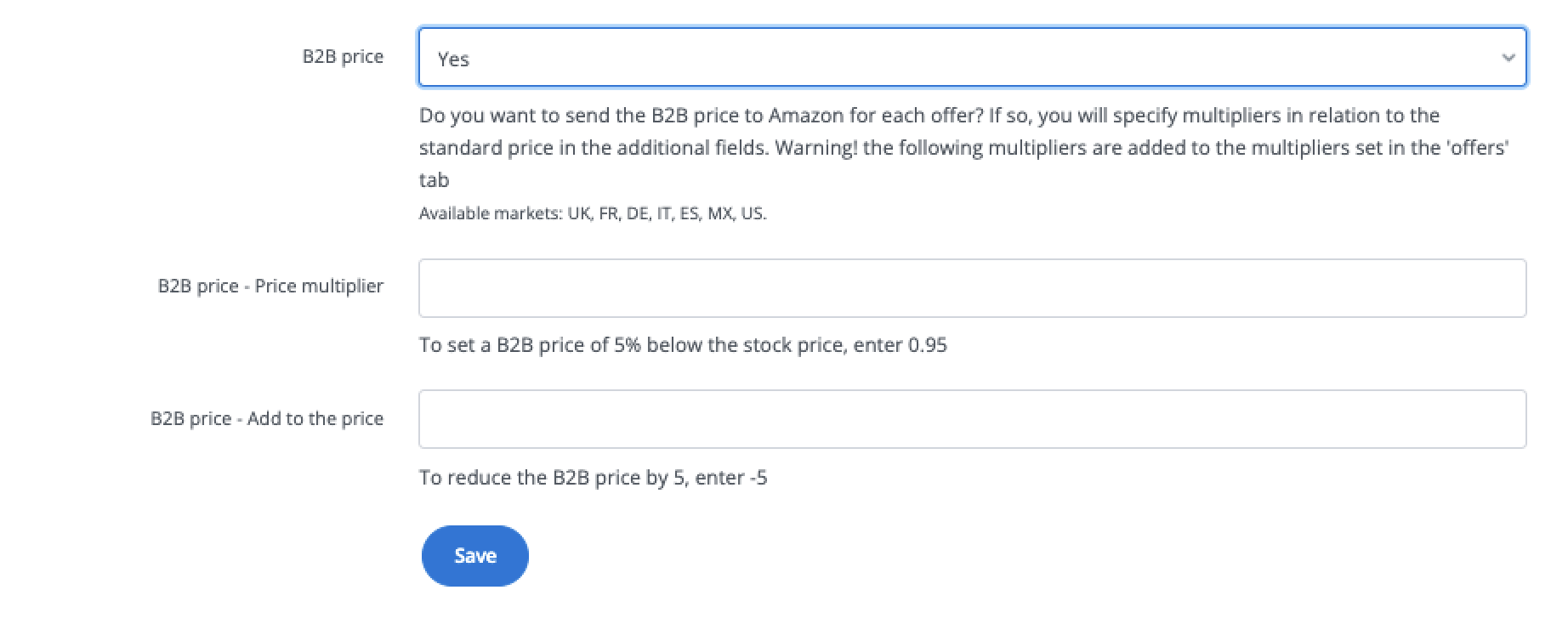
For general information about price synchronization, including offer links, synchronization rules and logs, see the article about price synchronization.
When the B2B price is sent to Amazon
Enabling the B2B price option does not necessarily send a new B2B price immediately. According to the current Amazon Business configuration, a price change must occur on the offer through price synchronization before the B2B price is sent to Amazon.
After the next eligible price change, Amazon may need additional time to process the update. The new value might therefore not be visible immediately after the synchronization cycle has finished.
How to show and verify B2B synchronization in the offer list
Base.com provides a per-offer filter that lets you show which Amazon offers have B2B price synchronization enabled or disabled. This is useful when you want to check a larger group of offers without opening each offer separately.
Use the B2B price synchronization filter
- Open Amazon → Offer management → Offer management.
- Select the Amazon account and the offer status that you would like to review.
- Click Search to expand the search panel.
- If necessary, switch to Advanced filtering.
- Select the filter B2B price synchronization.
- Choose Enabled or Disabled, depending on the offers you would like to display.
- Click Set filters.
You can save the selected conditions as a view using Saved filters. This makes it easier to return to the list of offers with B2B price synchronization enabled.
What the offer list price means
The documented Price column in the Amazon offer list shows the current regular price of the offer. It should not automatically be interpreted as the B2B price.
Use the B2B price synchronization filter to identify offers for which the per-offer B2B synchronization status is enabled or disabled. To verify the calculated business price itself, check the B2B settings in the Amazon integration and then confirm the value in Amazon Business after an eligible price update has been processed.
You can also use the documented offer management operations to review or update the synchronization settings of selected offers.
Check the first synchronization
- Make sure that the selected offer is linked to the correct product in Inventory.
- Allow a regular price change to be processed by the price synchronization module. For a controlled test, use a test product and a small, intentional price change.
- Return to Integrations → Amazon account → Prices.
- In Price synchronization logs, click Preview for the relevant synchronization cycle.
- Check the Date, Offer number, Before, After and Status values.
- If you are checking one specific offer, enter its offer number in the search field at the bottom of the Prices tab and click Search.
- After Amazon processes the update, verify the B2B price in the Amazon Business view in Seller Central.
If you need a broader overview of how prices and stock are synchronized between Base.com and marketplaces, see the article about general synchronization rules.
FAQ and important limitations
Why is the B2B price not sent to Amazon?
Check the following points:
- Amazon Business is registered and active for the relevant market in Seller Central.
- The offer is listed on a supported Amazon Business market.
- The offer is linked to the correct product in Inventory.
- Regular price synchronization is enabled for the offer.
- The per-offer B2B price synchronization status is set to Enabled, if this feature is available for your account.
- A price change has been processed by the price synchronization module.
Why does an offer on another market still have the regular price?
This is expected when the offer is listed on a market that does not support the B2B price configuration. In that case, Base.com sends the regular price instead of the B2B price.
Does enabling B2B price synchronization update every offer immediately?
No. The B2B price is sent when a price change occurs through price synchronization. Amazon may also need additional time to process the submitted price.
Why can I not see the B2B price synchronization filter?
The per-offer B2B functionality is being made available gradually. The filter may be visible only for selected accounts or a current test account rollout. You can still configure the account-level B2B price fields in the Prices tab when the option is available there.
Is the B2B price the same as the Price column in the offer list?
Not necessarily. The documented Price column represents the regular offer price. The B2B price synchronization filter shows whether the per-offer B2B synchronization status is enabled or disabled. Verify the calculated business price in Amazon Business after the update is processed.
Can I use different B2B price ranges for different quantities?
No. The current configuration does not support B2B price ranges. Use the B2B price multiplier and B2B price addition instead.
Where can I find other Amazon Business information, such as a PO number?
The B2B price is separate from order data. If you also need to process a purchase order number from an Amazon Business order, use the instructions for PO number handling for Amazon Business orders.