Updating eBay offer parameters based on catalogue mapping rules
Base.com allows you to update parameters in multiple active eBay offers without editing each offer separately or ending and relisting it. The operation can use mapping rules configured for the selected catalogue channel, so the values are taken from the product data and converted to the format required by eBay.
This functionality is part of the broader eBay offer update workflow and is useful when you need to update parameters such as condition, brand, colour, KType or other category-specific values in many offers at once.
How to update parameters using catalogue mapping
1. Configure mapping rules for the catalogue channel
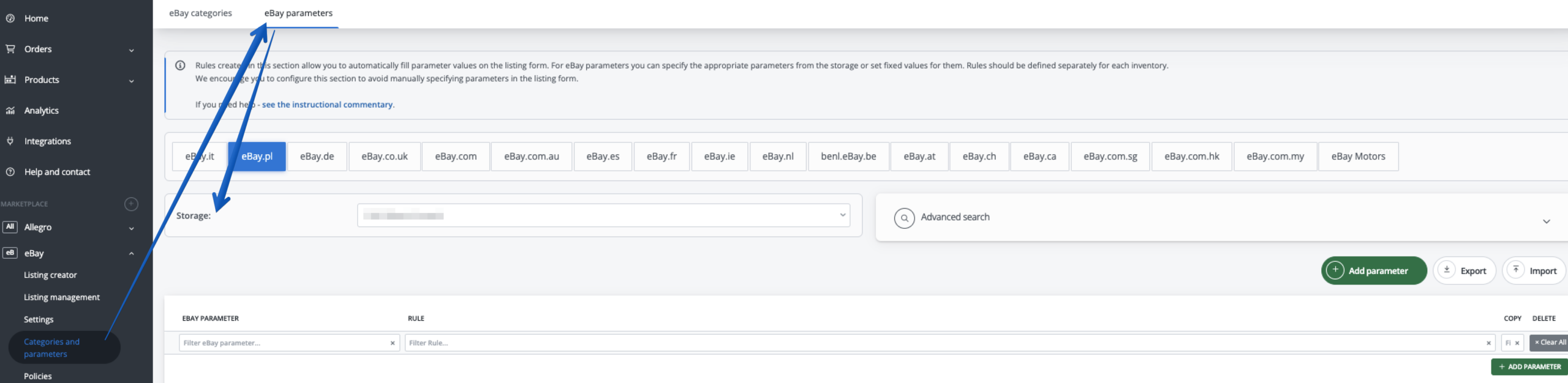
Go to eBay → Categories and parameters → eBay parameters and create the mapping rules that should be used during the update.
- Select the eBay site or market for which you are creating the rule.
- Select the Catalogue from which the product data will be taken.
- Click Add parameter.
- In the eBay parameter field, enter at least two characters and select the required parameter from the suggestions.
- Select the rule type and define its source or value.
- Select a condition if the rule should apply only to specific products.
- Click Save.
The most common rule types are:
- Copy from a product parameter – copies a value from a parameter saved for the product.
- Copy from a product field – uses a field such as product name, EAN, SKU, manufacturer, category name, weight, dimensions or a custom field.
- Set a value – assigns the same eBay value to products that meet the selected condition.
- Insert product data – inserts the product name, variant name, manufacturer, EAN, SKU, ASIN or weight.
You can also define conditions such as Always, a catalogue category, manufacturer, a phrase in the product or variant name, a phrase in the description, or a fragment at the beginning, middle or end of the SKU.
If the value in the product data is different from the value accepted by eBay, use Add mapping. For example, you can map Grey in the product data to Gray in the eBay offer. For larger dictionaries, use Map all values. Numeric values can be converted with Apply multiplier.
Rules can be reordered using the drag-and-drop handle. Base.com checks them in order, so put more specific rules above general or fallback rules.
2. Select the eBay offers to update
- Go to eBay → Offers.
- Select the active offers that should receive the update.
- Open Operations.
- Select Change parameters.
The operation is performed for the selected offers. You can add more than one change in the same operation.
3. Apply the catalogue mapping
- In the Change parameters operation, select Set offer parameters according to mapping in the catalogue channel.
- In the eBay parameter field, select the parameter that should be updated.
- Do not enter a value manually. Base.com will calculate it from the mapping rules and product data in the selected catalogue.
- To update another parameter in the same operation, click Next change and configure another change.
- Click Execute.
If you prefer to run the operation later, enable Specify execution date and select the date, hour and minute. The date can be selected from the next 30 days and the minute is available in five-minute intervals. The requested execution time is not guaranteed and the update may be performed with a delay.
Manual parameter update
If you do not want to use mapping rules, select Set offer parameters manually in the Change parameters operation.
- Select the eBay parameter.
- Enter the new value in the Value field.
- Click Next change if you want to add another parameter.
- Click Execute.
Update the eBay category and parameters from the catalogue channel
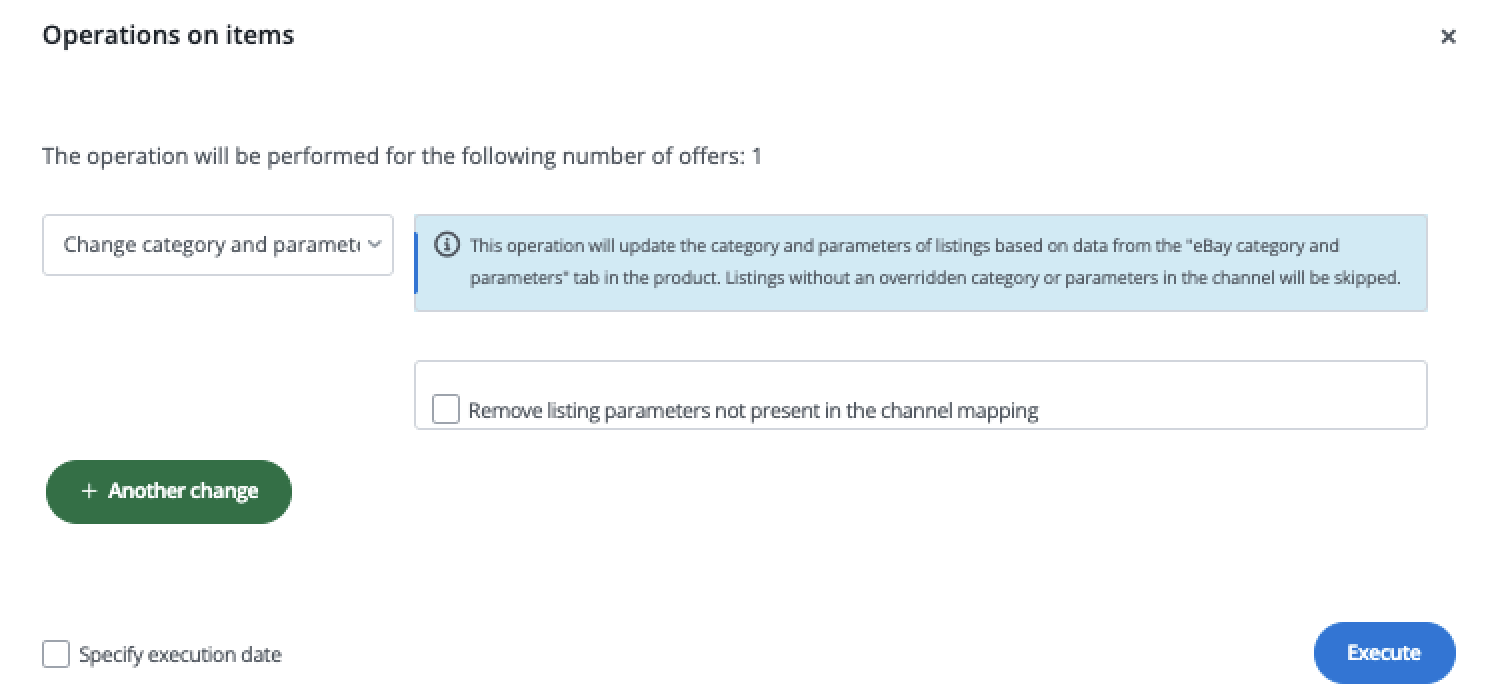
If you want to align both the eBay category and parameters with the catalogue channel, open eBay → Offers → Operations and select Change category.
Choose Set current value according to mapping. Base.com will use the category assigned through the channel mapping and update the offer parameters according to the data and mapping rules from the channel. If available in the operation, you can also select the option to remove parameters that are not present in the channel mapping.
Use this workflow when you need to restore consistency between the category, parameter mapping and the existing eBay offer.
Important considerations
Use the correct site and Catalogue
Mapping rules are created separately for each eBay site or market and for each Catalogue. A rule created for one site or Catalogue is not automatically applied to another one. Before running the operation, verify that the selected offers use the same product source for which the mapping was created.
If you also want the rules to be used when creating new offers, check the parameter priority in eBay → Settings → Parameters and gallery. These settings determine whether Base.com should use mapping rules or parameters saved from the previous offer first. The general marketplace settings article describes this area in more detail.
Check names, letter case and allowed values
When you use Copy from a product parameter, enter the parameter name exactly as it is stored in the product data. Letter case matters Color and Colour are treated as different names.
The final value must also be accepted for the selected eBay category and market. eBay can reject an update when the value is not present in its category dictionary. For example, error 21920468 indicates that the parameter value is not accepted for the offer. In this situation, add a value mapping or select an allowed value. You can check other causes in the article about common eBay listing errors.
For a multiple-choice product parameter, save the values separated with the | character. This allows the mapping rule to pass more than one value to the offer.
Existing parameters and variants
The standard mapped update keeps the existing offer parameters and overwrites only the parameters changed manually or supplied by the selected mapping. The category-and-channel workflow may additionally remove parameters that are not present in the channel mapping if you select the removal option.
For multi-variant offers, keep parameters shared by all variants in the main product and use variant values only for the parameters that distinguish the variants. eBay allows a maximum of five variation specifics. If you work with variant offers, follow the rules described for eBay variant offers.
For automotive offers, values such as KType can be stored in the catalogue and then transferred through mapping rules. The KType parameter article includes an example of preparing and updating these values.
Changes made directly on eBay
Changes made directly in the eBay panel are not automatically reflected in Base.com. If you edit an offer on eBay, use the offer import with update to refresh the data stored in Base.com before running another mapped update. This helps prevent older data from being sent back to eBay.
FAQ
Why is there no Value field when I use mapping?
The mapped mode does not require a manual value. Base.com takes the value from the product data and applies the rule configured for the selected eBay parameter. If the result is empty, check the product data, the Catalogue and the rule conditions.
Why did the rule not apply to an offer?
Check that the offer is connected to the correct product, the correct Catalogue and the correct eBay site or market. Then verify the parameter name, letter case, rule conditions and rule order. A more specific rule placed below a general rule may not be used.
Can I update several parameters in one operation?
Yes. After configuring the first change, click Next change and add another mapped or manual parameter update before clicking Execute.
Does the operation remove parameters that are not mapped?
The standard Change parameters operation does not remove unrelated parameters. The separate category-and-channel workflow can remove parameters that are not present in the channel mapping when the corresponding option is selected.
How long does the update take?
The operation is processed in the background. The exact time depends on the number of selected offers and the response time of eBay, so changes may appear with a delay.