TikTok Shop requires product images to have a clean, white background. Images with a coloured or uneven background, as well as images with white padding added during resizing, can be rejected or flagged as having a border.
The Image background optimization via TikTok Shop option allows TikTok Shop to process images uploaded from Base.com before they are used in the offer. The feature is available for new offers and for image changes on offers that are already listed. You can find it in the TikTok Shop integration configuration.
How image background optimization works
What happens to product images
When the option is enabled, Base.com sends every product image uploaded to TikTok Shop to TikTok Shop image optimization. TikTok Shop processes the image so that it meets its background requirements.
- The process covers the main product images.
- It also covers variant (SKU) images for products with variants.
- If an image already meets TikTok Shop requirements, TikTok Shop leaves it unchanged and the original image is used.
- If an image needs changes, the optimized version is used in the TikTok Shop offer.
If you work with variant products, the image optimization process also applies to their variant images.
When the option is used
- Path A – listing a new offer: Base.com sends the product images to TikTok Shop while creating the offer.
- Path B – changing images on an existing offer: when Base.com sends new or changed images to TikTok Shop, the same account-level setting is applied to those images.
How to enable the option and list an offer
Step 1: Enable image background optimization
Before you start, make sure that your TikTok Shop integration is connected to Base.com. The option is part of the account-level Listing settings.
- In Base.com, go to Integrations → TikTok Shop and open the TikTok Shop account that you want to configure.
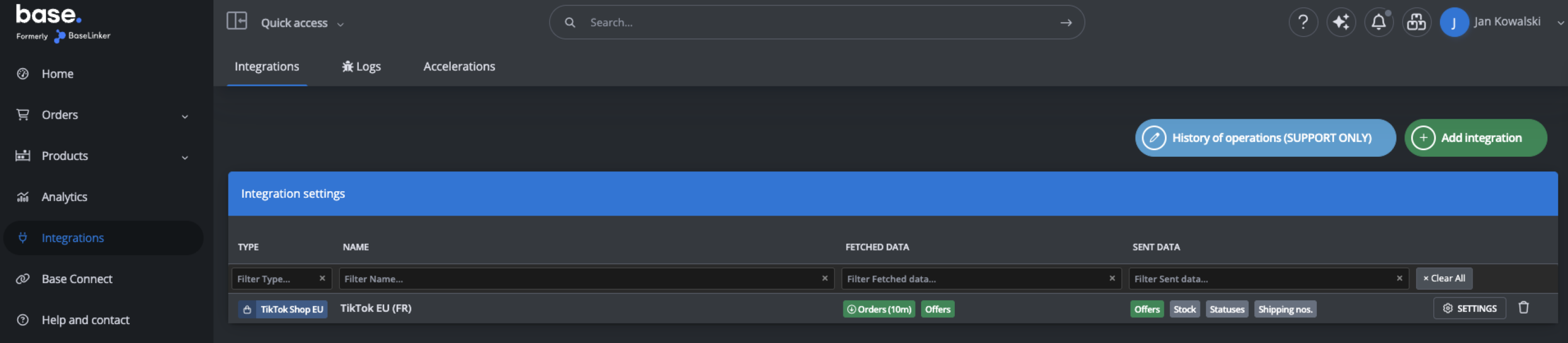
- Open the Listing settings tab and go to the Product offer data section.
- Find Image background optimization via TikTok Shop and set it to Yes. The description below the option reads: “When listing offers, TikTok Shop will process images to meet its background requirements.”

- Click Save.
From now on, the setting applies to every image that Base.com uploads to TikTok Shop from this account.
Step 2: List a new offer
Before listing the offer, make sure that the product is available in the selected Inventory and that any required offer-to-product connections are correctly configured.
- Go to Products → Inventory and find the product whose image has a coloured, uneven or otherwise non-white background.
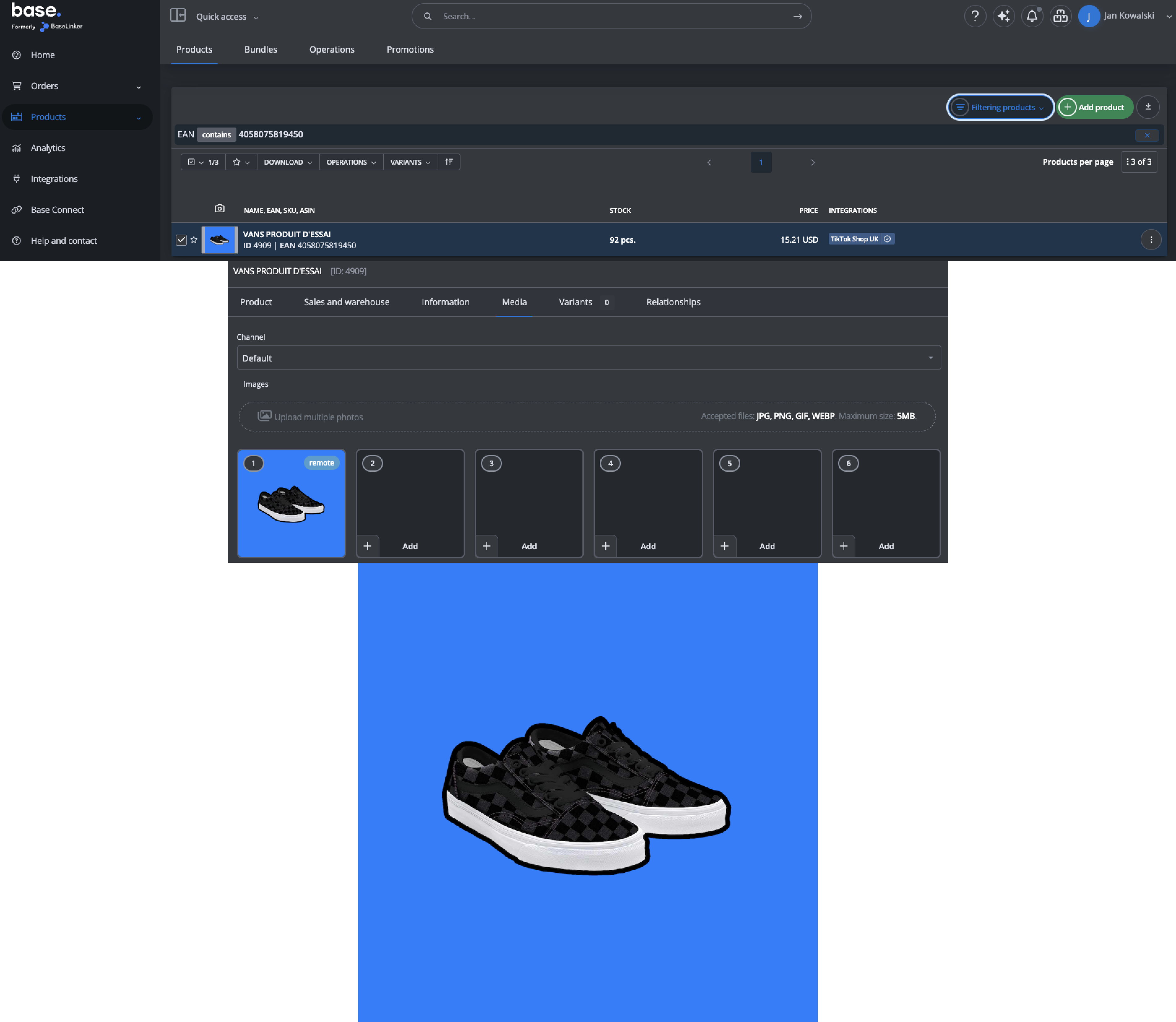
- Select the product and choose Operations → Create offers in the marketplace → TikTok Shop (your account).
- Complete the listing form as usual, including the category, attributes, price and stock. The general workflow is also described in the guide to listing offers on a marketplace.

- Click List offer.
Step 3: Check the offer status in Base.com
After you click List offer, check the offer status in Base.com. During processing, the offer can appear as In queue. After it has been processed successfully, it moves to Ongoing and is linked in Base.com as usual.
Step 4: Check the result in TikTok Shop Seller Center
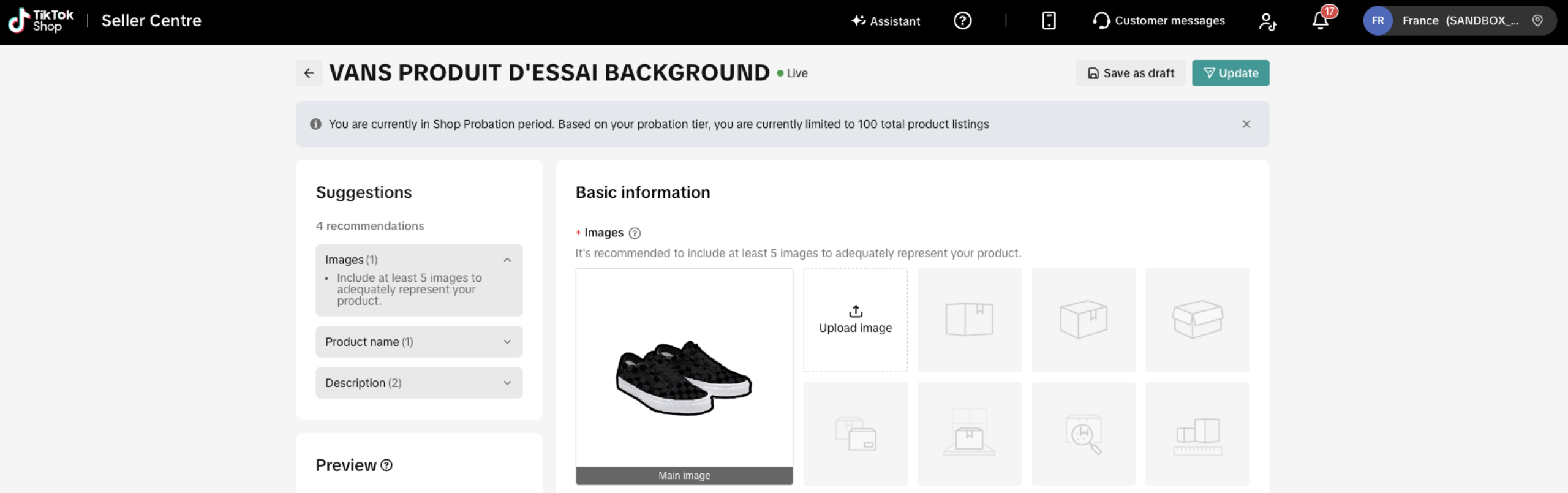
Log in to TikTok Shop Seller Center and open the product. The product images should now show a clean white background. The offer uses the optimized image provided by TikTok Shop.
Existing offers, errors and frequently asked questions
Changing images on an offer that is already listed
The option also applies when you change images on an offer that is already listed. Go to Marketplace → TikTok Shop → Offer management, select the offer and use the available operation for changing or updating its images. The general workflow for marketplace offer update operations can vary depending on the marketplace and the offer status.
If the offer was created outside Base.com, first use the offer import so that it is available for management in Base.com.
For some active offers, TikTok Shop may not accept changes to product content through the API. In that case, you may need to end or remove the offer and list it again with the corrected images.
What happens when TikTok Shop cannot process an image?
If TikTok Shop cannot optimize an image during listing, the listing stops and Base.com displays TikTok’s reason as the listing error. This tells you which image or image-related issue needs to be corrected.
- Open the listing error in Base.com.
- Read the reason returned by TikTok Shop and identify the problematic image.
- Replace or correct the image in the product data, then list or update the offer again.
Variant image errors do not block the listing
Variant images are handled differently from the main product image. If a variant image cannot be uploaded or processed, Base.com logs the issue, but the listing continues.
You can review the logged issue and replace the affected variant image later if it is needed for the offer.
Frequently asked questions
Is image background optimization enabled by default?
No. The option is off by default. Enable it in Integrations → TikTok Shop → Listing settings → Product offer data for every TikTok Shop account where you want to use it.
Will TikTok Shop change every image?
No. Base.com sends the uploaded image to TikTok Shop image optimization, but TikTok Shop leaves images that already meet its background requirements unchanged.
Does the option also cover variant or SKU images?
Yes. The process covers both main product images and variant (SKU) images. A problem with a variant image is logged, but it does not block the listing.
Where can I find the reason for a failed listing?
Open the listing error in Base.com. If TikTok Shop cannot process an image, Base.com displays the reason returned by TikTok Shop, allowing you to identify the image that needs correction.