Integrating Walmart with Base.com allows you to combine order processing, offer listing, and price and stock synchronization into a single panel. Once your account is properly connected, you can manage your sales on the Walmart marketplace without switching between multiple tools.
Below you will find complete instructions for adding and configuring the Walmart integration in Base.com. Please note that authorization methods may vary depending on the Walmart market. For Walmart Canada, up-to-date Global API keys are required.
Walmart Integration Features
The Walmart integration in Base.com is a two-way integration. This means you can use it both for processing orders and working with offers.
- downloading orders to the Base.com panel,
- downloading order returns to the Base.com panel,
- listing and managing offers based on products from the inventory,
- handling product variants,
- synchronizing prices and stock levels from Base.com to Walmart,
- importing offers previously listed outside Base.com,
- mapping order statuses,
- forwarding shipment tracking numbers to the marketplace,
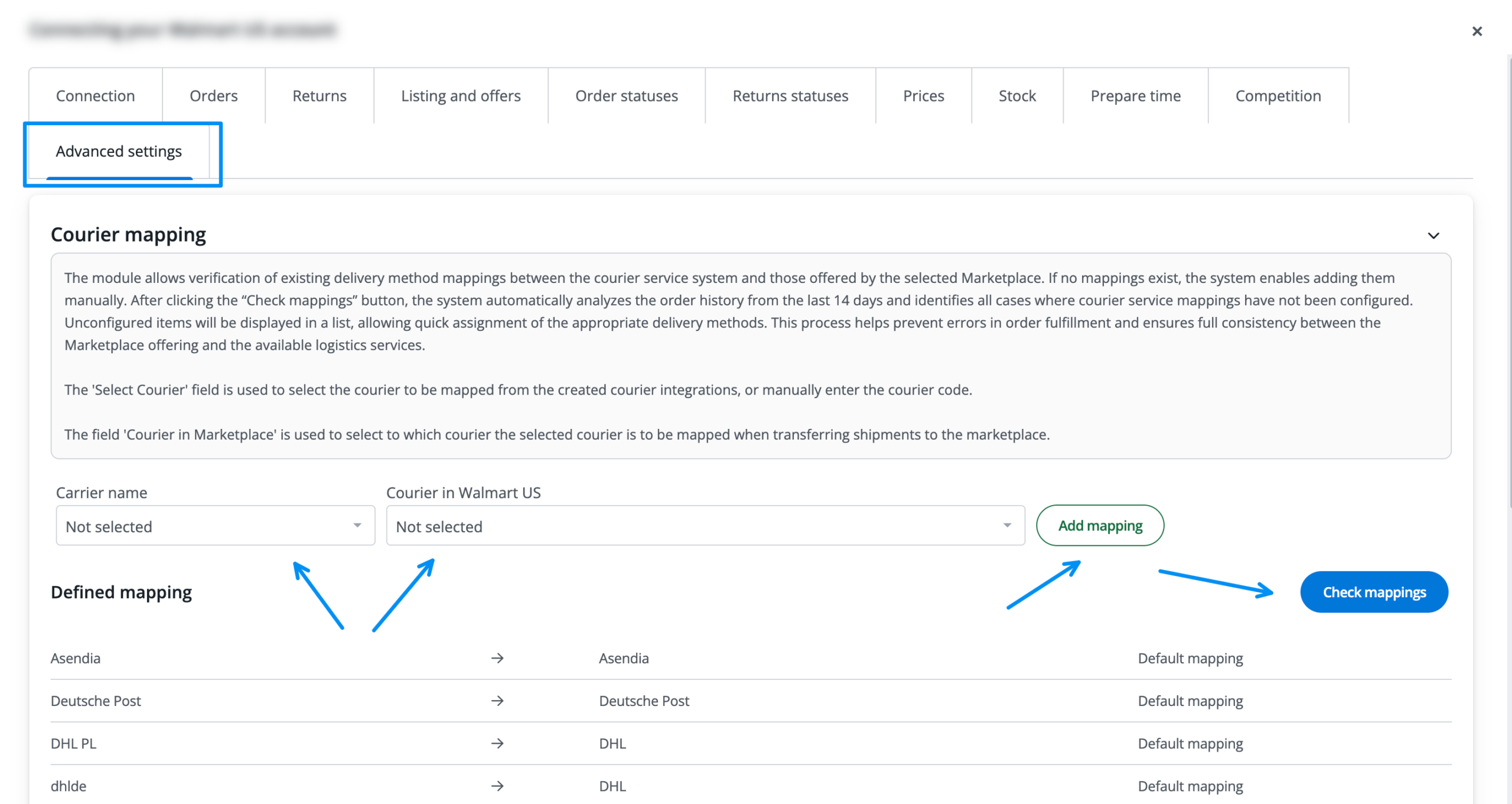
- mapping couriers used for dispatching shipments.
The Walmart integration does not support downloading returns or transferring invoices to the marketplace. Updates to active listings primarily cover price, stock, title, description, and selected attributes. Image updates are not supported.
How to Add the Walmart Integration in Base.com
Adding a New Walmart Account
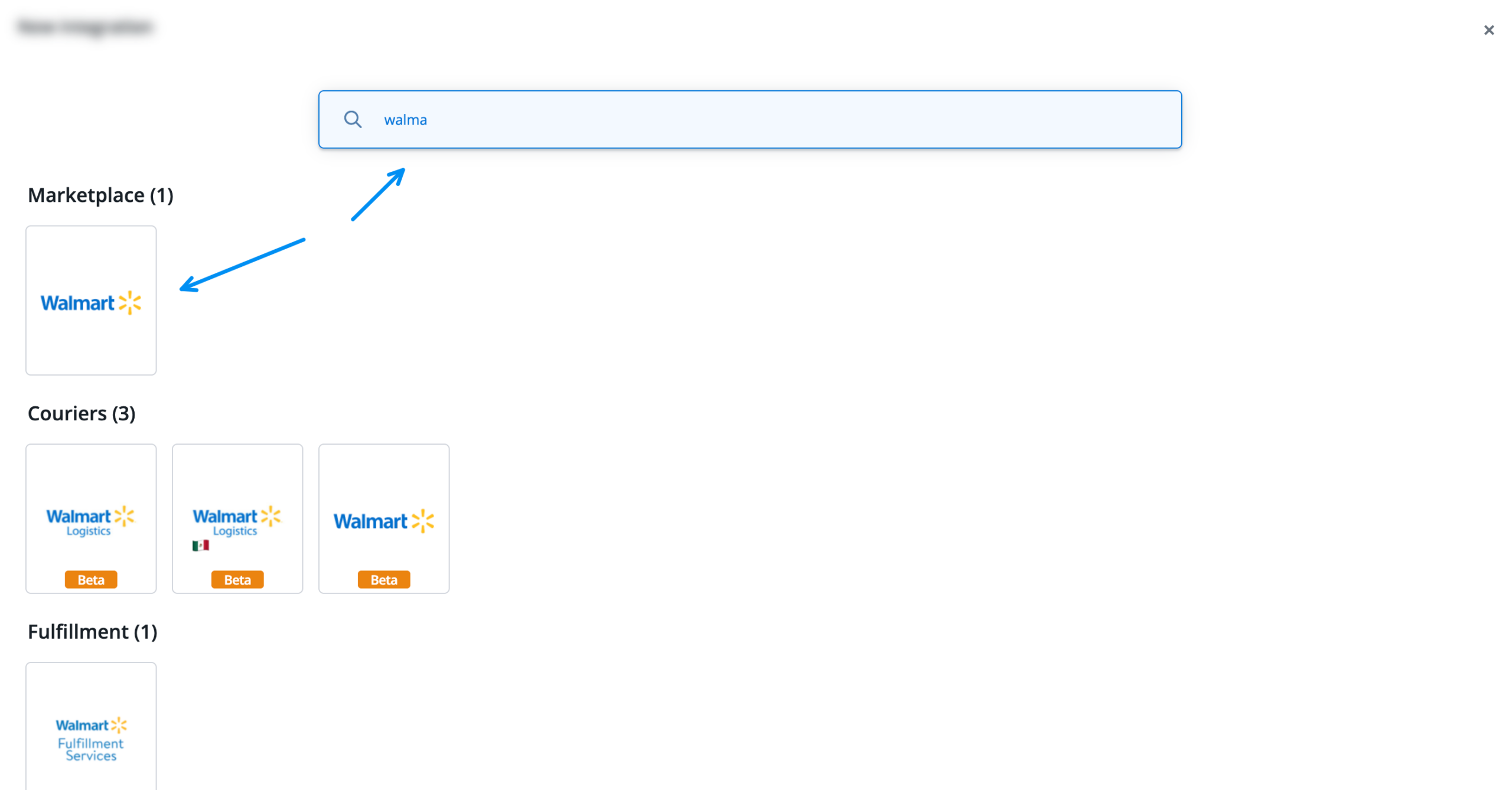
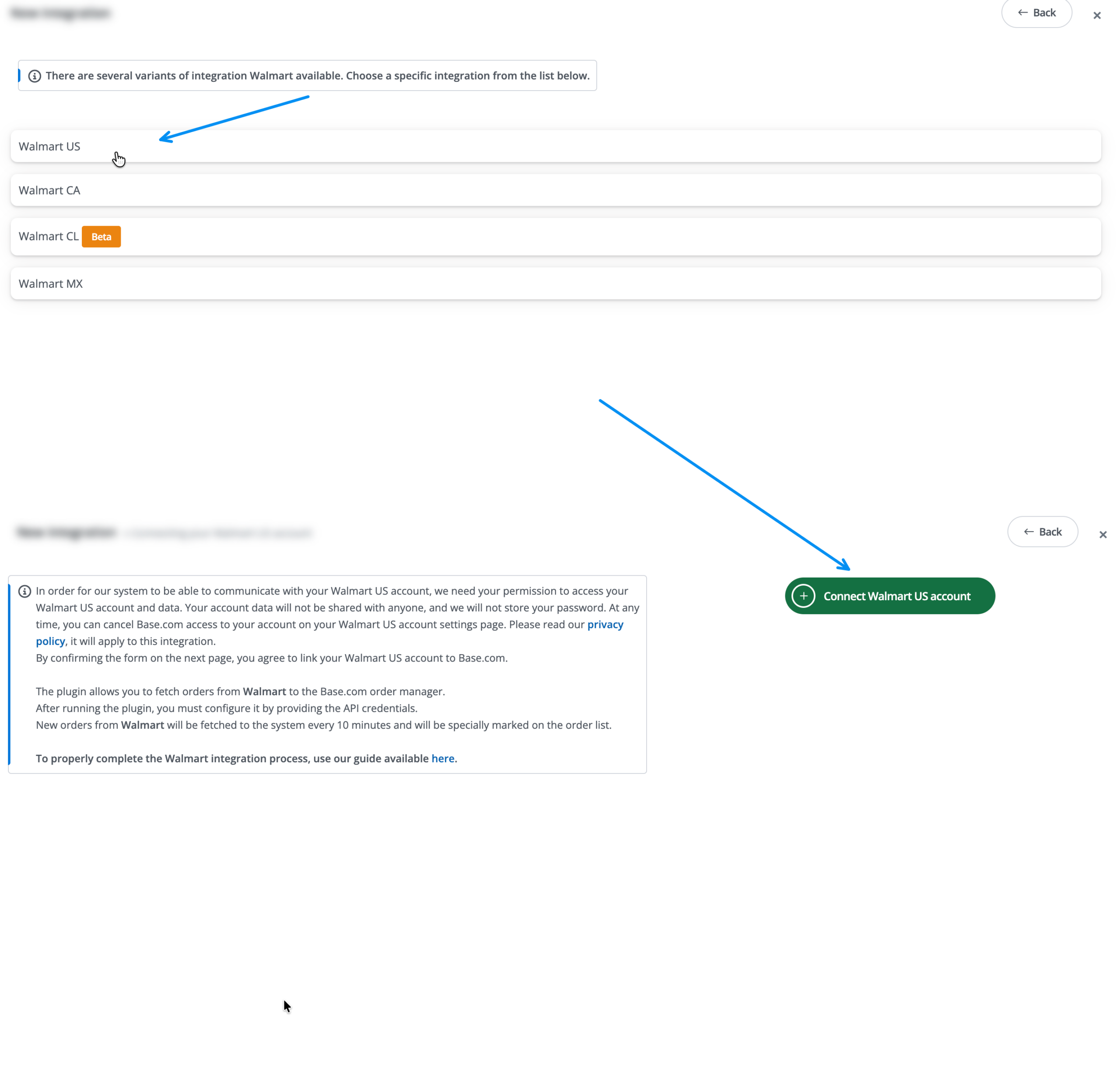
To add a Walmart account, go to Integrations → +Add integration → Marketplace → Walmart.
- Open the Integrations section.
- Click +Add integration.
- In the marketplace section, select Walmart.
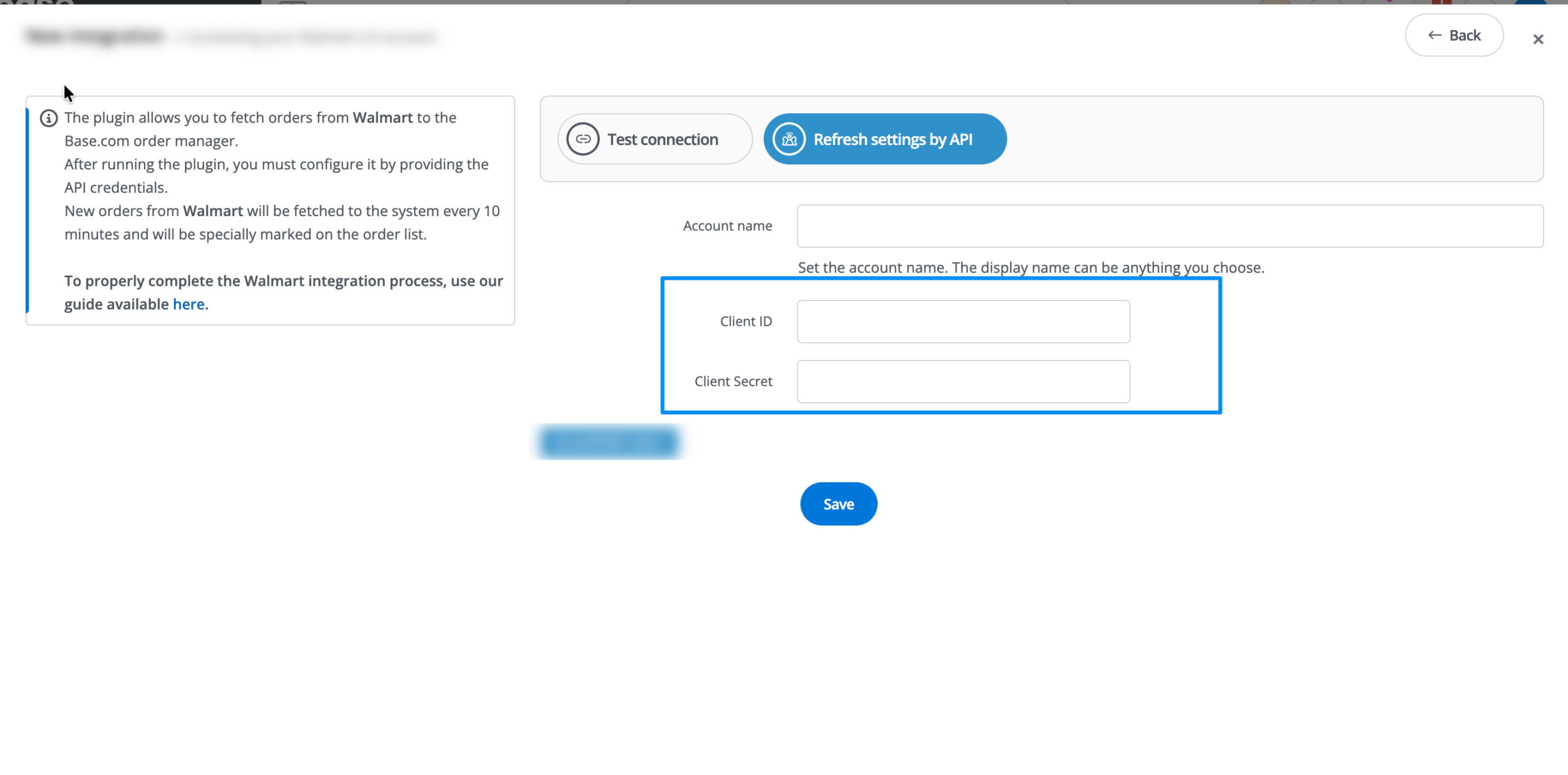
- Fill in the connection form.
- Click Save.
If you are connecting Walmart Canada, first change the market to Canada in the Walmart Developer Portal. After this change, the private key field will appear. Paste this value into Base.com under the Client Secret field. Older legacy keys do not work for this integration variant.
How to Verify Connection Accuracy
After saving your details, navigate to Integrations → Walmart → Connection and click the test connection button. This lets you immediately check if the authorization credentials are valid and if your account has the required permissions.
If you see an Invalid credentials message after adding the account, wait up to 24 hours after generating new keys on Walmart’s side. Access activation can sometimes be delayed.
How to Configure the Integration After Connecting
Orders Tab
In the Integrations → Walmart → Orders tab, you can enable order downloading and configure basic handling rules.
Depending on the account type, you can configure settings such as:
- the order retrieval channel,
- shipping destination country,
- saving additional order details to custom fields,
- forwarding shipment tracking numbers to the marketplace.
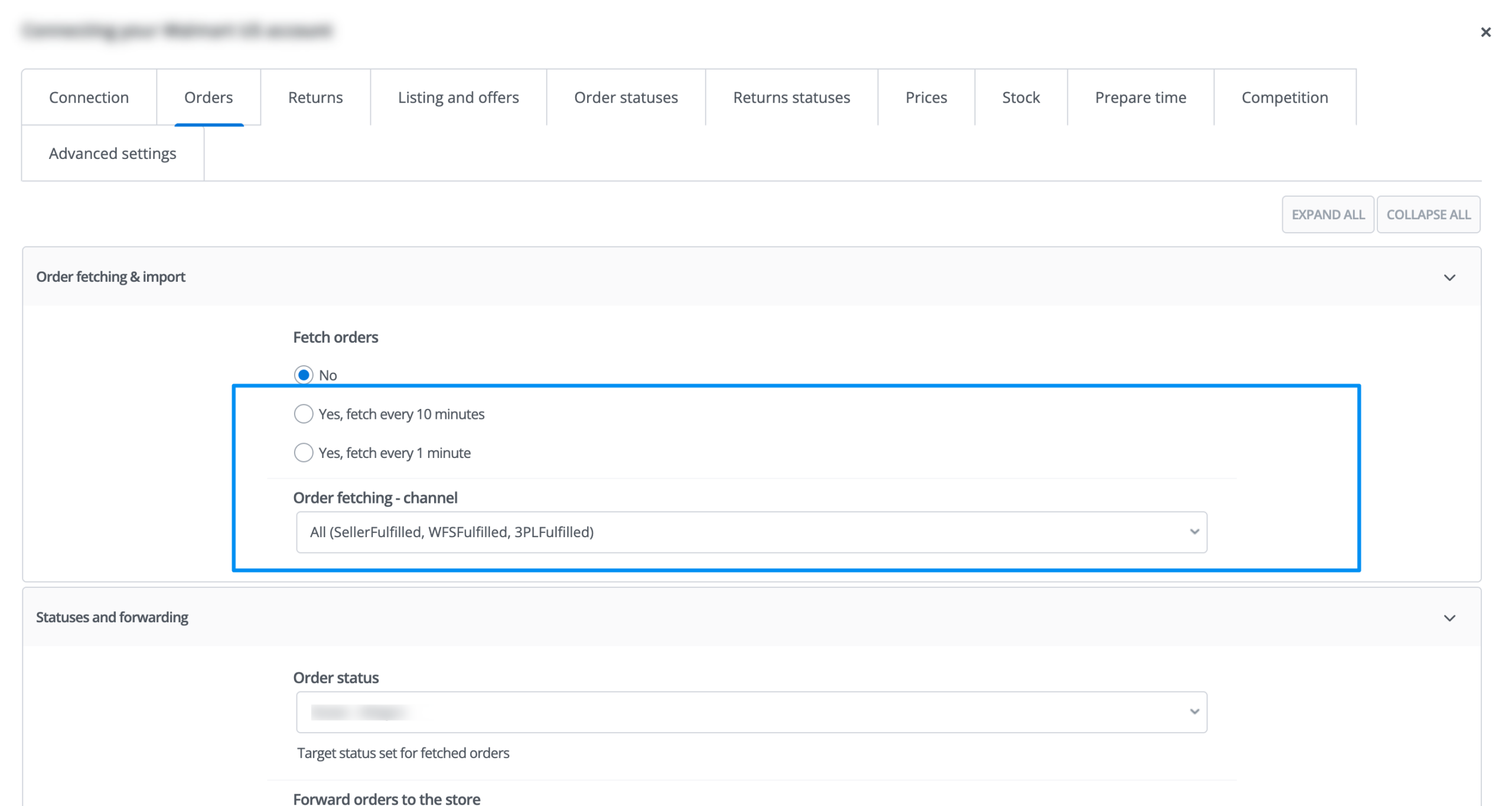
Enabling order retrieval is essential for Walmart. Without this option, fully listing and managing offers via Base.com will not be possible.
If you want to organize your order management beforehand, check out the article Order Manager – Configuration.
Listing Settings Tab
The Integrations → Walmart → Listing settings tab handles default settings for new offers.
Key options to pay attention to include:
- Default category,
- Source inventory,
- Price group and promotional price group,
- Price multiplier and the option to add a fixed amount to prices,
- Image gallery – quantity and order of photos,
- Maximum available quantity,
- Variants,
- Name filter and capitalization settings,
- Listing without identifier – only applicable if GTIN Exemption approval has been granted by Walmart.
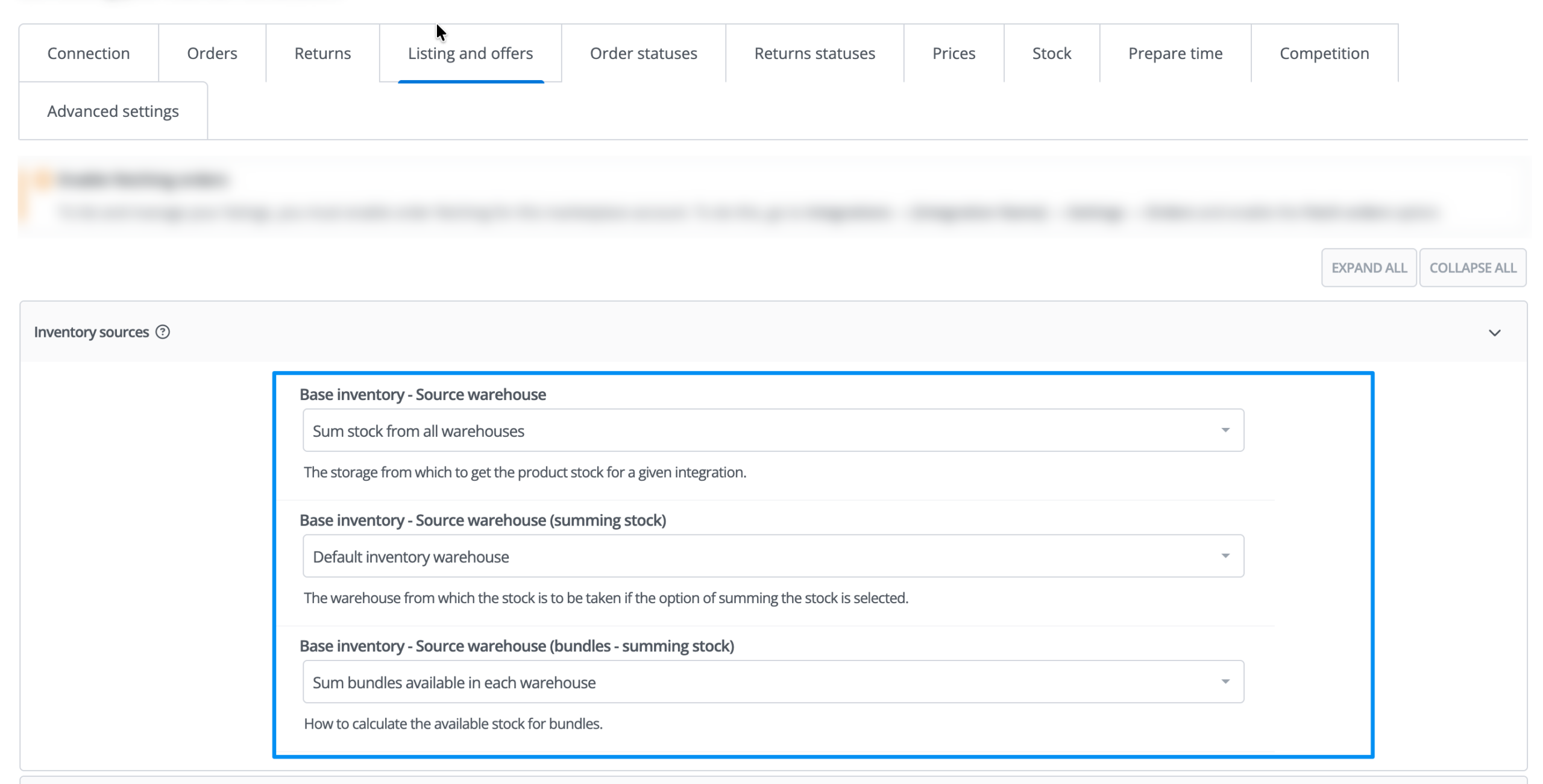
Read more about general options in this section in the article Listing Settings.
Prices and Stock Tabs
In the Integrations → Walmart → Prices and Integrations → Walmart → Stock tabs, you can set up automatic synchronization.
In the Prices section, you can define:
- synchronization frequency,
- actions to take when price is 0,
- whether the system should decrease or increase the price in an offer,
- price rounding rules.
In the Stock section, you can configure options including:
- frequency of stock synchronization,
- response to stock reaching 0,
- daily limit of terminated offers,
- maximum quantity sent to the marketplace,
- threshold for ending an offer,
- selected warehouse on the marketplace side if your account supports multiple warehouses.
Price and stock synchronization for Walmart operates one-way: Base.com → Walmart. If you make changes directly on the marketplace side, they will not automatically sync back to Base.com without re-importing offers.
Order Statuses and Advanced Settings Tabs
In the Integrations → Walmart → Order statuses tab, you can enable status mapping. This allows a status change in Base.com to automatically trigger a corresponding status update on Walmart.
In the Integrations → Walmart → Advanced settings section, you can configure courier mapping. This is an essential step if you want to properly pass shipment tracking numbers to the marketplace.
Listing and Managing Walmart Offers
How to Prepare a Product for Listing
You can list new offers from Walmart → Listing. Before proceeding to the listing form, ensure that the product has all required details completed.
The Walmart listing form typically requires:
- SKU,
- identifier: EAN, GTIN, or UPC – depending on the identifier type,
- category,
- condition,
- shipping weight,
- item tax code (ITC),
- country of origin,
- handling time, if required for the selected scenario,
- fulfillment center, if the account uses fulfillment.
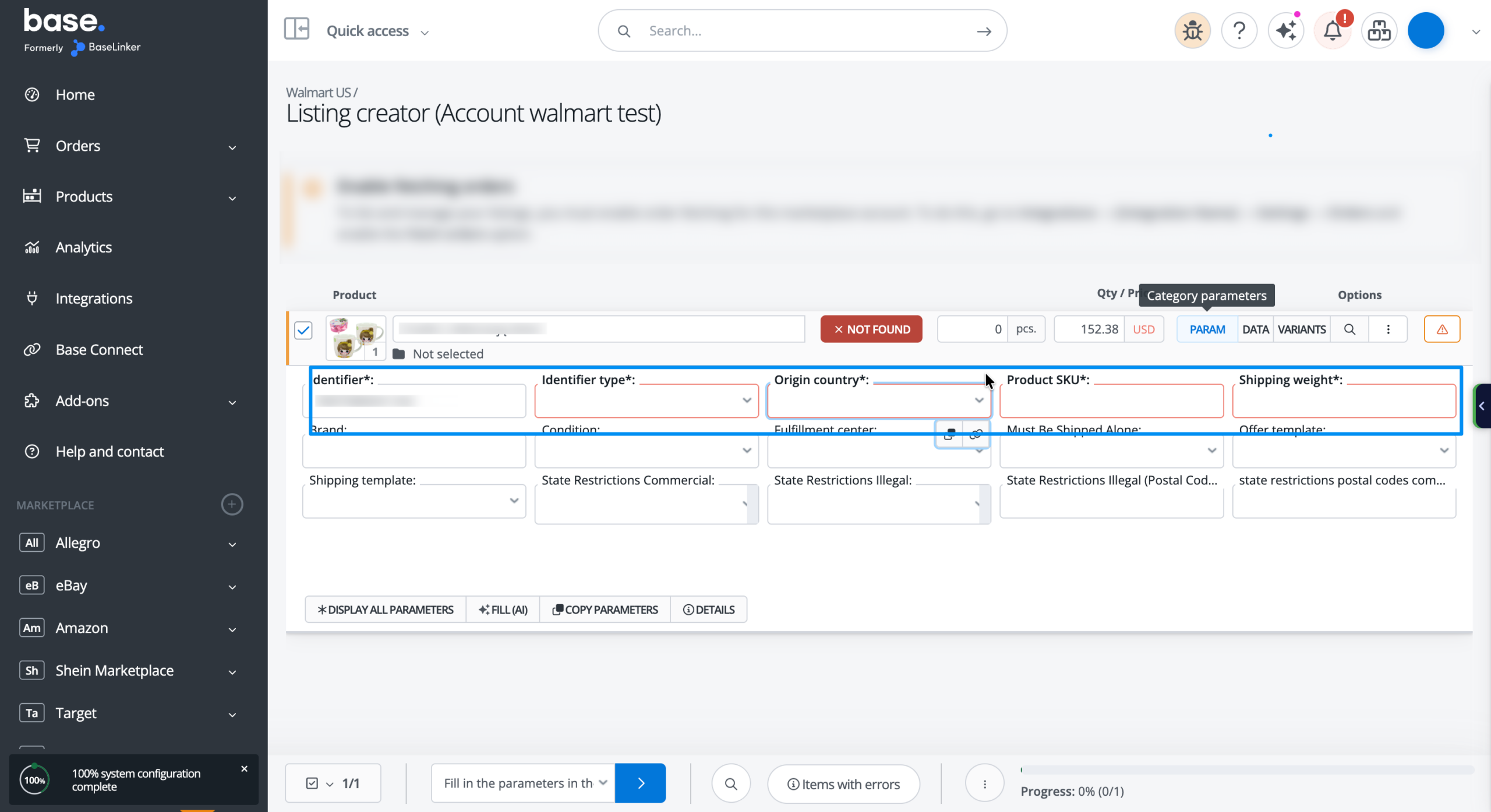
If you do not see the fulfillment center field on the form, refresh the API data under Integrations → Walmart → Connection or re-download parameters. In some cases, values appear after 15–30 minutes.
Importing and Linking Existing Offers
If you already have offers listed directly on Walmart, import them into Base.com. You can do this via Walmart → Offer Management → Import Offers.
- Run the offer import process.
- Once imported, link the offers to products in your inventory.
- Only afterwards, enable price and stock synchronization.
For a detailed description of this process, see the articles Importing Offers and Linking Offers to Inventory Products.
What Can Be Updated After Listing
Once active Walmart offers are listed, you can perform bulk operations without deleting and re-listing them. This includes updating:
- quantity,
- price,
- title,
- description,
- selected attributes.
Photo updates are not supported, so changing the gallery may require re-listing the offer.
Frequently Asked Questions and Troubleshooting
Why does the “Invalid credentials” error appear?
This usually means access credentials are incorrect or newly generated keys on Walmart’s side are not active yet. Newly created keys can take up to 24 hours to activate.
What does “Caller lacks permission” or Error 403 mean?
This message typically indicates missing permissions or scope in the Walmart Developer Portal. Check your application permissions and re-authorize the account in Base.com.
Why can’t I see the fulfillment center on the form?
First, verify that the corresponding warehouse exists in Walmart. Next, refresh API data or re-download parameters in Base.com. It may also take a few minutes for data to update.
Why can’t I list offers even though the account is added?
Walmart requires order downloading to be enabled for the account. If disabled, listing forms and offer management may be unavailable.
Does the Walmart integration support returns and invoices?
No. The Walmart integration does not support downloading returns to Base.com or uploading invoice documents to the marketplace.
Can offers be listed without a standard identifier?
Yes, but only if you have an active GTIN Exemption approval from Walmart. Without it, product identifiers remain mandatory.
If you are new to managing marketplaces in Base.com, check out the article Adding Marketplace Accounts. It will help you compare Walmart configuration with other marketplace integrations.