The integration between Base.com and the ManoMano marketplace allows you to manage offers, stock levels, prices, and orders from a single control panel. Publishing and updating offers is performed via a CSV feed file, while orders, statuses, tracking numbers, and invoices are handled through the ManoMano API.
ManoMano supports the DE, ES, FR, GB, and IT markets. Depending on the selected storefront market, offer content is prepared in German, Spanish, French, English, or Italian. If a product title or description in the specific market’s language is missing from the catalog, Base.com will fall back to the default catalog language.
Before starting configuration, make sure to prepare your product catalog, seller details, API key, Seller ID, and delivery information. Basic principles of working with products are described in the article on product management in Base.com, and general system settings can be found in Base.com configuration.
What Does the ManoMano Integration Enable?
- Publishing new offers via CSV feed;
- Updating prices and stock levels across active offers;
- Importing offers previously listed directly on ManoMano;
- Productization based on EAN numbers;
- Listing product variants as individual offers;
- Automatic listing of new products via Autosell;
- Downloading orders into Base.com;
- Syncing order status updates back to ManoMano;
- Transmitting shipment tracking numbers;
- Forwarding invoices to ManoMano;
- Routing orders to a connected online store;
- Configuring shipping costs, carriers, and dispatch times.
1. How to Configure the ManoMano Integration
1. Prepare Connection Details
To connect your ManoMano account, collect the required seller account credentials:
- Store Title – the store name displayed on ManoMano;
- Store Link – seller storefront URL;
- Secret Key – API key;
- Seller ID or Seller Contract ID;
- Marketplace Platform/Storefront on which the account operates;
- Offer Currency – EUR or GBP.
An example store link format is https://www.manomano.fr/marchand-[account_id]. The store title can be any custom name, whereas the API key and Seller ID must be retrieved directly from your ManoMano seller panel.
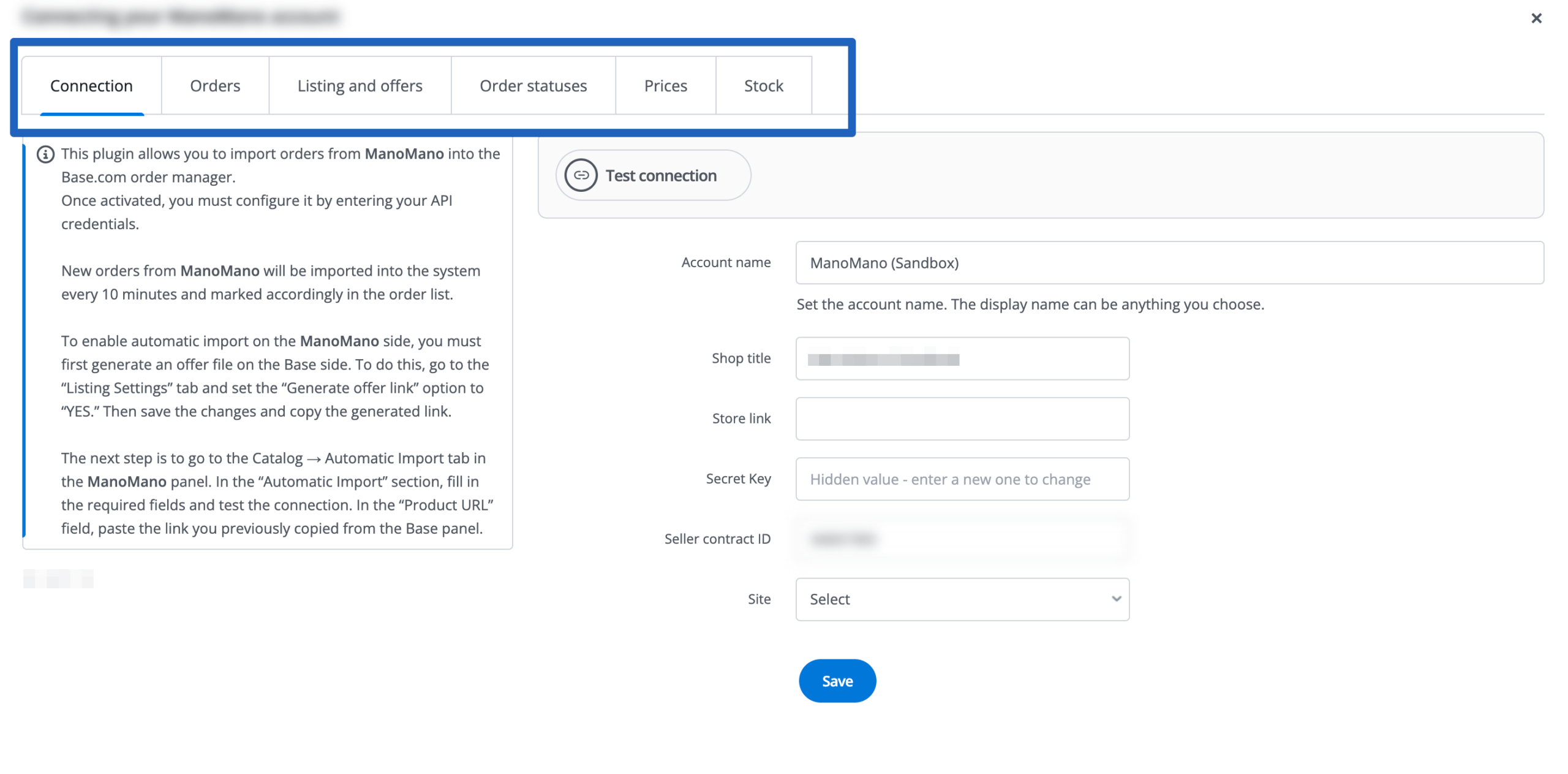
2. Add the ManoMano Account in Base.com
If you are setting up integrations for the first time, refer to the article on adding marketplace accounts.
- Navigate to Integrations.
- Click +Add integration.
- Under the Marketplace section, select ManoMano.
- In the Account Name field, enter any recognizable name for this integration inside Base.com.
- Fill in Store Title, Store Link, Secret Key, and Seller ID.
- Select the applicable Platform/Storefront if the dropdown is visible (available options: DE, ES, FR, GB, IT).
- Select the API environment. For standard active sales, choose production. Use development or fake only if explicitly instructed by ManoMano or Base.com support.
- Click Save, then Test Connection.
After saving the account, configuration tabs will appear: Connection, Orders, Listing Settings, Order Statuses, Prices, Stock Levels, Dispatch Time, and Advanced Settings.
3. Enable and Configure the CSV Feed
The CSV feed forms the core mechanism for publishing offers and syncing price and stock updates to ManoMano. Set it up prior to listing your first product.
- Go to Integrations → ManoMano → Listing Settings.
- Locate the Generate offer file toggle.
- Set it to Yes.
- Copy the full feed URL displayed below the toggle.
- Log into your ManoMano seller portal and paste the feed URL into the offer import settings.
- Set the file format to CSV, character encoding to UTF-8, and field delimiter to Comma.
- Save the import settings on the ManoMano side.
Base.com generates the feed on a cycle of approximately 8 hours. Once generated, ManoMano must download and process the file. In practice, updates become visible within several hours, or up to 24 hours in some scenarios.
If operation history is available in Base.com, check the Built and Downloaded log entries. This helps isolate file generation issues from download delays on ManoMano’s end.
4. Configure Order Import
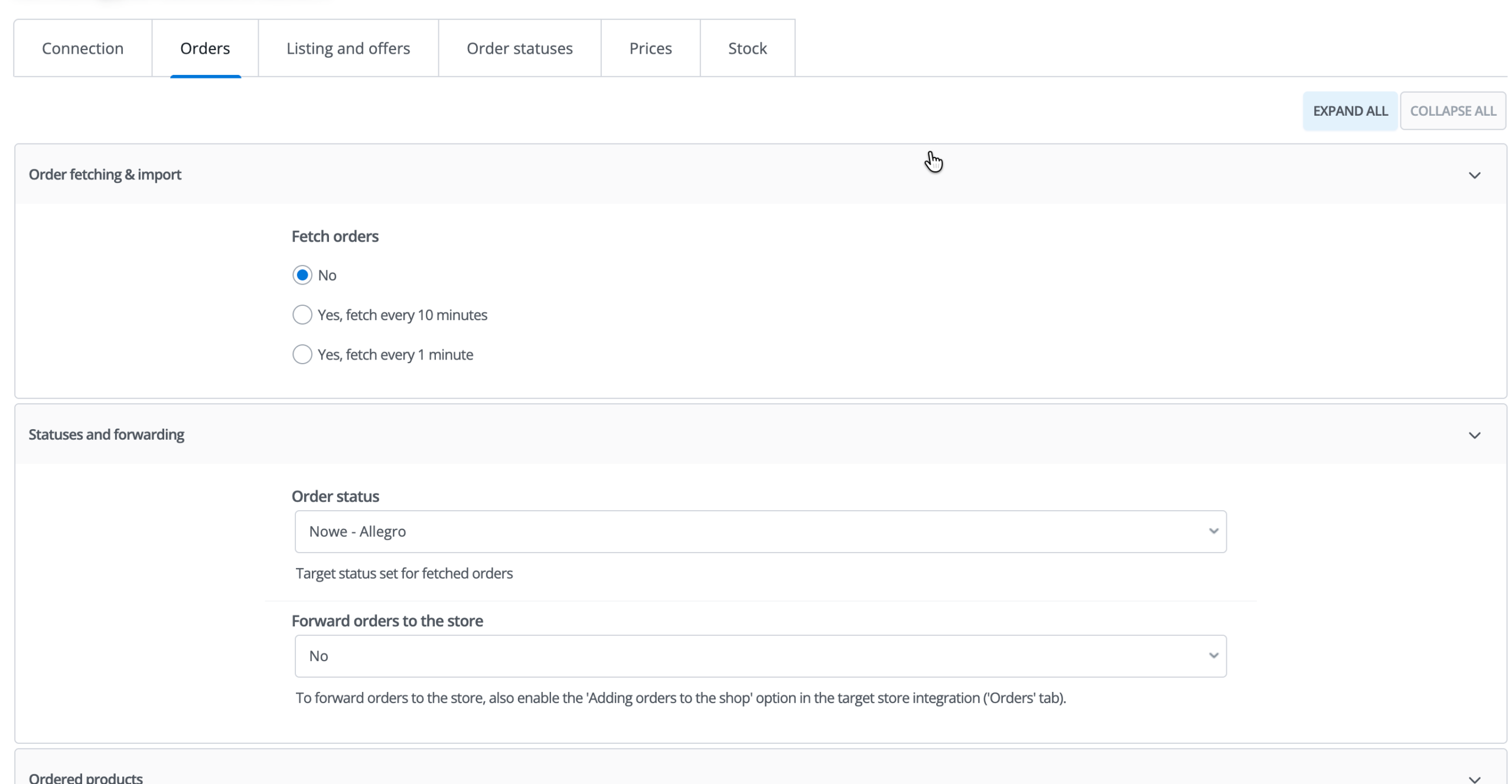
Order import settings are managed under Integrations → ManoMano → Orders. These define how frequently Base.com fetches orders and which status they enter upon import.
- In the Download orders field, select Yes, every 10 minutes. (1-minute fetching is a paid feature and may not be available on all plans).
- For the first download cycle, select the time range: From now, last 3 hours, 24 hours, or 3 days.
- In Orders max. back, select the desired historical fetching window.
- In Order status, choose the target Base.com status where incoming ManoMano orders should be placed.
- Set VAT rate in orders according to your accounting preference: catalog rate, marketplace data, delivery country rate, or fixed rate.
- Optionally enable fetching product names from the catalog, offer SKU, or warehouse SKU.
- If operating an online store, configure Forward orders to store. Confirm that offers are properly linked to store products before enabling.
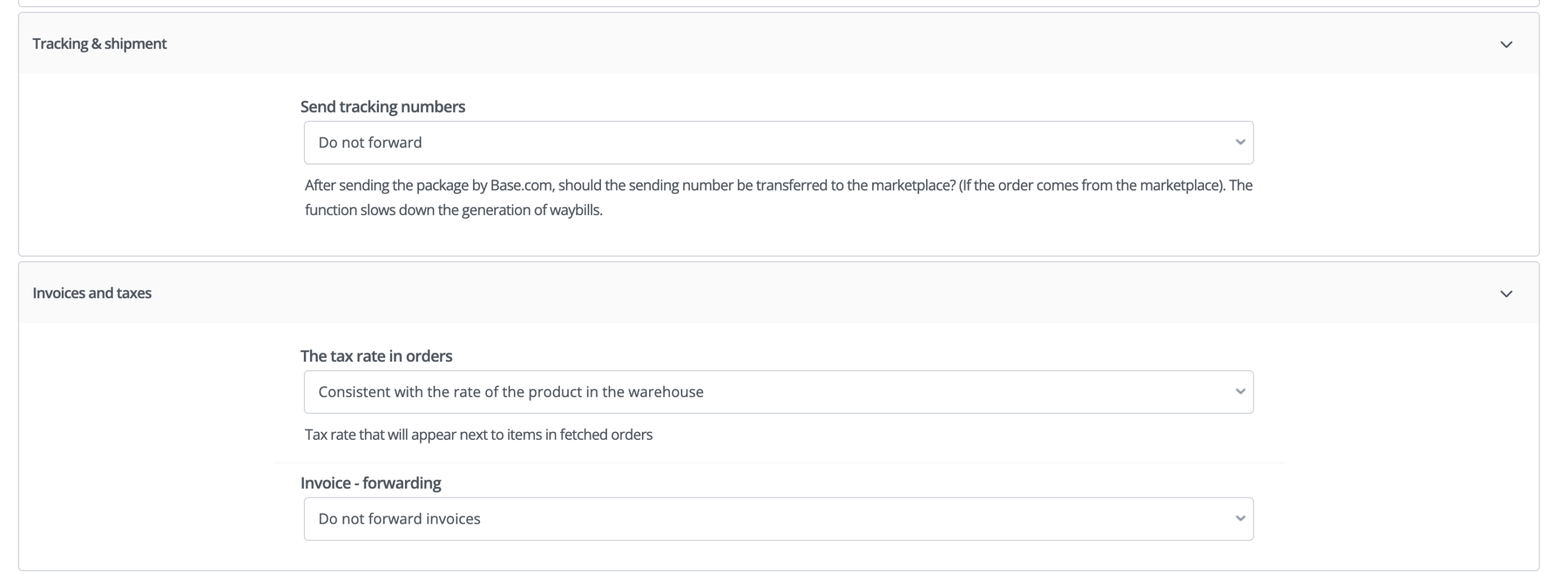
- In Send tracking numbers, specify whether numbers should be transmitted immediately upon creation, at cutoff times, or after moving orders to a chosen status.
- In Invoice – forwarding, choose automatic forwarding or status-triggered forwarding.
- Save your settings.
Detailed setup options for the Order Manager are available in Order Manager Configuration. General guidance on order handling is provided in order management in Base.com.
5. Set Default Listing Parameters
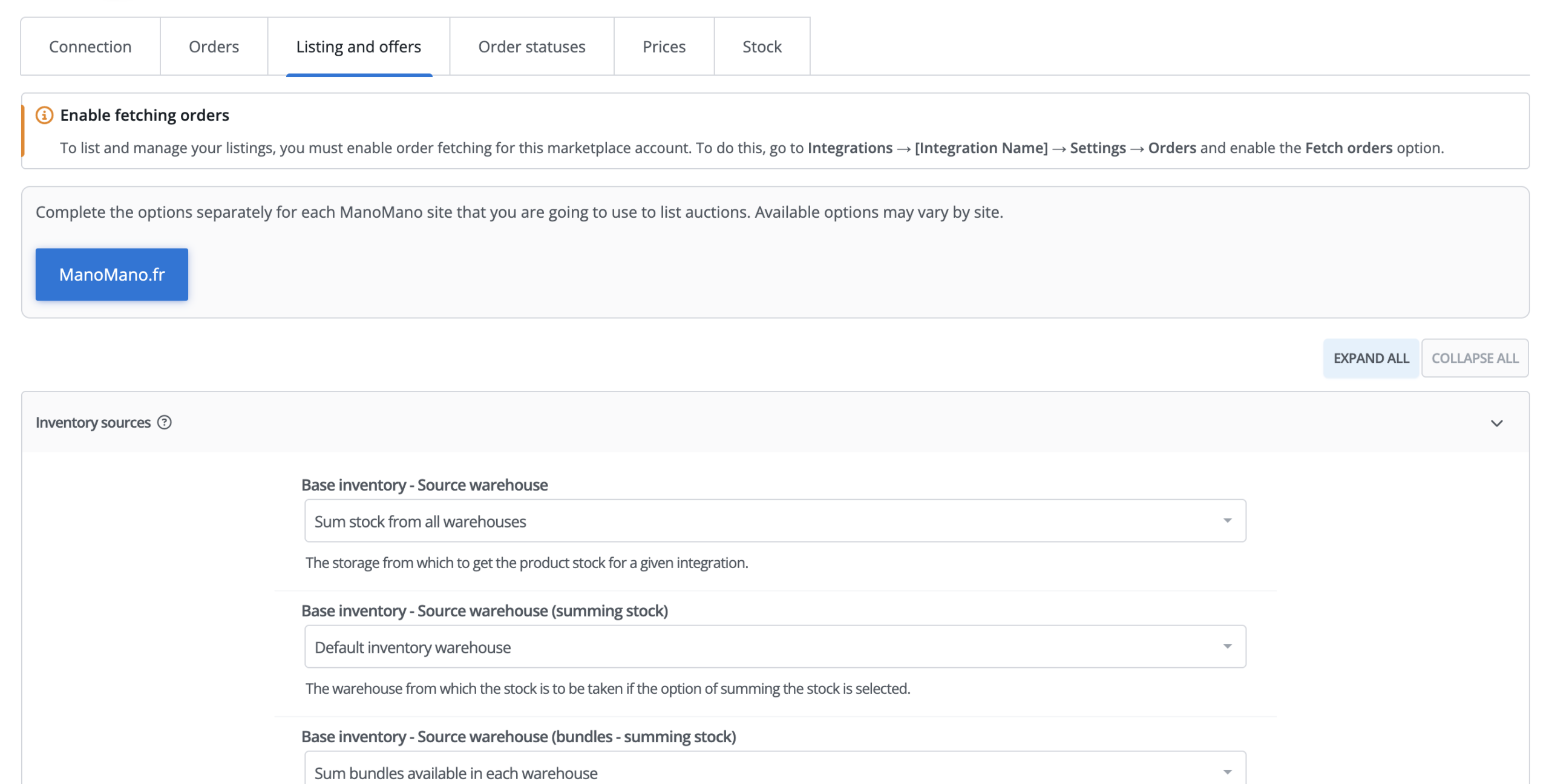
Navigate to Integrations → ManoMano → Listing Settings. This section determines default values applied when creating new listings.
Key settings include:
- Generate offer file – Must be set to Yes if offers, prices, or stock are managed by Base.com;
- Currency – EUR or GBP;
- Default category – If supported and loaded for the account;
- Default offer template – If available for the integration;
- Base Catalog – Source warehouse – The warehouse used for stock level calculations;
- Source warehouse – Stock aggregation – How stock levels from multiple warehouses are summed;
- Selected warehouses – List of warehouses included in aggregation;
- Base Catalog – Price group – The price group mapped to the offer price;
- Base Catalog – Promotional price group – Optional price group for promotional pricing;
- Price multiplier and Add to price – Price modifiers applied during listing and synchronization;
- Image gallery – Sequence and count of images sent to the offer;
- Maximum available quantity – Upper limit on stock passed to the marketplace;
- Title filter and letter case rules;
- Send offers with zero stock – Decide whether zero-stock items stay in the CSV feed.
If utilizing the Base.com Catalog, confirm that price groups, warehouses, and languages are configured correctly. Information on product card fields (title, EAN, SKU, description, images, parameters) is available in product card information.
6. Enable Status Mapping
Go to Integrations → ManoMano → Order Statuses. Enable Status Mapping, then map Base.com statuses to corresponding marketplace statuses.
You can leave Do not transmit change selected for specific statuses. Note that the status designated for importing new orders may be locked in the mapping table.
7. Configure Price Synchronization
Under Integrations → ManoMano → Prices, choose sync frequency. Options depend on your account plan: disabled, every 24h, 12h, 4h, 1h, 5m, or real-time.
Depending on account features, you can also define:
- Action when a product price is 0;
- Whether to lower offer price when catalog price decreases;
- Whether to increase offer price when catalog price increases;
- Whether to reactivate an offer after increasing its price;
- Daily limit on ended offers;
- Price rounding preferences.
General configuration guidelines are detailed in price synchronization. On ManoMano, remember that correct Base.com setup still relies on an active feed on the marketplace side.
8. Configure Stock Synchronization
Under Integrations → ManoMano → Stock, select the stock sync frequency. Available parameters include:
- Zero stock – Leave offer unchanged, set to 0, or end offer (depending on account options);
- Lower quantity – Reduce offer quantity to match catalog stock;
- Higher quantity – Increase offer quantity, and optionally reactivate offer;
- Maximum quantity – Upper cap on stock sent to ManoMano;
- End offer at stock level – Threshold at which the listing is handled as zero stock;
- React to missing product in Base catalog – Feature supported on select accounts;
- Marketplace warehouse – If supported by ManoMano;
- Fulfillment offer sync – If enabled for your account.
For additional details, see stock synchronization.
9. Configure Dispatch Time
In Integrations → ManoMano → Dispatch Time, you can sync product lead times using an extra field in the catalog.
- Create an extra field of type integer or single-select in the catalog.
- Enter the handling time in days for your products.
- Enable dispatch time synchronization.
- Map the newly created extra field.
- Save settings.
10. Configure Carrier Mapping
If the shipping method name in an order does not match carrier names recognized by ManoMano, map them in Integrations → ManoMano → Advanced Settings → Carrier Mapping.
- Under Select Carrier, choose the Base.com carrier or enter its code manually.
- If available, choose the Destination Country.
- Under Carrier in ManoMano, select the carrier accepted by the marketplace.
- Click Add mapping.
- Click Check mappings to test against orders from the last 14 days.
- Save settings.
2. Listing, Productization, and Offer Management
Prepare Catalog Data Before Listing
Ensure products contain all data required by ManoMano before listing. Specifically, verify:
- Product SKU;
- Product EAN;
- Title and description in the target market language;
- Manufacturer and brand;
- Applicable VAT rate;
- Price in the designated price group;
- Stock in the designated warehouse;
- Dimensions and weight;
- Compliant product images;
- Delivery settings.
Base.com can import products from stores, wholesalers, ERP systems, or internal catalogs. To manage data centrally, set up a product catalog.
Categories in Base.com catalogs are meant for internal organization. The ManoMano category is a separate offer field and must match the marketplace category structure.
Open the Listing Form
- Go to Marketplace → ManoMano → Listing.
- Choose the catalog and product category.
- Apply filters (title, ID, SKU, EAN, price, stock, or manufacturer).
- Select the products you want to list.
- Click List selected (form).
In the form, each product is presented as an individual row. You can modify offer title, quantity, price, category, parameters, and shipping settings. The Params, Data, and Variants buttons expand extra sections.
Offer Content, HTML, and Languages
ManoMano ingests primarily the Standard Description field. Additional descriptions (1–4) are not mapped in standard integration.
ManoMano strips unsupported HTML tags. Base.com limits description styling to allowed tags, including:
- <p>;
- <ul> and <ol>;
- <li>;
- <br>;
- <strong> and <em>.
Do not use <img>, <iframe>, <a>, <div>, HTML tables, or header tags (<h1>–<h6>) in descriptions.
When selling across multiple markets, prepare localized versions in the catalog. Refer to languages in Base.com for localization settings.
Images and Multimedia
ManoMano accepts images in fields image_1 through image_5. Images must measure at least 250 × 250 pixels. Image URLs must be publicly accessible via HTTPS.
Videos, embedded media, brand banners, raw HTML blocks, and A+ rich content are not supported in standard integration. Image tags pass URL links rather than embedded files.
Updating images on an active offer requires re-listing the product with complete data. Bulk image updates are not supported like bulk price or stock updates.
Eco-Contribution and Retail Price
For the French market (ManoMano.fr), the eco_participation field may be mandatory. Enter the applicable eco-tax amount. If exempt, set the value to 0 where permitted by ManoMano.
If you encounter the error retail_price_vat_inc is required, go to Integrations → ManoMano → Listing Settings and map a price group for Retail Price. Leaving this field unmapped prevents the price from being transmitted.
Productization by EAN
ManoMano supports attaching offers to existing product catalog entries using EAN numbers and market locale.
During productization, choose one of the available options:
- Create new product in productization; do not attempt matching;
- Search immediately for an offer in productization;
- Search only by EAN (if available on the listing form).
If the EAN exists in ManoMano’s master catalog, the offer can attach to the existing item. If the EAN is not found, the marketplace may return EAN_NOT_FOUND. In that scenario, create the product first in ManoMano’s catalog via CSV feed before creating the offer.
ManoMano does not return descriptions, images, or parameters during offer import. Creating catalog items from imported offers will not populate these details automatically.
Product Variants
The ManoMano API does not support variant parent-child structures with dropdown pickers. In Base.com, you can:
- Skip listing variants;
- List all variants as separate individual offers;
- Restrict listing to variants with positive stock levels.
Every variant requires its own SKU, EAN, price, and stock quantity. In orders, line items must map directly to the variant, not just the parent product. Review how to create product variants for setup details.
Autosell Listing
The ManoMano integration supports Autosell automated listing. The automation lists only products that do not yet have active offers on the account.
To run bulk listing manually, go to Products → Product List → Operations → Create offers on marketplace. Technical execution limits (max batch size, error limits) can be configured if enabled for your account.
Importing Existing ManoMano Offers
Offers created directly on ManoMano can be imported in Marketplace → ManoMano → Offer Management → Import Offers:
- Select the target ManoMano account.
- Leave Offer ID empty to fetch all active offers.
- Enter specific Offer IDs only if importing selected listings.
- Select the option to import offers into Offer Management.
- Optionally enable automatic creation of catalog products.
- Run the import and inspect the log.
If offers exist in Base.com without catalog associations, map them in Marketplace → ManoMano → Offer Management → Operations → Associate with warehouse products or use auto-matching by SKU/EAN. See importing offers and products.
Bulk Association via File
For large offer sets, import a CSV mapping file formatted as follows:
MM offer SKU;Base product ID;variant ID
- Delimiter: semicolon ;;
- No header row;
- Use 0 as variant ID for non-variant products;
- Click Save associations after uploading (uploading alone does not save associations).
Updating Active Offers
To update the title, description, parameters, SKU, or images of an active listing, re-submit the product through Marketplace → ManoMano → Listing:
- Open the listing form for the product.
- Update the desired parameter, price, description, title, or image.
- Ensure all mandatory fields remain completed.
- Click List offers.
- Allow time for the feed file to rebuild and process.
Re-listing the same product updates the existing offer rather than generating a duplicate. Leaving mandatory fields blank may overwrite previous offer data.
Bulk offer operations are located under Marketplace → Offer Management → Operations. ManoMano supports bulk updates for title and description, but not bulk image updates.
If an offer is active in Base.com but missing or inactive on ManoMano, run Import offers with update option. Note that ManoMano’s API does not confirm instant approval; “active” status in Base.com does not guarantee immediate live visibility on the marketplace. See updating offers and linking offers.
3. ManoMano Order Processing
Order Fetching and Statuses
Once order download is enabled, Base.com fetches orders from ManoMano periodically (default interval: ~10 minutes).
ManoMano identifies accounts primarily by Seller ID rather than storefront market. If two integration instances share the same Seller ID, both will download the same orders. Keep order fetching enabled on only one account instance.
Orders in status Pending validation should not be processed or shipped immediately. Payment confirmation is finalized on ManoMano’s side. Route pending validation orders to a separate status in Base.com and exclude them from automatic fulfillment.
Confirming Orders
Base.com does not feature a dedicated “Accept Order” button for ManoMano. Sending the In Progress status update to ManoMano triggers order confirmation and sets status to being prepared on the marketplace:
- Select a test order in status Pending validation.
- Move it in Base.com to the status mapped to In Progress.
- Transmit the status change to ManoMano.
- Verify in the ManoMano portal that the order status updated to being prepared.
Test this sequence on a single order first. Changing status internally in Base.com without transmitting it to the marketplace will not confirm the order on ManoMano.
Transmitting Tracking Numbers
Specify tracking number export timing in order settings (upon shipment creation or status change).
Base.com transmits only tracking numbers saved directly in the order. If an order lacks tracking data, no update is sent.
Every line item in the order must have a valid SKU. Missing SKUs trigger API errors:
SellerSku: this field is required
If SKUs are missing in the catalog, populate them and refresh offer-product associations. Variant listings must link to specific variant SKUs. See transmitting tracking numbers.
Transmitting Invoices
Invoice forwarding is configured in Integrations → ManoMano → Orders → Invoice – forwarding.
Modes:
- Do not transmit invoices;
- Transmit invoice automatically upon creation;
- Transmit invoice when order moves to a specified status.
Status-triggered transmission runs in scheduled batch cycles throughout the day. The order must remain in the specified status during cycle execution.
ManoMano does not display uploaded invoices in the customer portal until the order status transitions to shipped. Follow this sequence:
- Confirm order;
- Create shipment with tracking number;
- Upload tracking number;
- Wait for status to reach shipped;
- Upload invoice.
See sales documents. If using external accounting systems, status-triggered sending is recommended to accommodate generation delays.
Returns
The ManoMano integration does not support return management via a dedicated module. Generic return views in Base.com do not represent automated return sync with ManoMano.
4. Troubleshooting and Common Errors
“It has not been possible to download the file”
Cause: Incorrect delimiter set in ManoMano import settings.
- Open feed import settings in ManoMano merchant portal.
- Verify format is set to CSV and encoding to UTF-8.
- Set delimiter to Comma.
- Save settings and re-trigger feed download.
“Feed Item not found”
Cause: No feed entry exists for Base.com to build an update. Common with imported offers or listings removed from ManoMano.
- Imported offers support price and stock sync via offer links.
- Managing title, description, images, and parameters requires re-creating the offer via Base.com listing forms.
“This EAN does not exist in the MM catalog” / “EAN_NOT_FOUND”
Cause: EAN is missing from ManoMano’s master product catalog.
- Create the product first on ManoMano via Import Product CSV feed.
- Retry productization and listing after catalog creation completes.
“Product Out Of Scope”
Cause: Product or category is restricted on the target storefront market. Contact ManoMano support to verify category permissions.
“No valid offers to send”
Cause: Incomplete offer data, such as missing category or mandatory parameters.
- Open the listing form, expand parameters, and check fields marked with an asterisk or bolding. Exclamation icons highlight missing items.
- Set up parameter mapping rules or use product parameters for automated mapping.
“The field retail_price_vat_inc is required and can not be empty”
Cause: Missing mandatory retail price for ManoMano.fr.
- Go to Integrations → ManoMano → Listing Settings.
- Locate the Retail Price setting.
- Map the appropriate price group.
- Save settings and retry listing.
“Eco participation is required for FR platform”
Cause: Missing eco-contribution fee for France. Fill in eco_participation in the listing form (enter applicable fee or 0 if exempt).
Price Update HTTP 400 Error
Cause: ManoMano price variation protection triggered. Price increases exceeding ~1000% over active marketplace price are rejected automatically.
- Apply price updates in smaller incremental steps or contact ManoMano.
- Base.com may flag rejected updates as sent; perform offer import with update option to re-sync.
401 Unauthorized Error
Cause: Expired or revoked API key.
- Generate a new API key in ManoMano merchant portal.
- Go to Integrations → ManoMano → Connection.
- Update the Secret Key field.
- Click Save and Test Connection.
Stock Locked / Not Updating
Cause: The stock is locked status on ManoMano.
- Unlock stock manually in ManoMano merchant center (remove padlock icon).
- Re-verify feed links and run an offer import with update option.
- Note: ManoMano may process zero-stock feeds with noticeable latency.
Delayed Zero Stock Processing
ManoMano feeds may take up to several days to process zero stock updates.
- Verify source catalog and warehouse settings in Base.com.
- Confirm feed file download by ManoMano.
- If delay persists, contact ManoMano support with feed generation timestamp and SKU.
- For critical stock items, set automatic offer termination at a safe threshold.
Period / Decimal Point Removed from Title
ManoMano API strips period characters from offer titles (e.g., 1.5 becomes 15). This is an API limitation on ManoMano’s side without a workaround in Base.com.
Offer Displayed in Wrong Language
Check target storefront market and catalog translations. ManoMano expects localized text per market: DE (German), ES (Spanish), FR (French), GB (English), IT (Italian). If target language translations are missing, Base.com falls back to default catalog language.
Tracking Number Not Transmitted
Checklist:
- Order confirmed on ManoMano side;
- Tracking number populated on order card;
- SKU present on all line items;
- Carrier mapped correctly;
- Tracking export enabled in order settings;
- Operation log free of API errors.
Invoice Uploaded but Not Visible
Invoices remain hidden in ManoMano portal until tracking is uploaded and order status transitions to shipped. Upload tracking first, wait for shipped status, then upload invoice.
HTTP 500 / INTERNAL_ERROR
Transient server issue on ManoMano API side. Retry after a brief delay. If persistent, collect error log, Offer ID, and Order ID, and contact Base.com / ManoMano support.
Order Paid Amount Discrepancy
Rounding variances (e.g., small cent differences) returned by ManoMano API are recorded directly. Base.com does not alter values returned by the marketplace.