Base.com allows you to mark individual product images as AI-generated before using them in marketplace offers. The marker is stored on the image in the product catalog and can be used while preparing an Arena offer.
Before you begin, make sure that your Arena integration is connected and that the product is available in the Base.com catalog or another supported Inventory.
How the marker works
The marker applies to a specific image, not to the entire product. After you mark an image, a sparkle icon is displayed on its thumbnail. When you hover over the icon, the tooltip AI-generated image is shown.
This option is separate from other AI features in Base.com, such as removing the background from an image or generating product content.
[SCREENSHOT: Product card in the Media section with the three-dot menu open and the Mark as AI-generated option visible]
How to mark an individual image as AI-generated
You can mark an image directly on the product card. The product card contains the product’s media, descriptions, parameters and other information. More information about the product card structure is available in the Help Center.
- Go to Products → Product list and open the product that you want to edit.
- Open Edit → Media.
- If the product uses channel-specific media, select the appropriate option in the Channels field. Choose the Arena channel if it is available. If the same media are used for all channels, select Default.
- Hover over the image that was generated or modified with AI and open the three-dot menu.
- Click Mark as AI-generated.
- Check the sparkle icon on the thumbnail and hover over it to confirm the tooltip AI-generated image.
Repeat the procedure for every image that requires the marker. Images that are not marked remain unchanged.
How to remove the marker
If an image was marked by mistake, open its three-dot menu again and click Undo AI-generated mark. The image itself will not be deleted.
How to mark images for multiple products
If several products contain AI-generated images, you can use the bulk product operations instead of opening every product card separately.
- Go to Products → Product list.
- Select the products that contain the images you want to mark.
- Click Operations and choose Bulk edit (Wizard).
- In the operation list, select Mark images as AI-generated.
- In Change type, choose one of the available options:
- Add mark – marks all images belonging to the selected products;
- Remove mark – removes the marker from all images belonging to the selected products.
- Click Execute.
The bulk operation applies to all images of each selected product. You cannot choose only image 2 or image 4 in this operation. If a product contains both AI-generated and regular images, use the individual method on the product card.
How to use marked images when listing an offer on Arena
When the product is ready, follow the standard marketplace listing process to prepare the Arena offer.
- Go to Arena.pl → Listing.
- Select the account, the Inventory and the product category.
- Select the products that you want to list and click List selected (form).
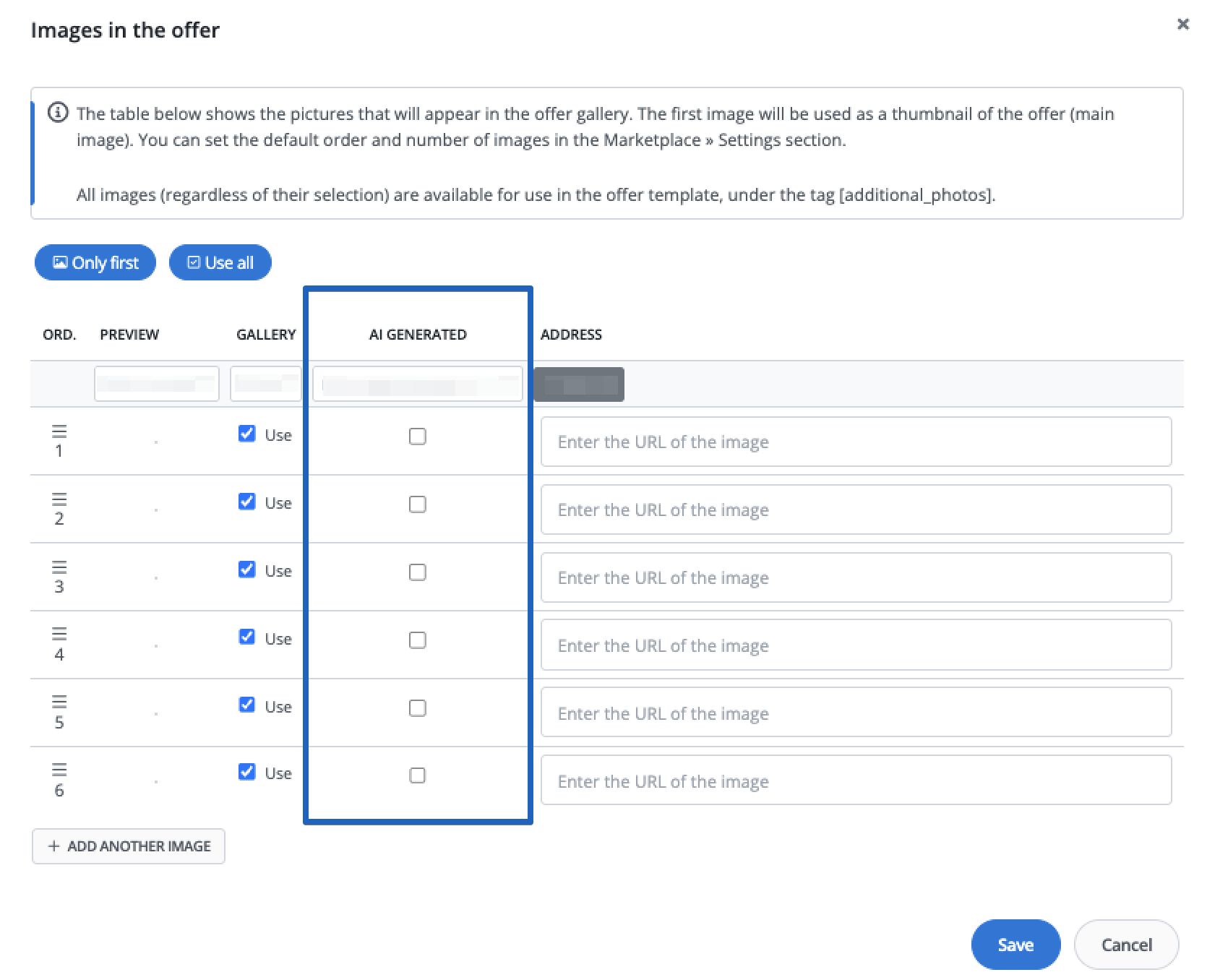
- In the listing form, click the product thumbnail in the Product column to open Images in offer.
- Review the images that will be included in the Arena gallery. The first selected image is used as the main image.
- If the form displays the AI-generated column, check the box next to every AI-generated image that should be marked for this offer. Images already marked in the catalog are selected by default in supported listing forms.
- Complete the required Arena category parameters and other offer data, then click List offers.
The checkbox in Images in offer applies only to the offer currently being prepared. Changing it does not change the marker saved on the product image in the catalog.
Arena’s gallery order and image count are configured separately in Integrations → Arena.pl → Settings → Listing settings. The available settings include the gallery image order and the number of gallery images. An image that is marked in the catalog but excluded from the Arena gallery will not be sent as part of that gallery.
For more information about the Arena listing form, gallery settings and offer statuses, see the article about listing and managing Arena offers.
Check the offer status after listing
After you click List offers, check the offer in Arena.pl → Offer management. Depending on the stage of processing, the offer may appear as Queued, Waiting for verification, Active or Error.
If the offer was created correctly, open it in Arena and check the gallery. The exact way in which Arena presents information about AI-generated images depends on the marketplace API and Arena’s own interface. The marker saved in Base.com should therefore be treated as source information and verified in the final offer.
Limitations and frequently asked questions
Does marking an image change the image?
No. Mark as AI-generated only adds or removes metadata associated with the image. It does not resize, edit, replace or delete the file.
Is marking the same as removing the background with AI?
No. Removing the background changes the image, while marking it as AI-generated only records information about how the image was created or edited. You can use both options independently.
Can I update the AI marker in an existing Arena offer?
The Arena integration does not support bulk updates of images in active offers. If you need to change an image or its handling after listing, use the Arena panel or end the offer and list it again, depending on the required change. You can review the available Base.com operations in the article about updating offers.